
MikroTik SXTsq Lite5 2PK
MikroTik SXTsq Lite5 Wireless Device User Manual
Model: SXTsq Lite5 2PK (RBSXTsq5nD)
1. Introduction
The MikroTik SXTsq Lite5 is a compact and lightweight outdoor wireless device featuring an integrated 16dBi antenna. It is engineered for establishing point-to-point links over distances up to 12 kilometers or for use as a Customer Premises Equipment (CPE) unit. This device is designed to be compact, weatherproof, and easy to mount, making it suitable for various outdoor networking applications. The SXTsq Lite5 improves upon previous models by significantly reducing physical size while retaining the 16dBi antenna gain, resulting in a device that is approximately two times thinner.
It includes a 10/100 Mbit Ethernet port and an accessible grounding connection for lightning protection, ensuring reliable operation in outdoor environments.
2. Package Contents
Verify that all items listed below are present in your package. If any items are missing or damaged, please contact your vendor.
- Two (2) MikroTik SXTsq Lite5 Wireless Devices
- Two (2) 24V Power Adapters
- Two (2) Passive PoE Injectors / Data+Power Cables
- Two (2) Metal Mounting Bands
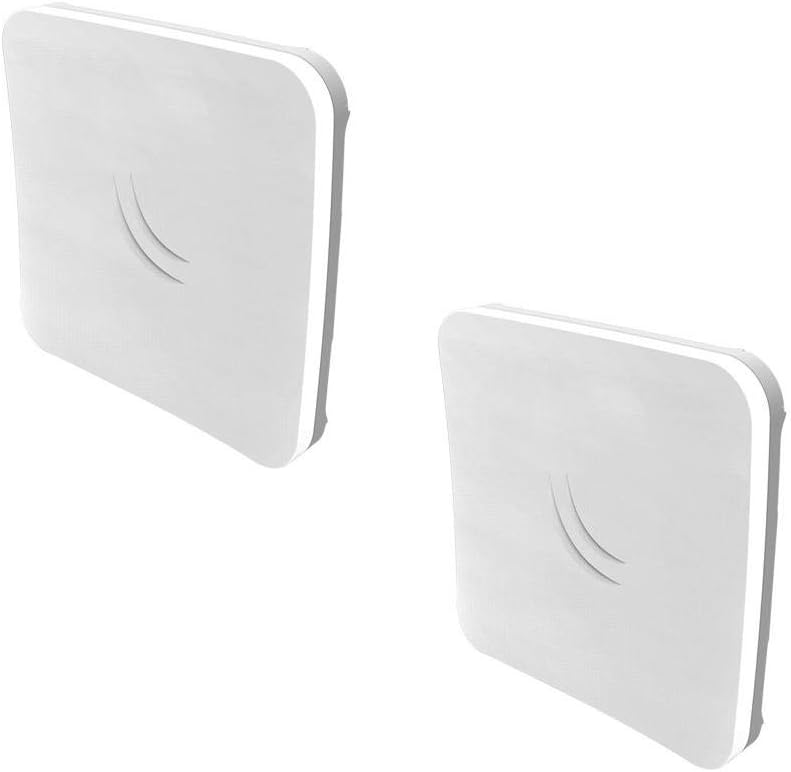
This image displays two MikroTik SXTsq Lite5 wireless devices, showing their compact, square design and white casing. These are the primary units for establishing wireless links.

This image shows the rear of the SXTsq Lite5 device, highlighting the mounting points and the recessed area for cable connections, including the Ethernet port and grounding point.

This image displays two Y-shaped cables, labeled "Data+ Power", which serve as passive Power over Ethernet (PoE) injectors. They combine data and power into a single Ethernet cable for the device.

This image shows two adjustable metal bands, designed for securely mounting the SXTsq Lite5 devices to poles or masts.

This image displays two black power adapters with standard US plugs, used to provide electrical power to the SXTsq Lite5 devices via the PoE injectors.
3. Setup and Installation
3.1 Mounting the Device
The SXTsq Lite5 is designed for outdoor installation and can be mounted on horizontal or vertical poles and masts using the included metal mounting bands. Ensure the mounting surface is stable and capable of supporting the device securely.
- Attach the metal mounting band through the designated slots on the back of the SXTsq Lite5 device.
- Secure the device to the pole or mast by tightening the band.
- For precise alignment, especially for long-distance point-to-point links, consider using the separately available MikroTik QuickMount Pro (not included in this package), which allows for adjustment in various angles.
3.2 Connecting Power and Ethernet
The device is powered via Passive Power over Ethernet (PoE) using the provided Data+Power cables and power adapters.
- Connect the small barrel connector from the 24V power adapter to the power input on the Data+Power cable.
- Connect an Ethernet cable from your network switch or router to the RJ45 port on the Data+Power cable.
- Connect the other end of the Data+Power cable (the RJ45 connector) to the Ethernet port on the SXTsq Lite5 device.
- Ensure the power adapter is plugged into a suitable electrical outlet.
3.3 Grounding
For protection against lightning and static discharge, it is crucial to properly ground the device. The SXTsq Lite5 has an easily accessible grounding connection point. Connect a suitable grounding wire from this point to a reliable earth ground.
3.4 Initial Configuration
The SXTsq Lite5 runs MikroTik's RouterOS. Initial configuration typically involves accessing the device's web interface or using MikroTik's WinBox utility. Refer to the official MikroTik documentation for detailed steps on configuring your specific network setup (e.g., point-to-point bridge, CPE mode, wireless settings, IP addressing).
4. Operating the Device
Once properly installed and configured, the SXTsq Lite5 operates as a 5GHz wireless device supporting 802.11a/n standards. Its primary functions include:
- Point-to-Point (PtP) Links: Used to establish a dedicated wireless bridge between two locations, ideal for extending network connectivity over distances up to 12 kilometers.
- CPE (Customer Premises Equipment) Unit: Functions as a client device to connect to a wireless access point or base station, providing internet or network access to an end-user location.
The device's integrated 16dBi antenna provides focused signal strength for reliable long-distance communication. Ensure proper alignment for optimal performance, especially in PtP scenarios.
5. Maintenance
The SXTsq Lite5 is designed for outdoor use and is weatherproof, requiring minimal routine maintenance. However, periodic checks can help ensure long-term reliability:
- Physical Inspection: Periodically inspect the device, mounting hardware, and cables for any signs of wear, damage, or corrosion. Ensure all connections are secure.
- Cleaning: If necessary, gently clean the exterior of the device with a soft, damp cloth. Do not use harsh chemicals or abrasive cleaners.
- Grounding Check: Verify that the grounding connection remains secure and intact to maintain lightning protection.
- Firmware Updates: Regularly check the MikroTik website for firmware updates for RouterOS. Keeping the firmware updated can improve performance, add features, and address security vulnerabilities.
6. Troubleshooting
If you encounter issues with your SXTsq Lite5 device, consider the following troubleshooting steps:
- No Power/Device Not Turning On:
- Ensure the power adapter is securely plugged into a working electrical outlet.
- Verify that the Data+Power cable is correctly connected to both the power adapter and the device's Ethernet port.
- Check the power adapter for any visible damage.
- No Network Connectivity:
- Confirm that the Ethernet cable from your network is properly connected to the Data+Power cable.
- Check the status LEDs on the device (if available) for network activity.
- Verify network settings (IP address, gateway, DNS) in the device's RouterOS configuration.
- For point-to-point links, ensure both devices are powered on, properly aligned, and configured with compatible wireless settings (SSID, frequency, security).
- Test the Ethernet cable and network port on your switch/router.
- Poor Wireless Performance:
- Check for line-of-sight obstructions between the devices in a point-to-point link.
- Ensure optimal antenna alignment. Even slight misalignments can significantly impact performance over long distances.
- Scan for interference on the 5GHz band and adjust the operating frequency/channel if necessary.
- Verify that the latest RouterOS firmware is installed.
- Device Unresponsive:
- Perform a power cycle (disconnect power for 10 seconds, then reconnect).
- If still unresponsive, you may need to perform a hard reset (refer to MikroTik documentation for specific reset procedures for your model, as this may revert settings to factory defaults).
For advanced troubleshooting or specific RouterOS configuration issues, consult the comprehensive MikroTik documentation available on their official website or seek assistance from MikroTik's support forums.
7. Specifications
| Feature | Detail |
|---|---|
| Brand | MikroTik |
| Model Number | SXTsq Lite5 2PK (RBSXTsq5nD) |
| Antenna | Integrated 16dBi |
| Wireless Standard | 802.11a/n |
| Frequency | 5GHz |
| Ethernet Ports | One (1) 10/100 Mbit |
| Maximum Range | Up to 12 kilometers (point-to-point) |
| Powering | Passive PoE (24V power adapter included) |
| Color | White |
| Item Weight | 2 pounds (per unit, approximate) |
| Package Dimensions | 10.35 x 7.87 x 3.62 inches |
| UPC | 680392654472 |
| Manufacturer | Mikrotik |
8. Warranty and Support
8.1 Product Warranty
Specific warranty terms and conditions for the MikroTik SXTsq Lite5 are provided by the manufacturer. Please refer to the documentation included with your product or visit the official MikroTik website for detailed warranty information, including coverage period and claims procedures.
8.2 Technical Support
For technical assistance, advanced configuration guides, or to download the latest RouterOS firmware, please visit the official MikroTik website:
MikroTik also maintains extensive documentation and a community forum where users can find solutions and share knowledge.
Related Documents - SXTsq Lite5 2PK
 |
RouterBOARD 912G-5HPnD Quick Setup Guide and Compliance Information Comprehensive guide for the MikroTik RouterBOARD 912G-5HPnD, covering quick setup, powering options, booting process, extension slots, and essential FCC and Industry Canada compliance statements, including RF exposure guidelines and approved antennas. |
 |
MikroTik Quick Guide G3: Wireless Network Device Setup This MikroTik Quick Guide G3 provides essential setup, installation, and safety information for various MikroTik wireless network devices, including SXTsq, LHG, Disc, and LDF series. Learn how to get started with your device. |
 |
MikroTik hAP lite TC Wireless Access Point User Manual Comprehensive user manual for the MikroTik hAP lite TC, a simple home wireless access point. Covers quick start, configuration, powering, mounting, specifications, and regulatory compliance. |
 |
MikroTik Wireless Wire Cube Pro (CubeG-5ac60ay) User Manual and Specifications Comprehensive user manual and technical specifications for the MikroTik Wireless Wire Cube Pro (CubeG-5ac60ay) and Cube 60Pro ac, covering installation, configuration, safety, RF exposure, regulatory compliance, and detailed performance data. |
 |
MikroTik PoE-Out Configuration and Management Guide A comprehensive guide to configuring, monitoring, and troubleshooting MikroTik's PoE-Out feature, covering supported standards, modes, limitations, and LED indicators. |
 |
MikroTik PoE-Out: Features, Configuration, and Troubleshooting Guide A comprehensive guide to MikroTik's Power over Ethernet (PoE-Out) feature, detailing supported standards, PSE selection, configuration options in RouterOS and SwOS, monitoring capabilities, LED notifications, operational modes, limitations, safety features, examples, and troubleshooting steps. |
Ask a question about this manual
Ask about setup, troubleshooting, compatibility, parts, safety, or missing instructions. Manuals+ will review the question and use this page’s manual context to help answer it.