
1. Introduction
This manual provides detailed instructions for the safe and effective use of your FeiyuTech Vimble 2S 3-Axis Smartphone Gimbal Stabilizer. Please read this manual thoroughly before operation and retain it for future reference.
2. Product Overview
The FeiyuTech Vimble 2S is a versatile 3-axis smartphone gimbal stabilizer designed to capture smooth, professional-looking video footage and stable photos. It features an extendable pole, object tracking, time-lapse capabilities, and broad compatibility with various smartphone models.

Figure 2.1: FeiyuTech Vimble 2S Gimbal Stabilizer and included accessories.
Key Features:
- 3-Axis Stabilization: Ensures smooth and steady footage by compensating for unwanted movements.
- 18cm Extendable Pole: Allows for wider shots, group photos, and unique angles, functioning like a selfie stick.
- Quick Horizontal/Vertical Switching: Easily switch between landscape and portrait modes for diverse shooting scenarios.
- Object Tracking: Utilizes the Feiyu ON app to automatically follow a selected subject.
- Time-Lapse & Panorama: Advanced shooting modes for creative content creation.
- Built-in Camera Compatibility: Supports direct control of your smartphone's native camera app.
- Long Battery Life: Up to 10 hours of working time (including dormancy).
3. Setup and First Use
3.1 Unboxing and Components
Carefully unpack all items from the box. Ensure you have the following components:
- FeiyuTech Vimble 2S Gimbal Stabilizer
- Mini Tripod
- USB Charging Cable
- Smartphone Charging Cables (Micro USB, Type-C, Lightning)
- Wrist Strap
- User Manual

Figure 3.1: Included accessories: Gimbal, mini tripod, wrist strap, charging cables, and documentation.
3.2 Charging the Gimbal
Before first use, fully charge the gimbal. Connect the USB charging cable to the gimbal's charging port and a USB power adapter (not included). The indicator light will show charging status.

Figure 3.2: The gimbal can also charge your smartphone during use, acting as a power bank.
3.3 Mounting and Balancing Your Smartphone
Important: Always mount and balance your smartphone BEFORE powering on the gimbal to prevent motor damage and ensure proper operation.
- Unlock Motors: The Vimble 2S has motor locks on the tilt and roll axes for storage. Unlock these before mounting your smartphone.
- Mount Phone: Place your smartphone securely in the phone holder. Ensure it is centered and snug. The gimbal supports phones with width no more than 84mm, length no more than 6 inches, and weight within 200g. Large smartphones (e.g., iPhone 11 Pro Max 226g, HUAWEI MATE20X 232g) are beyond the max payload and cannot be balanced.
- Balance Phone: Adjust the phone's position in the holder until it is roughly balanced horizontally and vertically. The gimbal should remain stable even when powered off.

Figure 3.3: The gimbal allows for quick switching between horizontal and vertical shooting orientations.
3.4 App Installation and Bluetooth Connection
For full functionality, download the "Feiyu ON" app from your smartphone's app store (iOS 11.0+ or Android 5.0+). You will need to connect the app or your native camera to control your phone or use certain gimbal functions.
- Download App: Search for "Feiyu ON" in the App Store or Google Play Store.
- Power On Gimbal: Press and hold the power button until the gimbal powers on.
- Connect Bluetooth: Open the Feiyu ON app, navigate to the connection interface, and select your Vimble 2S from the list of available devices.

Figure 3.4: The gimbal supports recording using your smartphone's built-in camera, as well as third-party apps.
4. Operating the Gimbal
4.1 Controls Overview
Familiarize yourself with the main controls on the gimbal handle:
- Joystick: Controls pan and tilt movements.
- Shutter Button (Works with App):
- Single tap: photography/video recording
- Double-tap: switch between photo/video mode
- Triple tap: Switch front and rear camera
- Long press: start video recording under photo mode
- Quintuple tap: Initializing the gimbal to get correct attitude parameters when it is not level or in abnormal state.
- Function Button: Customizable via app, typically for power on/off and mode switching.
- Zoom Slider: Controls digital zoom in/out. Pull up for Zoom In, pull down for Zoom Out.
- Trigger Button (Rear): Long press for quick lock, release to return to previous working mode.

Figure 4.1: The new trigger button offers quick setting functions like Pan Mode, Follow Mode, and Lock Mode.

Figure 4.2: The zoom slider allows for high-precision focus changes and creative shots.
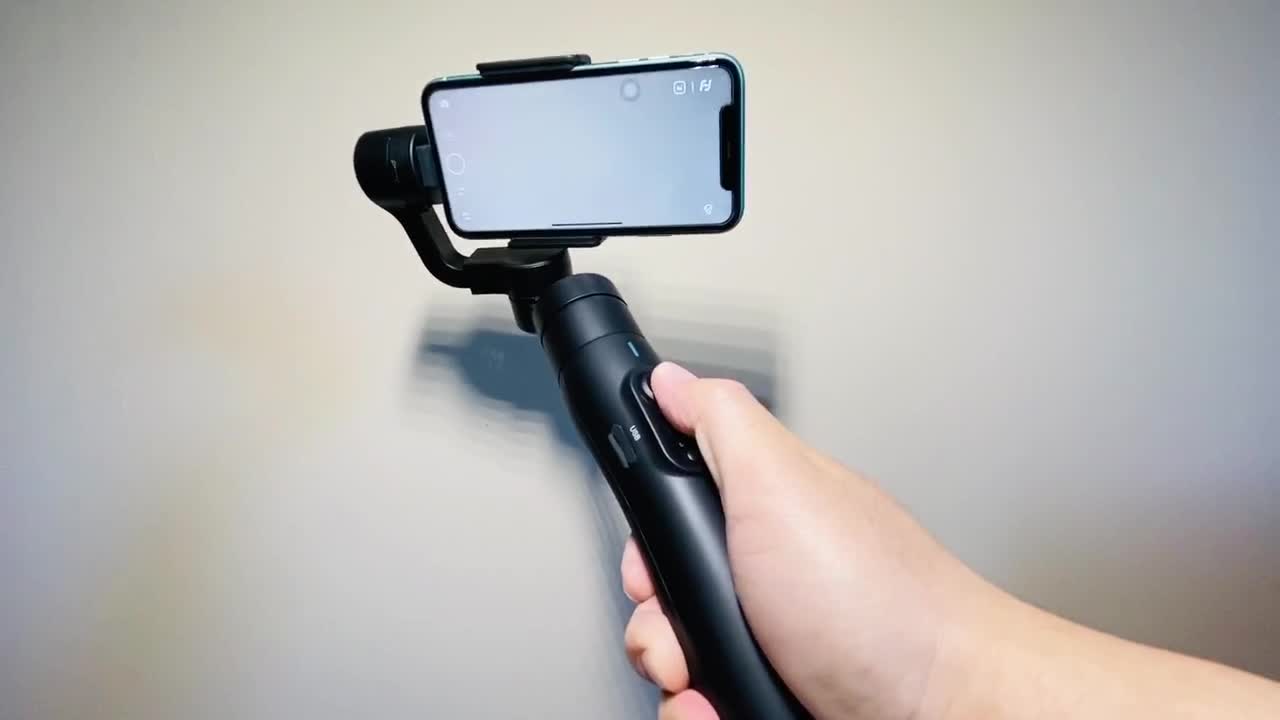
Figure 4.3: Overview of gimbal controls including Bluetooth connection, zooming button, and one-key photo.
4.2 Gimbal Modes
The Vimble 2S offers several operating modes for different shooting scenarios:
- Pan Mode (Default): The camera pans left/right following your hand movements, while tilt and roll axes are locked.
- Follow Mode: The camera follows your pan and tilt movements smoothly.
- Lock Mode: All three axes are locked, keeping the camera pointing in a fixed direction regardless of gimbal movement.
- All Follow Mode (3-axis): All three axes follow your hand movements.
- POV Mode: Provides a "Space Vision" experience, allowing for 320-degree rotation on all three axes for dynamic shots.

Figure 4.4: Ultimate POV mode allows for 320-degree rotation on all axes, enabling dynamic and immersive footage.
4.3 Using the Extendable Pole
The Vimble 2S features an integrated 18cm extendable pole for expanded shooting possibilities.
- Extend: Gently pull the top section of the gimbal handle upwards to extend the pole.
- Retract: Push the extended section back into the handle until it locks securely.

Figure 4.5: The 18cm extendable pole provides greater freedom for filming, especially for selfies and group photos.
5. Maintenance and Care
- Keep the gimbal clean and free from dust and debris. Use a soft, dry cloth for cleaning.
- Avoid exposing the gimbal to extreme temperatures, moisture, or direct sunlight for prolonged periods.
- Store the gimbal in its protective case when not in use to prevent damage.
- Do not attempt to disassemble or repair the gimbal yourself. Contact customer support for assistance.
6. Troubleshooting
| Problem | Possible Cause | Solution |
|---|---|---|
| Gimbal vibrates or shuts down automatically. | Smartphone not properly mounted or balanced; motor locks not disengaged; phone weight exceeds 200g. | Ensure smartphone is securely mounted and balanced before powering on. Disengage all motor locks. Verify phone weight is within 200g. |
| Face tracking not working. | Portrait orientation is enabled on the phone. | Turn off portrait orientation on your smartphone. |
| Cannot connect to Feiyu ON app or control phone. | Bluetooth is off; app not updated; gimbal not powered on; app not connected to gimbal. | Ensure Bluetooth is enabled on your phone. Update the Feiyu ON app. Power on the gimbal. Connect the app to the gimbal. |
| Roll axis captured in wide-angle footage. | Using wide-angle lenses on large smartphones (e.g., iPhone 11 Pro Max, iPhone 11, HUAWEI P30). | Use a normal lens when filming with wide-angle lenses on larger smartphones to avoid the roll axis appearing in footage. |
| Gimbal not level or in abnormal state. | Calibration required. | Quintuple tap the shutter button to initialize the gimbal and get correct attitude parameters. |
7. Specifications
| Feature | Detail |
|---|---|
| Product Dimensions | 13.78 x 6.69 x 2.44 inches |
| Item Weight | 15.1 ounces (0.43 Kilograms) |
| Model Number | vimble 2S |
| Compatible Devices | Cellphone, Camera |
| Maximum Payload | 200g (0.2 Kilograms) |
| Compatible Phone Dimensions | Width no more than 84mm, Length no more than 6 inches |
| Battery Life | Up to 10 hours (including dormancy), 5 hours in running status. |
| Charging Time | 2 hours (with 5V/2A adapter) |
| Extendable Pole Length | 18 cm |
| Rotation Angles | Approx. 320 degrees for each axis |
| UPC | 727542064528 |
8. Warranty and Support
FeiyuTech products typically come with a limited warranty. For detailed warranty information, product registration, or technical support, please visit the official FeiyuTech website or contact their customer service directly.
Official FeiyuTech Store: FeiyuTech Amazon Store