
1. Introduction
This manual provides essential instructions for the setup, operation, and maintenance of your Canon ImageFORMULA DR-C225 II Office Document Scanner. Designed for efficiency and ease of use, this compact scanner converts paper documents into digital formats, supporting various document types and cloud integration.

2. What's in the Box
Verify that all the following items are included in your package:
- ImageFORMULA Sheetfed Scanner
- Setup Guide
- USB Cable
- Warranty Card
- AC Adaptor
- Insert for eCarePak Information
- Power Cable for 120V
- License Key for eCopy PDF Pro Office
- Insert for Cardiris
- Insert for Call Center
- Packaging Materials
3. Setup Instructions
3.1. Physical Connection
- Unpack the Scanner: Carefully remove the scanner and all accessories from the packaging.
- Connect Power: Connect the AC adaptor to the scanner's power input and then plug the power cable into a wall outlet.
- Connect to Computer: Use the provided USB cable to connect the scanner to an available USB port on your computer.

3.2. Software Installation
Before operating the scanner, install the necessary drivers and software from the Canon website or the included media.
- Download Drivers: Visit the official Canon support website for the DR-C225 II model and download the latest drivers and CaptureOn Touch software.
- Install Software: Follow the on-screen instructions to install the drivers and bundled scanning software. Ensure TWAIN drivers are installed for broad compatibility.
- Restart Computer: It is recommended to restart your computer after installation to ensure all drivers are properly loaded.

4. Operating Instructions
4.1. Loading Documents
- Ensure documents are free of staples, paper clips, or any obstructions.
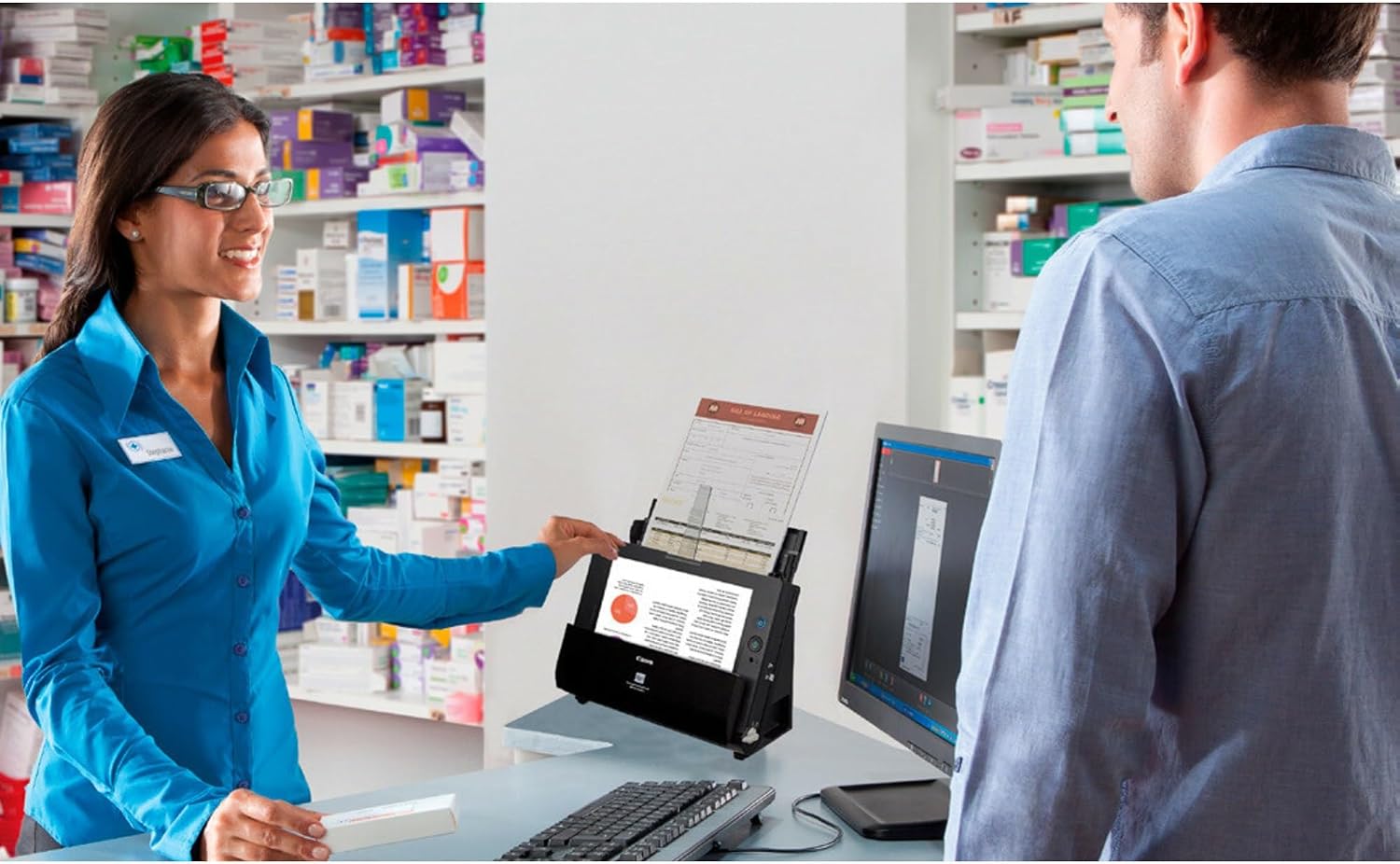
- Place documents face-down in the automatic document feeder (ADF). The scanner supports various document types including receipts, photos, business cards, plastic cards, and long documents.
- Adjust the paper guides to fit the width of your documents. The ADF has a capacity of up to 30 sheets.
4.2. Scanning Process
- Power On: Press the power button on the scanner.
- Launch Software: Open the Canon CaptureOn Touch software on your computer.
- Select Scan Profile: Choose a pre-configured scan profile or customize settings such as color mode, resolution, and destination. The scanner supports duplex scanning (both sides simultaneously) at up to 25 pages per minute.
- Start Scan: Press the scan button on the scanner or initiate the scan from the software.
- Review and Save: After scanning, review the digitized documents. You can save them as searchable PDF, JPG, or other formats, or directly to cloud services like Dropbox, Google Drive, OneDrive, and Evernote.
5. Maintenance
Regular maintenance ensures optimal performance and longevity of your scanner.
5.1. Cleaning the Scanner
- Power Off: Always turn off and unplug the scanner before cleaning.
- Exterior Cleaning: Wipe the exterior of the scanner with a soft, dry, lint-free cloth. Do not use abrasive cleaners or solvents.
- Interior Cleaning: Open the scanner cover and gently wipe the rollers and glass scanning surface with a soft cloth lightly dampened with water or an approved scanner cleaning solution. Ensure all components are dry before closing the cover and powering on.
6. Troubleshooting
This section addresses common issues you might encounter. For more detailed troubleshooting, refer to the software's help section or Canon's support website.
6.1. Common Issues
- Paper Jams: If a paper jam occurs, carefully open the scanner cover and remove the jammed document. Ensure paper guides are correctly set for the document size.
- Poor Scan Quality: Clean the scanner's interior components, especially the glass scanning surface and rollers. Ensure documents are clean and flat.
- Scanner Not Detected: Verify that the USB cable is securely connected to both the scanner and the computer. Check if the scanner is powered on. Reinstall drivers if necessary.
7. Specifications
Key technical specifications for the Canon ImageFORMULA DR-C225 II Office Document Scanner:
| Feature | Specification |
|---|---|
| Product Dimensions | 11.8"W x 6.1"D x 8.7"H |
| Item Weight | 5.95 pounds |
| Model Name | ImageFORMULA DR-C225 II |
| Item Model Number | 3258C002 |
| Scanner Type | Document |
| Connectivity Technology | USB |
| Resolution | 600 dpi |
| Standard Sheet Capacity | 30 sheets |
| Optical Sensor Technology | CIS (Contact Image Sensor) |
| Wattage | 13 watts |
| Date First Available | July 19, 2018 |

8. Warranty and Support
The Canon ImageFORMULA DR-C225 II Office Document Scanner is backed by a 3-year warranty. For technical assistance, please contact Canon's US-based technical support. You can find contact information and additional resources on the official Canon support website: www.usa.canon.com/support


