
Brother MFCL3750CDW
Brother MFC-L3750CDW Digital Color All-in-One Printer User Manual
Model: MFCL3750CDW
Product Overview
The Brother MFC-L3750CDW is a compact digital color all-in-one printer designed for busy home or small office environments. It offers laser printer quality with the ability to print in color, along with scanning, copying, and faxing capabilities. This model supports wireless printing, automatic duplex printing, and is Amazon Dash Replenishment Ready.

Front view of the Brother MFC-L3750CDW Digital Color All-in-One Printer, showcasing its compact design and control panel.
Key features include:
- Print speeds of up to 25 pages per minute (ppm) for both color and monochrome.
- Scan speeds up to 29 images per minute (ipm) for black and 22 ipm for color.
- Automatic duplex (2-sided) printing to save paper.
- Flexible paper handling with a 250-sheet capacity adjustable paper tray and a 50-sheet automatic document feeder (ADF).
- Versatile connectivity options: built-in wireless, Ethernet, Wi-Fi Direct, and USB interface.
- 3.7-inch color touchscreen for direct access to cloud apps and custom shortcuts.
Setup Guide
1. Unpacking and Initial Setup
Carefully remove the printer from its packaging. Ensure all protective tapes and packing materials are removed from the exterior and interior of the device.
Included Components:
- Brother MFC-L3750CDW Digital Color Multi-Function Center
- Starter Black Toner Cartridge (1,000 pages)
- Starter Cyan Toner Cartridge (1,000 pages)
- Starter Yellow Toner Cartridge (1,000 pages)
- Starter Magenta Toner Cartridge (1,000 pages)
- DR223CL Drum Unit Set (18,000 pages)
- CD-ROM with Printer Drivers and Quick Setup Guide
2. Installing Toner Cartridges and Drum Unit
Open the front cover of the printer. Install the drum unit and toner cartridge assemblies into the printer. Ensure each color cartridge is seated correctly within its corresponding slot in the drum unit.
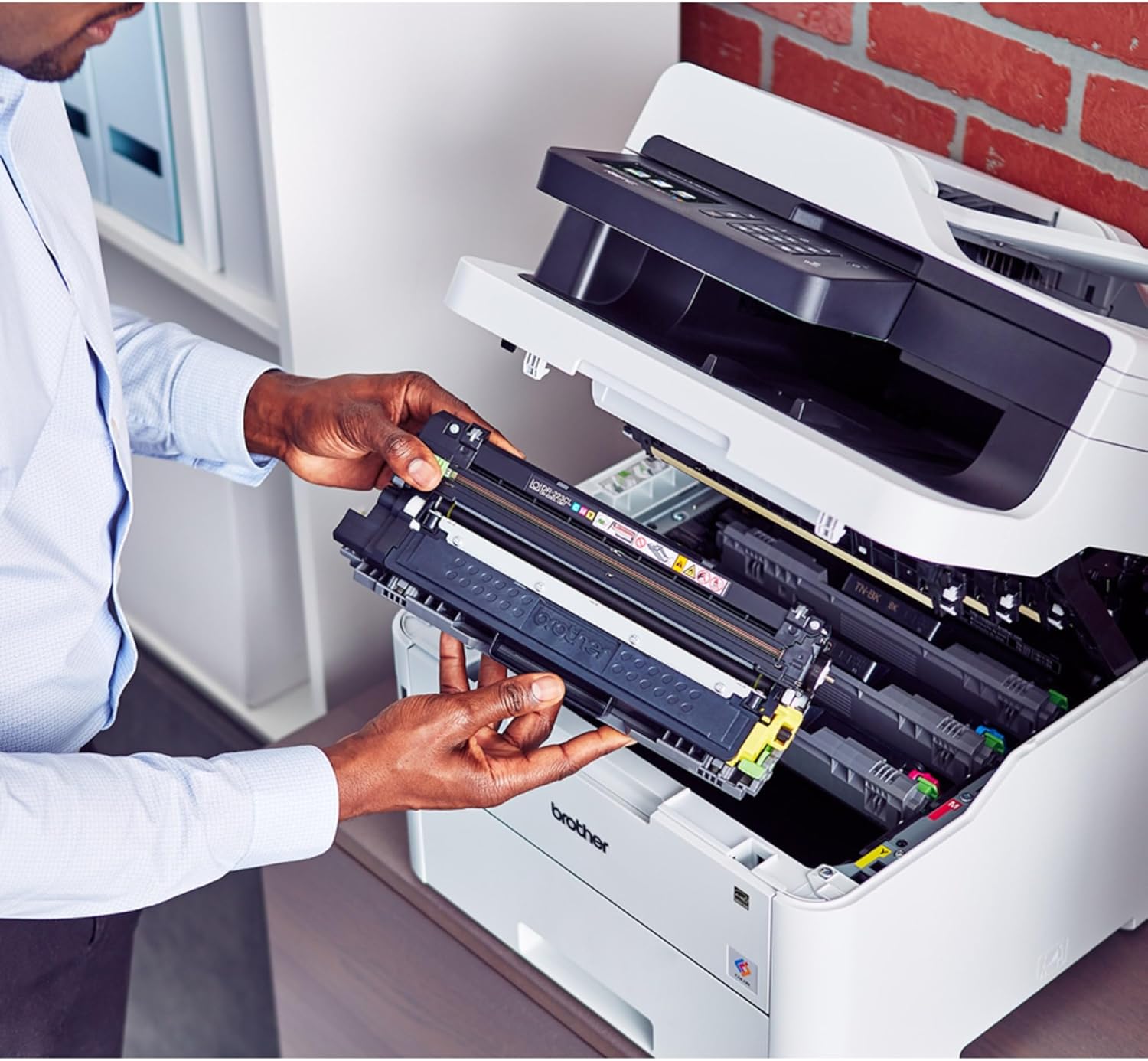
A user demonstrating the proper method for installing a toner cartridge into the Brother MFC-L3750CDW printer.
3. Loading Paper
Pull out the paper tray completely. Adjust the paper guides to fit the size of the paper you are loading. Load paper into the tray with the print side facing down. Ensure the paper does not exceed the maximum fill line.

A user pulling out the paper tray to load paper into the Brother MFC-L3750CDW printer.
For single sheets or special media like envelopes or card stock, use the manual feed slot located at the front of the printer.

A user loading a single sheet of paper into the manual feed slot of the Brother MFC-L3750CDW printer.
4. Connecting the Printer
Connect the power cord to the printer and then to a power outlet. For network connectivity, you can choose between wireless (Wi-Fi) or wired (Ethernet) connection. For direct connection to a computer, use a USB cable.
Follow the on-screen instructions on the printer's 3.7" color touchscreen to complete network setup or driver installation from the provided CD-ROM.
Operating Instructions
Printing Documents
To print from a computer or mobile device, ensure the printer is connected to the same network. Select the print option from your application and choose the Brother MFC-L3750CDW from the list of available printers. Adjust print settings such as color/monochrome, duplex printing, and paper type as needed.
Copying Documents
Place the document face down on the scanner glass or face up in the Automatic Document Feeder (ADF). Use the touchscreen to select the "Copy" function. You can adjust settings like number of copies, color/monochrome, and enlargement/reduction.

A user placing a document into the Automatic Document Feeder (ADF) of the Brother MFC-L3750CDW for copying or scanning.
Scanning Documents
Documents can be scanned to various destinations including a computer, email, or cloud services. Place the document on the scanner glass or in the ADF. On the touchscreen, select "Scan" and choose your desired destination and scan settings (e.g., resolution, file format).

A user interacting with the 3.7-inch color touchscreen of the Brother MFC-L3750CDW to select functions or adjust settings.
Faxing Documents
Load the document into the ADF or place it on the scanner glass. Select the "Fax" function on the touchscreen, enter the recipient's fax number, and press Start. The printer supports both color and monochrome faxing.
Maintenance
Replacing Toner Cartridges
When a toner cartridge is low or empty, the printer's display will indicate which cartridge needs replacement. Open the front cover, remove the drum unit assembly, and then remove the individual toner cartridge from the drum unit. Install the new toner cartridge into the drum unit until it clicks into place, then reinsert the assembly into the printer.
Note: The printer uses TN223 (Standard Yield) or TN227 (High Yield) series toner cartridges. The drum unit (DR223CL) has a separate replacement cycle.
Cleaning the Printer
Regularly clean the exterior of the printer with a soft, lint-free cloth. For internal components like the scanner glass or corona wire, refer to the detailed cleaning instructions in the full user guide to avoid damage.
Troubleshooting
This section provides solutions to common issues. For more complex problems, refer to the comprehensive user guide or contact Brother support.
| Problem | Possible Cause / Solution |
|---|---|
| Printer not powering on | Ensure the power cord is securely connected to both the printer and a working electrical outlet. |
| Paper jams | Remove all jammed paper carefully following the instructions on the printer's display. Ensure paper is loaded correctly and not overfilled. |
| Poor print quality (streaks, faded colors) | Check toner cartridge levels. Clean the corona wire or drum unit. Ensure you are using genuine Brother supplies. |
| Cannot connect to Wi-Fi | Verify Wi-Fi password. Ensure the printer is within range of the wireless router. Restart both the printer and the router. |
| "Drum Unit End Of Life" message | Replace the DR223CL drum unit. This is a separate consumable from the toner cartridges. |
Specifications
| Feature | Detail |
|---|---|
| Model Number | MFCL3750CDW |
| Functions | Print, Copy, Scan, Fax |
| Print Technology | Laser (Digital Color LED) |
| Max Print Speed (Color/Mono) | Up to 25 ppm |
| Max Print Resolution (Color) | 9600 dpi |
| Max Print Resolution (Black & White) | 19200 dpi |
| Automatic Duplex Printing | Yes |
| Scanner Type | Document |
| Max Scan Speed (Black) | 29 ipm |
| Max Scan Speed (Color) | 22 ipm |
| Paper Tray Capacity | Up to 250 sheets |
| Automatic Document Feeder (ADF) Capacity | 50 pages |
| Display Type | 3.7" Color LCD Touchscreen |
| Connectivity | Wi-Fi, Ethernet, USB |
| Product Dimensions (DxWxH) | 16.1"D x 18.7"W x 16.3"H |
| Item Weight | 51.5 pounds |
| Power Consumption (On-mode) | 430 Watts |
| Noise Level (Printing) | 47 dB |
Warranty and Support
The Brother MFC-L3750CDW Digital Color All-in-One Printer comes with a one-year limited warranty. Brother provides free online, call, or live chat support for the life of your printer.
For detailed support, driver downloads, and the full user guide, please visit the official Brother support website or refer to the included CD-ROM.
You can also find the official User Guide (PDF) here.