
Royole RY0201CF5EU
Royole RoWrite Smart Writing Pad User Manual
Model: RY0201CF5EU
1. Introduction
The Royole RoWrite is an innovative smart writing pad designed to bridge the gap between traditional handwriting and digital convenience. It allows you to capture your notes, sketches, and drawings in real-time as digital files, while still using your preferred paper and a standard ballpoint pen. The captured content can be stored, edited, and shared via the dedicated RoWrite app on your smartphone or tablet.

Figure 1.1: Royole RoWrite Smart Writing Pad in open position.

Figure 1.2: Royole RoWrite Smart Writing Pad in closed folio position.
2. What's in the Box
Please check the package contents to ensure all items are present:
- Royole RoWrite Smart Writing Pad
- Pressure Sensitive Pen
- Folio Case
- RoWrite Notepad (A5 size)
- USB Charging Cable
- Quick Start Guide
3. Setup
3.1. Charging the RoWrite Pad
Before first use, fully charge the RoWrite pad. Connect the provided USB charging cable to the charging port on the device and to a standard USB power adapter (not included).
3.2. Inserting the Pen Battery
The pressure-sensitive pen requires a Lithium Ion battery (included). Unscrew the pen barrel, insert the battery according to the polarity indicators, and reassemble the pen.

Figure 3.1: Royole RoWrite pressure-sensitive pen.
3.3. Installing the RoWrite App
Download the official RoWrite app from the Apple App Store (for iOS devices) or Google Play Store (for Android devices). Search for "RoWrite" and follow the on-screen instructions to install.
3.4. Pairing with Your Device
- Ensure Bluetooth is enabled on your smartphone or tablet.
- Turn on the RoWrite pad by pressing the power button.
- Open the RoWrite app and follow the prompts to pair your device. The app will guide you through the Bluetooth connection process.
3.5. Placing Paper
Place the RoWrite notepad (or any standard A5 paper) onto the writing surface of the RoWrite pad. Ensure it is aligned correctly within the designated area for optimal capture.

Figure 3.2: Correct placement of paper on the RoWrite pad.
4. Operating Instructions
4.1. Basic Writing and Drawing
Once the pad is paired and paper is in place, simply write or draw on the paper with the pressure-sensitive pen as you normally would. The RoWrite pad will automatically digitize your strokes in real-time and display them in the connected app.

Figure 4.1: Writing on the RoWrite pad.

Figure 4.2: Drawing on the RoWrite pad.
4.2. Saving and Managing Notes
Your notes are automatically saved within the RoWrite app. You can organize them into folders, rename them, and browse through your digital library.
4.3. Converting Handwriting to Text
The RoWrite app features an optical character recognition (OCR) function. Select a page in the app and choose the option to convert handwriting to editable text. Accuracy may vary based on handwriting legibility.
4.4. Editing and Enhancing
Within the app, you can edit your captured notes and drawings. This includes changing pen thickness, adding colors, highlighting, and erasing digital strokes without affecting the physical paper.
4.5. Sharing Your Content
Share your digitized notes and drawings directly from the app via email, messaging apps, or cloud storage services. You can export content in various formats such as PDF, image files, or text documents.
4.6. Using the RoWrite in Different Environments
The RoWrite is portable and can be used in various settings, from office meetings to outdoor sketching, allowing for flexible note-taking and creative expression.

Figure 4.3: RoWrite in an outdoor setting.

Figure 4.4: RoWrite used in a collaborative environment.
5. Maintenance
5.1. Cleaning the Device
Wipe the RoWrite pad and pen with a soft, dry, lint-free cloth. Do not use liquid cleaners or abrasive materials.
5.2. Replacing Pen Refills and Batteries
The pen uses standard D1 ballpoint pen refills. Replace the refill when the ink runs out. Replace the pen battery when the pen's responsiveness decreases or it fails to register strokes.
5.3. Paper Replacement
The RoWrite pad is designed to work with standard A5 paper. You can purchase Royole RoWrite notepads or use any A5 paper that fits within the designated writing area.
6. Troubleshooting
- Device Not Turning On: Ensure the device is fully charged. If the issue persists, try a different charging cable or power adapter.
- Pen Not Registering Strokes: Check if the pen battery is inserted correctly and has sufficient charge. Replace the battery if necessary. Ensure the pen tip is not worn out and replace the refill if needed.
- Connectivity Issues (Bluetooth): Make sure Bluetooth is enabled on both the RoWrite pad and your smart device. Try unpairing and re-pairing the devices. Ensure the RoWrite app is updated to the latest version.
- Handwriting Conversion Inaccuracy: OCR accuracy can be affected by handwriting style. Try writing more clearly and consistently. Ensure the paper is flat and properly aligned on the pad.
- App Not Responding: Close and restart the RoWrite app. If the problem continues, restart your smartphone or tablet. Ensure your device's operating system is up to date.
7. Specifications
| Feature | Detail |
|---|---|
| Brand | Royole |
| Model Name | RoWrite |
| Item Model Number | RY0201CF5EU |
| Product Dimensions | 25.1 x 3.15 x 20.32 cm |
| Item Weight | 880 g |
| Colour | Black |
| Connectivity Technology | Bluetooth |
| Operating System Compatibility | Android, iOS |
| Batteries | 1 Lithium Ion battery required (included) |
| Lithium Battery Energy Content | 5 Watt Hours |
| Lithium Battery Weight | 20 g |
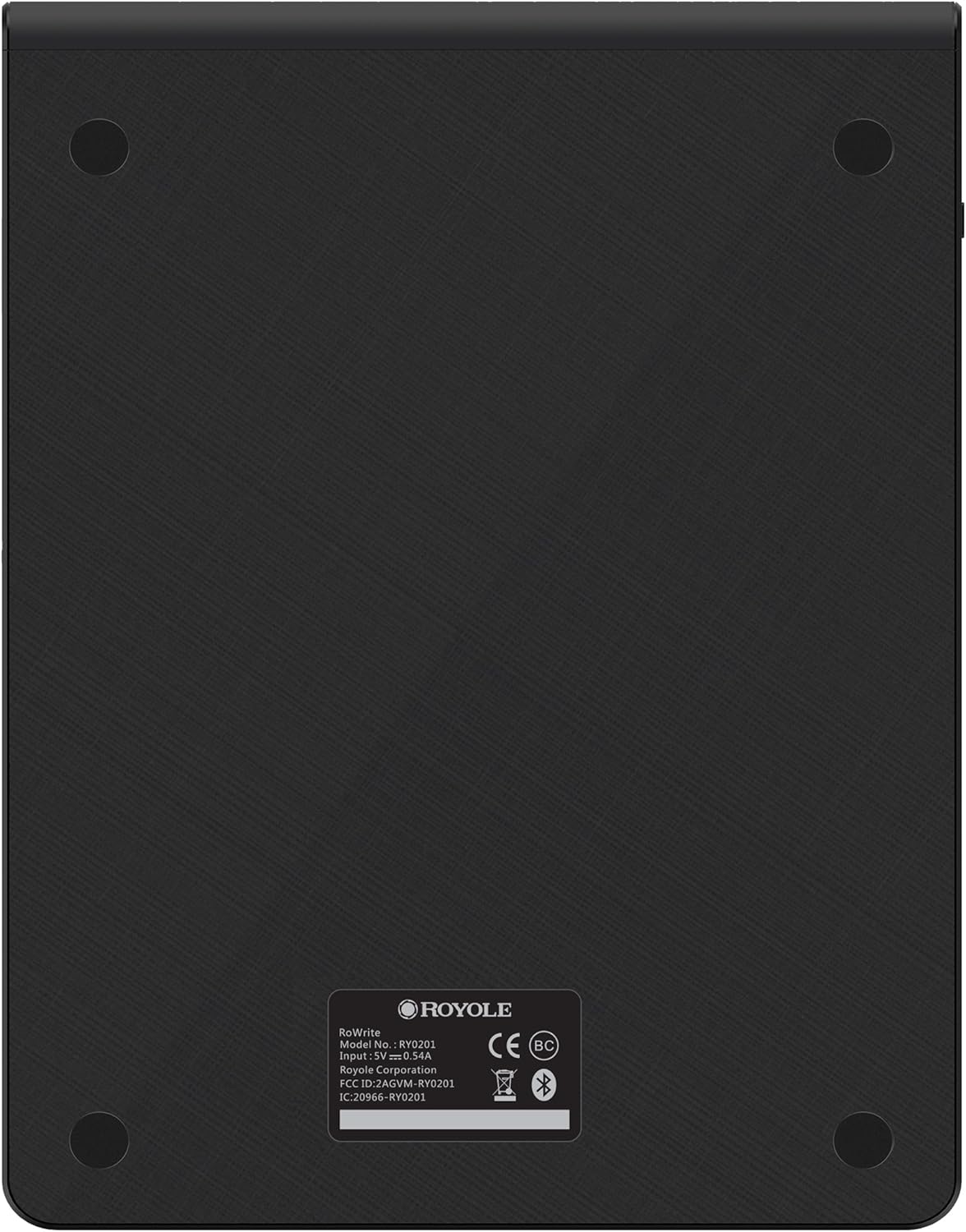
Figure 7.1: Back view of the RoWrite pad.

Figure 7.2: Side view of the RoWrite pad.
8. Warranty and Support
For warranty information and technical support, please refer to the documentation included with your product or visit the official Royole website. You can also contact Royole customer service through their support channels for assistance with product operation, troubleshooting, or replacement parts.
Ask a question about this manual
Ask about setup, troubleshooting, compatibility, parts, safety, or missing instructions. Manuals+ will review the question and use this page’s manual context to help answer it.