
1. Introduction
The Zink Polaroid Pop Instant Print Digital Camera (Model POL-POP1PKAMZ) combines a 20-megapixel digital camera with an integrated ZINK Zero Ink printer. This innovative device allows you to capture high-resolution photos and 1080p HD videos, then instantly print 3.5 x 4.25-inch full-color pictures with the classic Polaroid border. The camera features a 3.97-inch touchscreen display for intuitive navigation, photo editing, and seamless sharing. With built-in Wi-Fi, you can connect to mobile devices for expanded functionality and social media integration.
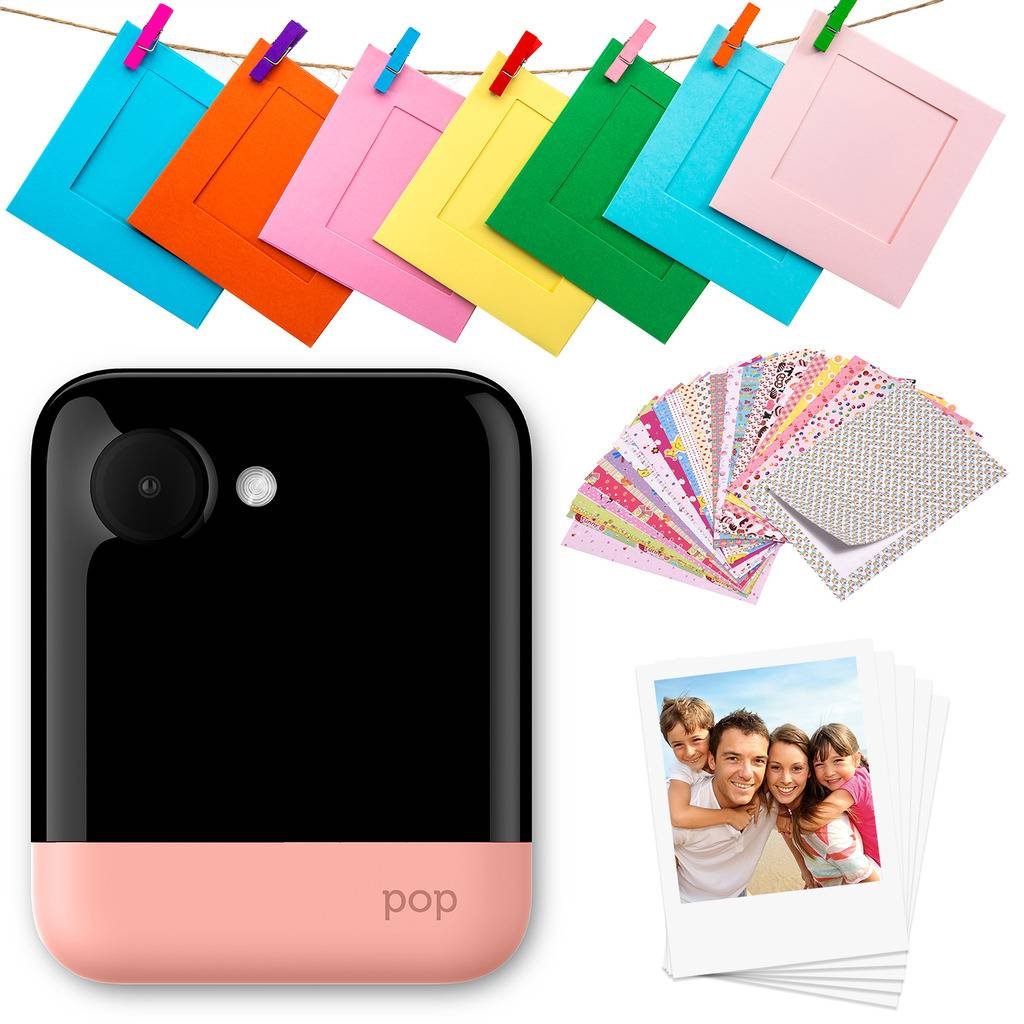
Image: The Polaroid Pop camera, black with a pink base, shown printing a photo of a family. This illustrates the instant print capability.
2. Setup
2.1 Charging the Battery
Before initial use, fully charge the camera's internal Lithium Ion battery. Connect the provided USB cable to the camera's charging port and plug the other end into a compatible USB power adapter (not always included) or a computer's USB port. The charging indicator light will show the charging status and turn off or change color when fully charged.
2.2 Loading ZINK Photo Paper
- Locate and open the paper tray on the camera.
- Insert a pack of ZINK Photo Paper into the tray. Ensure the blue calibration sheet is at the bottom of the stack, facing down.
- Close the paper tray securely. The camera will automatically process the blue sheet to optimize print quality for the new paper pack.

Image: A Polaroid Pop camera, black with a pink base, shown with a printed photo emerging from the top slot. This demonstrates the paper output.
2.3 Inserting a MicroSD Card (Optional)
Locate the MicroSD card slot on the side of the camera. Gently insert a MicroSD card (up to 128GB, sold separately) until it clicks into place. This provides expanded storage for your photos and videos beyond the internal memory.
2.4 Powering On/Off
Press and hold the power button (usually located on the side or top) for a few seconds to turn the camera on or off. The touchscreen display will illuminate upon startup.
2.5 Initial Touchscreen Navigation
Upon first use, the camera may prompt you to set the language, date, and time. Use the 3.97-inch touchscreen to navigate through menus, adjust settings, and select functions.
3. Operating the Camera
3.1 Taking Photos
Frame your desired shot using the 3.97-inch touchscreen display. Tap the shutter icon on the screen or press the physical shutter button (typically a red button on the front) to capture a 20-megapixel photo.
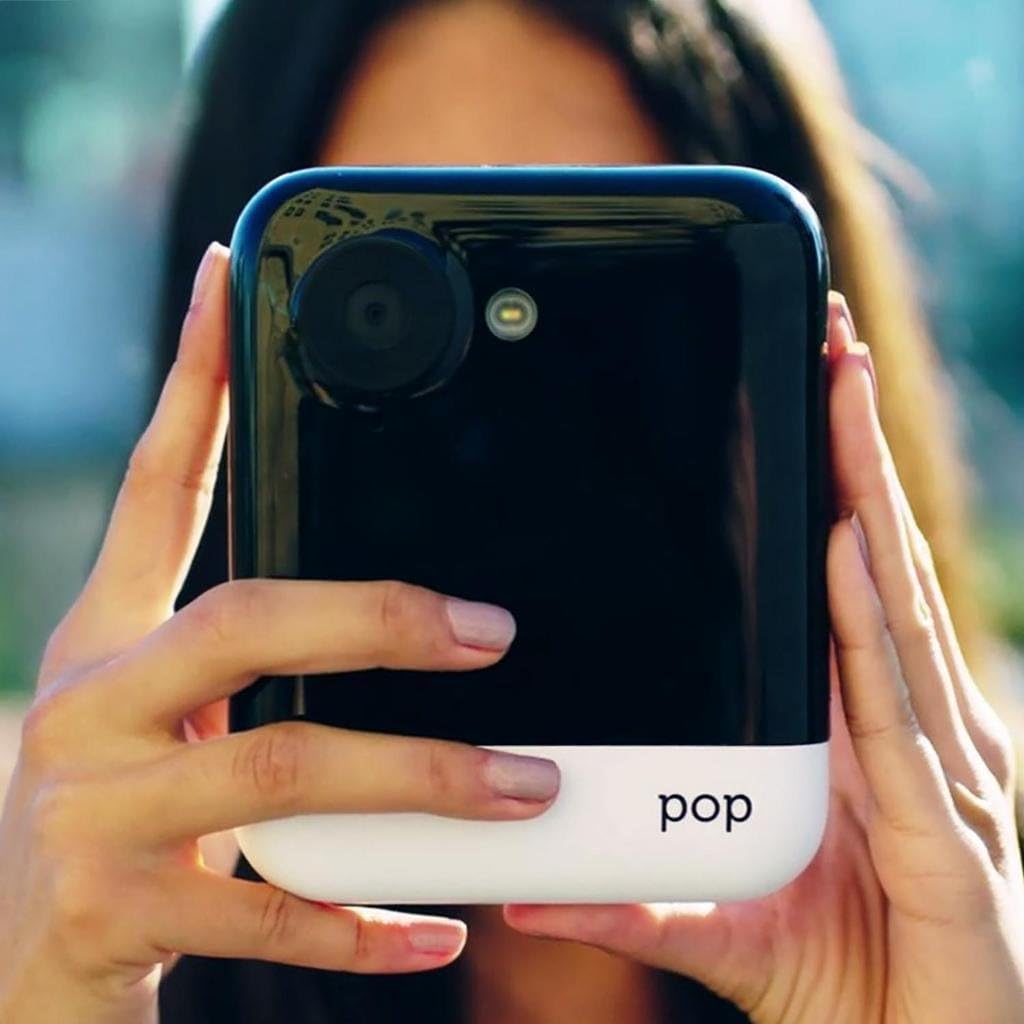
Image: A person holding the black and white Polaroid Pop camera, aiming it forward to take a picture. This illustrates the camera in use for photography.
3.2 Recording Videos
Switch to video recording mode via the touchscreen interface. Press the record button to begin capturing 1080p HD video. Press it again to stop recording. Videos are saved to the internal memory or the inserted MicroSD card.
3.3 Using the Touchscreen for Editing
After capturing a photo, you can access various editing options directly on the touchscreen. Use your finger to apply filters, add decorative borders, write custom captions, and place fun stickers onto your images before printing.

Image: Close-up of hands interacting with the touchscreen of the Polaroid Pop camera, showing editing options like adding text or drawings to a photo. This highlights the editing features.
3.4 Printing Photos
Once you have captured or edited a photo to your satisfaction, select the print option on the touchscreen. The camera will instantly print a 3.5 x 4.25-inch full-color photo using ZINK Zero Ink technology. There is no need to shake the photo for development; the image appears immediately.

Image: A Polaroid Pop camera, yellow base, printing a photo on a wooden table next to various food items. This shows the camera's portability and instant printing in a casual setting.
3.5 Connecting to Mobile Devices via Wi-Fi
To connect your Polaroid Pop to a smartphone or tablet:
- Enable Wi-Fi on both your Polaroid Pop camera and your mobile device.
- Download and install the official Polaroid Pop app from your device's app store.
- On your mobile device, connect to the camera's Wi-Fi network (the network name will typically be displayed on the camera's screen).
- Open the Polaroid Pop app. You can now transfer photos, print images directly from your mobile device's gallery, and use the app for remote camera control.
3.6 Sharing to Social Media
Through the connected mobile app, you can easily share your captured and edited photos directly to various social media platforms such as Facebook and Instagram.
Video: An official product video demonstrating the features and ease of use of the Polaroid Pop camera, including instant printing, editing, and sharing capabilities.
4. Maintenance
4.1 Cleaning the Camera
Use a soft, dry, lint-free cloth to clean the camera's exterior and touchscreen. Avoid using liquid cleaners, solvents, or abrasive materials, as these can damage the device. For the camera lens, use a specialized lens cleaning cloth to prevent scratches.
4.2 Battery Care
To maximize the lifespan of your camera's battery, avoid exposing the device to extreme hot or cold temperatures. Fully charge the battery before storing the camera for long periods. If the camera will not be used for an extended time, it is recommended to charge the battery periodically (e.g., every 3-6 months) to prevent deep discharge.
4.3 Paper Storage
Store ZINK Photo Paper in its original sealed packaging in a cool, dry place, away from direct sunlight and high humidity. Improper storage can affect print quality and paper performance.
5. Troubleshooting
5.1 Poor Print Quality
- Paper Loading: Ensure the ZINK Photo Paper is loaded correctly with the blue calibration sheet at the bottom of the stack.
- Paper Condition: Check that the paper is not expired, damaged, or exposed to moisture.
- Print Head: If smudges, lines, or faded colors appear, the print head may need cleaning. Refer to the full product manual for specific print head cleaning instructions.
5.2 Paper Jam
If a paper jam occurs, gently open the paper tray and carefully remove any jammed paper. Do not force the paper out, as this can damage the printer mechanism. Power cycle the camera (turn off and then on again) after clearing the jam.
5.3 Camera Not Powering On
Verify that the battery is sufficiently charged. Connect the camera to a power source using the USB cable and attempt to power it on again. If the issue persists, the battery may be faulty or require service.
5.4 Wi-Fi Connectivity Issues
- Enable Wi-Fi: Ensure Wi-Fi is enabled on both the camera and your mobile device.
- Network Selection: Verify that your mobile device is connected to the correct camera's Wi-Fi network.
- Restart Devices: Try restarting both the camera and your mobile device, then attempt to connect again.
- Firmware Update: Check the official Polaroid website for any available firmware updates for your camera, as these can resolve connectivity issues.
5.5 Photos Not Saving
Check if a MicroSD card is properly inserted and has sufficient free space. If you are not using a MicroSD card, ensure the camera's internal memory is not full. Delete unnecessary files or transfer them to another device to free up space.
6. Specifications
| Feature | Detail |
|---|---|
| Product Dimensions | 6 x 4 x 1 inches |
| Item Weight | 1 pound (16 ounces) |
| Camera Resolution | 20 Megapixels |
| Video Resolution | 1080p HD |
| Display | 3.97-inch Touchscreen LCD |
| Print Size | 3.5 x 4.25 inches |
| Print Technology | ZINK Zero Ink |
| Connectivity | Built-in Wi-Fi |
| Storage | Internal memory (up to 10 images), MicroSD card slot (up to 128GB) |
| Battery | 1 Lithium Ion battery (included) |
| Model Number | POL-POP1PKAMZ |
| Manufacturer | C&A Marketing, Inc. |
7. Warranty and Support
For detailed warranty information, technical support, or service inquiries regarding your Zink Polaroid Pop Instant Print Digital Camera, please refer to the documentation included in your product packaging. You may also visit the official Zink or Polaroid website for the most up-to-date support resources and contact information. Please retain your proof of purchase for any warranty claims.


