
1. Product Overview
This document provides detailed instructions for the installation and maintenance of the YUHUAI Replacement Bottom Base Cover for select Packard Bell laptop models. This component is designed to replace a damaged or worn original bottom cover, restoring the structural integrity and aesthetic appearance of your laptop.
2. Compatibility
This replacement bottom base cover is compatible with the following Packard Bell laptop models:
- Packard Bell TM01
- Packard Bell TM05
- Packard Bell TM80
- Packard Bell TM81
- Packard Bell TM82
- Packard Bell TM83
- Packard Bell TM85
- Packard Bell NEW95
- Packard Bell NEW91
Please verify your laptop's model number before proceeding with the replacement to ensure proper fitment.
3. Safety Information
Before beginning any repair work on your laptop, please observe the following safety precautions:
- Power Off: Ensure the laptop is completely powered off and disconnected from all power sources.
- Remove Battery: If your laptop has a removable battery, remove it before proceeding.
- Static Discharge: Take precautions against electrostatic discharge (ESD). Use an anti-static wrist strap or frequently touch a grounded metal object.
- Handle with Care: Laptop components can be delicate. Handle them carefully to avoid damage.
- Tool Use: Use appropriate tools for the task. Do not force screws or pry components.
- Professional Assistance: If you are unsure about any step, seek assistance from a qualified technician.
4. Installation Guide (Setup)
This section outlines the steps for replacing the bottom base cover. A Phillips head screwdriver and a plastic prying tool (spudger) may be required.
4.1. Preparation
- Power down your Packard Bell laptop completely.
- Disconnect the AC adapter and any connected peripherals (USB devices, external monitors, etc.).
- Close the laptop lid and place the laptop upside down on a clean, soft, and static-free surface.
- If your laptop has a removable battery, unlock and remove it.
4.2. Removing the Old Bottom Base Cover
- Locate all screws securing the bottom base cover. These are typically visible on the underside of the laptop. Some screws may be hidden under rubber feet or stickers.
- Using a Phillips head screwdriver, carefully remove all screws. Keep track of their locations, as they may vary in size.
- Once all screws are removed, gently pry around the edges of the bottom cover using a plastic prying tool. There may be plastic clips holding the cover in place. Work slowly and carefully to avoid breaking these clips.
- Lift the old bottom base cover away from the laptop chassis.

Figure 1: Exterior view of the YUHUAI replacement bottom base cover. This image shows the external surface of the replacement part, including screw holes and ventilation grilles, as it would appear when installed on the laptop.

Figure 2: Side view of the replacement bottom base cover. This image highlights the precision cutouts for various ports and connectors on the side of the laptop, ensuring full functionality after installation.
4.3. Installing the New Bottom Base Cover
- Carefully align the new YUHUAI bottom base cover with the laptop chassis. Ensure all internal components are clear and not obstructed.
- Gently press down around the edges of the cover until you hear or feel the plastic clips snap into place. Ensure there are no gaps.
- Reinsert all screws that were removed in step 4.2.2. Do not overtighten the screws, as this can damage the plastic threads.

Figure 3: Interior view of the YUHUAI replacement bottom base cover. This image displays the internal structure, including mounting points, screw posts, and internal bracing, which are crucial for proper fit and support of internal components.
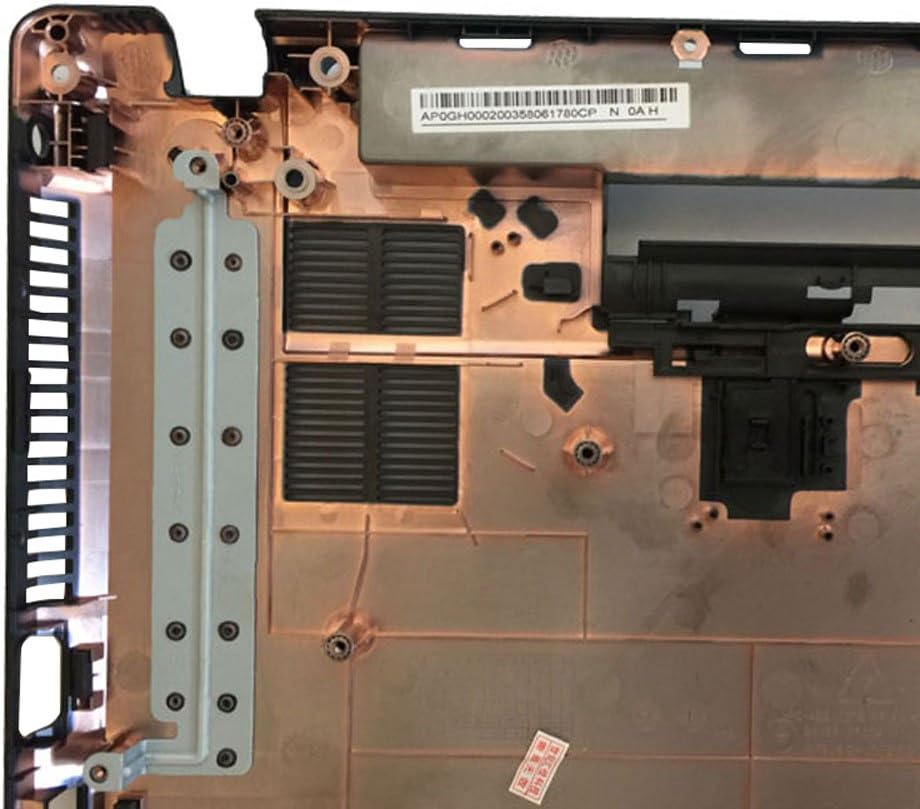
Figure 4: Close-up of internal mounting points. This detailed view shows the screw posts and structural elements designed to secure the laptop's internal components and hinges to the bottom cover.
4.4. Post-Installation
- Reinstall the laptop battery (if applicable).
- Connect the AC adapter and power on the laptop.
- Verify that the laptop functions correctly and that all ports are accessible and unobstructed.
5. Maintenance
The bottom base cover requires minimal maintenance. To keep it clean and ensure proper ventilation:
- Wipe the exterior surface with a soft, damp cloth. Avoid abrasive cleaners or solvents.
- Periodically check the ventilation grilles for dust accumulation and clean them gently with a soft brush or compressed air to maintain optimal airflow.
6. Troubleshooting
- Cover Does Not Fit:
Double-check the laptop model number against the compatibility list. Ensure all internal components are correctly seated and not obstructing the cover. Verify that no screws or small parts are trapped between the cover and the chassis.
- Screws Do Not Align:
Ensure the cover is perfectly aligned with the chassis. Sometimes, a slight adjustment or gentle pressure is needed to align all screw holes. Do not force screws.
- Gaps After Installation:
Ensure all plastic clips have engaged properly. Gently press along the edges of the cover until all clips snap into place. Recheck for any internal obstructions.
7. Specifications
| Product Name | Laptop Replacement Bottom Base Cover |
| Brand | YUHUAI |
| Compatible Models | Packard Bell TM01, TM05, TM80, TM81, TM82, TM83, TM85, NEW95, NEW91 |
| Form Factor | Case |
| Color | Black |
| Manufacturer | YUHUAI |
| UPC | 650985149135 |
8. Warranty and Support
Information regarding specific warranty terms or direct customer support for this YUHUAI product was not provided in the available data. Please refer to the seller or manufacturer's official website for warranty details and support contact information.