
1. Introduction
The Mrocioa HDMI 2.0 Switch 5 in 1 Out allows you to connect up to five HDMI source devices to a single HDMI display (e.g., TV, projector, monitor). This device supports 4K@60Hz resolution, HDR, HDCP 2.3, ALLM/VRR, Dolby Vision, HDR10+, and Dolby Atmos, ensuring high-quality audio and video transmission. It features an Audio Return Channel (ARC) function and can be controlled via a remote or a button on the unit.

Image 1.1: Mrocioa HDMI Switch highlighting key features like 4K, HDR10+, Dolby Atmos, HDCP 2.3, ARC, and Auto/Manual Switch.
2. Package Contents
- Mrocioa HDMI 2.0 Switch 5 in 1 Out
- IR Remote Control
- USB Power Cable (DC 5V)
- User Manual
3. Setup Instructions
3.1 Connecting Devices
- Connect HDMI Source Devices: Plug up to five HDMI source devices (e.g., PS5, Xbox, Nintendo Switch, Apple TV, PC) into the HDMI Input ports (Input1, Input2, Input3, Input4, Input5) on the Mrocioa HDMI Switch.
- Connect to Display: Connect an HDMI cable from the HDMI Output port of the switch to the HDMI input port on your TV, projector, or monitor.
- Power Connection: The switch is bus-powered via the HDMI cable. If additional power is needed for stable operation, connect the provided USB power cable to the DC 5V port on the switch and to a USB power source (e.g., TV USB port, USB wall adapter).
- ARC Connection (Optional): If using the ARC function, ensure your soundbar or audio receiver is connected to the HDMI Input 1 port of the switch, and your TV's ARC-enabled HDMI port is connected to the switch's HDMI Output.

Image 3.1: Rear view of the Mrocioa HDMI Switch showing input and output ports.

Image 3.2: Diagram illustrating how to connect a soundbar for ARC functionality. Connect the soundbar to Input 1 for ARC audio.
3.2 Powering On
Once all connections are made, the switch will power on automatically. The 'Power' LED indicator on the front panel will illuminate. The 'Output' LED and the LED corresponding to the active input will also light up.
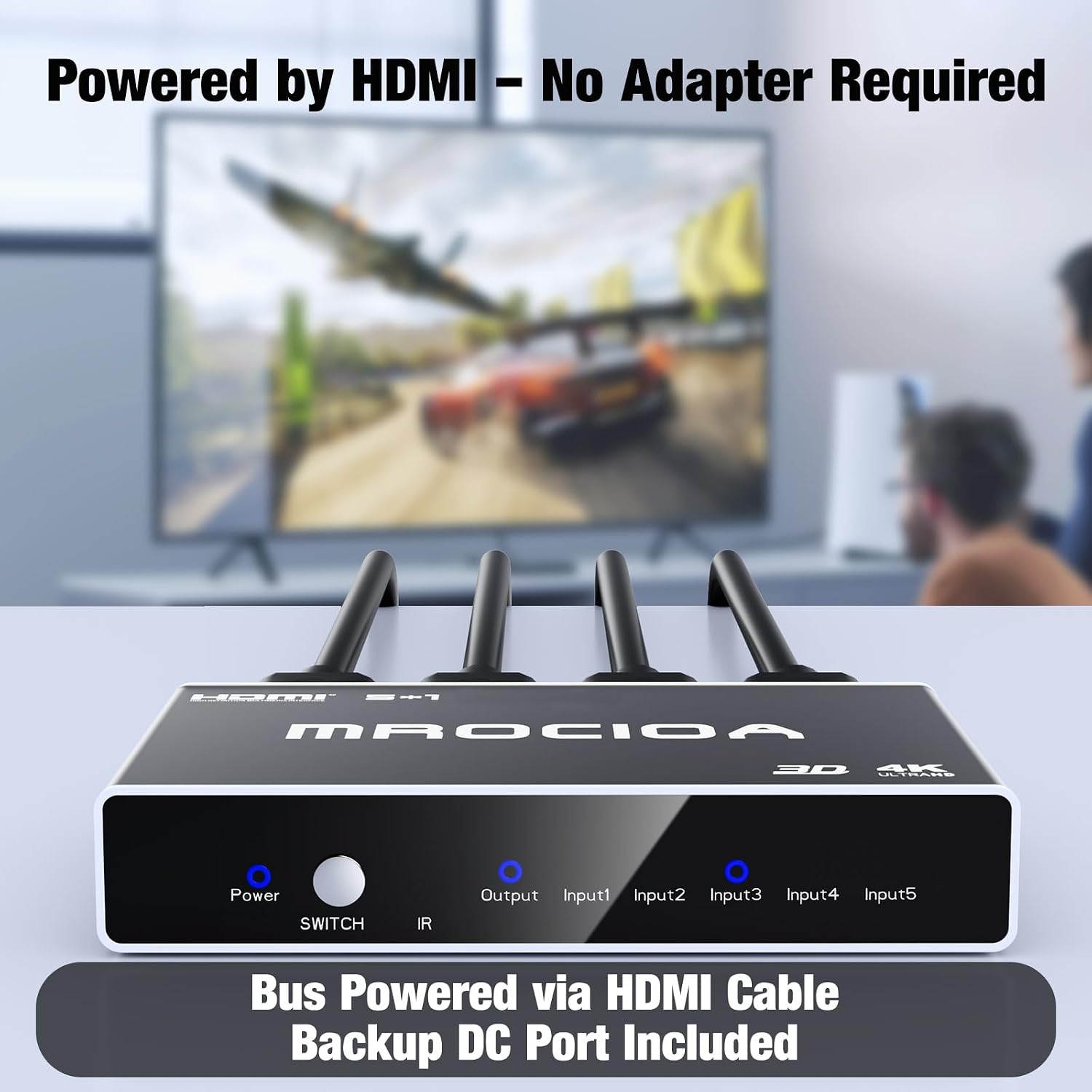
Image 3.3: Front view of the Mrocioa HDMI Switch showing the power and input indicator LEDs.
4. Operating Instructions
4.1 Switching Inputs
You can switch between connected HDMI devices using two methods:
- Manual Button: Press the 'SWITCH' button on the front panel of the device to cycle through the HDMI inputs.
- IR Remote Control: Use the provided IR remote control to directly select an input (1-5) or cycle through inputs. Ensure the remote has a clear line of sight to the IR receiver on the switch.

Image 4.1: Mrocioa HDMI Switch and its remote control for input selection.

Image 4.2: Close-up of the IR remote control, showing numbered buttons for direct input switching.
4.2 Auto/Manual Switching Mode
The switch supports both automatic and manual input switching. By default, it operates in auto-switching mode, where it automatically switches to a newly activated HDMI source.
- Toggle Mode: To switch between Auto and Manual mode, press and hold the 'SWITCH' button on the device for 3 seconds.
- Auto Mode: The switch will automatically detect and switch to the active HDMI input.
- Manual Mode: The switch will remain on the currently selected input until you manually change it using the button or remote. This mode is useful for setups where devices might send intermittent signals, causing unwanted auto-switching.

Image 4.3: Illustration of the auto/manual switch function, activated by holding the switch button for 3 seconds.
4.3 ARC (Audio Return Channel) Function
The ARC function allows audio from your TV's built-in apps or other HDMI inputs on your TV to be sent back to a soundbar or audio receiver connected to the switch's HDMI Input 1. This eliminates the need for a separate audio cable.
- Ensure your TV's HDMI port supports ARC and is enabled in your TV settings.
- Connect your soundbar/audio receiver to the HDMI Input 1 port on the Mrocioa switch.
- Note: This switch supports ARC, but not eARC.
5. Maintenance
To ensure optimal performance and longevity of your Mrocioa HDMI Switch:
- Keep the device in a cool, dry place, away from direct sunlight and heat sources.
- Avoid exposing the device to moisture or liquids.
- Clean the exterior with a soft, dry cloth. Do not use harsh chemicals or abrasive cleaners.
- Ensure all HDMI cables are securely connected to prevent signal loss.
6. Troubleshooting
| Problem | Possible Cause | Solution |
|---|---|---|
| No video/audio output | Loose cable connections; Incorrect input selected; Insufficient power; HDCP incompatibility. | 1. Check all HDMI cables are firmly connected. 2. Ensure the correct input is selected on the switch and your TV. 3. Connect the USB power cable to the switch and a reliable power source. 4. This switch supports HDCP 1.4, 2.0, 2.2, and 2.3. Ensure your devices and display are compatible. |
| Flickering screen or unstable signal | Poor quality HDMI cables; Cable length too long; Power issues. | 1. Use high-quality, certified HDMI 2.0 cables. 2. Try shorter HDMI cables if possible. 3. Ensure the switch is receiving adequate power, use the USB power cable if not already. 4. Try different HDMI ports on the switch and your TV. |
| Auto-switching not working as expected | Switch is in Manual mode; Device not sending proper signal. | 1. Press and hold the 'SWITCH' button for 3 seconds to toggle to Auto mode. 2. Ensure the source device is fully powered on and actively sending a signal. |
| Remote control not working | Battery depleted; Obstruction; Out of range. | 1. Replace the CR2025 battery in the remote. 2. Ensure there is a clear line of sight between the remote and the switch's IR receiver. 3. Operate the remote within the specified range (16-22 feet). |
| ARC function not working | Incorrect connection; TV ARC not enabled; Soundbar not compatible. | 1. Ensure soundbar/receiver is connected to HDMI Input 1 on the switch. 2. Verify your TV's HDMI port supports ARC and that ARC is enabled in your TV's audio settings. 3. Check soundbar/receiver settings for ARC compatibility. |
6.1 Relevant Video: Compatibility Test
Video 6.1: This video demonstrates the Mrocioa HDMI switch's compatibility with various devices and HDCP versions on an LG TV, showing smooth transitions between sources like Xbox Series X and other EDID 1.4 devices.
6.2 Relevant Video: Remote Control Functionality
Video 6.2: This video showcases the remote control functionality of the Mrocioa HDMI switch, demonstrating how to switch between different HDMI inputs using the remote.
7. Specifications

Image 7.1: Physical dimensions of the Mrocioa HDMI Switch.
| Feature | Detail |
|---|---|
| Model Number | D514 |
| Brand | Mrocioa |
| Color | Black |
| Connector Type | HDMI |
| Number of Ports | 5 (Input) |
| Supported Resolution | Up to 4K@60Hz |
| HDCP Support | HDCP 1.4, 2.0, 2.2, 2.3 |
| Audio Features | Dolby Vision, HDR10+, Dolby Atmos, ARC (eARC not supported) |
| Additional Features | ALLM/VRR, Auto/Manual Switching, IR Remote Control |
| Power Supply | Bus powered via HDMI, optional DC 5V port |
| Compatible Devices | Blu-Ray Player, DVD, PC, Laptop, PS5, PS4, PS3, Xbox Series X, Xbox360, Xbox One, Apple TV, Fire TV, Nintendo Switch, Television, Projector, Monitor |
8. Warranty and Support
Mrocioa products are designed for reliability and performance. For warranty information or technical support, please refer to the contact details provided with your purchase or visit the official Mrocioa website. Keep your purchase receipt for warranty claims.