
Introduction
This manual provides detailed instructions for the setup, operation, and maintenance of your Bqeel Android TV Box, model EU-TV BOX-Y4 MAX. This device transforms your television into a smart entertainment hub, offering access to various applications, streaming services, and media playback capabilities. Please read this manual thoroughly before using the product to ensure proper functionality and to maximize your user experience.

Image: The Bqeel Android TV Box, a compact device designed to upgrade your television into a smart TV.
Package Contents
Verify that all items listed below are included in your package:
- Bqeel Android TV Box (EU-TV BOX-Y4 MAX)
- Remote Control (batteries not included)
- HDMI Cable
- Power Adapter (5V 2A)
- User Manual (this document)

Image: The package contents include the Bqeel Android TV Box, a remote control, an HDMI cable, a power supply, and a user manual.
Product Overview and Interfaces
The Bqeel Android TV Box features a compact design with various ports for connectivity. Familiarize yourself with the available interfaces:

Image: A diagram illustrating the different connection ports on the Bqeel Android TV Box. These include USB 3.0 for external storage, USB 2.0 for peripherals, AV output, 4K HDMI for display, RJ45 for wired internet, DC IN for power, and a TF card slot for expandable memory.
- USB 3.0 Port: For connecting external hard drives or flash drives, offering faster data transfer speeds.
- USB 2.0 Port: For connecting various equipment such as keyboards, mice, or game controllers.
- AV Output: For connecting to older televisions using an AV cable (not included).
- 4K HDMI Port: For connecting to modern televisions or monitors to display high-resolution content.
- RJ45 (Ethernet) Port: For a stable wired internet connection (10/100Mbps).
- DC IN Port: For connecting the provided power adapter.
- TF Card Slot: For expanding storage with a Micro SD card (up to 128GB).
Setup
1. Connecting to Your Television
- HDMI Connection:
Connect one end of the provided HDMI cable to the 4K HDMI port on the TV Box and the other end to an HDMI input on your television.
- AV Connection (Optional):
If your television does not have an HDMI port, connect an AV cable (not included) from the AV Output port on the TV Box to the corresponding AV input ports on your television.
2. Power Connection
- Connect the power adapter to the DC IN port on the TV Box.
- Plug the power adapter into a wall outlet. The device should power on automatically or can be turned on using the remote control.
3. Network Connection
- Wi-Fi Connection:
After powering on, navigate to Settings > Network > Wi-Fi. Select your desired Wi-Fi network from the list, enter the password, and connect. The device supports dual-band Wi-Fi (2.4GHz and 5.8GHz) for stable connectivity.
- Ethernet Connection:
For a more stable connection, connect an Ethernet cable from your router to the RJ45 (Ethernet) port on the TV Box.
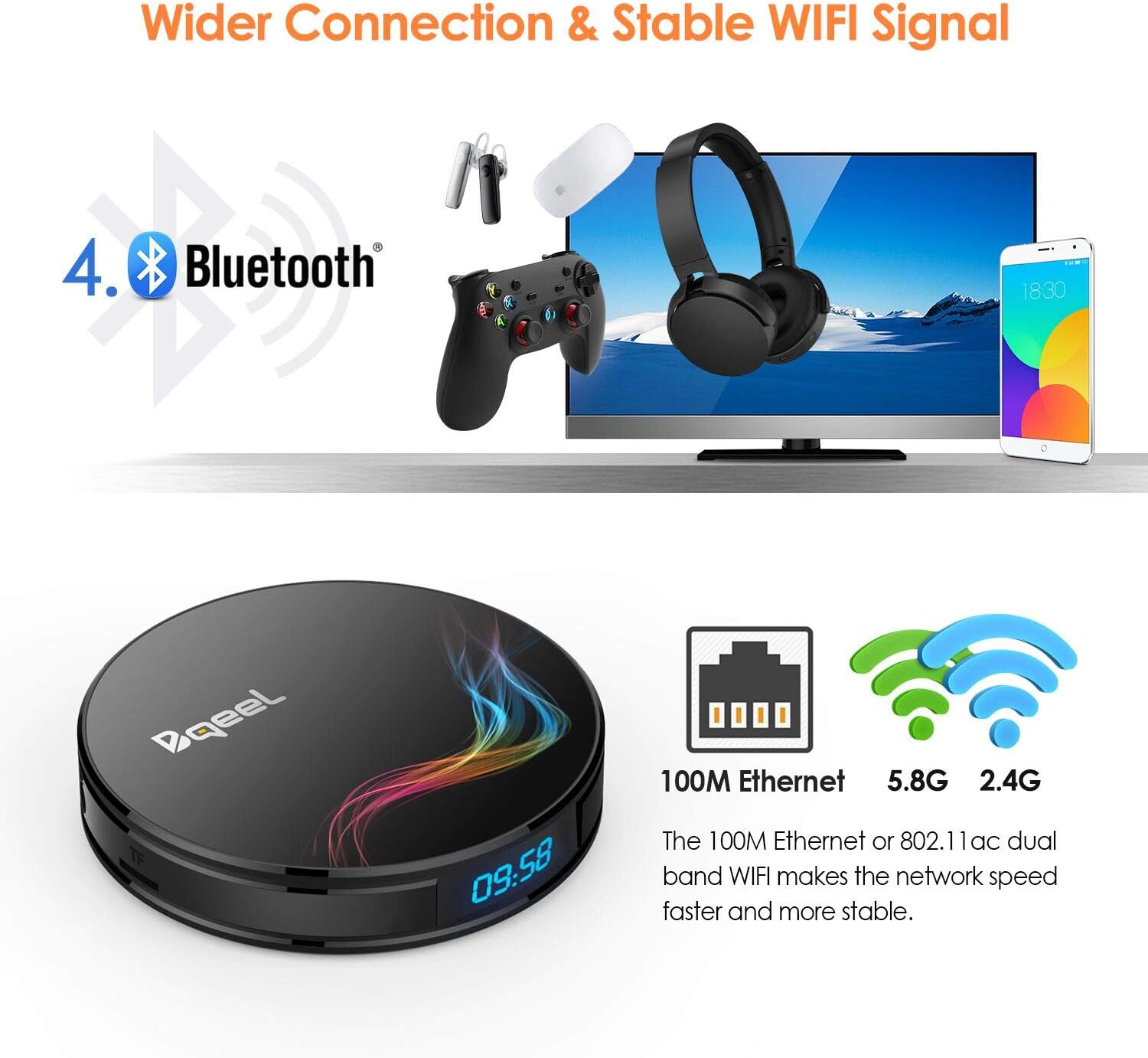
Image: This image highlights the Bqeel Android TV Box's wide range of connectivity, including Bluetooth 4.0 for wireless accessories, 100M Ethernet for a stable wired internet connection, and dual-band 2.4G/5.8G Wi-Fi for flexible wireless networking.
4. Initial System Configuration
Upon first boot, the system will guide you through initial setup steps, including language selection and display settings. Follow the on-screen prompts.

Image: The Android 9.0 operating system interface displayed on a television screen, showcasing various application icons for streaming and entertainment. The Bqeel TV Box itself is shown below the screen, displaying the current time.
Operating Instructions
Remote Control Navigation
Use the provided remote control to navigate the Android interface. The directional buttons allow movement, and the "OK" button confirms selections. Some applications may benefit from connecting a USB mouse or keyboard for easier navigation.
Application Management
- Installing Apps: Access the Google Play Store to download and install a wide variety of applications.
- Uninstalling Apps: Go to Settings > Apps, select the desired application, and choose "Uninstall".
Media Playback
The TV Box supports 4K and 3D video playback. You can play media from:
- USB Devices: Connect USB flash drives or external hard drives to the USB 3.0 or USB 2.0 ports.
- Micro SD Card: Insert a TF (Micro SD) card into the dedicated slot.
- Network Storage: Access media from network-attached storage (NAS) or shared folders on your local network.

Image: This graphic details the Bqeel Android TV Box's specifications, including 4GB of RAM and 64GB of eMMC storage, expandable up to 4TB with an external hard disk. It also highlights key features such as a Quad-core processor, Android 9.0, 4K Ultra HD support, ARM Dvalin MP2 GPU, H.265 video decoding, and Bluetooth 4.0 connectivity.
Bluetooth Connectivity
The device features Bluetooth 4.0, allowing you to connect various Bluetooth-enabled accessories such as headphones, gamepads, or mini keyboards. To pair a device, go to Settings > Connected devices > Pair new device and follow the on-screen instructions.
Maintenance
- Cleaning: Use a soft, dry cloth to clean the exterior of the TV Box. Do not use liquid cleaners or abrasive materials.
- Ventilation: Ensure the TV Box is placed in a well-ventilated area to prevent overheating. Do not block ventilation openings.
- Software Updates: Periodically check for system updates in Settings > About device > System update to ensure optimal performance and security.
- Storage Management: Regularly clear cache and unnecessary files to maintain system speed. You can expand storage using a Micro SD card or external USB drive.
Troubleshooting
| Problem | Solution |
|---|---|
| No power / Device does not turn on. |
|
| No image on TV screen. |
|
| No sound. |
|
| Wi-Fi connection issues. |
|
| System is slow or freezes. |
|
| Language changes unexpectedly to Chinese. |
|
| Remote control not responding. |
|
Specifications
| Feature | Detail |
|---|---|
| Model | EU-TV BOX-Y4 MAX |
| Operating System | Android 9.0 |
| Processor | Amlogic S905X2 Quad Core ARM Cortex A53 |
| RAM | 4GB DDR4 |
| Internal Storage | 64GB eMMC |
| Expandable Storage | Micro SD Card (up to 128GB), External HDD (up to 4TB) via USB |
| Wi-Fi | Dual-band 2.4GHz/5.8GHz |
| Bluetooth | Bluetooth 4.0 |
| Ethernet | 10/100M LAN |
| Video Output | 4K*2K UHD, H.265, 3D |
| USB Ports | 1x USB 3.0, 1x USB 2.0 |
| Other Ports | HDMI, AV, TF Card Slot, DC IN |
| Dimensions | 11 x 11 x 1.7 cm |
| Weight | 135.5 g |
| Compatible Devices | Television |
| Supported Internet Services | Facebook, Flicker, YouTube (and others via Play Store) |
Warranty and Support
Bqeel products are designed for reliability and performance. For warranty information, please refer to the warranty card included in your product packaging or visit the official Bqeel website. For technical support or further assistance, please contact Bqeel customer service through the contact information provided on their official website or through your retailer.
Please retain your proof of purchase for warranty claims.