
1. Introduction
Thank you for purchasing the RayCue USB 3.0 to HDMI VGA Adapter. This device allows you to connect additional displays (monitors, projectors, HDTVs) to your computer via a USB 3.0 port, extending or mirroring your desktop. It supports simultaneous HDMI and VGA output for a single video stream.
Important: This adapter is designed for Windows 7, 8, and 10 operating systems ONLY. It is NOT compatible with Mac OS, Linux, or Vista.

Image: The RayCue USB 3.0 to HDMI VGA Adapter, showcasing its compact design.
2. Safety Information
- Keep the device away from water, fire, and high temperatures.
- Do not attempt to disassemble or repair the device yourself.
- Use only with compatible devices and operating systems as specified.
- Avoid dropping or subjecting the device to strong impacts.
- Ensure proper ventilation around the adapter during use.
3. Package Contents
The package should contain the following items:
- 1 x RayCue USB 3.0 to HDMI VGA Adapter
- 1 x User Manual (this document)
4. Product Overview
The RayCue adapter features a compact design with a USB 3.0 input and both HDMI and VGA outputs, allowing for versatile display connections.

Image: Close-up view of the RayCue adapter, highlighting the USB 3.0 input and HDMI/VGA output ports. It also indicates support for USB 2.0 with lower speed.
Key Features:
- USB 3.0 Connectivity: Ensures high-speed data transmission for smooth video output. Also compatible with USB 2.0 (with reduced resolution).
- HDMI Output: Supports resolutions up to 1080P (1920x1080) for high-definition displays.
- VGA Output: Supports resolutions up to 1080P (1920x1080) for standard displays.
- Simultaneous Output: HDMI and VGA ports can be used simultaneously to display the same content.
- Mirror & Extend Modes: Allows you to duplicate your primary display or extend your desktop across multiple screens.
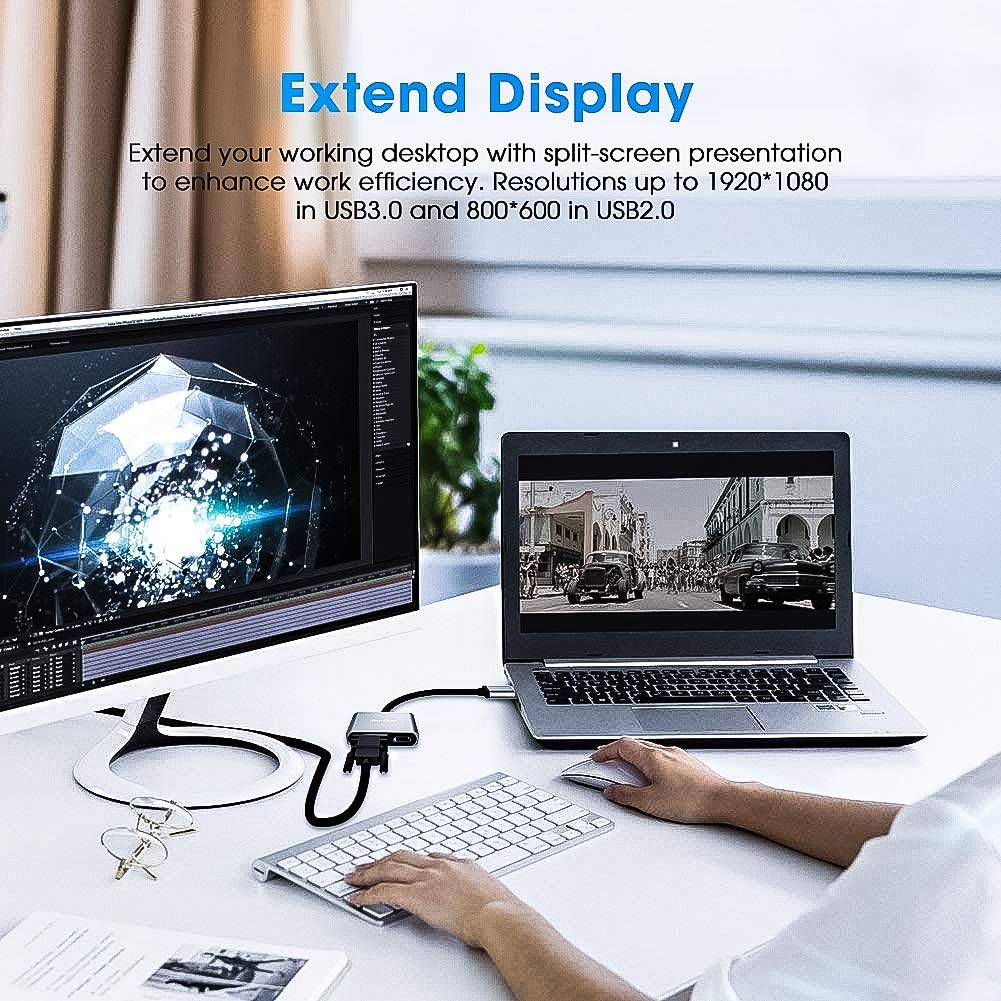
Image: Diagram illustrating the wide compatibility of the adapter, connecting a computer via USB 3.0 to various display types including projectors, HDTVs, and monitors using HDMI or VGA outputs.
5. Setup Instructions
Follow these steps to set up your RayCue USB 3.0 to HDMI VGA Adapter:
- Connect the Adapter: Plug the USB 3.0 connector of the adapter into an available USB 3.0 port on your Windows computer.
- Driver Installation:
Upon connecting, the adapter may appear as a USB storage device. You will need to install the necessary driver manually. Locate the driver setup file on the virtual drive that appears (e.g., "CD Drive (X:)"). Double-click the setup file (e.g., "FL2000.exe" or similar) and follow the on-screen instructions to complete the installation.
If the virtual drive does not appear or the driver installation fails, please visit the RayCue support website for the latest drivers.
- Restart Your Computer: After the driver installation is complete, it is recommended to restart your computer for the changes to take effect.
- Connect Displays:
- Connect your HDMI display to the HDMI port on the adapter using an HDMI cable.
- Connect your VGA display to the VGA port on the adapter using a VGA cable.
You can connect one or both display types simultaneously. The adapter will output the same video stream to both HDMI and VGA ports if both are connected.

Image: Illustration showing the RayCue adapter connected to a laptop via USB 3.0, with HDMI and VGA cables extending to two external monitors, demonstrating the sync output capability.
6. Operating the Adapter
Once the adapter and displays are connected, your Windows operating system should detect the new displays. You can then configure your display settings.
Configuring Display Modes (Windows):
Right-click on your desktop and select "Display settings" (Windows 10/8) or "Screen resolution" (Windows 7).
- Extend Mode: To extend your desktop, select the external monitor(s) and choose "Extend these displays" from the "Multiple displays" dropdown menu. This allows you to have different content on each screen, increasing your workspace.
- Mirror (Duplicate) Mode: To mirror your primary display, select the external monitor(s) and choose "Duplicate these displays" from the "Multiple displays" dropdown menu. This will show the same content on all connected screens.

Image: Visual representation of both Mirror and Extend display modes. The Mirror mode shows the same content on the laptop and external screen, while Extend mode shows different content, expanding the desktop.
Resolution Settings:
- When connected to a USB 3.0 port, the adapter supports resolutions up to 1920x1080 (1080P).
- When connected to a USB 2.0 port, the adapter supports resolutions up to 800x600. For optimal performance, always use a USB 3.0 port.

Image: A laptop connected to the RayCue adapter, which then outputs to both an HDMI monitor and a VGA monitor, displaying the same content across all three screens.
7. Specifications
| Feature | Detail |
|---|---|
| Model Number | 8541670213 |
| Input Interface | USB 3.0 (backward compatible with USB 2.0) |
| Output Interfaces | HDMI, VGA |
| Max Resolution (USB 3.0) | 1920x1080 (1080P) |
| Max Resolution (USB 2.0) | 800x600 |
| Supported OS | Windows 7, Windows 8, Windows 10 (32/64-bit) |
| Unsupported OS | Mac OS, Linux, Vista |
| Item Weight | 0.07 Kilograms |
| Manufacturer | Hoplaza US |
8. Troubleshooting
- No Display/Black Screen:
- Ensure the adapter is securely plugged into a USB 3.0 port on your computer.
- Verify that the HDMI/VGA cables are firmly connected to both the adapter and the display.
- Check if the display is set to the correct input source (e.g., HDMI 1, VGA).
- Confirm that the display drivers for the adapter are correctly installed. Reinstall if necessary.
- Restart your computer.
- Low Resolution (800x600 max):
- This typically indicates the adapter is connected to a USB 2.0 port. Connect the adapter to a USB 3.0 port for 1080P resolution.
- Ensure your computer's USB 3.0 drivers are up to date.
- Driver Installation Issues:
- If the virtual drive does not appear, try connecting the adapter to a different USB port.
- Temporarily disable antivirus software during driver installation if it interferes.
- Download the latest drivers from the official RayCue support website if the embedded driver is inaccessible or outdated.
- Not Working on Mac OS/Linux/Vista:
- This adapter is specifically designed for Windows 7/8/10 and is not compatible with other operating systems.
9. Maintenance
- Keep the adapter clean by wiping it with a soft, dry cloth.
- Avoid exposing the adapter to extreme temperatures or humidity.
- Store the adapter in a cool, dry place when not in use.
- Do not use harsh chemicals or abrasive cleaners on the device.
10. Warranty and Support
RayCue products are designed for reliability and performance. For warranty information or technical support, please refer to the documentation included with your purchase or visit the official RayCue website. Please have your model number (8541670213) ready when contacting support.