
1. Introduction
This manual provides essential instructions for the proper setup, operation, and maintenance of your NYEAR 2D Barcode Scanner. This device is designed for efficient and accurate scanning of both 1D and 2D barcodes, supporting various operating systems including Windows, Mac, iOS, and Android. Please read this manual thoroughly before using the scanner to ensure optimal performance and longevity.
2. Package Contents
Verify that all items listed below are present in your package:
- NYEAR 2D Barcode Scanner (with integrated USB cable)
- Adjustable Stand
- Quick Start Guide

The package includes the NYEAR 2D Barcode Scanner with an integrated USB cable, an adjustable stand, and a quick start guide, all neatly packed in a brown box.
3. Setup
3.1 Assembling the Adjustable Stand
- Unpack the stand components.
- Attach the scanner holder to the stand base, ensuring it clicks securely into place.
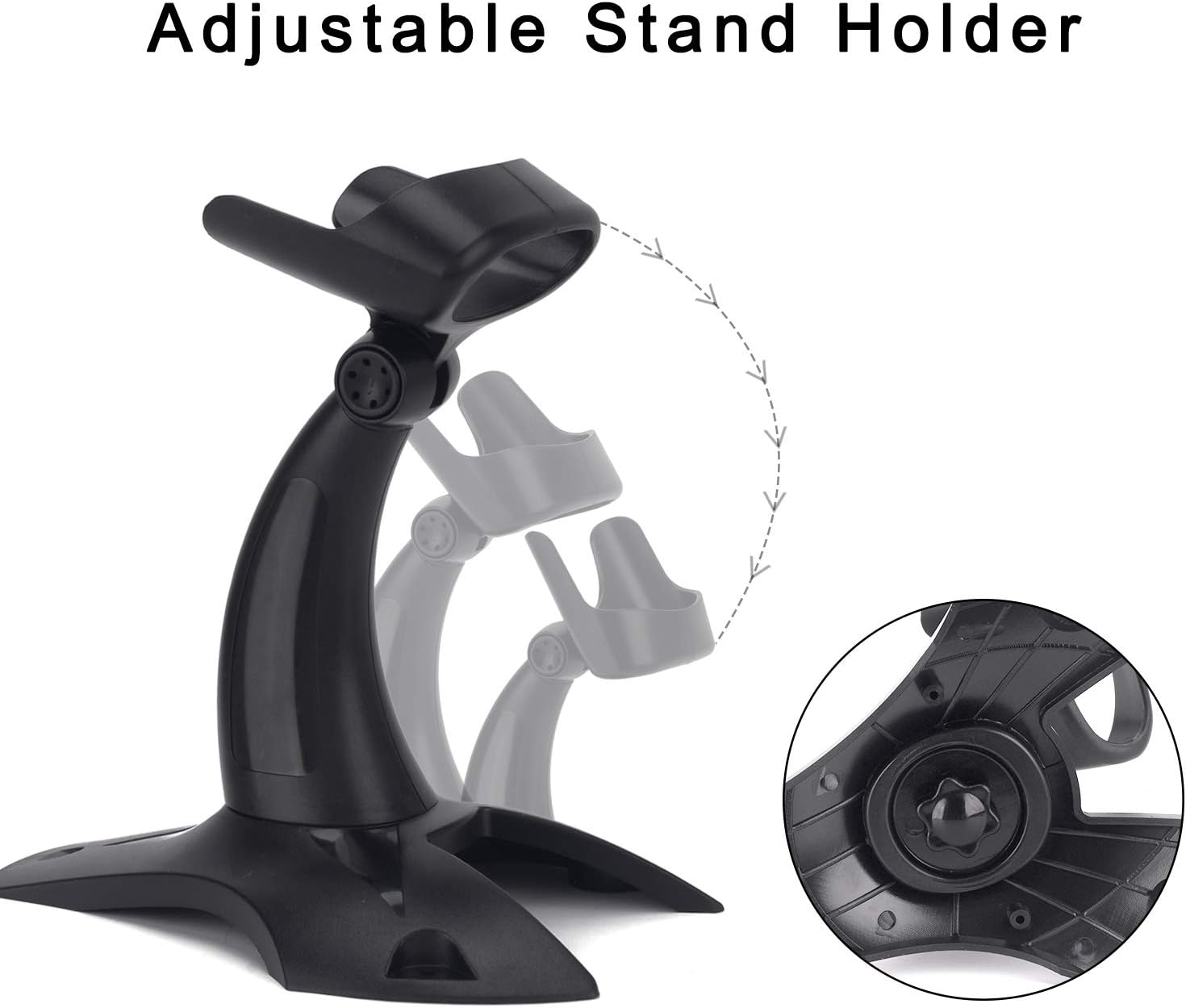
- Adjust the angle of the holder to your preferred scanning position. The stand is designed for flexible rotation.
The included adjustable stand allows for flexible positioning of the scanner, enabling hands-free operation and comfortable scanning angles. The stand features a stable base for secure placement.
3.2 Connecting the Scanner
The NYEAR 2D Barcode Scanner is a plug-and-play device, requiring no additional driver installation for most operating systems.
- Connect the integrated USB cable from the scanner to an available USB port on your computer, laptop, or compatible tablet.
- The operating system will automatically detect and install the necessary drivers. This process may take a few moments.
- Once installed, the scanner is ready for use.
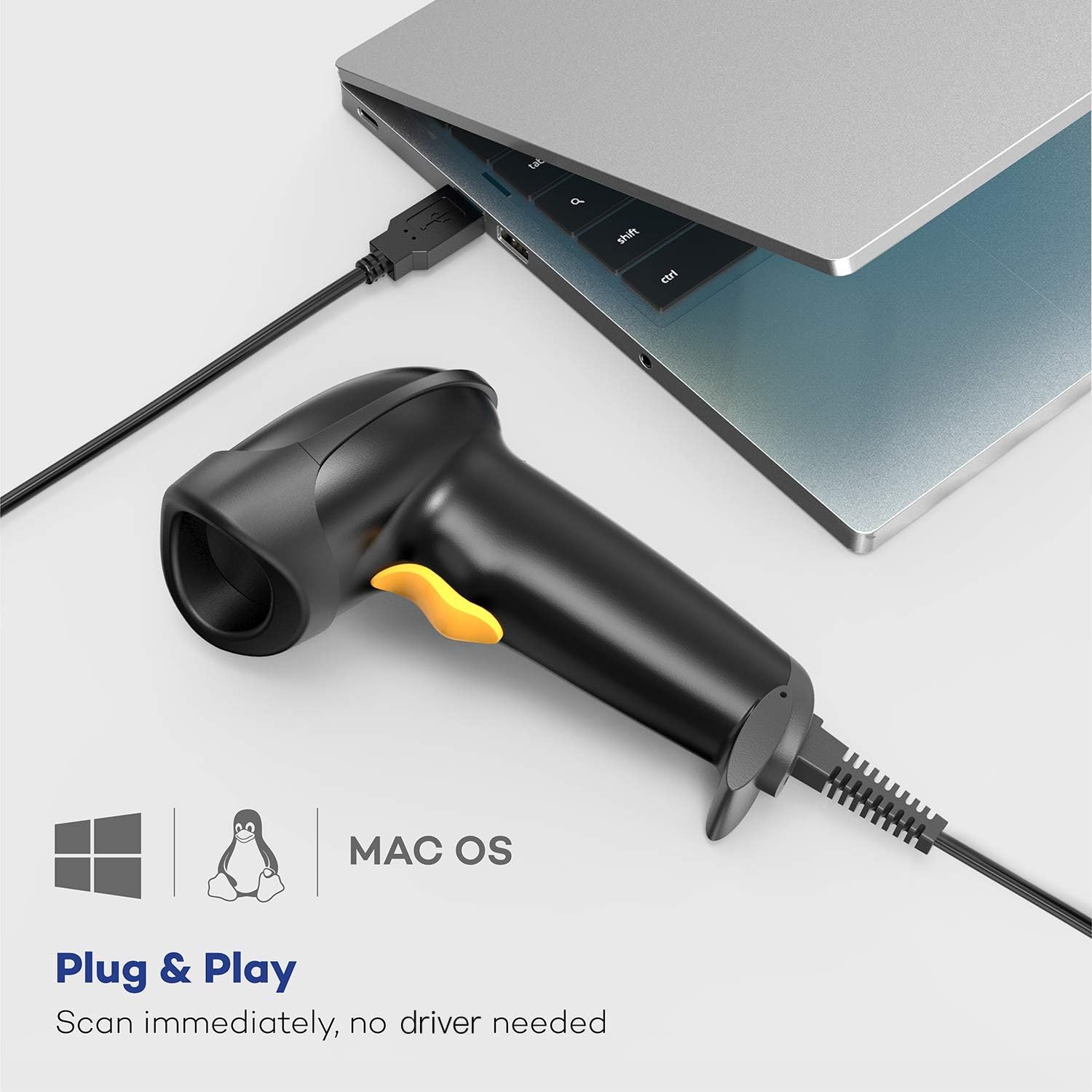
The scanner connects directly to your computer via USB, offering plug-and-play functionality without requiring additional drivers. It is compatible with Windows, Linux, and Mac operating systems.
4. Operating the Scanner
4.1 Scanning Barcodes
The scanner is capable of reading both 1D and 2D barcodes, including those displayed on screens.
- Aiming: Point the scanner's light beam directly at the barcode you wish to scan.
- Distance: Maintain an appropriate distance from the barcode (typically a few centimeters to several inches) for optimal reading.
- Confirmation: A successful scan is usually indicated by an audible beep and/or a visual indicator (e.g., LED light).

This image demonstrates the scanner's high-speed capability, processing 200 scans per second with its 32-bit high-speed CPU. It shows the scanner successfully reading a 2D barcode from a smartphone display.
4.2 Scanning Modes
The scanner supports three primary operating modes:
- Key Trigger Mode: Press the trigger button to initiate a scan.
- Continuous Scan Mode: The scanner continuously emits a scanning beam, reading barcodes as they pass through the field of view without needing to press the trigger.
- Automatic Induction Mode: The scanner automatically detects a barcode within its field of view and initiates a scan.
Refer to the Quick Start Guide for instructions on how to switch between these scanning modes using configuration barcodes.

This image highlights the scanner's powerful decoding capabilities, showing it can read a wide range of 1D and 2D barcodes, even those that are damaged, reflective, or twisted, with a minimum resolution of 5 mil.
5. Maintenance
5.1 Cleaning
To maintain optimal scanning performance, keep the scanner's optical window clean.
- Use a soft, lint-free cloth, slightly dampened with water or a mild cleaning solution.
- Do not use abrasive cleaners or solvents, as these can damage the scanner's surface or optical components.
- Ensure the scanner is disconnected from its power source before cleaning.
5.2 Durability
The scanner features a shockproof design engineered to withstand repeated drops from 1.2 meters (approximately 4 feet) onto concrete surfaces. While robust, avoid unnecessary drops or impacts to prolong the device's lifespan.
6. Troubleshooting
If you encounter issues with your scanner, refer to the following common problems and solutions:
- Scanner not recognized by computer:
- Ensure the USB cable is securely connected to both the scanner and the computer.
- Try connecting the scanner to a different USB port.
- Restart your computer.
- Scanner not reading barcodes:
- Ensure the barcode is clean, clear, and not excessively damaged.
- Adjust the scanning distance and angle.
- Check if the scanner is in the correct operating mode (e.g., Key Trigger Mode requires pressing the button).
- Note: The scanner is not suitable for reading barcodes printed on highly reflective silver paper.
- Incorrect data output:
- Refer to the Quick Start Guide for advanced configuration options, such as adding prefixes/suffixes or changing keyboard layouts.
For more detailed troubleshooting steps, consult the Quick Start Guide included with your product. Compatibility with Google Chrome OS is uncertain.
7. Specifications
| Model | NYEAR 2D Barcode Scanner |
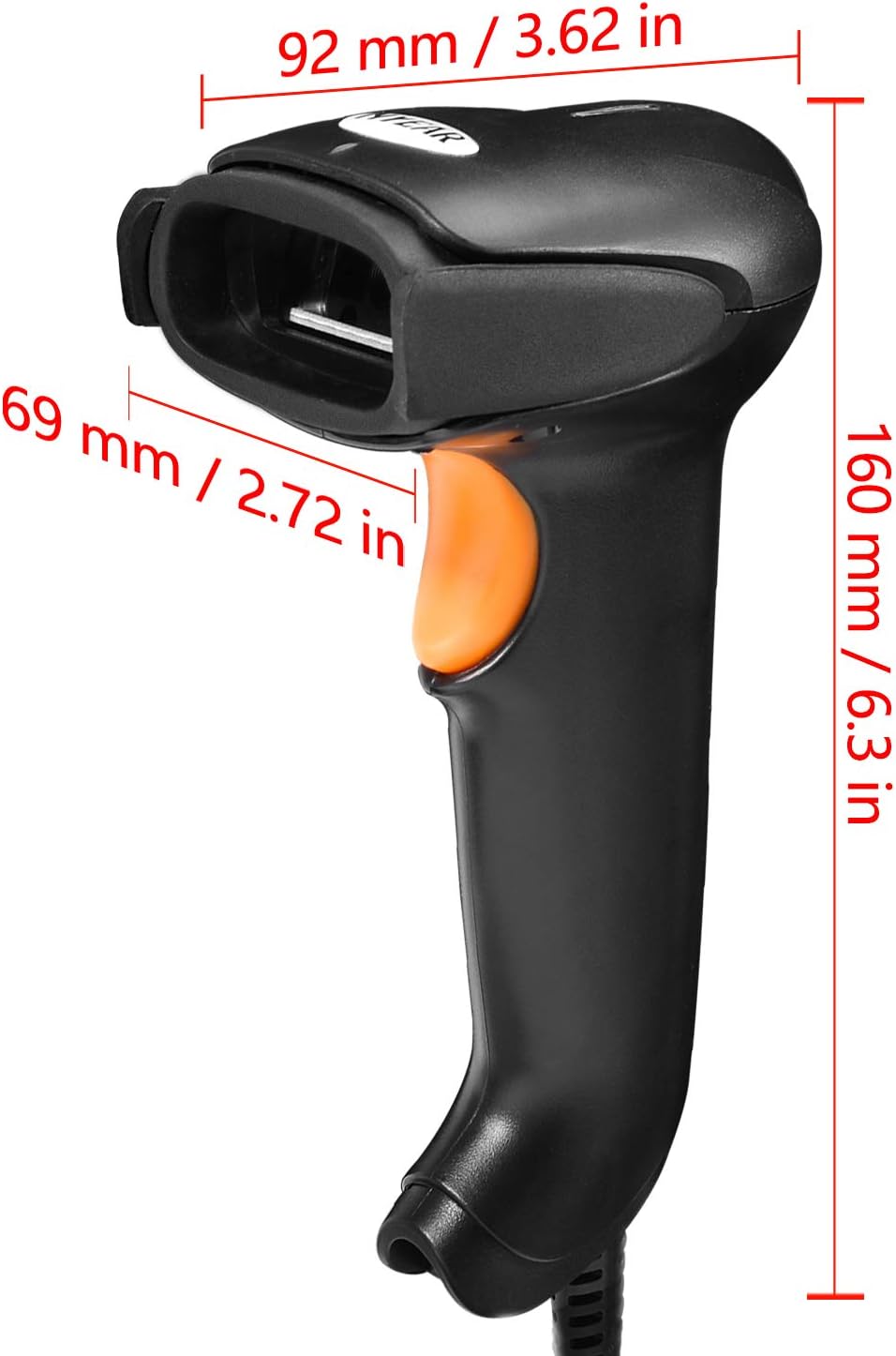
| Dimensions (L x W x H) | 160 mm x 92 mm x 69 mm (6.3 in x 3.62 in x 2.72 in) |
| Weight | 295 g |
| Connectivity | Wired USB |
| Scanning Capability | 1D and 2D barcodes |
| Scanning Speed | 200 scans/second |
| CPU | 32-bit high-speed processing CPU |
| Drop Resistance | 1.2 m (4 ft) onto concrete |
| Compatible Operating Systems | Windows, Mac, iOS, Android |
This diagram provides the physical dimensions of the scanner: 160 mm (6.3 in) length, 92 mm (3.62 in) width, and 69 mm (2.72 in) height, for reference.
8. Warranty
Specific warranty information for this product is not provided in this manual. Please refer to the product packaging or contact NYEAR customer support for details regarding warranty coverage and terms.
9. Support
For further assistance, technical support, or to download the latest drivers and firmware, please visit the official NYEAR website or refer to the Quick Start Guide.
Official Website: www.nyear.com