
Introduction
The EagleTec KG050-BR is a full-sized 104-key RGB backlit mechanical gaming keyboard designed for durability and responsive performance. It features custom mechanical switches, a robust aluminum-ABS construction, and extensive RGB lighting customization. This manual provides instructions for setting up, operating, maintaining, and troubleshooting your keyboard.
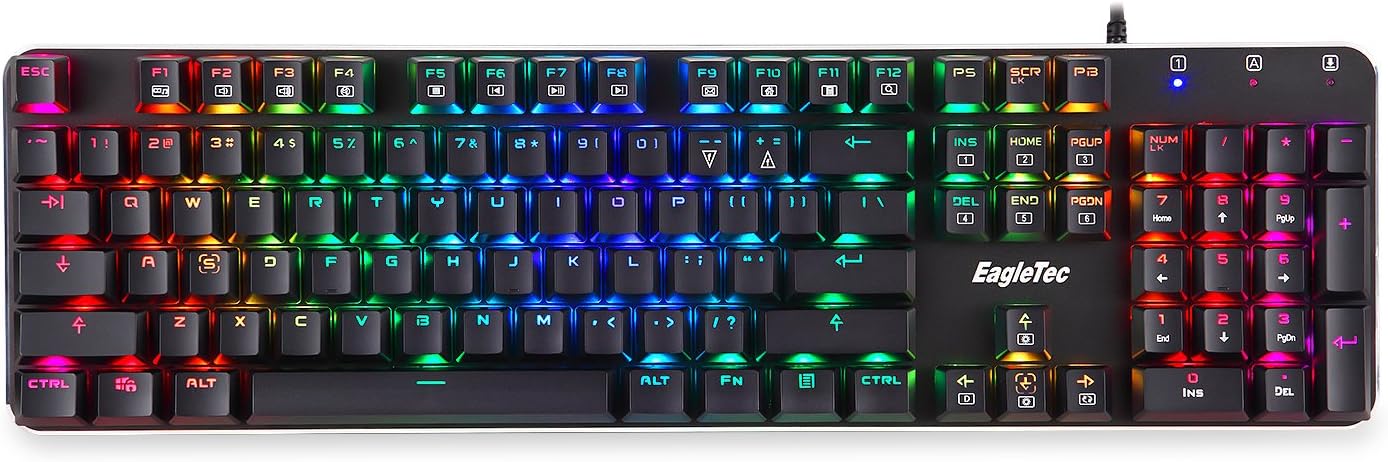
Top view of the EagleTec KG050-BR RGB Mechanical Gaming Keyboard, showcasing its full 104-key layout and vibrant RGB backlighting.
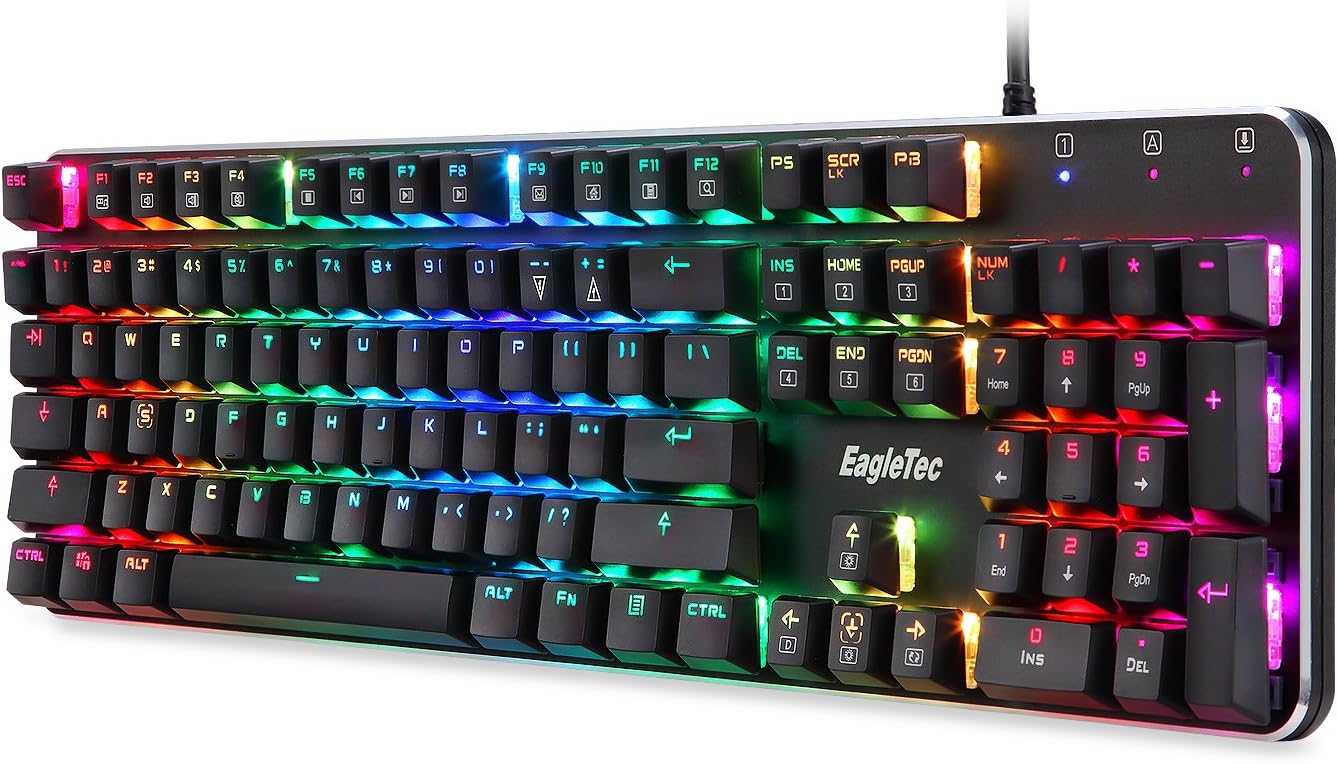
Angled view of the EagleTec KG050-BR RGB Mechanical Gaming Keyboard, highlighting its low-profile design and keycap structure.
Setup
-
Unpack the Keyboard: Carefully remove the keyboard from its packaging.
-
Connect to Computer: Plug the USB connector of the keyboard into an available USB port on your computer. The keyboard is plug-and-play and does not require additional drivers for basic functionality.
-
System Recognition: Your operating system (Windows 10, 8, 7, Vista, XP, or limited Mac OS support) will automatically detect and install the necessary device software. This process may take a few moments.
-
Initial Test: Once recognized, the keyboard's RGB backlighting should illuminate. Test basic key functions by typing in a text editor.
Operating Instructions
RGB Backlighting Control
The EagleTec KG050-BR features extensive RGB backlighting customization. Use the following key combinations to adjust the lighting effects:
- Fn + Ins: Cycle through 18 different RGB lighting modes.
- Fn + Del: Cycle through 9 different backlight colors (for static modes).
- Fn + Up Arrow: Increase backlight brightness (5 levels).
- Fn + Down Arrow: Decrease backlight brightness (5 levels).
- Fn + Left Arrow: Decrease breathing/animation speed.
- Fn + Right Arrow: Increase breathing/animation speed.

Close-up of the keyboard keys demonstrating the full RGB backlighting capabilities.
Multimedia Keys
The keyboard includes 12 dedicated multimedia keys for quick access to common functions. These are typically accessed by holding the Fn key and pressing the corresponding F-key (F1-F12).
- Fn + F1: My Computer
- Fn + F2: Search
- Fn + F3: Calculator
- Fn + F4: Media Player
- Fn + F5: Previous Track
- Fn + F6: Next Track
- Fn + F7: Play/Pause
- Fn + F8: Stop
- Fn + F9: Mute
- Fn + F10: Volume Down
- Fn + F11: Volume Up
- Fn + F12: Lock Keyboard
Anti-Ghosting and N-Key Rollover
All 104 keys on the EagleTec KG050-BR feature anti-ghosting with N-Key Rollover, ensuring that every keystroke is registered accurately, even during rapid and simultaneous key presses, which is crucial for gaming performance.

Side profile of the keyboard illustrating its low-profile design, which contributes to ergonomic comfort.

A detailed view of the brown mechanical switches, known for their tactile feedback and quieter operation.
Maintenance
-
Cleaning: To clean the keyboard, disconnect it from your computer. Use a soft, dry cloth to wipe down the keycaps and frame. For deeper cleaning, use compressed air to remove dust and debris from between the keys. A slightly damp cloth can be used for stubborn marks, but ensure no liquid enters the keyboard.
-
Keycap Removal: Keycaps can be carefully removed for thorough cleaning or replacement using a keycap puller (not included). When reattaching, ensure they are aligned correctly with the switch stem.
-
Storage: When not in use for extended periods, store the keyboard in a dry, dust-free environment.
Troubleshooting
-
Keyboard Not Responding:
- Ensure the USB cable is securely plugged into both the keyboard and the computer.
- Try plugging the keyboard into a different USB port.
- Restart your computer.
-
Backlighting Not Working or Incorrect:
- Check if the brightness is set to the lowest level (Fn + Down Arrow). Increase it using Fn + Up Arrow.
- Cycle through lighting modes (Fn + Ins) and colors (Fn + Del) to ensure a mode is active.
- Ensure the keyboard is properly connected to the computer.
-
Specific Keys Not Working:
- Clean the affected key and its switch area using compressed air.
- If possible, carefully remove the keycap and inspect for any obstructions.
- Test the keyboard on another computer to rule out a software or system issue.
-
Input Lag or Ghosting:
- Ensure the keyboard is connected directly to a USB port on your computer, not through a USB hub.
- Verify that your computer's drivers are up to date.
Specifications
| Brand | EagleTec |
| Model Number | KG050-BRRGB |
| Connectivity Technology | USB |
| Number of Keys | 104 |
| Keyboard Layout | QWERTY |
| Switch Type | Custom Mechanical (Brown-like tactile) |
| Backlighting | RGB (18 modes, 9 colors, 5 brightness levels) |
| Material | Aluminum-ABS Construction |
| Product Dimensions (L x W x H) | 17.2" x 4.9" x 1.2" (43.7cm x 12.4cm x 3.0cm) |
| Compatibility | Windows 10, 8, 7, Vista, XP; Limited Mac OS support |
Warranty and Support
For warranty information and technical support, please refer to the official EagleTec website or contact their customer service directly. Keep your purchase receipt as proof of purchase for any warranty claims.
Online Support: Visit the EagleTec official website for FAQs, driver downloads (if applicable), and contact information.
Contact Customer Service: If you encounter issues not covered in this manual, please reach out to EagleTec customer support for assistance.