
Introduction
This manual provides detailed instructions for the installation, operation, and maintenance of your Cobra DASH2308 Dash Camera. Please read this manual thoroughly before using the device to ensure proper functionality and safety.

Image: Front view of the Cobra DASH2308 Dash Camera, showcasing its compact design and screen.
Setup
What's in the Box
- Cobra DASH2308 Dash Camera
- 8GB MicroSD Card
- Low Profile Adhesive Mount
- Vehicle Power Adapter
- USB Cable

Image: All components included in the Cobra DASH2308 Dash Camera package, laid out on a surface.
Mounting the Dash Camera
- Select a suitable location on your windshield that does not obstruct your view of the road.
- Clean the windshield surface thoroughly before applying the adhesive mount.
- Attach the low profile adhesive mount to the dash camera.
- Firmly press the mounted camera onto the chosen windshield location for at least 30 seconds.
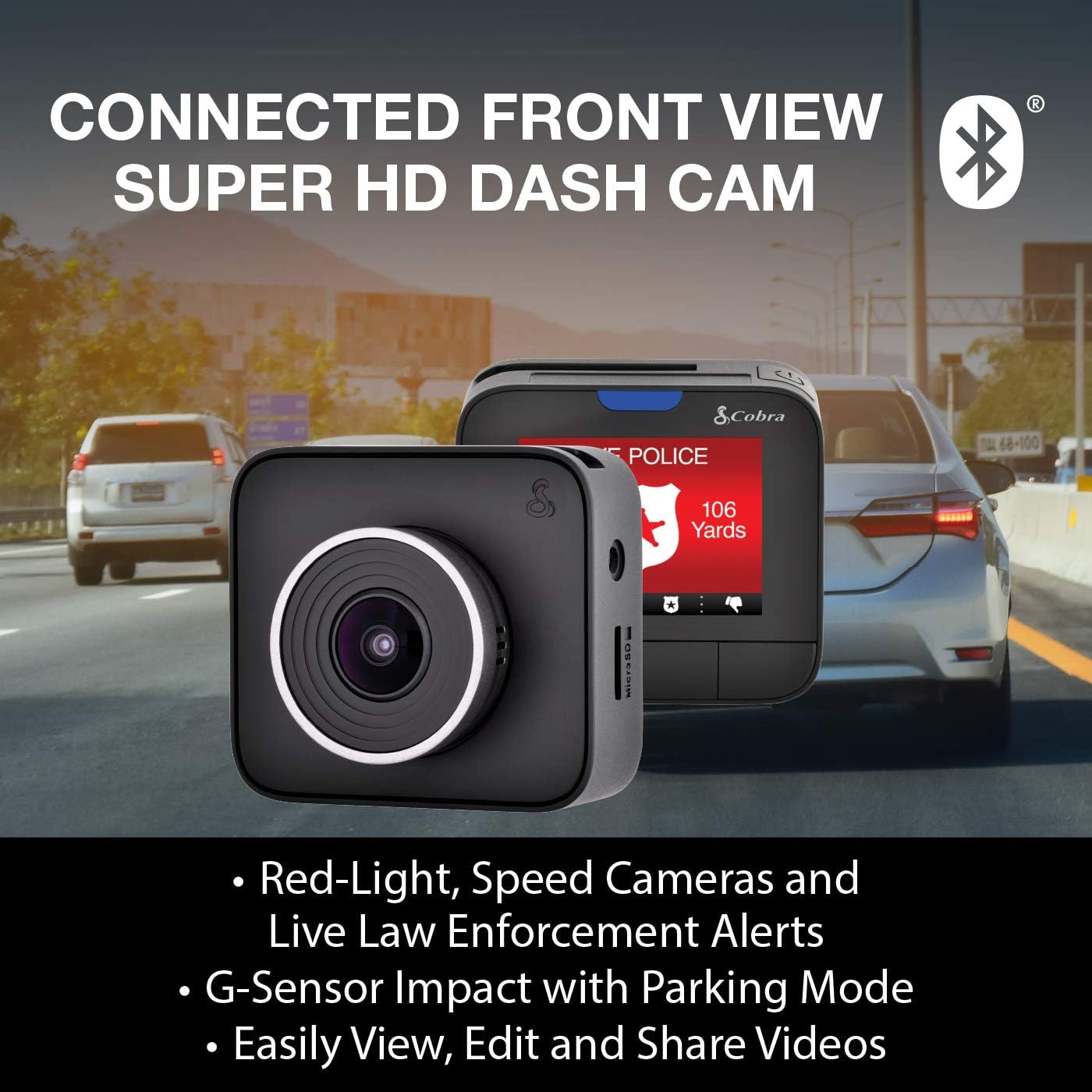
Image: The Cobra DASH2308 Dash Camera securely mounted on the interior of a car's windshield, showing its placement from the driver's perspective.
Inserting the MicroSD Card
Locate the MicroSD card slot on the side of the dash camera. Insert the included 8GB MicroSD card until it clicks into place. Ensure the card is inserted correctly to avoid damage.
Powering the Device
Connect the vehicle power adapter to the dash camera's power input and plug the other end into your vehicle's 12V power outlet. The camera will automatically power on and begin recording when your vehicle starts.
iRadar App Connection
Download the Cobra iRadar app from your smartphone's app store. Enable Bluetooth on your phone and pair it with the DASH2308. This connection enables real-time alerts and data embedding features.
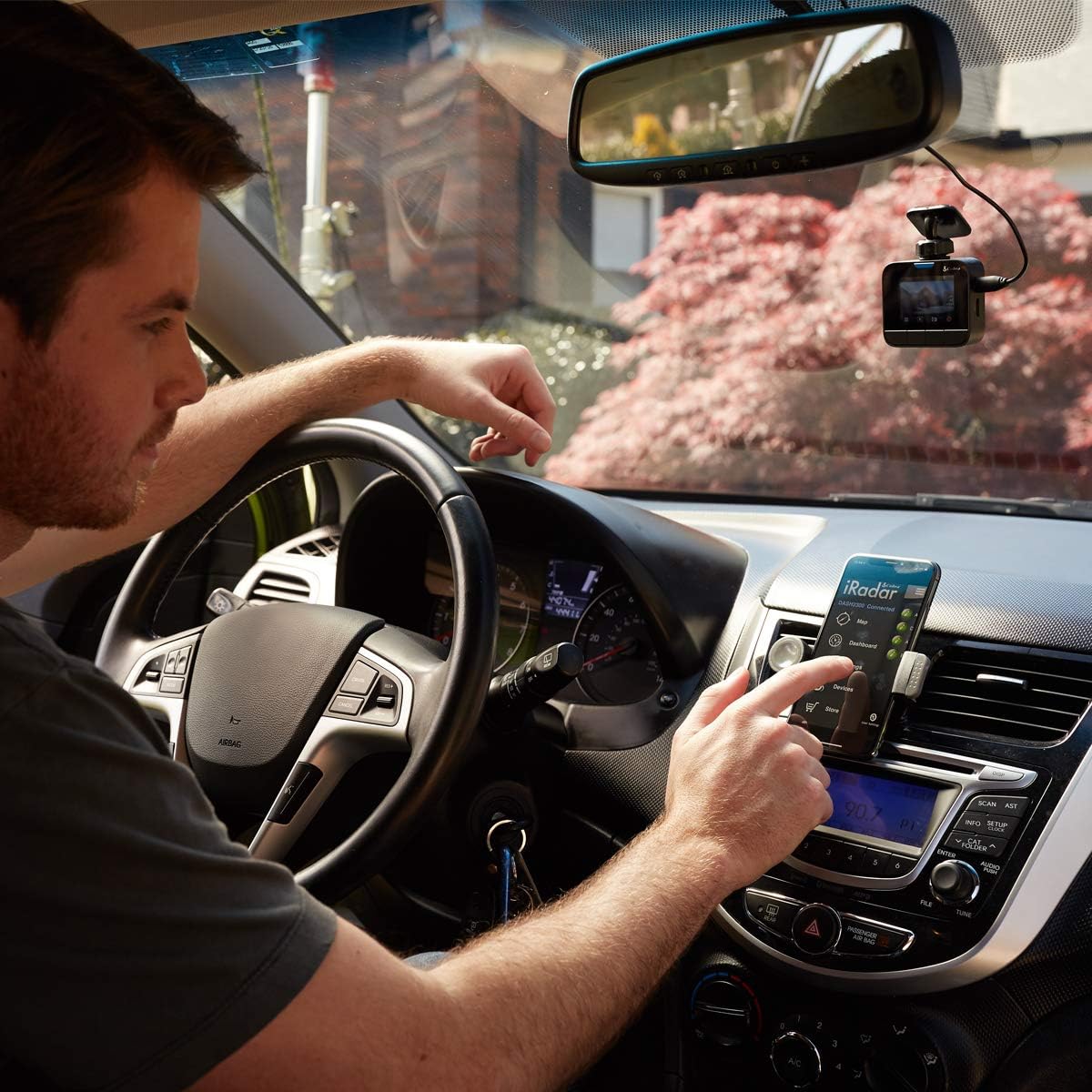
Image: A user's hand operating the Cobra iRadar application on a smartphone, which is mounted on the car's dashboard.
Operating the Dash Camera
Basic Recording
The DASH2308 features continuous loop recording. Once powered, it automatically begins recording. When the MicroSD card is full, the oldest unprotected files are overwritten. The camera automatically shuts down when vehicle power is removed.
G-Sensor Auto Accident Detection
The built-in G-Sensor detects sudden impacts or rapid deceleration. In the event of an accident, the current recording is automatically locked and protected from being overwritten, ensuring critical evidence is preserved. This feature also supports Parking Mode, initiating recording if motion is detected while parked.
Advanced Driver Alert System (ADAS)
The ADAS provides alerts for:
- Lane Departure Warning: Notifies you if the vehicle drifts out of its lane.
- Forward Collision Warning: Alerts you if you are rapidly approaching an object in front of your vehicle.
iRadar Features
When connected to the iRadar app via Bluetooth, the dash camera provides real-time threat information and embeds crucial data into your recordings:
- Real-time Alerts: Receive notifications for Red Light Cameras, Speed Cameras, and Live Police Locations, updated by the iRadar community.
- Data Embedding: Location, speed, and G-Sensor information are embedded into every point of your route, providing a comprehensive record of your drive.
Video: This video demonstrates the utility of dash cameras for rideshare drivers, highlighting how Cobra dash cams provide video evidence for both the road ahead and passengers inside the vehicle, enhancing safety and accountability.
Video Playback and Management
The iRadar app allows for easy viewing, editing, and sharing of recorded videos directly from your smartphone. This provides convenient access to your footage for review or sharing as needed.
Video: An overview of the Cobra DASH2308 dash camera, showcasing its features and functionality in a concise manner.
Maintenance
MicroSD Card Management
Regularly format your MicroSD card to ensure optimal performance and prevent data corruption. Replace the MicroSD card if you experience frequent recording errors or data loss.
Cleaning the Camera Lens and Screen
Use a soft, lint-free cloth to gently clean the camera lens and screen. Avoid abrasive materials or harsh chemicals that could scratch or damage the surfaces.
Temperature Considerations
The DASH2308 is built with supercapacitor technology, designed to withstand extreme temperatures in your vehicle. While robust, avoid prolonged exposure to direct sunlight in extremely hot conditions when the vehicle is parked, if possible, to prolong the device's lifespan.
Troubleshooting
- Camera not powering on: Ensure the vehicle power adapter is securely connected to both the camera and the vehicle's 12V outlet. Check if the vehicle's power outlet is functioning.
- Recording issues: Verify that the MicroSD card is properly inserted and has sufficient free space. Try formatting the MicroSD card. If issues persist, consider replacing the card.
- iRadar app connectivity problems: Ensure Bluetooth is enabled on your smartphone and the camera is within range. Restart both the camera and the app.
- Inaccurate ADAS alerts: Ensure the camera lens is clean and unobstructed. Calibrate the ADAS settings through the iRadar app if available.
For further assistance, please refer to the support section.
Specifications
| Feature | Detail |
|---|---|
| Brand | COBRA |
| Model Name | DASH2308 |
| Video Capture Resolution | 1296p Super HD |
| Connectivity Technology | Bluetooth |
| Special Features | Bluetooth, iRadar App, G-Sensor, Loop Recording, ADAS |
| Included Components | Dash Camera, 8GB MicroSD Card, Adhesive Mount, Vehicle Power Adapter |
| Mounting Type | Adhesive Mount |
| Screen Size | 2 Inches |
| Flash Memory Type | MicroSD |
| Real Angle of View | 160 Degrees |
| Item Weight | 0.55 Pounds |
Warranty Information
The Cobra DASH2308 Dash Camera comes with a 1 Year Limited Manufacturer Warranty. Please retain your proof of purchase for warranty claims. For specific terms and conditions, refer to the warranty documentation included with your product or visit the official Cobra website.
Support
For technical support, frequently asked questions, or additional product information, please visit the official Cobra website or contact Cobra customer service. Contact details can typically be found on the product packaging or the brand's website.
You can also visit the Cobra Electronics Store on Amazon for more products and information.


