
HP X9D24A#B1K
HP DesignJet Z9+ Dual Roll 44-inch Postscript Printer User Manual
Model: X9D24A#B1K
Introduction
This manual provides comprehensive instructions for the setup, operation, and maintenance of your HP DesignJet Z9+ Dual Roll 44-inch Postscript Printer. Please read this manual thoroughly before using the printer to ensure optimal performance and longevity.
The HP DesignJet Z9dr 44-in PostScript Printer with V-Trimmer is designed for professional-grade large format printing, offering advanced features for high-quality output.
1. Setup
1.1 Unpacking and Placement
The HP DesignJet Z9+ printer is a substantial piece of equipment, weighing approximately 207 pounds (93.9 kg) and measuring 70.94 x 27.36 x 39.29 inches (180.2 x 69.5 x 99.8 cm). Ensure you have adequate space and assistance for unpacking and placement.
- Carefully remove the printer from its packaging. It is recommended to have at least two people for this process.
- Place the printer on a stable, level surface capable of supporting its weight.
- Ensure there is sufficient clearance around the printer for ventilation and access to all ports and media loading areas.
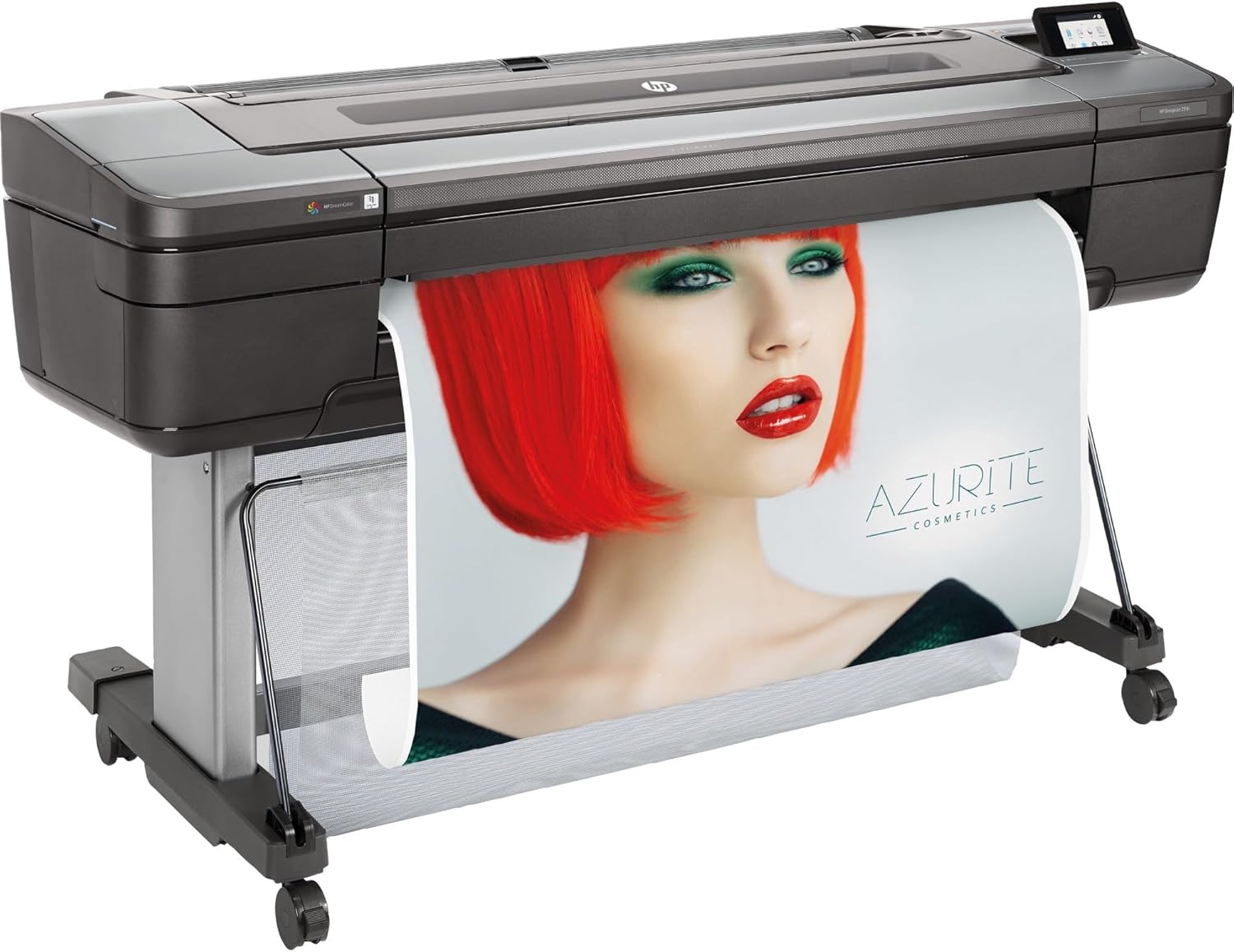
Figure 1.1: Front view of the HP DesignJet Z9+ printer in operation, showcasing its ability to produce large-format prints.
1.2 Connecting Power and Data
- Connect the power cord to the printer and then to a grounded electrical outlet.
- For wired connectivity, connect a USB cable from the printer to your computer. The printer also supports wireless connectivity.
- Power on the printer using the main power switch.

Figure 1.2: Rear view of the HP DesignJet Z9+ printer, highlighting the USB and power connections.
1.3 Initial Software Installation
Install the necessary drivers and software from the HP website or the provided installation media. Follow the on-screen prompts to complete the installation process. This step is crucial for enabling full printer functionality and remote control capabilities.
2. Operating the Printer
2.1 Loading Media
The DesignJet Z9+ supports dual rolls and various media types, including labels, with a maximum media size of 13 x 19 inches and standard sheet sizes like 8.3 x 11 inches. The printer has a max input sheet capacity of 200 and an output sheet capacity of 200.
- Open the media cover.
- Load the desired roll or sheet media into the designated slots. Ensure the media is properly aligned.
- Close the media cover. The printer will automatically detect the media type and size.

Figure 2.1: The HP DesignJet Z9+ printer demonstrating a large-format print, highlighting its media handling capabilities.
2.2 Printing Documents
The printer is a Postscript printer, optimized for high-quality graphic and technical prints. It supports both color and monochrome printing.
- From your application, select "Print".
- Choose the HP DesignJet Z9+ printer from the list.
- Adjust print settings such as paper type, quality (e.g., 2400 ppm for color, 1200 ppm for monochrome), and size as needed.
- Click "Print" to start the printing process.

Figure 2.2: The HP DesignJet Z9+ printer actively printing a large image, showcasing its output quality.
2.3 Using the Control Panel and Remote Control
The printer features an intuitive control panel for direct operation. Additionally, it supports remote control, allowing you to manage print jobs and settings from your computer or mobile device via its wireless capabilities.
3. Maintenance
3.1 Ink Cartridge Replacement
The HP DesignJet Z9+ uses HP compatible ink cartridges. Replace cartridges when prompted by the printer or software to maintain print quality.
- Open the ink cartridge access door.
- Press the tab on the empty cartridge to release it and pull it out.
- Unpack the new HP cartridge and insert it into the correct slot until it clicks into place.
- Close the access door.
3.2 Printhead Cleaning
Regular printhead cleaning helps prevent clogs and ensures consistent print quality. This can typically be initiated from the printer's control panel or through the printer software on your computer.
3.3 General Cleaning
Keep the exterior of the printer clean with a soft, damp cloth. Regularly check and clean the media path for any dust or debris that could affect print quality or cause paper jams.
4. Troubleshooting
This section addresses common issues you might encounter with your HP DesignJet Z9+ printer.
4.1 Print Quality Issues
- Faded or Streaky Prints: Check ink levels and perform a printhead cleaning cycle.
- Incorrect Colors: Ensure you are using genuine HP ink cartridges and that your color profiles are correctly set in your printing software.
4.2 Paper Jams
- Follow the on-screen instructions or control panel prompts to clear paper jams.
- Always pull jammed paper in the direction of the paper path to avoid damaging internal components.
4.3 Connectivity Problems
- USB Connection: Ensure the USB cable is securely connected to both the printer and the computer. Try a different USB port or cable.
- Wireless Connection: Verify that the printer is connected to your Wi-Fi network and that your computer is on the same network. Restart your router and printer if issues persist.
For more complex issues or error codes not listed, refer to the HP support website or contact customer support.
5. Specifications
| Feature | Detail |
|---|---|
| Brand | HP |
| Model Name | X9D24A#B1K |
| Product Dimensions | 70.94 x 27.36 x 39.29 inches |
| Item Weight | 207 pounds |
| Connectivity Technology | USB, Wireless |
| Printing Technology | Inkjet (Postscript) |
| Printer Output | Color |
| Maximum Print Speed (Color) | 2400 ppm |
| Max Printspeed Monochrome | 1200 ppm |
| Maximum Media Size | 13 x 19 inch (supports 44-inch rolls) |
| Print Media | Labels, Rolls, Sheets |
| Max Input Sheet Capacity | 200 |
| Output Sheet Capacity | 200 |
| Memory Storage Capacity | 500 GB (self-encrypting) |
| Processor Count | 1 |
| Control Method | Remote |
| Compatible Cartridge | HP |
| First Available Date | June 11, 2018 |
6. Warranty and Support
For warranty information and technical support, please refer to the official HP website or contact HP customer service. Keep your purchase receipt and printer serial number (located on the printer's label) handy when contacting support.
HP provides customer support for their products. For detailed assistance, visit the HP Store on Amazon or the official HP support portal.
Ask a question about this manual
Ask about setup, troubleshooting, compatibility, parts, safety, or missing instructions. Manuals+ will review the question and use this page’s manual context to help answer it.