
kimire 312P
Kimire Vlogging Camera Camcorder User Manual
Model: 312P (0014)
Brand: kimire
1. Introduction
This manual provides comprehensive instructions for the operation and maintenance of your Kimire Vlogging Camera Camcorder. Designed for amateur users, this camcorder offers HD 1080P video recording at 15 frames per second and still image capture up to 24 Megapixels. It features a 2.7-inch TFT LCD screen with 270-degree rotation, 16X digital zoom, and dual LED white lights for improved illumination.
Package Contents:
- 1x Kimire Camcorder
- 1x Lithium Battery (NP-40, 3.7V, 1250 mAh)
- 1x USB Cable
- 1x AV Cable
- 1x USB Charger
- 1x User Manual
- 1x Reusable Camcorder Bag
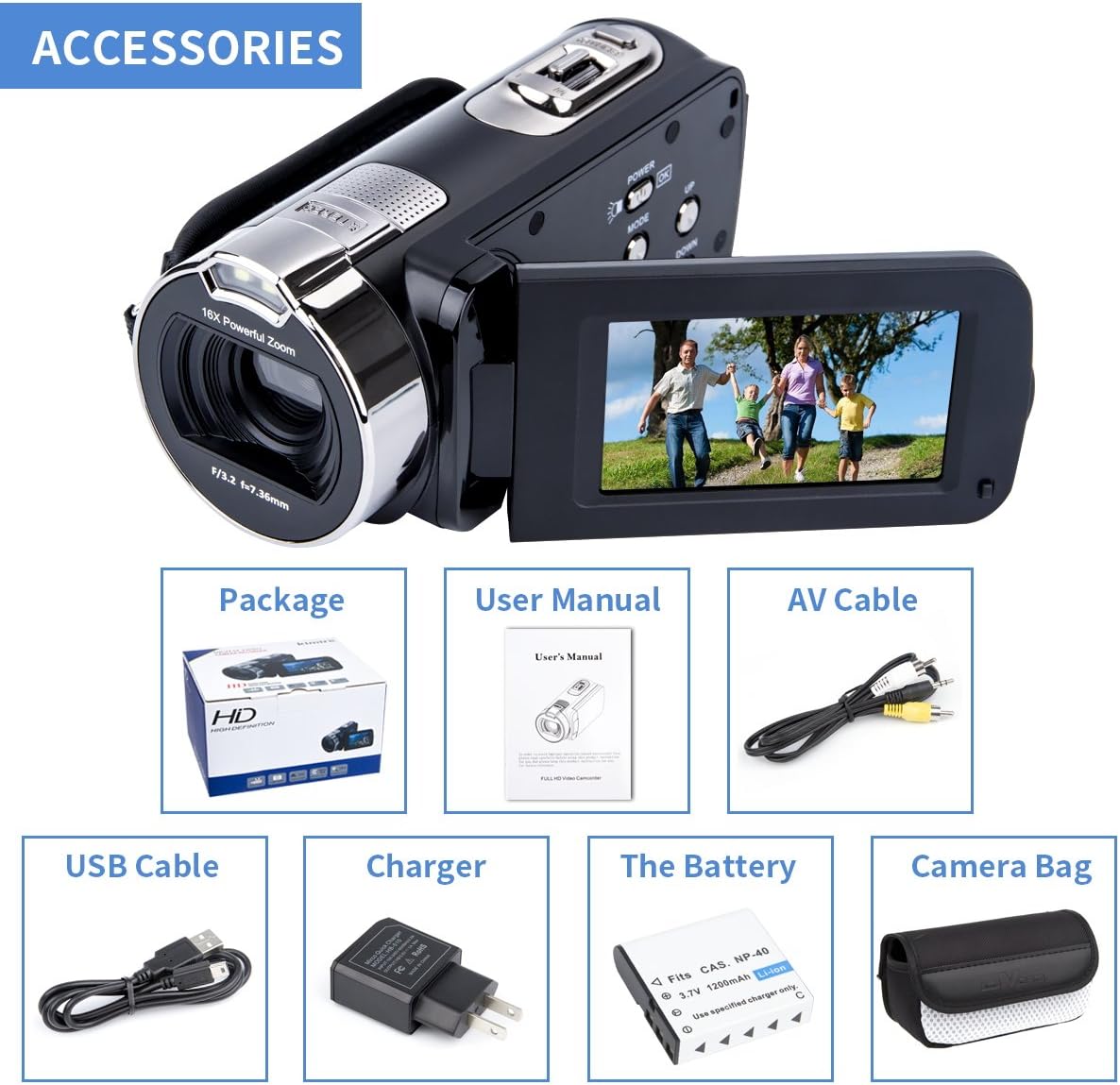
Figure 1.1: Kimire Camcorder and all included accessories.
2. Setup
2.1 Battery Installation and Charging
- Open the battery compartment cover located at the bottom of the camcorder.
- Insert the provided NP-40 Lithium-ion battery, ensuring the correct polarity.
- Close the battery compartment cover securely.
- Connect the camcorder to the USB charger using the supplied USB cable.
- For the first use, charge the battery for up to 8 hours. Subsequent charges typically take 2.5-3.5 hours for a full charge.
- Always switch off the camcorder before replacing the battery.
2.2 Memory Card Insertion and Formatting
The camcorder supports SD and MMC memory cards from 4GB to 32GB (not included). A memory card is required for recording videos and taking photos.
- Locate the memory card slot, typically near the battery compartment.
- Insert the SD/MMC card with the metal contacts facing down until it clicks into place.
- Before first use, it is recommended to format the SD card within the camcorder's menu to avoid system malfunction. Refer to Section 3.3 for menu navigation.
- To remove the card, gently push it in until it springs out.
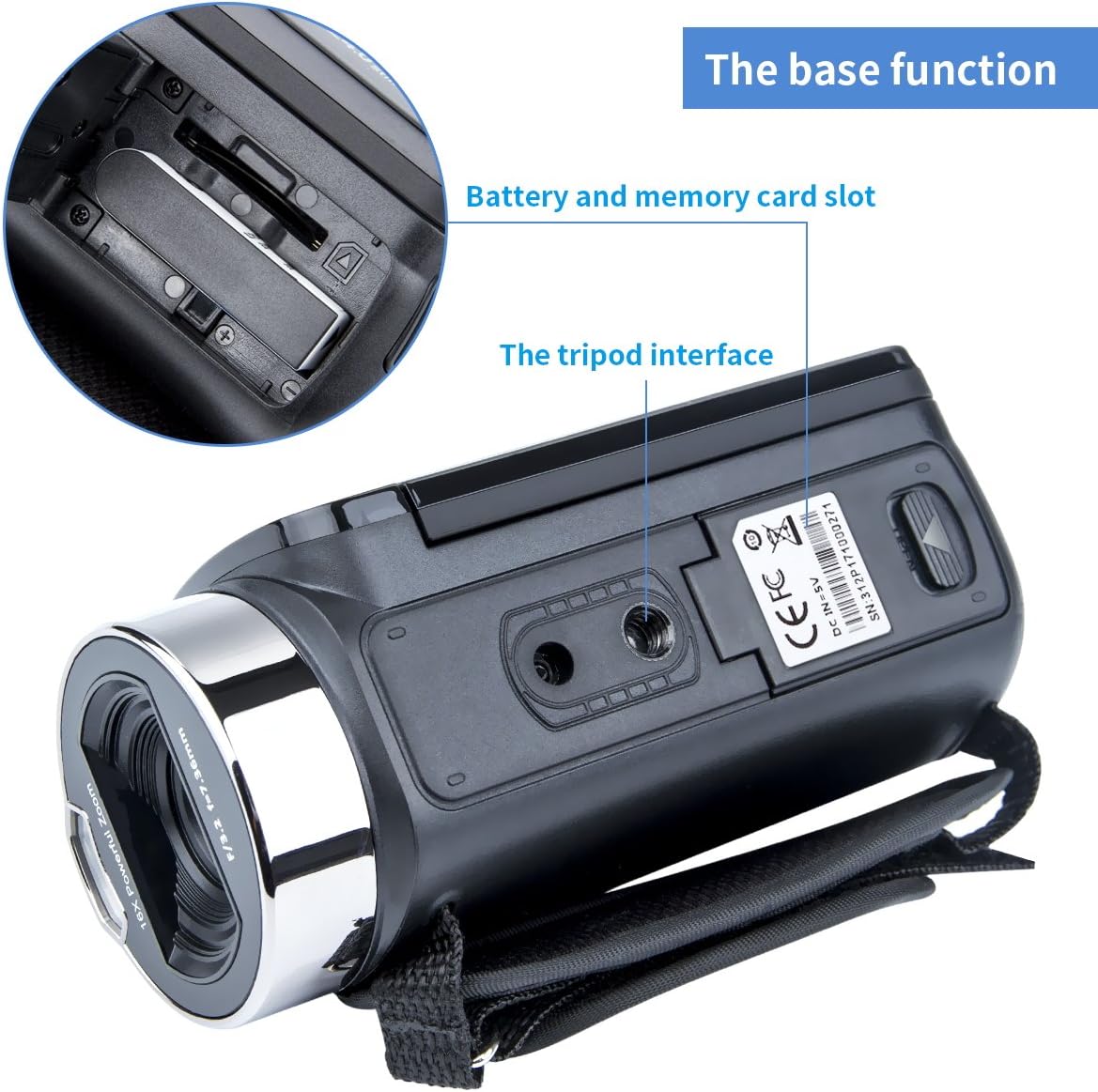
Figure 2.1: Location of the battery and memory card slots, along with the tripod interface.
3. Operating Instructions

Figure 3.1: Overview of Kimire Camcorder controls and ports.
3.1 Powering On/Off
- To power on, open the LCD screen. The camcorder will automatically turn on.
- To power off, close the LCD screen or press and hold the POWER/OK/IR button. The camcorder also features an auto power-off function to conserve battery.
3.2 Recording Videos and Taking Photos
- Video Recording: In video mode, press the Record/Stop button to start recording. Press it again to stop. The camcorder records in FHD 1920x1080 resolution at 15 frames per second.
- Taking Photos: In photo mode, press the Take Photo button to capture a still image. Maximum image resolution is 24 Megapixels (6000x4500).
- Digital Zoom: Use the W/T (Wide/Telephoto) switch to adjust the 16X digital zoom. Note that this is digital zoom, not optical zoom, and there is no auto-focus.
- LED Fill Light: The dual LED white lights can be activated for improved illumination in low-light conditions. Refer to the menu settings for activation.
3.3 Menu Navigation and Settings
- Press the MENU button to access the settings menu.
- Use the UP and DOWN buttons to navigate through menu options.
- Press the POWER/OK/IR button to confirm a selection.
- Common settings include: White Balance (Auto/Sunshine/Cloudy/Fluorescent/Tungsten), Resolution (Video/Image), Anti-shake, Face Capture, and Multi-Languages.
3.4 Playback Mode
- Press the MODE button to switch to playback mode.
- Use the UP and DOWN buttons to browse through recorded videos and photos.
- Press POWER/OK/IR to play a video or view a photo.
3.5 Connecting to TV and PC
- TV Output: Connect the camcorder to a TV using the provided AV cable. Select the appropriate input on your TV (NTSC/PAL compatible).
- PC Connection: Connect the camcorder to your computer using the provided USB cable. The camcorder will appear as a removable disk, allowing you to transfer files. Supported operating systems include Windows 7/10/2002/XP/Vista and Mac OS.

Figure 3.2: Connecting the camcorder to a TV and PC.
4. Key Features
- Display: 2.7-inch TFT LCD screen with 16:9 aspect ratio and 270-degree rotation for versatile viewing angles.
- Illumination: Dual LED white lights for enhanced visibility in low-light environments.
- Image Resolution: Up to 24 Megapixels (6000x4500) for high-quality still photographs.
- Video Resolution: Full HD 1920x1080 at 15 frames per second (FHD), also supports HD 1280x720 and 640x480.
- Zoom: 16X powerful digital zoom. Please note: This camcorder features digital zoom only; it does not have optical zoom or auto-focus.
- Storage: Supports SD and MMC memory cards from 4GB to 32GB.
- Battery: Rechargeable NP-40 Lithium-ion battery (3.7V, 1250 mAh) providing approximately 2.5-3.5 hours of continuous use on a full charge.
- Convenience: Auto power-off, face capture, and anti-shake functions.
- Audio: Built-in internal microphone and speaker. Please note: This camcorder does not support an external microphone.
- Connectivity: USB 2.0 port for PC connection and TV output (NTSC/PAL) via AV cable.
- Compatibility: Operates with Windows 7/10/2002/XP/Vista and Mac OS.
- Portability: Lightweight and compact design for easy carrying and use.

Figure 4.1: Camcorder with its rotatable LCD screen open.
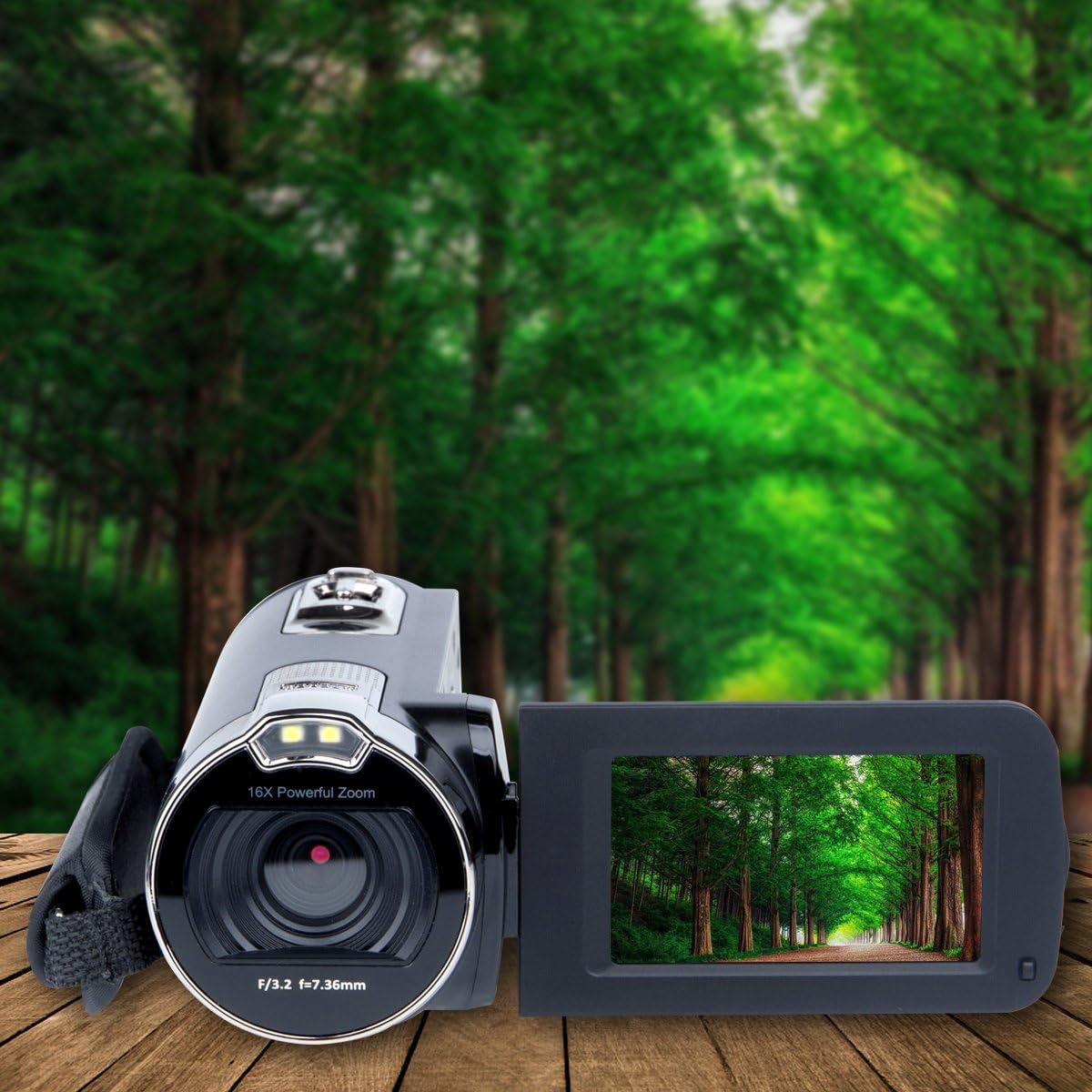
Figure 4.2: Camcorder in an outdoor setting, demonstrating its display.
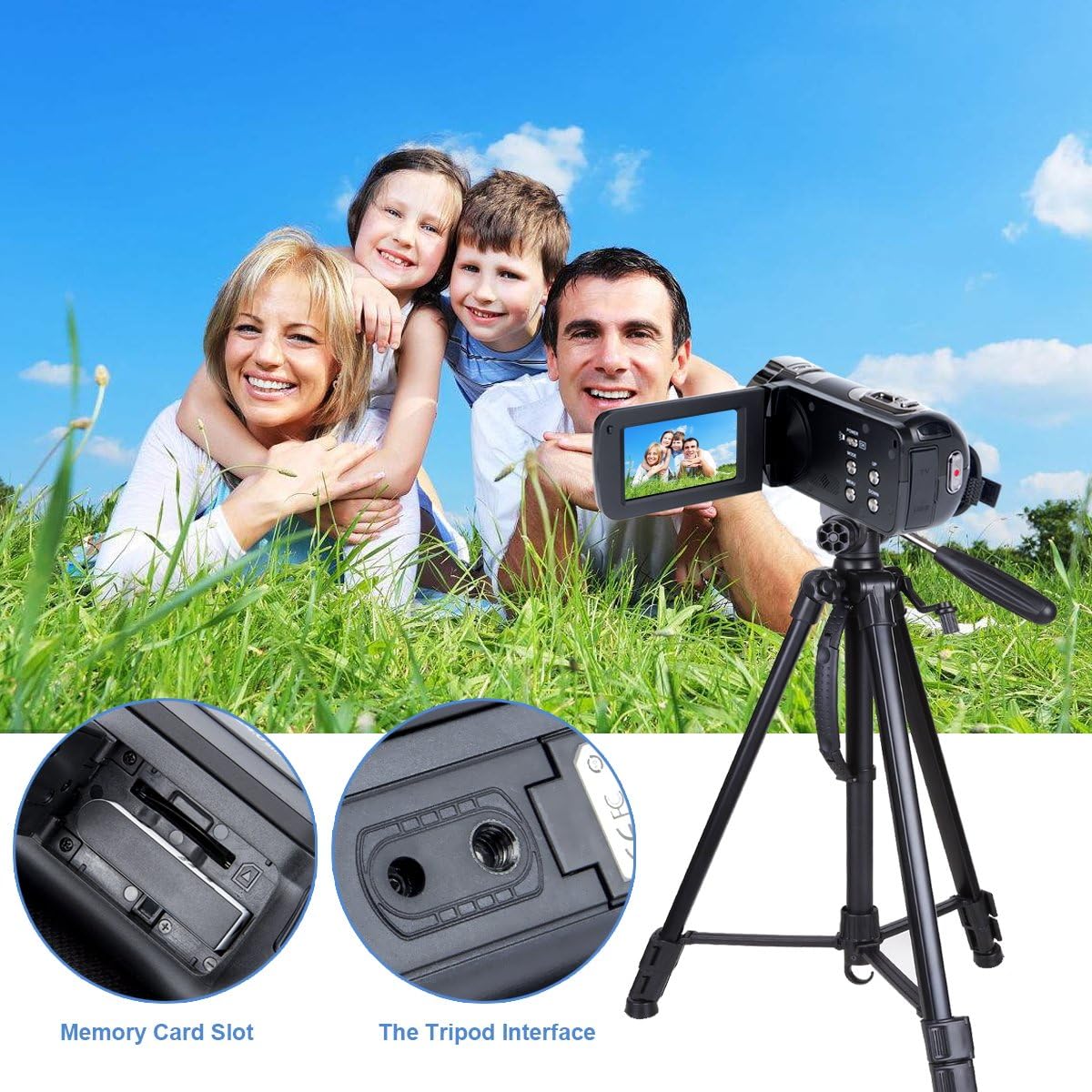
Figure 4.3: Camcorder mounted on a tripod, capturing a family moment.
5. Maintenance
- Cleaning: Use a soft, dry cloth to clean the camcorder body. For the lens and LCD screen, use a specialized lens cleaning cloth and solution. Avoid abrasive materials or harsh chemicals.
- Storage: When not in use for extended periods, remove the battery and store the camcorder in a cool, dry place, away from direct sunlight and extreme temperatures.
- Battery Care: To prolong battery life, avoid fully discharging the battery frequently. Charge it regularly, even if not in active use.
- Handling: Handle the camcorder with care to prevent drops or impacts, which can damage internal components.
6. Troubleshooting
| Problem | Possible Cause | Solution |
|---|---|---|
| Camcorder does not power on. | Battery is dead or incorrectly inserted. | Ensure battery is fully charged and correctly inserted. |
| Cannot record video/take photos. | No memory card, memory card full, or card error. | Insert a compatible SD/MMC card. Delete unnecessary files or format the card (backup data first). |
| Video/Image quality is poor. | Low light conditions, dirty lens, or digital zoom overuse. | Use the LED fill light in dark environments. Clean the lens. Avoid excessive digital zoom, especially in low light. |
| Camcorder freezes during operation. | System malfunction or memory card issue. | Remove and reinsert the battery to restart. Format the SD card if the issue persists (backup data first). |
| No sound in recorded videos. | Internal microphone muted or audio settings. | Check audio settings in the menu. Ensure no obstructions are covering the internal microphone. |
7. Specifications
| Brand: | kimire |
| Model Number: | 0014 (312P) |
| Image Sensor: | CMOS Image Sensor, Max 24.0 Megapixels |
| Display Screen: | 2.7 inches TFT-LCD (16:9) with 270 Degree Rotation |
| Video Resolution: | FHD 1920x1080 (15fps), HD 1280x720, 640x480 |
| Image Resolution: | 1M, 3M, 5M, 8M, 12M, 16M, 20M (5120x3840), 24M (6000x4500) |
| Digital Zoom: | 16X |
| Focusing Range: | Normal 1.2M to Infinity; Micro 15cm to 25cm |
| Camera Lens: | Fixed lens, Aperture f/3.2, Focal Distance f=7.36mm |
| LED Fill Lamp: | Less than 1.0M range; Recording: On/Off; Shooting: On/Off |
| File Format: | Image: JPEG, Video: AVI |
| Audio Format: | PCM, MP3 |
| Memory Card Support: | SD memory card and MMC card (4GB to 32GB) |
| USB Port: | USB 2.0 |
| TV Output: | NTSC/PAL |
| Battery: | 1 Lithium Ion battery (NP-40, 3.7V, 1250 mAh) |
| Operating System Requirements: | Windows 7/10/2002/XP/Vista/Mac OS |
| Item Weight: | 1.2 pounds |
| Product Dimensions: | 5 x 2.2 x 2.2 inches |
8. Warranty and Support
For any questions, technical assistance, or warranty claims, please contact Kimire customer service. Refer to the product packaging or the official Kimire website for contact information. Our customer service team aims to resolve all problems within 24 hours.
Ask a question about this manual
Ask about setup, troubleshooting, compatibility, parts, safety, or missing instructions. Manuals+ will review the question and use this page’s manual context to help answer it.