
MikroTik wsAP ac lite
MikroTik wsAP ac lite Wireless Access Point (RBwsAP-5Hac2nD-US) User Manual
Model: RBwsAP-5Hac2nD-US
1. Product Overview
The MikroTik wsAP ac lite is a compact, in-wall wireless access point designed for environments such as hotels, shopping malls, hospitals, and airports. Its discreet design allows it to integrate seamlessly into standard wall power sockets, minimizing visual impact.
This device offers dual-band Wi-Fi connectivity, supporting both 2.4 GHz and 5 GHz frequencies with 802.11ac and legacy wireless standards. It features three Ethernet ports for wired connectivity, including one Power over Ethernet (PoE-in) port on the rear for power and data, and two additional LAN ports accessible behind the front cover. A USB 2.0 port is included for charging mobile devices or connecting storage. Additionally, a pass-through RJ11 telephone jack is provided for convenient telephone connections in hospitality settings.
2. Package Contents
Verify that all items are present in your package:
- MikroTik wsAP ac lite Wireless Access Point unit
- Wall mounting bracket
- Standard mounting screws
- Internal antenna system (integrated)
- Quick Start Guide (if applicable)
Note: A special screw set (product code K50) for enhanced security is available as a separate accessory and is not included in the standard package.
3. Physical Description and Interfaces
The wsAP ac lite is designed for in-wall installation, presenting a clean, flush appearance. Key interfaces are located on the rear and behind a discreet front cover.

Figure 1: MikroTik wsAP ac lite Wireless Access Point, front and side view. This image shows the compact and unobtrusive design of the device, featuring a white casing with ventilation grilles.
3.1. Ports and Connectors
- E1 PoE-in Ethernet Port: Located on the rear, this port supports Power over Ethernet (PoE) for both power supply and data connection to your network infrastructure.
- E2, E3 LAN Ports: Two additional Ethernet ports located behind the front cover, providing wired network access for devices such as computers or IP phones.
- USB 2.0 Port: Located behind the front cover, this port can be used for charging mobile devices or connecting external storage.
- RJ11 Pass-through Jack: Located behind the front cover, this allows for a telephone line connection to a desktop phone, simplifying cable management in rooms.
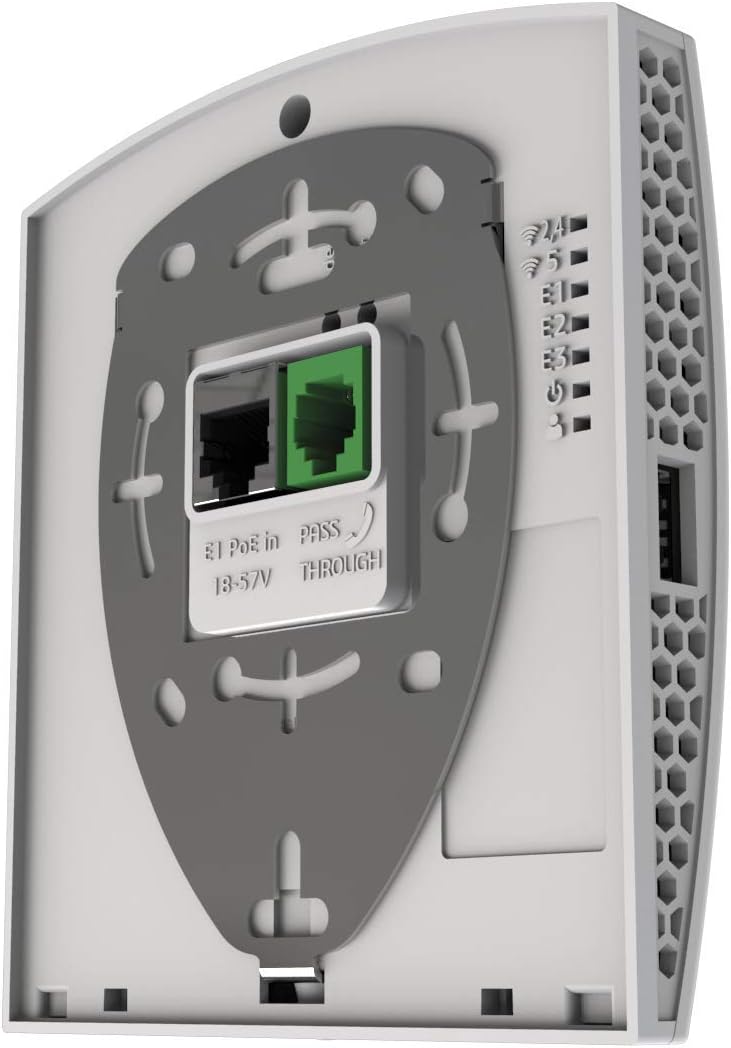
Figure 2: Detailed view of the rear panel of the MikroTik wsAP ac lite. This image highlights the E1 PoE-in Ethernet port, E2 and E3 LAN ports, USB 2.0 port, and the RJ11 pass-through telephone jack, along with mounting plate attachment points.
3.2. LED Indicators
- Power/Status LED: Indicates the device's power status and operational state. (Exact behavior may vary based on RouterOS configuration).
- Ethernet Link/Activity LEDs: Typically integrated into the Ethernet ports, indicating link status and data activity.
4. Setup and Installation
4.1. Mounting the Device
The wsAP ac lite is designed to be mounted into a standard wall power socket box. Ensure the power to the socket is turned off before installation.
- Carefully remove the existing wall plate and any components from the wall socket box.
- Connect the Ethernet cable providing PoE to the E1 PoE-in port on the rear of the wsAP ac lite. If using the RJ11 pass-through, connect the telephone line now.
- Position the wsAP ac lite unit with its mounting bracket over the wall socket box.
- Secure the device to the wall box using the provided mounting screws. Ensure it is flush and stable.
- Close the front cover of the device.

Figure 3: MikroTik wsAP ac lite unit shown with its wall mounting bracket, illustrating the components for secure in-wall installation.
4.2. Powering On and Initial Access
Once mounted and connected to a PoE-enabled network switch or injector, the device will power on automatically. The Power/Status LED will illuminate.
To access the device for initial configuration, connect a computer to one of the LAN ports (E2 or E3) or connect wirelessly to the default SSID (if broadcasted). The default IP address is typically 192.168.88.1. You can access the configuration interface via a web browser or using MikroTik's WinBox utility.
Important: Change the default username and password immediately after initial access for security purposes.
5. Operating Instructions
5.1. Wi-Fi Configuration
The wsAP ac lite supports dual-band Wi-Fi (2.4 GHz and 5 GHz). You can configure multiple SSIDs (Wi-Fi network names) with different security settings.
- Log in to the device's web interface or WinBox.
- Navigate to the Wireless section.
- Configure the desired SSIDs, security protocols (e.g., WPA2-PSK), and passwords for both 2.4 GHz and 5 GHz interfaces.
- Apply changes and reboot the device if prompted.
5.2. USB Port Usage
The USB 2.0 port can be used for:
- Mobile Device Charging: Connect compatible mobile devices for charging.
- External Storage: Attach a USB flash drive or external hard drive for network-attached storage (NAS) functionality, configurable via RouterOS.
5.3. RJ11 Pass-through Functionality
The RJ11 jack provides a direct pass-through connection for a standard telephone line. Connect the incoming telephone line to the rear RJ11 port during installation, and then connect a desktop phone to the front RJ11 port for seamless telephone service.
6. Maintenance
- Firmware Updates: Regularly check the MikroTik website for the latest RouterOS firmware updates to ensure optimal performance and security. Follow the provided instructions for safe firmware upgrades.
- Cleaning: Use a soft, dry cloth to clean the device. Avoid liquid cleaners or abrasive materials. Ensure the device is powered off before cleaning.
- Configuration Backup: Periodically back up your device configuration to prevent data loss in case of unforeseen issues.
7. Troubleshooting
7.1. No Power
- Ensure the Ethernet cable is securely connected to the E1 PoE-in port.
- Verify that the PoE-enabled switch or injector is powered on and functioning correctly.
- Check the PoE source for proper voltage output (18-57V).
7.2. No Wi-Fi Signal
- Confirm the device is powered on (Power/Status LED is active).
- Log in to the device and verify that the wireless interfaces (WLAN1 for 2.4GHz, WLAN2 for 5GHz) are enabled and configured correctly.
- Check for any scheduled Wi-Fi disablements.
- Ensure your client device is within range and supports the configured Wi-Fi standards.
7.3. Unable to Access Configuration Interface
- Ensure your computer is connected to one of the LAN ports (E2 or E3) or wirelessly to the device.
- Verify your computer's IP settings are compatible with the device's default IP (e.g., 192.168.88.x subnet).
- Try accessing via WinBox, which can often discover MikroTik devices even without a direct IP configuration.
- If all else fails, a hard reset to factory defaults may be necessary (refer to MikroTik documentation for specific reset procedures).
8. Specifications
| Feature | Detail |
|---|---|
| Model Name | wsAP ac lite |
| Brand | MikroTik |
| Wireless Standard | 802.11ac |
| Frequency Band Class | Dual-Band (2.4 GHz / 5 GHz) |
| Connectivity Technology | Wired, Wireless |
| Ethernet Ports | 3 (1x PoE-in, 2x LAN) |
| USB Port | 1x USB 2.0 |
| Telephone Jack | 1x RJ11 Pass-through |
| Special Feature | WPS (Wi-Fi Protected Setup) |
| Product Dimensions | 5.91 x 5.91 x 5.91 inches |
| Item Weight | 6.9 ounces |
| Manufacturer | Mikrotik |
| Date First Available | June 5, 2018 |
9. Safety Information
- Read all instructions before operating the device.
- Do not expose the device to water, moisture, or extreme temperatures.
- Ensure proper ventilation to prevent overheating.
- Only use power sources (PoE) that comply with the device's specifications (18-57V).
- Installation should be performed by qualified personnel, especially when dealing with in-wall electrical boxes.
10. Warranty and Support
This MikroTik product is covered by a limited manufacturer's warranty. For detailed warranty terms and conditions, please refer to the documentation provided with your purchase or visit the official MikroTik website.
For technical support, firmware downloads, and additional resources, please visit the MikroTik support portal or contact your authorized MikroTik reseller.
Related Documents - wsAP ac lite
 |
MikroTik wsAP ac Lite & LHG XL 52 ac Quick Guide This quick guide provides essential setup instructions, safety information, and technical specifications for MikroTik wsAP ac Lite and LHG XL 52 ac wireless network devices. Designed for professional use, it covers initial steps, configuration, and important safety precautions. |
 |
MikroTik hAP ax² (C52iG-5HaxD2HaxD-TC) - User Guide & Technical Specifications User guide and technical specifications for the MikroTik hAP ax² (C52iG-5HaxD2HaxD-TC) wireless router. Covers safety, powering, setup, configuration, hardware details, regulatory compliance, and WLAN specifications. |
 |
MikroTik hAP ac lite Wireless Access Point User Guide and Specifications Detailed user guide for the MikroTik hAP ac lite (RB952Ui-5ac2nD) wireless access point, covering setup, safety, configuration, specifications, and regulatory compliance information. |
 |
MikroTik hAP lite TC Wireless Access Point User Guide Comprehensive guide to the MikroTik hAP lite TC, a simple home wireless access point. Covers quick start, setup, powering, configuration, mounting, ports, buttons, accessories, operating system support, and regulatory information. |
 |
MikroTik PoE-Out Configuration and Management Guide A comprehensive guide to configuring, monitoring, and troubleshooting MikroTik's PoE-Out feature, covering supported standards, modes, limitations, and LED indicators. |
 |
MikroTik hAP RB951Ui-2ND User Manual and Technical Guide Comprehensive user manual for the MikroTik hAP (RB951Ui-2ND) wireless access point, covering setup, configuration, safety warnings, technical specifications, and regulatory compliance. |