1. Introduction
This user manual provides comprehensive instructions for the WSDCAM 4" Portable Wrist IP Camera Tester. This device is designed for professionals in the security monitoring industry, offering versatile testing capabilities for various camera types, including 4K H.265 CVBS, CVI, TVI, AHD, and Analog cameras. Its portable design and extensive features make it an essential tool for installation, maintenance, and troubleshooting of CCTV systems.
2. Key Features
- 5-in-1 Tester: Supports up to 8MP TVI/4MP CVI/5MP AHD IP Camera Test.
- Compatibility: Supports Dahua, Hikvision, Axis, and other IP cameras with one-key IP address detection and auto display.
- Network Capabilities: 10/100/1000M Ethernet, traffic display, network state, port flashing, PING test, and IP address scan.
- Video Quality Test: Innovative coaxial HD focus and video signal quality test.
- Analog Camera Support: CVBS camera test and PTZ control.
- High Resolution Support: H.265 & H.264 up to 4K IP Camera test, 4K video display via mainstream.
- Power Output: DC12V 3A and PoE DC48V power output (Max 24W).
- Display: 4-inch touch screen with 800x480 resolution.
- Portability: Wrist-wearable design for ease of use during installation.
- Battery Life: 7.4V/2400mAh Lithium Polymer Battery, providing approximately 8 hours of operation after 3-4 hours of charging.
- Software Updates: Self-update software with Android version app installation capability.
- Additional Tools: Audio input (record and save audio), LED lamp, calculators, music players, and other application tools.
3. Package Contents
The following items are included in your WSDCAM 4" Portable Wrist IP Camera Tester package:
- 1x CCTV Camera Tester
- 1x Lithium Polymer Battery
- 1x Cable Tester
- 1x Adaptor DC12V/1A
- 1x Power Cable
- 1x BNC Cable
- 1x RS485 Cable
- 1x Audio Cable
- 1x Screen Protector
- 1x Tool Bag
- 1x Wrist Wrap
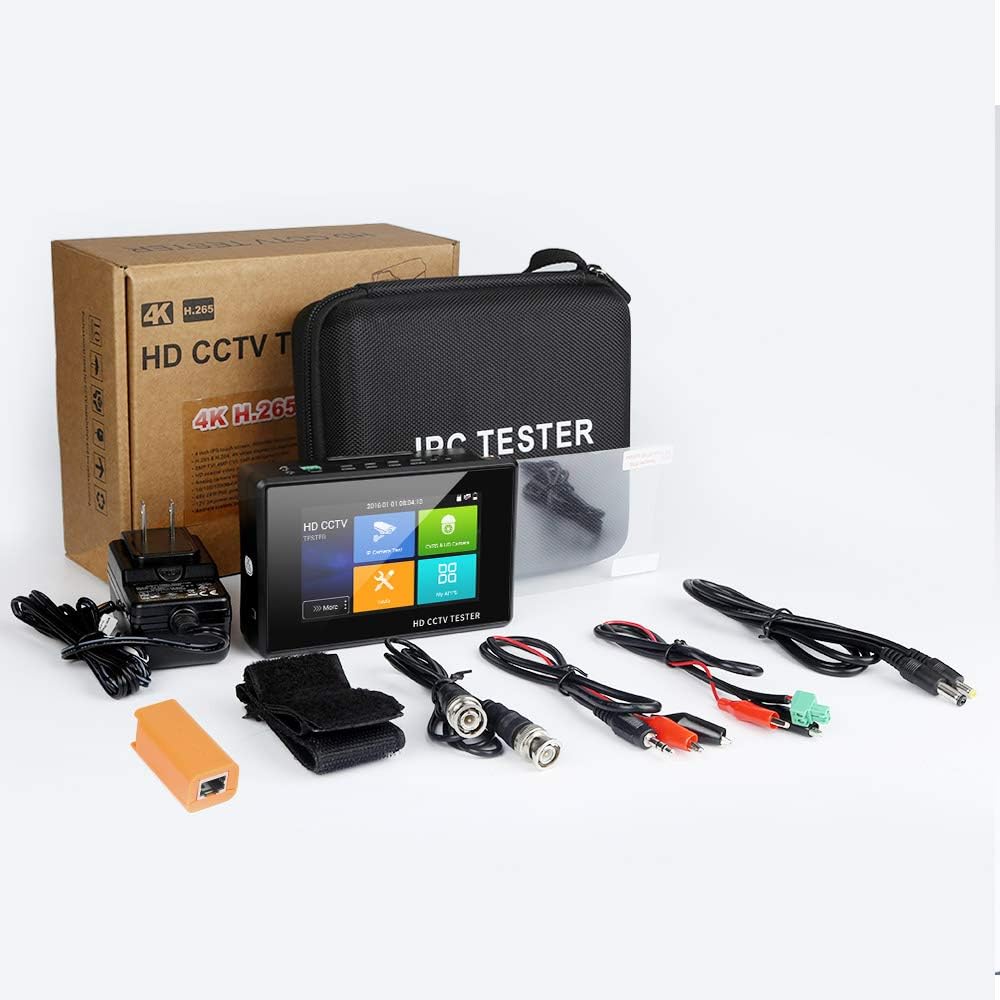
Figure 3.1: Complete package contents of the WSDCAM 4" Portable Wrist IP Camera Tester.
4. Product Overview
Familiarize yourself with the components and ports of your WSDCAM IP Camera Tester.

Figure 4.1: Side view of the WSDCAM IP Camera Tester showing Video In Port, DC 12V 3A Out, LAN Port, and UTP Port.

Figure 4.2: Top and bottom views of the WSDCAM IP Camera Tester, highlighting the LED Light, RS485 port, Power Button, Menu Button, Enter, ON/OFF Switch, Video In Port, Audio In Port, and DC 12V In Port.

Figure 4.3: Detail of the Micro SD Slot on the WSDCAM IP Camera Tester (SD card not included).
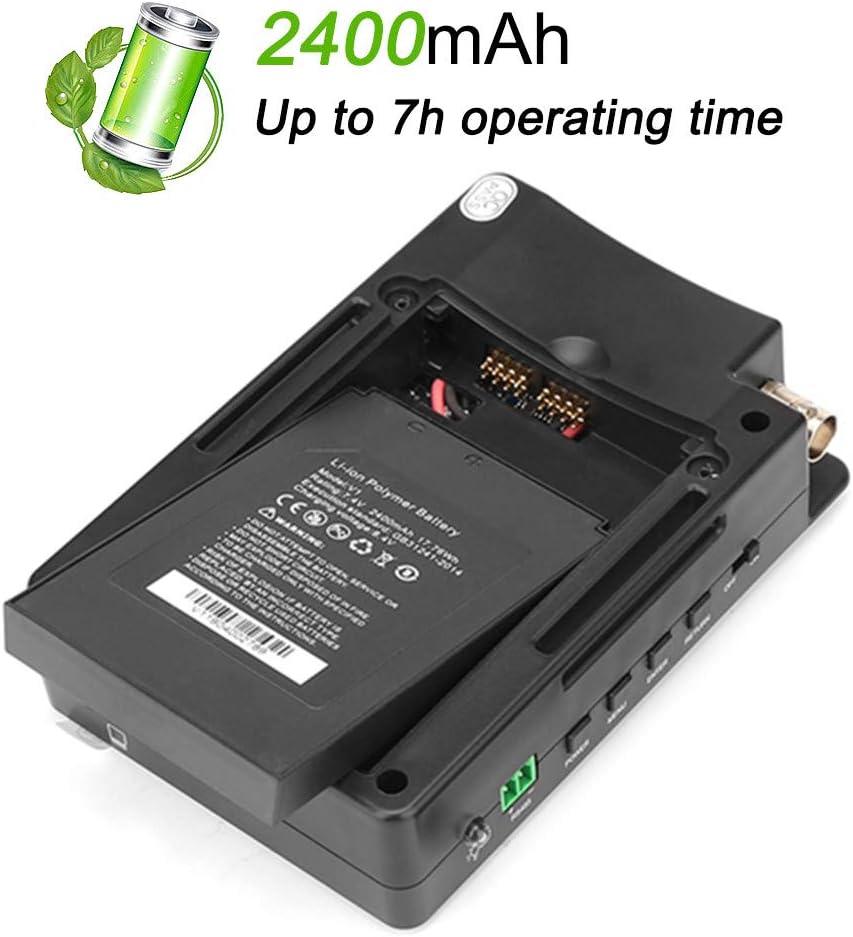
Figure 4.4: The WSDCAM IP Camera Tester featuring a wrist strap for convenient, hands-free operation.
5. Setup
Before using your WSDCAM IP Camera Tester, ensure it is properly set up and charged.
5.1 Charging the Device
The device is powered by a 7.4V/2400mAh Lithium Polymer Battery. Connect the provided DC12V/1A adaptor to the DC 12V In Port on the tester. A full charge typically takes 3-4 hours and provides approximately 8 hours of operating time.
Figure 5.1: The battery compartment of the WSDCAM IP Camera Tester, showing the Lithium-Ion Polymer Battery.
5.2 Initial Power On
Locate the ON/OFF switch on the side of the device and slide it to the "ON" position. The 4-inch IPS touch screen will illuminate, displaying the main menu.

Figure 5.2: The main screen of the WSDCAM IP Camera Tester, showing options for IP Camera Test, CVBS & HD Camera, Tools, and My Apps.
6. Operating Instructions
The WSDCAM IP Camera Tester offers various functions accessible via its touch screen interface.
6.1 IP Camera Test
This function allows you to test and configure IP cameras. Connect the IP camera to the tester using an Ethernet cable via the LAN port. The tester can also provide PoE power to the camera.
Figure 6.1: Illustration of connecting an IP camera to the WSDCAM tester's LAN port for testing.
From the main menu, tap "IP Camera Test". You can then use features like "IP Discovery" to automatically detect camera IP addresses and "POE power output" to power the camera directly from the tester.
Video 6.1: Demonstrates connecting an IP camera and using the IP Camera Test application for identification and login. This video shows the process of connecting the camera, initiating IP discovery, and viewing the camera feed.
6.2 CVBS & HD Camera Test
This mode supports testing of CVBS, CVI, TVI, and AHD analog cameras. Connect the camera's video output to the "Video In Port" (BNC connector) on the tester. The tester can also provide DC12V 3A power output to the camera.

Figure 6.2: Connecting an analog camera to the WSDCAM tester for CVBS and HD camera testing.
From the main menu, tap "CVBS & HD Camera". Select the appropriate camera type (Auto HD, HD CVBS, CVI, AHD, TVI) to view the live feed and perform tests.
6.3 Tools and Applications
The "Tools" section provides various utilities such as network tools (PING test, port flashing), coaxial HD focus, and more. The "My Apps" section allows you to manage and install additional Android applications.
The tester supports self-update software and allows installation of Android applications. You can download apps using the built-in Chrome or Firefox web browsers, or by downloading an APK file onto an SD card and installing it from there.
Video 6.2: Demonstrates the process of installing applications on the WSDCAM IP Camera Tester, either via web browser download or from an SD card. This highlights the device's Android capabilities.
7. Maintenance
To ensure the longevity and optimal performance of your WSDCAM IP Camera Tester, follow these maintenance guidelines:
- Cleaning: Use a soft, dry cloth to clean the screen and exterior. Avoid abrasive cleaners or solvents.
- Storage: Store the device in a cool, dry place away from direct sunlight and extreme temperatures. Use the provided tool bag for protection.
- Battery Care: Charge the battery regularly, even if not in use, to maintain its health. Avoid fully discharging the battery for extended periods.
- Software Updates: Periodically check for and install software updates to ensure the device has the latest features and bug fixes.
- Port Protection: Keep all ports free from dust and debris. Use port covers if available.
8. Troubleshooting
If you encounter issues with your WSDCAM IP Camera Tester, refer to the following common troubleshooting steps:
| Problem | Possible Cause | Solution |
|---|---|---|
| Device does not power on. | Low battery or power switch is off. | Ensure the device is charged. Check the ON/OFF switch position. |
| No video display from camera. | Incorrect cable connection, camera not powered, or wrong test mode selected. | Verify all cables are securely connected. Ensure the camera is receiving power (from tester or external source). Select the correct test mode (IP Camera Test or CVBS & HD Camera). |
| IP camera not discovered. | Network issue, incorrect IP settings, or camera not ONVIF compatible. | Check network cable. Ensure the camera is powered. Try using the "IP Discovery" tool. Manually enter camera IP if known. |
| Touch screen unresponsive. | Temporary software glitch. | Restart the device. If the problem persists, contact customer support. |
9. Specifications
| Feature | Detail |
|---|---|
| Brand | WSDCAM |
| Model Number | 867958 |
| Display | 4-inch IPS Touch Screen, 800x480 resolution |
| Camera Test Support | 8MP TVI/4MP CVI/5MP AHD IP Camera, CVBS |
| Video Decoding | H.265 & H.264, up to 4K via mainstream |
| Network Port | 10/100/1000M Ethernet |
| Power Output | DC12V 3A, PoE DC48V (Max 24W) |
| Battery | 7.4V/2400mAh Lithium Polymer Battery |
| Operating Time | Approx. 8 hours (after 3-4 hours charging) |
| Dimensions (L x W x H) | 5.04 x 3.46 x 1.3 inches |
| Weight | 0.71 lb (0.3 Kilograms) |
10. Warranty and Support
WSDCAM provides free lifetime technical support for this product. For any questions or assistance, please contact WSDCAM customer service. Information regarding specific warranty periods or claims should be directed to the seller or manufacturer as per your purchase agreement.
For further assistance, please visit the official WSDCAM store or contact their support channels.
Note: Protection plans may be available for purchase separately. Refer to your retailer for details.


