1. Introduction
This manual provides detailed instructions for setting up, operating, and maintaining your NETGEAR Nighthawk AC1900 (C7000) WiFi Cable Modem Router Combo. This device integrates a DOCSIS 3.0 cable modem with an AC1900 WiFi router, designed to provide high-speed internet access and wireless connectivity for your home or small office network.

Image: Front view of the NETGEAR Nighthawk C7000 Cable Modem Router Combo, showcasing its sleek black design and indicator lights.
2. Package Contents
Verify that your package contains the following items:
- NETGEAR Nighthawk C7000 Cable Modem Router Combo
- Ethernet Cable
- Power Adapter
- Quick Start Guide (or similar documentation)
3. Setup Instructions
Follow these steps to set up your NETGEAR Nighthawk C7000 modem router combo:
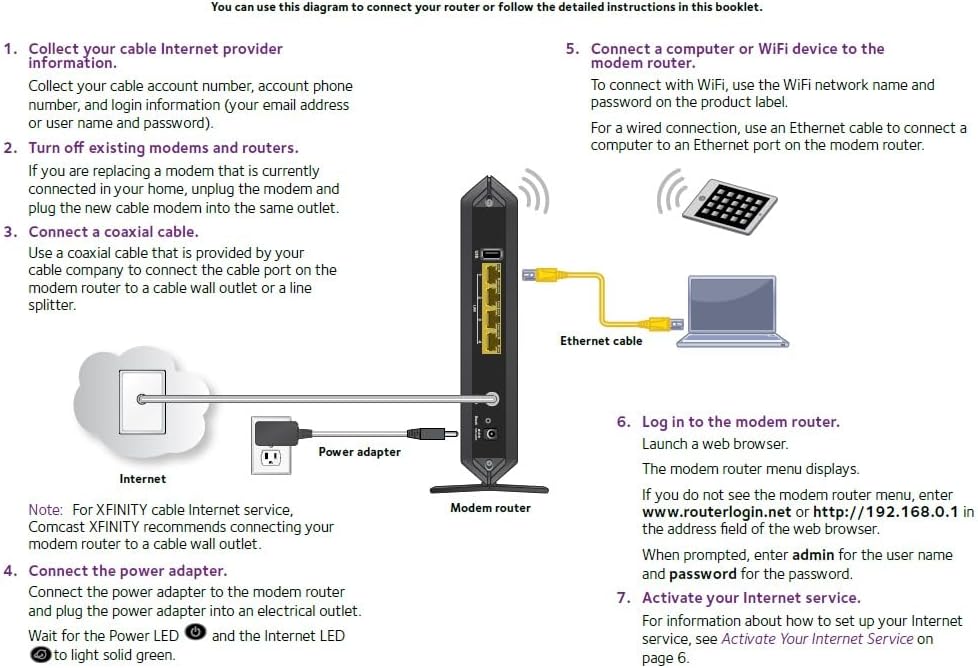
Image: Diagram illustrating the physical connections for setting up the modem router, including coaxial cable, power adapter, and Ethernet connection to a computer.
- Collect Internet Provider Information: Before you begin, gather your cable internet provider account number, phone number, and login information (email address or username and password).
- Disconnect Existing Equipment: If you are replacing an existing modem or router, unplug it from the power outlet and disconnect all cables.
- Connect Coaxial Cable: Connect a coaxial cable from the cable wall outlet or a line splitter to the Cable In port on the back of your C7000 modem router. Ensure the connection is finger-tight.
- Connect Power Adapter: Plug the power adapter into the modem router's power port and then into an electrical outlet. Wait for the Power LED and Internet LED on the front panel to turn solid green. This may take several minutes.
- Connect a Device:
- For WiFi Connection: Locate the WiFi network name (SSID) and password on the product label of your C7000. Connect your computer or WiFi device to this network.
- For Wired Connection: Use an Ethernet cable to connect your computer to one of the yellow Gigabit Ethernet ports on the back of the modem router.
- Log In to the Modem Router: Launch a web browser on your connected device. The modem router's menu should appear. If not, enter www.routerlogin.net or http://192.168.0.1 into the address bar. When prompted, enter admin for the username and password for the password (default credentials).
- Activate Your Internet Service: Follow the on-screen instructions to activate your internet service. You may need to contact your cable internet provider (e.g., Xfinity, Spectrum, Cox) to provision the new device. Provide them with the MAC address and serial number found on the modem router's label.

Image: A visual representation of setting up the Nighthawk C7000 using the Nighthawk mobile application, showing the app interface on a smartphone.
Alternatively, you can use the NETGEAR Nighthawk App for a guided setup process. Download the app from your device's app store and follow the instructions.
4. Operating Your Device
4.1 Connecting Devices
Your C7000 modem router provides both wired and wireless connectivity:
- Wired Connections: Use the four Gigabit Ethernet ports on the back of the device to connect computers, gaming consoles, smart TVs, or other network-enabled devices using Ethernet cables.
- Wireless Connections: The device broadcasts a WiFi network. Connect your wireless devices (smartphones, tablets, laptops) by selecting the network name (SSID) and entering the password found on the product label.
- USB Port: A USB port is available for connecting storage devices, allowing you to share files across your network.

Image: Promotional graphic highlighting the Nighthawk C7000's capabilities, including up to 1.9 Gbps WiFi speed, support for up to 30 concurrent devices, and 1,800 sq. ft. of coverage.
4.2 Indicator Lights
The front panel features several LED indicators that provide status information:
- Power LED: Indicates power status. Solid green means power is on.
- Downstream LED: Indicates downstream channel bonding status.
- Upstream LED: Indicates upstream channel bonding status.
- Internet LED: Indicates internet connectivity. Solid green means connected.
- WiFi 2.4 GHz LED: Indicates 2.4 GHz WiFi activity.
- WiFi 5 GHz LED: Indicates 5 GHz WiFi activity.
- Ethernet LEDs: Indicate activity on the wired Ethernet ports.
5. Key Features
The NETGEAR Nighthawk C7000 offers a range of features for robust internet connectivity:
- DOCSIS 3.0 Cable Modem: Engineered with 24x8 channel bonding, providing high-speed internet access suitable for plans up to 800Mbps.
- AC1900 WiFi Router: Delivers combined WiFi speeds up to 1900 Mbps, offering up to 1800 sq ft wireless coverage and supporting up to 30 connected devices.
- Gigabit Ethernet Ports: Four Gigabit Ethernet ports for fast, reliable wired connections to computers, gaming consoles, and other devices.
- USB Port: One USB port for connecting storage devices to share files across your network.
- Broad ISP Compatibility: Certified by major cable internet providers including Xfinity from Comcast, COX, and Spectrum. Note: Not compatible with Verizon, AT&T, CenturyLink, DSL providers, DirecTV, DISH, or cable bundled voice services.
- Advanced Security: Supports WEP and WPA/WPA2 wireless security protocols to help secure your network.

Image: Graphic highlighting the integrated DOCSIS 3.0 cable modem, supporting internet plans up to 800 Mbps, and displaying logos of compatible ISPs: Cox, Xfinity, and Spectrum.
6. Maintenance
To ensure optimal performance and longevity of your NETGEAR C7000 modem router, consider the following maintenance tips:
- Placement: Place the device in a central location, away from obstructions, large metal objects, and other electronic devices that may cause interference. Ensure adequate ventilation to prevent overheating.
- Cleaning: Periodically clean the exterior of the device with a soft, dry cloth. Avoid using liquid cleaners or abrasive materials.
- Firmware Updates: Regularly check the NETGEAR support website for firmware updates. Keeping your device's firmware up-to-date can improve performance, add new features, and enhance security.
- Power Cycle: If you experience network issues, a simple power cycle (unplugging the power adapter for 10-15 seconds and then plugging it back in) can often resolve minor problems.
7. Troubleshooting
If you encounter issues with your modem router, try these common troubleshooting steps:
- No Internet Connection:
- Check all cable connections, especially the coaxial cable and Ethernet cables. Ensure they are securely plugged in.
- Verify that the Power and Internet LEDs on the front panel are solid green. If not, power cycle the device.
- Contact your internet service provider to confirm there are no service outages in your area and that your device is properly provisioned.
- Slow WiFi Speed or Dropped Connections:
- Ensure the modem router is placed in an optimal location, free from interference.
- Check for firmware updates.
- Reduce the number of devices connected to the network or consider upgrading your internet plan if consistently experiencing high usage.
- Cannot Access Router Settings:
- Ensure your device is connected to the modem router (either via WiFi or Ethernet).
- Try accessing www.routerlogin.net or http://192.168.0.1 in your web browser.
- If you forgot your login credentials, you may need to perform a factory reset (refer to the Quick Start Guide for instructions), which will revert all settings to default.
8. Specifications
| Feature | Specification |
|---|---|
| Model Name | C7000-100NAR |
| Wireless Type | 802.11ac (AC1900 Dual-Band) |
| DOCSIS Standard | DOCSIS 3.0 (24x8 Channel Bonding) |
| Ethernet Ports | 4 x Gigabit Ethernet |
| USB Ports | 1 x USB |
| Processor | 1.6GHz combined processor |
| Wireless Coverage | Up to 1800 sq ft |
| Max WiFi Speed | Up to 1.9 Gbps |
| Max Internet Speed | Up to 800 Mbps (ISP dependent) |
| Security Protocols | WEP, WPA/WPA2 |
| Dimensions (LxWxH) | 8.31 x 1.7 x 9.66 inches |
| Item Weight | 2.81 pounds |
| Input Voltage | 100-240V |
9. Warranty and Support
For warranty information, please refer to the documentation included with your product or visit the official NETGEAR website. NETGEAR typically offers a limited hardware warranty and technical support for a specific period from the date of purchase.
For technical assistance, product registration, or to access the latest firmware and support resources, please visit the official NETGEAR support website:
It is recommended to register your product to receive updates and access full support services. Note that free support may be limited to a certain number of days after purchase, as mentioned in some user experiences.