
WAVLINK 8541562306
WAVLINK Pro Dual 4K@60Hz Universal Docking Station User Manual
Model: 8541562306
1. Introduction
This user manual provides detailed instructions for the setup, operation, and maintenance of your WAVLINK Pro Dual 4K@60Hz Universal Docking Station. This docking station is designed to expand the connectivity of your laptop, offering multiple display outputs, USB ports, and network connectivity through a single USB-A or USB-C connection. It is compatible with both Mac and Windows systems.

Image: Front and rear view of the WAVLINK Pro Dual 4K@60Hz Universal Docking Station, showcasing its compact design and various ports.
2. Package Contents
Verify that all items listed below are present in your product package. If any items are missing or damaged, please contact WAVLINK customer support.
- WAVLINK Universal Docking Station
- Power Adapter
- USB-C to USB-C Cable (1m)
- USB-A to USB-C Cable (1m)
- Product Manual
- Driver Guidance CD (or download link)

Image: All components included in the WAVLINK docking station package: the docking station unit, power adapter, USB-C to USB-C cable, USB-A to USB-C cable, and the product manual.
3. Key Features
- Universal Connectivity: Compatible with USB-A or USB-C systems, including Thunderbolt and USB4 ports, eliminating the need for additional adapters.

Image: Illustration of the docking station's universal compatibility, showing connections via USB-C to USB-C and USB-C to USB-A cables for various laptop types.
- Dual 4K Monitor Support: Equipped with dual HDMI 2.0 and DisplayPort 1.2 ports, supporting two 4K monitors at 3840x2160 @ 60Hz. Also supports lower resolutions like 2560x1440 and 1080p.

Image: A laptop connected to two external 4K monitors through the docking station, demonstrating dual display capability.
- Flexible Expandability: Features two HDMI or DisplayPort video outputs, a wired Gigabit Ethernet port, a 3.5mm audio jack, and six USB 3.0 ports for comprehensive peripheral connectivity.
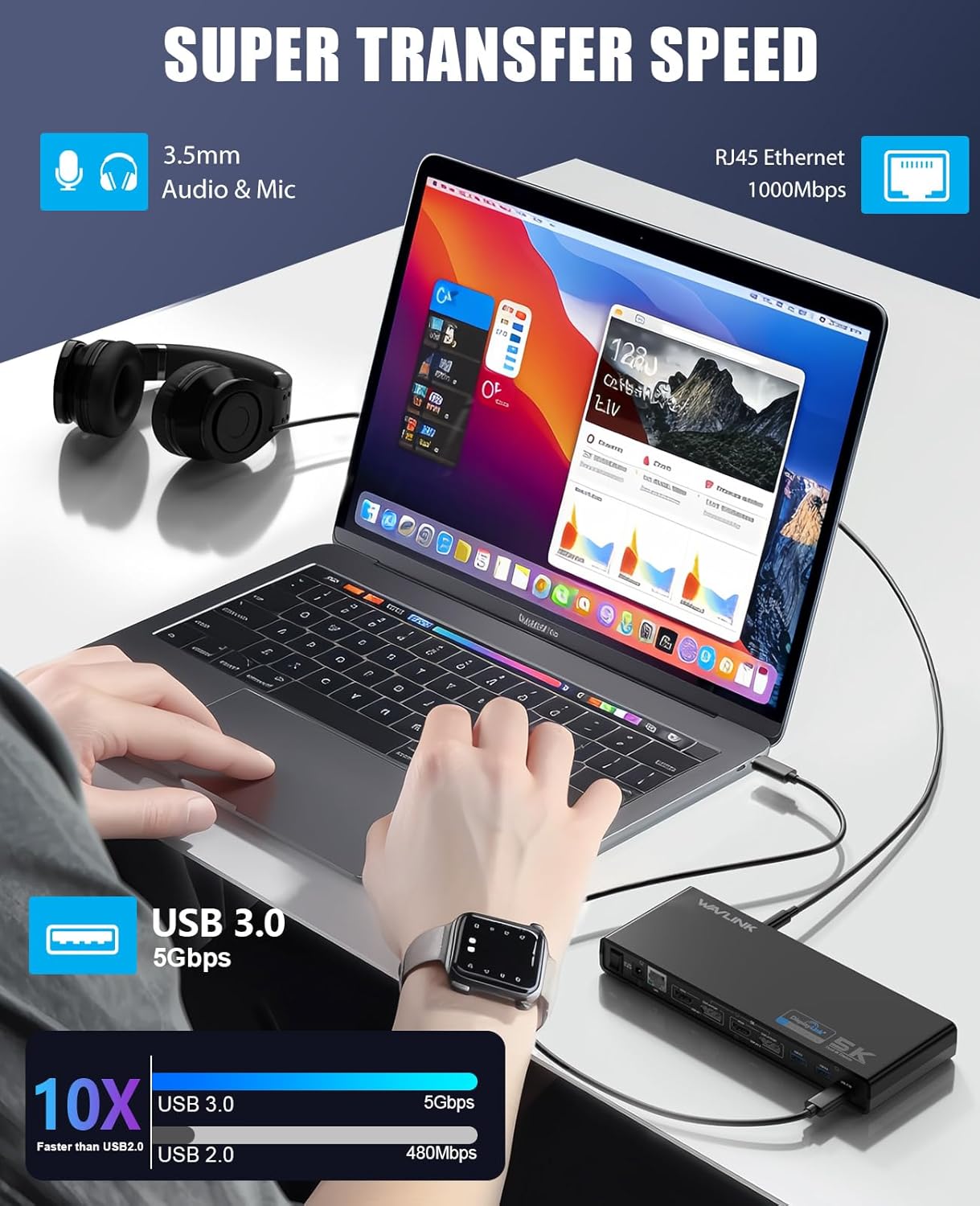
Image: A close-up view of the docking station highlighting its USB 3.0 ports (5Gbps transfer speed) and Gigabit Ethernet port (1000Mbps), illustrating high-speed data transfer capabilities.
- High-Speed Data Transfer: USB 3.0 ports offer speeds up to 5Gbps, significantly faster than USB 2.0.
- Gigabit Ethernet: Provides a stable and fast wired network connection up to 1000Mbps.
- Audio Connectivity: Includes a 3.5mm audio jack for headphones or speakers.
- Note on Laptop Charging: This docking station does not support charging for your laptop.
4. Compatibility
The WAVLINK Universal Docking Station is designed for broad compatibility with various operating systems and devices.
4.1. Supported Operating Systems
- Windows 11, 10, 8.x, and 7
- Apple M1/M2/M3 and Intel Macs (macOS 10.14+)
- ChromeOS 100+
- Note: Not compatible with Linux.
4.2. Compatible Devices
The docking station works with a wide range of laptops and devices that support USB-A or USB-C connections. Examples include:
- Apple MacBook Pro/Air (M1/M2/M3/M4 and Intel Macs)
- Microsoft Surface line
- HP Spectre x360 series
- Dell XPS 13 & XPS 15 / Latitude
- Lenovo Thinkpad T series
- And many other laptops with USB 3.0 (Type-A or Type-C) ports.
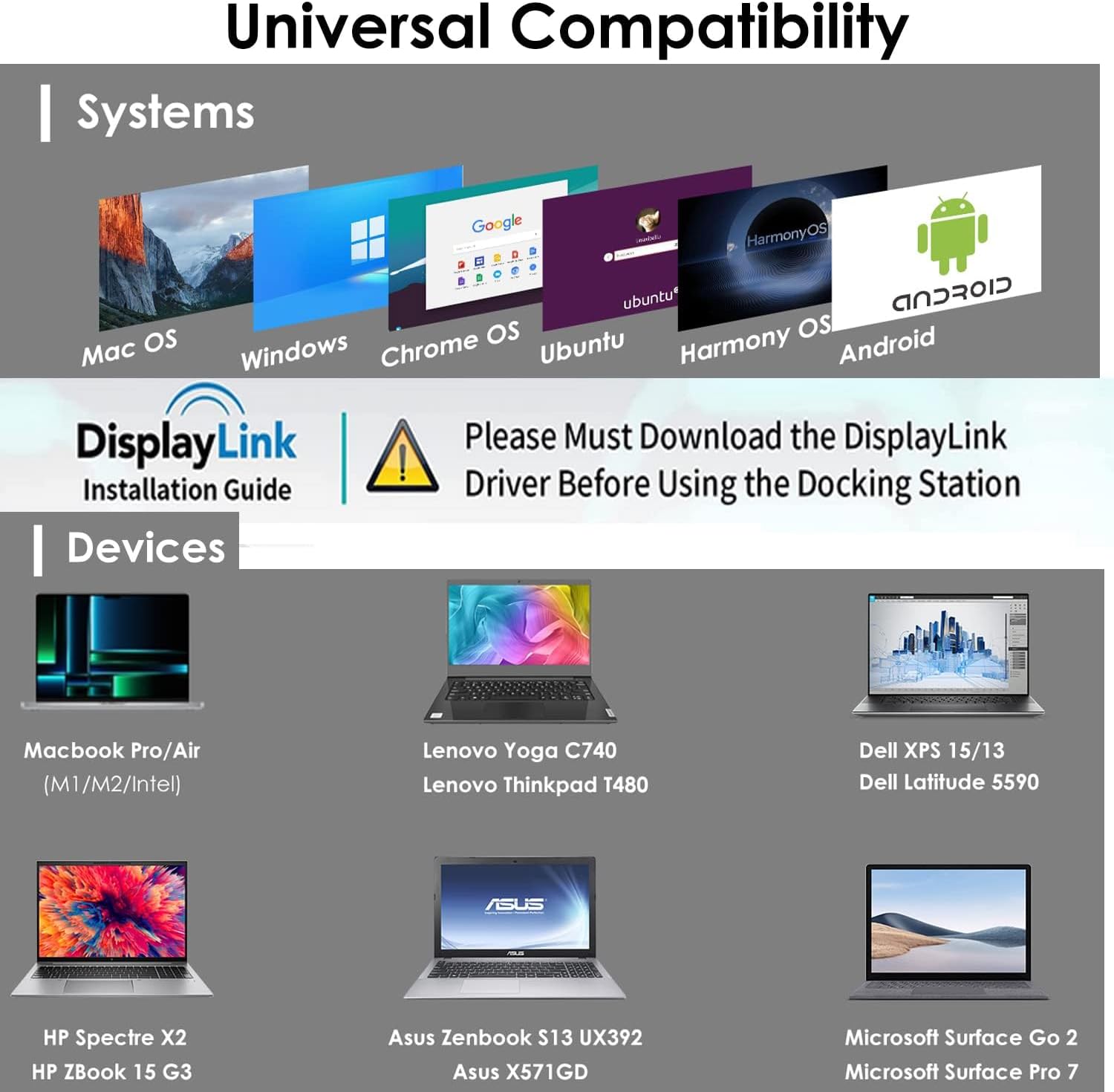
Image: A visual representation of the docking station's broad compatibility with different operating systems (Mac OS, Windows, Chrome OS, Ubuntu, Harmony OS, Android) and various laptop brands and models.
5. Setup Guide
Follow these steps to set up your WAVLINK Universal Docking Station:
- Install DisplayLink Drivers: Before connecting the docking station, it is crucial to download and install the latest DisplayLink drivers for your operating system.
- Visit the official DisplayLink website (synaptics.com/products/displaylink-usb-graphics/downloads) to download the appropriate driver for your Windows, macOS, or ChromeOS version.
- Run the installer and follow the on-screen prompts to complete the installation. Restart your computer if prompted.
- Connect Power: Connect the provided power adapter to the DC 12V input port on the back of the docking station, then plug the adapter into a power outlet.
- Connect to Laptop: Use the included USB-C to USB-C cable or USB-A to USB-C cable to connect the docking station to your laptop's available USB-C or USB 3.0 (Type-A) port.
- Connect Monitors: Connect your external monitors to the HDMI or DisplayPort outputs on the docking station. You can use a combination of HDMI and DisplayPort cables.
- Connect Peripherals: Plug in your USB devices (keyboard, mouse, external drives, etc.) into the USB 3.0 ports on the docking station.
- Connect Network (Optional): For a wired network connection, connect an Ethernet cable from your router or modem to the RJ45 Gigabit Ethernet port on the docking station.
- Connect Audio (Optional): Plug your headphones or speakers into the 3.5mm audio jack.
Once all connections are made and the DisplayLink drivers are installed, your operating system should detect the connected displays and peripherals.
6. Operating the Docking Station
6.1. Display Configuration
The docking station supports various display modes for your external monitors:
- Extended Mode: Each external monitor displays a separate desktop, extending your workspace. This is ideal for multitasking and productivity.
Image: A laptop screen and two external monitors configured in extended display mode, showing different content on each screen.
- Mirror Mode (Duplicate): All external monitors display the same content as your primary laptop screen. This is useful for presentations.
- Single Display 5K: When using a single DisplayPort connection, the docking station can support resolutions up to 5120x1440 @ 60Hz.

Image: A laptop connected to a single large monitor displaying 5K resolution content, demonstrating the single 5K display capability.
To configure display settings, refer to your operating system's display settings:
- Windows: Right-click on the desktop and select "Display settings" or "Screen resolution".
- macOS: Go to System Settings (or System Preferences) > Displays.
6.2. USB Port Usage
The six USB 3.0 ports can be used for connecting various peripherals such as keyboards, mice, printers, external hard drives, and USB flash drives. These ports provide high-speed data transfer for efficient workflow.
7. Maintenance
- Keep the docking station in a dry environment, away from direct sunlight and extreme temperatures.
- Clean the device with a soft, dry cloth. Do not use liquid cleaners or aerosols.
- Ensure proper ventilation around the docking station to prevent overheating.
- Regularly check for and install updated DisplayLink drivers to ensure optimal performance and compatibility.
8. Troubleshooting
If you encounter issues with your WAVLINK docking station, refer to the following common solutions:
- No Display Output:
- Ensure the DisplayLink drivers are correctly installed and updated. A common issue is not having the necessary drivers.
- Verify that the docking station is properly powered and connected to your laptop.
- Check all video cables (HDMI/DisplayPort) are securely connected to both the docking station and the monitors.
- Try restarting your laptop and the docking station.
- Confirm your monitor input source is set correctly (e.g., HDMI 1, DisplayPort).
- USB Devices Not Recognized:
- Ensure the docking station is powered on and connected to your laptop.
- Try connecting the USB device to a different port on the docking station.
- Test the USB device by connecting it directly to your laptop to rule out device issues.
- Network Connection Issues:
- Check the Ethernet cable connection between the docking station and your router/modem.
- Verify network settings on your laptop.
- Ensure the DisplayLink drivers are installed, as they also manage the network adapter functionality.
- Performance Issues (Lagging, Glitching):
- Ensure your laptop meets the minimum system requirements for running multiple displays and the DisplayLink software.
- Close unnecessary applications to free up system resources.
- This docking station is recommended for networking and productivity software; it is not recommended for gaming, video playback, or 2D/3D graphics tools due to the nature of DisplayLink technology.
- No Audio Output:
- Check your laptop's sound settings to ensure the WAVLINK docking station is selected as the default audio output device.
- Verify that your headphones or speakers are properly connected to the 3.5mm audio jack.
9. Specifications
| Model Number | 8541562306 |
| Product Dimensions | 12.6 x 6.1 x 2.36 inches (32.0 x 15.5 x 6.0 cm) |
| Item Weight | 8.8 ounces (249.5 grams) |
| Color | USB 3.0 & USB C Docking-Black |
| Hardware Interface | 3.5mm Audio, DisplayPort, Ethernet, HDMI, USB 3.0 Type A, USB Docking Station |
| Total USB Ports | 6 (USB 3.0) |
| Total HDMI Ports | 2 |
| Total DisplayPort | 2 |
| Ethernet Port | Gigabit RJ45 |
| Max Resolution (Dual Display) | Dual 4K@60Hz (3840x2160) |
| Max Resolution (Single Display) | 5K@60Hz (5120x1440) via DisplayPort |
| Wattage | 45.00W (Power Adapter Output) |
| Manufacturer | WAVLINK |
| First Available Date | May 28, 2018 |
10. Warranty and Support
10.1. Warranty Information
WAVLINK provides an 18-month worry-free warranty for this product. This warranty covers manufacturing defects and ensures product quality. Please retain your proof of purchase for warranty claims.
10.2. Technical Support
For technical assistance or any questions regarding your WAVLINK docking station, please contact our support team. WAVLINK is committed to providing high-quality products and services.
- Email: Contact@wavlink.com
- Phone: +1 8889730883 (UTC -5) Mon - Fri 9AM - 6PM
- You can also reach out via Amazon's messaging system if you purchased through Amazon.

Image: WAVLINK contact details for customer support, including phone number and email address.
Related Documents - 8541562306
 |
Wavlink Docking Station Troubleshooting Guide: FAQs and Solutions Find solutions to common issues with your Wavlink USB 3.0 and USB-C docking station, including connectivity, charging, display problems, and more. Get answers to frequently asked questions and troubleshooting steps. |
 |
WAVLINK WL-UG69PD24 USB-C Triple 4K Docking Station User Guide Comprehensive user guide for the WAVLINK WL-UG69PD24 USB-C Triple 4K Universal Docking Station. Learn about its features, setup, driver installation for Windows and Mac, display configurations, and troubleshooting FAQs. |
 |
Wavlink Docking Station Troubleshooting Guide: Ports, Monitors, USB Detection Find solutions to common issues with your Wavlink 12-in-1 USB C docking station, including port problems, monitor detection, and USB device recognition. Get troubleshooting tips for Windows and Mac. |
 |
WAVLINK WL-UMD01 Pro USB-C Docking Station User Manual Comprehensive user manual for the WAVLINK WL-UMD01 Pro USB-C docking station, detailing its features, setup, troubleshooting, and specifications for triple display, high-speed data transfer, and power delivery. |
 |
WAVLINK WL-UMD07 USB-C Docking Station and Laptop Stand: User Guide Explore the WAVLINK WL-UMD07, an adjustable aluminum laptop stand integrated with a USB-C docking station. This guide details its features, installation, display settings for Windows and macOS, and answers common questions about connectivity and performance. |
 |
WAVLINK WL-UG63PD25 USB-C Triple Display Universal Docking Station Quick Start Guide This guide provides instructions for setting up and using the WAVLINK WL-UG63PD25 USB-C Triple Display Universal Docking Station, including driver installation for Windows and macOS, display configurations, and troubleshooting tips. |
Ask a question about this manual
Ask about setup, troubleshooting, compatibility, parts, safety, or missing instructions. Manuals+ will review the question and use this page’s manual context to help answer it.