
1. Introduction
The Western Digital WD Elements Portable Hard Drive provides reliable, high-capacity storage in a compact design. This external hard drive is designed for fast data transfers and is compatible with various devices, including PCs, PlayStation 4, and Xbox consoles. It offers a simple plug-and-play solution for expanding your digital storage.

Image 1.1: The Western Digital WD Elements 4TB Portable Hard Drive.
2. Setup
Setting up your WD Elements Portable Hard Drive is a straightforward process. The drive is designed for plug-and-play functionality, requiring no complex software installation for basic use.
2.1 Package Contents
- WD Elements Portable Hard Drive
- USB 3.0 Cable
- Quick Start Guide
2.2 Connecting to Your Device
- Locate an available USB port on your computer, PlayStation 4, or Xbox console. For optimal performance, use a USB 3.0 port.
- Connect the smaller end of the included USB 3.0 cable to the USB port on the WD Elements Portable Hard Drive.
- Connect the larger end of the USB 3.0 cable to the USB port on your computer or console.
- The drive will be automatically detected by most operating systems. A new drive letter will appear in "My Computer" (Windows) or on your desktop (macOS, after reformatting).

Image 2.1: Connecting the WD Elements Portable Hard Drive to a laptop via USB 3.0, highlighting USB 3.0 and USB 2.0 compatibility.
2.3 Initial Formatting and Compatibility
The drive comes pre-formatted with NTFS for Windows 10 and Windows 8.1. If you are using a different operating system, such as macOS or Linux, or if you intend to use the drive with a PlayStation 4 or Xbox, reformatting may be required. Refer to your operating system's or console's documentation for instructions on how to format an external drive.
3. Operating the Device
Once connected and recognized by your system, the WD Elements Portable Hard Drive functions like any other storage device. You can drag and drop files, create folders, and manage your data.
3.1 Data Transfer
When connected to a USB 3.0 port, the drive delivers ultra-fast data transfer rates, significantly reducing the time required to move large files. For example, copying a large number of files from your computer to the drive will be completed efficiently.

Image 3.1: Demonstrating fast data transfers from a laptop to the WD Elements Portable Hard Drive.
3.2 Storage Capacity
With 4TB of storage capacity, the drive offers ample space for documents, photos, videos, music, and game files. This high capacity helps improve your PC's performance by offloading large files from your internal drive.

Image 3.2: A close-up view of the WD Elements Portable Hard Drive, emphasizing its high capacity in a sleek design.
3.3 Safe Removal
Always safely eject the hard drive from your operating system before disconnecting the USB cable to prevent data corruption. For Windows, use the "Safely Remove Hardware and Eject Media" icon in the system tray. For macOS, drag the drive icon to the Trash or use the Eject button in Finder.
4. Maintenance
Proper care and maintenance will ensure the longevity and optimal performance of your WD Elements Portable Hard Drive.
- Physical Protection: Keep the drive in a safe, stable location to prevent accidental drops or impacts, which can damage the internal mechanical components.
- Temperature Control: Avoid exposing the drive to extreme temperatures or direct sunlight.
- Cleaning: Use a soft, dry cloth to clean the exterior of the drive. Do not use liquid cleaners or solvents.
- Data Backup: Regularly back up important data stored on the portable drive to another location (e.g., cloud storage, another external drive) to protect against unforeseen data loss.
5. Troubleshooting
If you encounter issues with your WD Elements Portable Hard Drive, refer to the following common troubleshooting steps.
5.1 Drive Not Detected
- Check Cable Connection: Ensure the USB cable is securely connected to both the drive and the computer/console. Try a different USB port.
- Try a Different Cable: If available, use another USB 3.0 cable to rule out a faulty cable.
- Restart Device: Restart your computer or console and try connecting the drive again.
- Check Disk Management (Windows): In Windows, open Disk Management (right-click Start, select Disk Management) to see if the drive is listed but uninitialized or unformatted.
- Check Disk Utility (macOS): In macOS, open Disk Utility to see if the drive is recognized.
5.2 Slow Data Transfer Speeds
- Use USB 3.0 Port: Ensure the drive is connected to a USB 3.0 port on your computer/console for maximum transfer rates. USB 2.0 ports will result in significantly slower speeds.
- Avoid Other USB Devices: Disconnect other high-bandwidth USB devices if possible, as they might share bandwidth.
- Check Drive Health: Run a disk check utility (e.g., CHKDSK on Windows) to identify and fix potential errors.
5.3 Drive Disconnects Randomly
- Power Management Settings: On Windows, check USB Root Hub power management settings in Device Manager to ensure the system is not turning off the device to save power.
- Cable Integrity: A damaged or loose USB cable can cause intermittent disconnections. Try a different cable.
- Insufficient Power: While typically bus-powered, some systems might struggle to provide enough power. Try connecting to a different USB port, especially one directly on the motherboard (for desktops).
6. Specifications
| Feature | Detail |
|---|---|
| Model Number | WDBHDW0040BBK-EESN |
| Digital Storage Capacity | 4000 GB (4 TB) |
| Hard Disk Type | Mechanical Hard Disk |
| Hard Disk Form Factor | 2.5 Inches |
| Connectivity Technology | USB |
| Hardware Connectivity | USB 3.0 (backward compatible with USB 2.0) |
| Data Transfer Rate | Up to 5 Gigabits Per Second (USB 3.0) |
| Compatible Devices | Desktop, Gaming Console (PC, PS4, Xbox) |
| Hardware Platform | Mac, PC, Unix |
| Color | Black |
| Item Weight | 230 Grams |
| Country of Origin | Thailand |
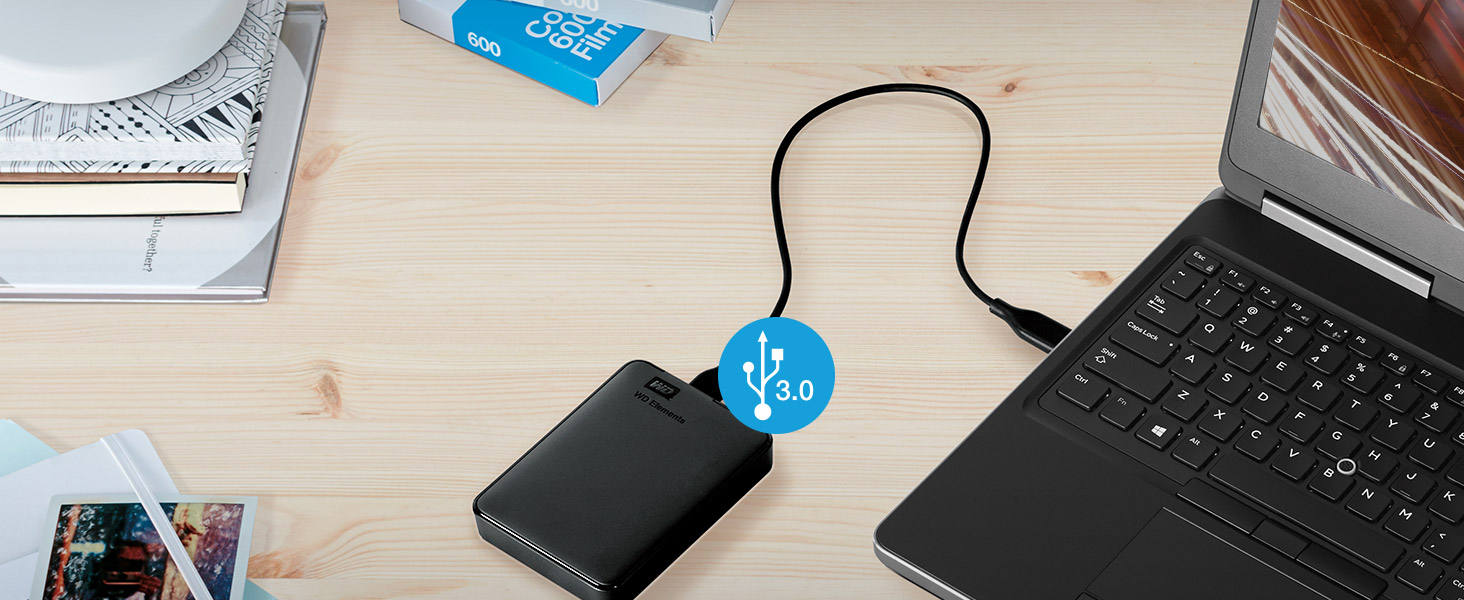
Image 6.1: Physical dimensions of the WD Elements Portable Hard Drive, showing approximate measurements of 4.35 inches by 3.23 inches.
7. Warranty Information
The Western Digital WD Elements Portable Hard Drive comes with a 3 Years Limited Warranty. This warranty covers defects in materials and workmanship under normal use. For detailed terms and conditions, please refer to the warranty documentation included with your product or visit the official Western Digital support website.
8. Support
For further assistance, technical support, or to access updated drivers and software, please visit the official Western Digital support website. You can find comprehensive FAQs, troubleshooting guides, and contact information for customer service.
Official Western Digital Website: www.westerndigital.com/support