
1. Introduction
Thank you for choosing the ROCK B300 Bluetooth FM Transmitter Car Charger. This device allows you to stream music and make hands-free calls through your car's FM radio. It also features dual USB ports for charging your mobile devices. Please read this manual carefully before use to ensure optimal performance and safety.
2. Safety Information
- Do not expose the device to extreme temperatures, direct sunlight, or moisture.
- Do not disassemble or modify the device. This may void the warranty and cause damage.
- Keep out of reach of children.
- Ensure the device is securely plugged into the car's cigarette lighter socket.
- Avoid operating the device in a way that distracts you from driving.
3. Package Contents
- ROCK B300 Bluetooth FM Transmitter Car Charger
- User Manual (this document)
4. Product Overview
Familiarize yourself with the components of your ROCK B300 device:
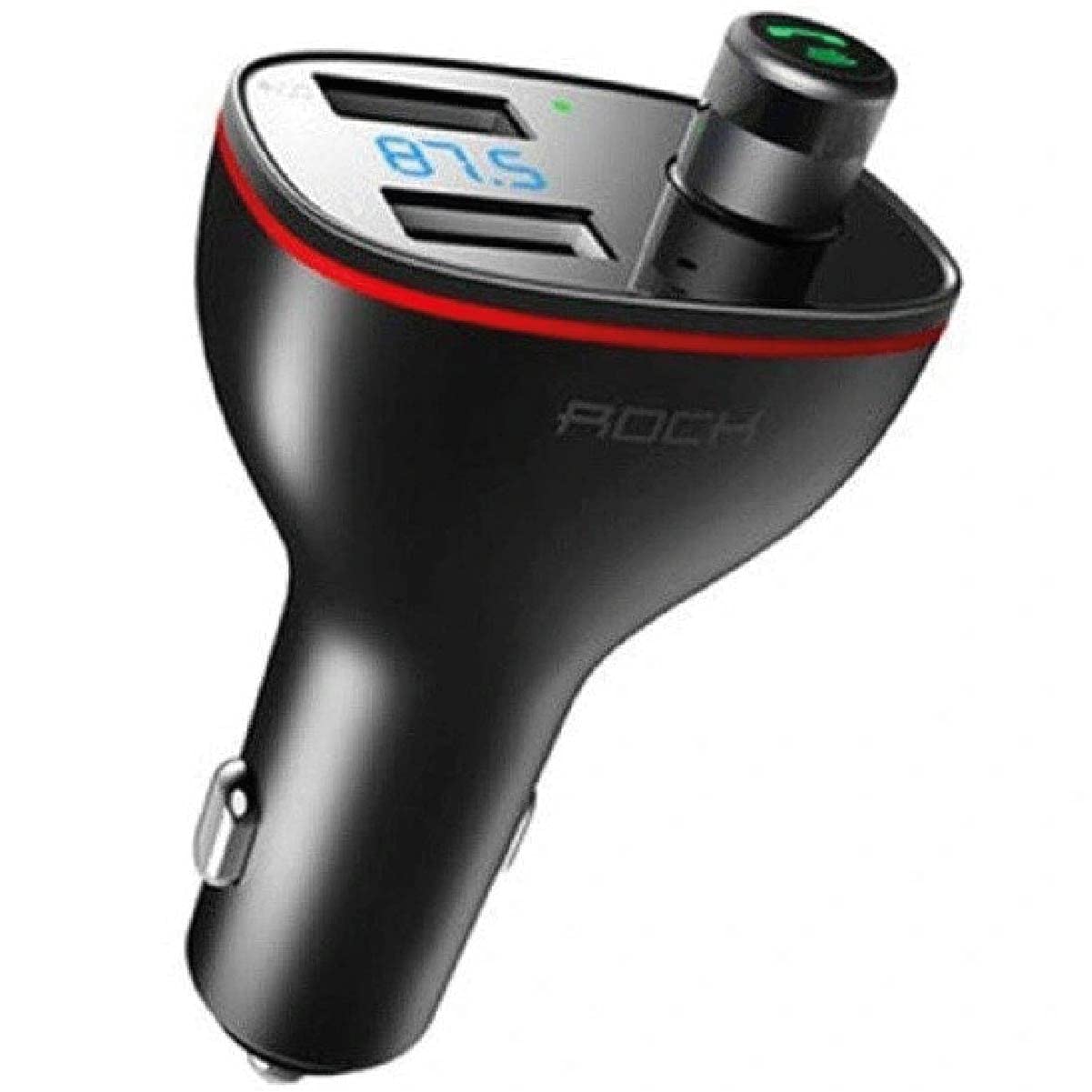
Image 1: Overview of the ROCK B300 Bluetooth FM Transmitter Car Charger. Shows the main unit with dual USB ports, LED display, and multi-function button/dial. An inset shows a top-down view of the device and how it fits into a car's power outlet.
- USB Charging Ports: Two ports for charging devices (e.g., smartphones, tablets).
- LED Display: Shows FM frequency and other status indicators.
- Multi-function Button/Dial: Used for adjusting FM frequency, answering/ending calls, playing/pausing music, and volume control.
- Microphone: For hands-free calling.
- Power Plug: Connects to your car's cigarette lighter socket.
5. Setup Instructions
- Insert into Car Socket: Plug the ROCK B300 into your car's 12V/24V cigarette lighter socket. The device will power on automatically, and the LED display will light up.
- Set FM Frequency:
- Press the multi-function button/dial to enter FM frequency adjustment mode. The frequency on the LED display will flash.
- Rotate the multi-function dial left or right to select an empty FM frequency (one with no strong radio signal) on your car radio.
- Tune your car's FM radio to the same frequency selected on the B300.
- Press the multi-function button/dial again to confirm the frequency.
- Bluetooth Pairing:
- On your mobile device, enable Bluetooth and search for available devices.
- Select "B300" from the list of devices.
- Once paired, you will hear a confirmation tone, and the Bluetooth indicator on the B300's display will be solid.

Image 2: The ROCK B300 device plugged into a car's cigarette lighter socket, displaying the current FM frequency on its LED screen.
6. Operating Instructions
6.1 Music Playback
- Bluetooth Streaming: After successful Bluetooth pairing, open your music player on your mobile device. Audio will be transmitted to your car's speakers via the selected FM frequency.
- USB Disk Playback: Insert a USB flash drive (U Disk) containing MP3/WMA/WAV/FLAC audio files into one of the USB ports. The device will automatically detect and play music from the USB drive.
- Volume Control: Rotate the multi-function dial to adjust the playback volume.
- Play/Pause: Short press the multi-function button to play or pause music.
- Next/Previous Track: Long press the multi-function dial to skip to the next or previous track.
6.2 Hands-Free Calling
- Answer Call: When an incoming call rings, short press the multi-function button to answer.
- End Call: During a call, short press the multi-function button to end the call.
- Reject Call: When an incoming call rings, long press the multi-function button to reject the call.
- Redial: Double-press the multi-function button to redial the last outgoing number.
6.3 Charging Devices

Image 3: The ROCK B300 with two devices connected via USB cables, demonstrating its charging capability.
Connect your mobile devices (e.g., smartphones, tablets) to the USB charging ports using appropriate USB cables. The device provides a total output of 3.4A for efficient charging.
7. Maintenance
- Clean the device with a soft, dry cloth. Do not use liquid cleaners or aerosols.
- Ensure the cigarette lighter socket is clean and free of debris for optimal connection.
- Store the device in a cool, dry place when not in use for extended periods.
8. Troubleshooting
| Problem | Possible Solution |
|---|---|
| Device does not power on. |
|
| No sound or poor sound quality. |
|
| Bluetooth pairing fails. |
|
| Devices are not charging. |
|
9. Specifications
- Model: B300
- Connectivity Technology: Bluetooth, USB
- Wireless Communication Standard: Bluetooth 4.2
- Input Voltage: 12V-24V DC (Standard car cigarette lighter)
- USB Output: 3.4A (Total)
- FM Frequency Range: 87.5-108.0 MHz
- Supported Audio Formats: MP3, WMA, WAV, FLAC (for USB disk playback)
- Package Dimensions: 14 x 8.2 x 3.6 cm
- Item Weight: 150 grams
10. Warranty and Support
For warranty information or technical support, please refer to the purchase documentation or contact the retailer where you purchased the ROCK B300. You may also visit the official ROCK website for further assistance.
