
1. Introduction
This manual provides essential information for the safe and effective use of your Dexpt 230W AC Adapter Charger. Please read these instructions carefully before using the product to ensure optimal performance and safety.

Image: The Dexpt 230W AC Adapter Charger, showing the main adapter unit and connected power cords.
2. Product Overview
2.1 What's in the Box
- 1 x Dexpt 230W AC Power Adapter
- 1 x AC Power Cord
2.2 Key Features
- Output Max: 20V 11.5A 230W (compatible with 20V 8.5A 170W)
- Input Volt Range: 100-240V
- Safety: UL Certified, meeting US recognized safety standards.
- Connector Type: Slim tip
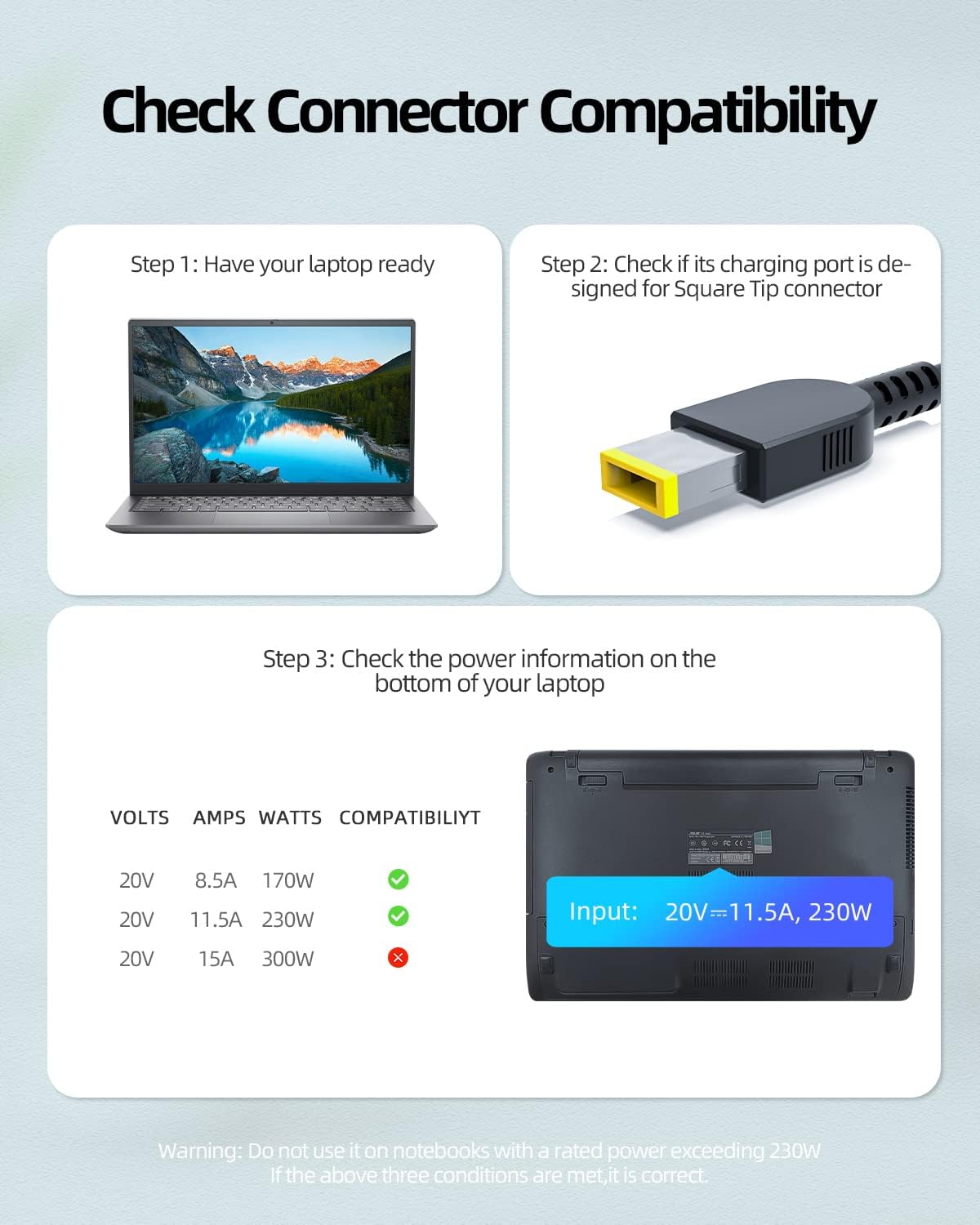
Image: The Dexpt 230W AC Adapter Charger, highlighting its compact dimensions for portability.
3. Compatibility
This 230W AC Adapter Charger is designed for Lenovo laptops with a slim tip power connector. It is compatible with, but not limited to, the following models:
- Lenovo Legion Laptops: Legion 5, 5i, 5-15, 5-16, 5-17, 5P, 5P-15, 5P-16, 7, 7i, C7, S7, Y540, Y545, Y740, Y730, Y900, Y910, Y920, Y7000 series.
- Lenovo ThinkPad Laptops: X1 Extreme, P71, P72, P73, P53, P15, P16, P17, P1 series.
- Lenovo LOQ Laptops: LOQ 15, 16 series.
- Lenovo IdeaPad Gaming Laptops: IdeaPad Gaming 3-15IAH7, 3-16IAH7, 3-15IHU6, 3-15ACH6, 3-15ARH7, 3-16ARH7 series.
Important: This adapter is only for laptops with an amperage equal to or less than 11.5A. Do not use on notebooks with a rated power exceeding 230W.

Image: Visual guide demonstrating how to check your laptop's charging port and power information for compatibility.
4. Setup Instructions
- Connect the AC Power Cord: Insert the AC power cord into the adapter's input port.
- Connect to Power Outlet: Plug the AC power cord into a standard wall power outlet.
- Connect to Laptop: Insert the slim tip connector from the adapter into your Lenovo laptop's charging port. Ensure a secure connection.

Image: A close-up view of the slim tip connector being properly inserted into a laptop's charging port.
Video: This video demonstrates the connection process of the Dexpt 230W AC Adapter Charger to a Lenovo laptop, showing how to properly plug in the power cord and the slim tip connector.
5. Operating Instructions
Once connected, the adapter will automatically begin charging your laptop. A charging indicator light on your laptop (if available) will typically illuminate to confirm charging status. Ensure the adapter is placed in a well-ventilated area during operation to prevent overheating.

Image: The Dexpt 230W AC Adapter Charger connected and actively charging a laptop on a desk.
6. Safety Information
- The adapter is UL Certified, ensuring it meets stringent safety standards.
- Ensure the adapter is used with compatible devices only. Refer to the compatibility section.
- Avoid exposing the adapter to water, moisture, or extreme temperatures.
- Do not attempt to disassemble or repair the adapter. Contact support for assistance.
- Keep the adapter away from children and pets.
- Ensure proper ventilation around the adapter during use to prevent overheating.

Image: A diagram highlighting the UL and FCC certifications, indicating adherence to national safety standards for electronic products.
7. Maintenance
- Regularly inspect the adapter and cables for any signs of damage, such as fraying or exposed wires.
- Clean the adapter with a soft, dry cloth. Do not use liquid cleaners.
- Store the adapter in a cool, dry place when not in use.
- Avoid tightly winding the cables to prevent internal damage.
8. Troubleshooting
- Adapter not charging: Ensure all connections are secure. Check if the wall outlet is functioning correctly by plugging in another device. Verify your laptop's charging port is clean and free of debris.
- Slow charging: Confirm the adapter's wattage matches or exceeds your laptop's requirements. Ensure no other high-power devices are connected to the same power strip, potentially causing voltage drops.
- Adapter overheating: Ensure the adapter is in a well-ventilated area, not covered by blankets or other materials. Reduce laptop workload if consistently overheating.
- Loose connection: If the slim tip connector feels loose in the laptop port, gently adjust its position. If the issue persists, inspect the laptop's charging port for damage.
If you continue to experience issues, please refer to the Warranty and Support section for contact information.
9. Specifications
| Brand | Dexpt |
| Model Number | ADP200115T |
| Output Max | 20V 11.5A 230W |
| Input Volt Range | 100-240V |
| Item Weight | 2.14 pounds |
| Product Dimensions (LxWxH) | 4.72 x 2.13 x 0.71 inches |
| Power Source | Corded Electric |
10. Warranty and Support
Dexpt stands behind the quality of its products. Your 230W AC Adapter Charger comes with the following:
- 30-Day Replacement Guarantee: A no-questions-asked replacement within 30 days of purchase.
- 360-Day Quality Guarantee: A quality guarantee provided by the manufacturer for 360 days from the date of purchase.
- 24-Hour Online Support: Technical assistance is available online 24 hours a day.
For warranty claims or technical support, please contact Dexpt customer service through the retailer where the product was purchased or visit the official Dexpt website.

Image: A graphic detailing Dexpt's support services, including replacement policy, refund policy, and technical support availability.