
AOC 22P1D
AOC 22P1D 21.5-inch Full HD LED Monitor User Manual
Introduction
This manual provides essential information for the safe and efficient use of your AOC 22P1D 21.5-inch Full HD LED Monitor. Please read these instructions carefully before operating the device and retain them for future reference.
Safety Information
Always observe the following safety precautions to prevent damage to the monitor and ensure personal safety:
- Do not expose the monitor to rain or moisture to avoid fire or shock hazards.
- Do not open the monitor casing. There are no user-serviceable parts inside. Refer all servicing to qualified service personnel.
- Place the monitor on a stable, flat surface to prevent it from falling.
- Ensure proper ventilation around the monitor. Do not block ventilation openings.
- Use only the power cord and adapter supplied with the monitor.
- Unplug the monitor from the power outlet during lightning storms or when unused for long periods.
Package Contents
Verify that all items are present in the package:
- AOC 22P1D Monitor
- Monitor Stand (Base and Neck)
- Power Cable
- HDMI Cable
- VGA Cable
- Audio Cable (3.5mm)
- User Manual (on CD, if applicable)
Setup Instructions
1. Assembling the Stand
Carefully remove the monitor and stand components from the packaging. Attach the stand neck to the monitor panel, then secure the base to the neck. Ensure all connections are firm.

Image: Rear view of the AOC 22P1D monitor, showing the stand assembly point.
2. Connecting the Monitor
Connect the necessary cables to the monitor and your computer. The AOC 22P1D supports HDMI and VGA inputs.
- Power Connection: Connect the power cable to the monitor's power input and then to a wall outlet.
- Video Connection (HDMI): Connect one end of the HDMI cable to the HDMI port on the monitor and the other end to the HDMI port on your computer.
- Video Connection (VGA): Alternatively, connect one end of the VGA cable to the VGA port on the monitor and the other end to the VGA port on your computer.
- Audio Connection: If using VGA or a source without audio over HDMI, connect the 3.5mm audio cable from your computer's audio output to the monitor's audio input for sound through the monitor's built-in speakers.
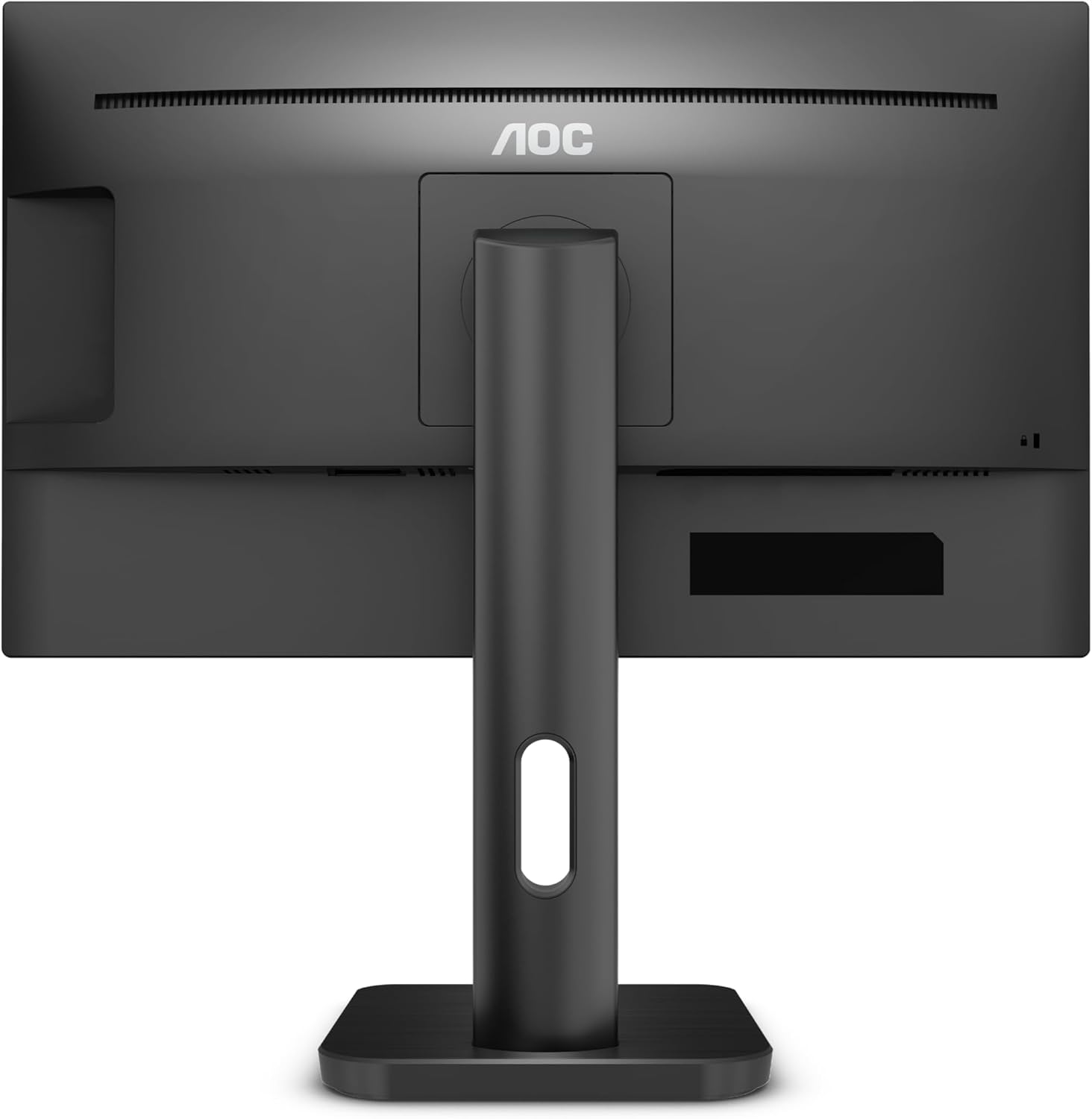
Image: Rear view of the AOC 22P1D monitor, highlighting the various input ports for connectivity.
3. Initial Power On
After connecting all cables, press the power button on the monitor to turn it on. The monitor will automatically detect the active input signal. If no signal is detected, ensure your computer is powered on and the correct input source is selected on the monitor.
Operating Instructions
1. Power On/Off
Press the power button located on the bottom right bezel of the monitor to turn it on or off.

Image: Front view of the AOC 22P1D monitor, showing the power button location and key features.
2. On-Screen Display (OSD) Menu Navigation
The OSD menu allows you to adjust various monitor settings. Use the control buttons on the bottom right bezel to navigate the menu.
- Press the Menu button to open the OSD.
- Use the Up/Down buttons to navigate through menu options.
- Press the Select button to enter a sub-menu or confirm a setting.
- Press the Exit button to go back or close the OSD.
3. Picture Settings
Adjust the display quality to your preference:
- Brightness: Controls the overall luminance of the screen.
- Contrast: Adjusts the difference between light and dark areas.
- Color Temperature: Selects preset color modes (e.g., Warm, Cool, Normal) or custom RGB settings.
- Low Blue Mode: Reduces blue light emission for eye comfort.
- Flicker-Free: Technology to reduce screen flickering.
4. Input Selection
If you have multiple devices connected, use the OSD menu or a dedicated input button to switch between HDMI and VGA inputs.
5. Audio Settings
If using the monitor's built-in speakers, adjust the volume through the OSD menu. Ensure your computer's audio output is directed to the monitor.
Maintenance
Cleaning the Monitor
To maintain optimal performance and appearance, follow these cleaning guidelines:
- Always unplug the monitor from the power outlet before cleaning.
- Use a soft, lint-free cloth slightly dampened with water or a mild, non-abrasive screen cleaner.
- Do not spray cleaner directly onto the screen. Apply it to the cloth first.
- Avoid using benzene, thinner, ammonia-based cleaners, or abrasive cleaning agents, as these can damage the screen or casing.
- Wipe the screen gently to remove dust and smudges.
Troubleshooting
If you encounter issues with your monitor, refer to the following common problems and solutions:
| Problem | Possible Cause | Solution |
|---|---|---|
| No Power | Power cable not connected; Power outlet not active. | Ensure power cable is securely connected to both monitor and outlet. Test outlet with another device. |
| No Signal | Video cable not connected; Incorrect input source selected; Computer not powered on. | Check video cable connections (HDMI/VGA). Select the correct input source via the OSD menu. Ensure computer is on and outputting video. |
| Poor Image Quality | Incorrect resolution; Brightness/Contrast settings incorrect; Dirty screen. | Set display resolution to 1920x1080. Adjust brightness and contrast via OSD. Clean the screen as per maintenance instructions. |
| No Sound | Audio cable not connected (for VGA); Monitor volume too low; Computer audio output incorrect. | If using VGA, connect the 3.5mm audio cable. Increase monitor volume via OSD. Check computer's audio settings to ensure output is to the monitor. |
Specifications
Technical specifications for the AOC 22P1D monitor:
| Feature | Specification |
|---|---|
| Model Number | 22P1D |
| Screen Size | 21.5 inches |
| Display Technology | LED |
| Resolution | 1920 x 1080 (Full HD) |
| Aspect Ratio | 16:9 |
| Refresh Rate | 60 Hz |
| Response Time | 2 Milliseconds |
| Contrast Ratio | 1000:1 |
| Input Ports | 1x HDMI, 1x VGA |
| Built-in Speakers | Yes |
| Color | Black |
| Product Dimensions | 50.6 x 19.8 x 50.4 cm |
| Item Weight | 4.2 Kilograms |
| Power Consumption | 22 Watts (typical) |

Image: Front view of the AOC 22P1D monitor with approximate dimensions shown.
Warranty Information
Your AOC 22P1D monitor comes with a standard manufacturer's warranty. Please refer to the warranty card included in your product packaging or visit the official AOC website for detailed terms and conditions regarding warranty coverage, duration, and service procedures.
Customer Support
For further assistance, technical support, or service inquiries, please contact AOC customer support. You can find contact information and additional resources on the official AOC website:
Please have your monitor's model number (22P1D) and serial number ready when contacting support.
Related documents22P1D


Ask a question about this manual
Ask about setup, troubleshooting, compatibility, parts, safety, or missing instructions. Manuals+ will review the question and use this page’s manual context to help answer it.