
1. Introduction
Thank you for choosing the X.Cell M100 Wireless Mouse. This manual provides essential information for setting up, operating, and maintaining your new wireless mouse. Please read these instructions carefully before use to ensure optimal performance and longevity of your device.
2. Package Contents
Verify that all items are present in your package:
- X.Cell M100 Wireless Mouse
- USB Nano Receiver
- AA Battery (may be pre-installed or included separately)
- User Manual (this document)
3. Setup
- Insert Battery: Locate the battery compartment on the underside of the mouse. Open the cover and insert the provided AA battery, ensuring correct polarity (+/-). Close the battery compartment cover.
- Connect USB Receiver: Remove the USB Nano Receiver from its storage slot, usually located inside the battery compartment or near it. Plug the receiver into an available USB port on your computer (PC or Mac).
- Power On: Turn on the mouse using the power switch, typically located on the underside. The mouse is designed for plug-and-play functionality, meaning it should automatically connect to your computer within a few seconds.
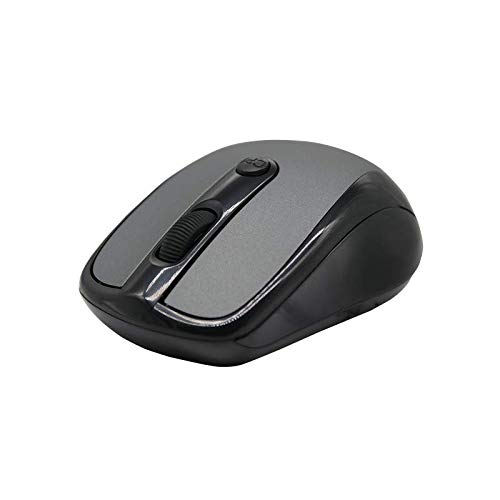
This image shows the X.Cell M100 Wireless Mouse from a top-down perspective, highlighting its ergonomic design and button layout.
4. Operating Instructions
The X.Cell M100 Wireless Mouse utilizes 2.4 GHz wireless technology, providing a stable connection with an operating range of up to 10 meters. It is compatible with both PC and Mac systems.
- Left Button: Primary click function for selecting items, opening files, etc.
- Right Button: Secondary click function for context menus and additional options.
- Scroll Wheel: Roll up or down to navigate documents and web pages. The scroll wheel also functions as a middle click button.
- DPI Button (if present): Some models may include a DPI button to adjust cursor sensitivity. Refer to the mouse's physical design for this feature.

A hand demonstrates the comfortable grip and usage of the X.Cell M100 Wireless Mouse during operation.
5. Maintenance
- Cleaning: Use a soft, dry cloth to clean the mouse. For stubborn dirt, slightly dampen the cloth with water. Avoid using harsh chemicals or abrasive materials.
- Battery Replacement: When the mouse performance degrades or it stops responding, replace the AA battery. Follow the steps in the 'Setup' section for battery insertion. The mouse is designed for approximately 12 months of battery life under typical usage.
- Storage: When not in use for extended periods, turn off the mouse to conserve battery life. Store the USB Nano Receiver in its designated slot to prevent loss.
6. Troubleshooting
| Problem | Solution |
|---|---|
| Mouse not responding |
|
| Cursor movement is erratic or slow |
|
| Connection issues |
|
7. Specifications
- Model: XL-M-100-BLK
- Connectivity: 2.4 GHz Wireless
- Operating Range: Up to 10 meters
- Compatibility: PC & Mac
- Power Source: 1 x AA Battery
- Estimated Battery Life: 12 months
- Dimensions (L x W x H): 2.4 x 6.4 x 4.6 cm
- Weight: 80 grams
- Color: Black
8. Warranty and Support
Specific warranty details and direct support contact information are not provided in the product description. Please refer to the product packaging or the official X.Cell website for the most current warranty policy and customer support options. Keep your purchase receipt as proof of purchase for any warranty claims.