
1. Introduction
This manual provides detailed instructions for the operation and maintenance of your TroheStar N4-1D Wireless Barcode Scanner and Data Collector. Please read this manual thoroughly before using the device to ensure proper functionality and to maximize its lifespan. This device is designed for efficient barcode scanning, data collection, and inventory management in various environments.

Image 1.1: The TroheStar N4-1D Wireless Barcode Scanner and Data Collector, featuring a 2.2-inch TFT color LCD screen, keypad, and a USB wireless receiver.
2. Package Contents
Verify that all items listed below are present in your package:
- TroheStar N4-1D Barcode Scanner Unit
- USB Wireless Receiver
- USB Charging/Data Cable
- User Manual
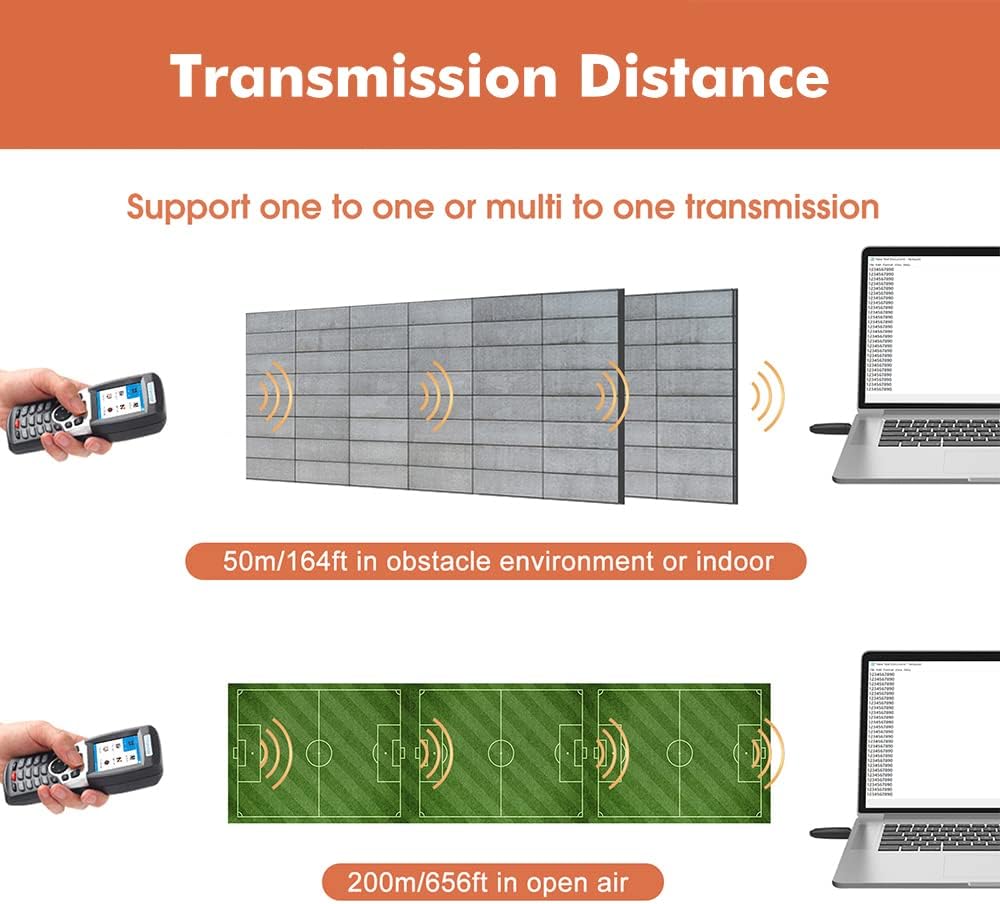
Image 2.1: Contents of the product package, including the scanner, USB cable, USB receiver, and user manual.
3. Product Overview
The TroheStar N4-1D is a versatile 4-in-1 device combining a USB scanner, wireless scanner, barcode collector, and inventory counter. It features a 2.2-inch TFT color LCD screen and a full keypad for easy operation.
Key Features:
- Wireless and USB Connectivity: Supports both 2.4G wireless and USB wired connections.
- Long Transmission Distance: Up to 100m (328ft) in open air and 50m (164ft) indoors.
- Multiple Scan Modes: Wireless Mode, Collect Mode, and Inventory Mode.
- Offline Storage: Internal memory stores up to 100,000 barcodes.
- Strong Recognition: Reads various 1D barcodes, including blurry or broken ones.
- Multi-System Compatibility: Works with Windows 7, XP, 2000, and Excel/Word applications.
- Editable Barcodes: Allows adding prefixes and suffixes to scanned data.
- Durable Design: Shock-resistant, capable of withstanding a 59-inch drop.
- Battery: Built-in 1400mAh Lithium Polymer battery.

Image 3.1: An overview of the TroheStar N4-1D, highlighting its multi-functional capabilities as an RF wireless scanner, USB wired scanner, data collector, and inventory counter.

Image 3.2: Detailed view of the scanner's keypad, showing the 'ENT' (Confirmation), 'SCAN', 'ESC' (Cancel), directional keys, number keys, 'SW' (Switch Input Method), and 'Fn' buttons.
4. Setup
4.1 Charging the Device
Before first use, fully charge the scanner. Connect the USB charging cable to the scanner's charging port and to a power source (e.g., computer USB port or USB wall adapter). The charging indicator will show the charging status.

Image 4.1: Illustration of the built-in 1400mAh battery and its charging status indicator.
4.2 Connecting the USB Wireless Receiver
Insert the USB wireless receiver into an available USB port on your computer. The system will automatically install the necessary drivers. No manual driver installation is required.
4.3 Powering On/Off
Press and hold the power button (usually located at the bottom of the keypad) to turn the device on or off.
5. Operating Modes
The N4-1D offers three primary scanning modes and two data upload modes.
5.1 Scanning Modes
- Wireless Mode (Scan Gun): Scans barcodes and instantly uploads data to your connected device. This mode is suitable for real-time data entry.
- Collect Mode: Allows you to scan barcodes and view them on the screen. You can then export the collected data to your device. This mode is useful for batch processing.
- Inventory Mode: Designed for inventory counting. Scan an item, enter the quantity, and the device will store this information. Data can then be exported for inventory management.

Image 5.1: Visual representation of the three scanning modes: Wireless Mode for instant upload, Collect Mode for on-screen review and export, and Inventory Mode for quantity tracking and export.
5.2 Data Upload Modes
- Instant Upload Mode: Data is transmitted to the computer immediately after scanning.
- Offline Storage Mode: Barcodes are stored internally on the device and can be uploaded later. The device supports storage of up to 100,000 barcodes in this mode.

Image 5.2: Depiction of the two data upload methods: Instant Upload for real-time transfer and Offline Storage for batch transfer from the device's internal memory.
6. Advanced Features
6.1 Barcode Editing (Prefix/Suffix)
The scanner allows you to configure prefixes and suffixes to be added to scanned barcode data. This feature is useful for data formatting and integration with specific software systems.

Image 6.1: Example of adding a prefix (ABC) and a suffix (ABC) to a barcode during data collection.
6.2 Multi-Library Function
The device supports working with multiple libraries simultaneously, up to 180 libraries. This allows for organized data management across different categories or projects.

Image 6.2: The scanner's display showing the multi-library function, indicating support for up to 180 libraries.
6.3 System Online Upgrade
The device supports online system upgrades, font library upgrades, and receiver upgrades to ensure optimal performance and access to the latest features.

Image 6.3: The scanner's screen displaying options for System upgrade, Font lib upgrade, and Receiver upgrade.
6.4 File/Keyboard Export Function
The scanner supports both file export mode and keyboard export mode, providing flexibility for data integration with various applications and systems.

Image 6.4: The export menu showing options for File export mode, Keyboard export mode, and Delete clear all data.
7. Maintenance
7.1 Cleaning the Device
Use a soft, dry cloth to clean the scanner's exterior. For the screen, use a microfiber cloth. Avoid using abrasive cleaners or solvents that may damage the device.
7.2 Battery Care
To prolong battery life, avoid fully discharging the battery frequently. Store the device in a cool, dry place when not in use for extended periods.
7.3 Storage
Store the scanner and its accessories in a safe place, away from extreme temperatures, moisture, and direct sunlight.
8. Troubleshooting
If you encounter issues with your TroheStar N4-1D scanner, refer to the following common troubleshooting steps:
- Device not powering on: Ensure the battery is charged. Connect the scanner to a power source and try again.
- Scanner not connecting to computer: Verify the USB wireless receiver is properly inserted into a USB port. Ensure the scanner is in Wireless Mode. Try a different USB port.
- Barcode not scanning: Check if the barcode is damaged or too blurry. Ensure the scanning window is clean. Adjust the distance and angle of the scanner to the barcode. Note that 1D laser barcode scanners cannot scan barcodes with spaces.
- Data transmission issues: Check the wireless connection range. Ensure no obstructions are blocking the signal between the scanner and the receiver.
- Incorrect data output: Review the prefix/suffix settings if custom formatting is enabled. Ensure the correct export mode (File or Keyboard) is selected.
For further assistance, please contact customer support. Technical support can address functional problems within 12 hours.
9. Specifications
| Feature | Detail |
|---|---|
| Model Number | N4-1D |
| Product Dimensions | 6.5 x 2.56 x 1.5 inches |
| Item Weight | 7 ounces |
| Battery | 1 Lithium Polymer (1400mAh) |
| Connectivity Technology | RF, USB Cable, Wireless |
| Compatible Devices | Laptop (Windows 7, XP, 2000) |
| Display | 2.2 Inch TFT Color LCD Screen |
| Transmission Distance | Up to 100m (328ft) open air, 50m (164ft) indoors |
| Offline Storage | Up to 100,000 barcodes |
10. Warranty and Support
TroheStar products are manufactured to high-quality standards. For warranty information, please refer to the documentation included with your purchase or contact TroheStar customer service.
For technical support or inquiries, please contact TroheStar customer service. Functional problems can typically be resolved within 12 hours of contact.


