
Introduction
This manual provides detailed instructions for the safe operation and maintenance of your Visuo XS809S Foldable RC Quadcopter. Please read this manual thoroughly before operating the drone to ensure proper use and to avoid damage or injury. The Visuo XS809S is a foldable drone equipped with WiFi FPV, Altitude Hold, and Headless Function, designed for beginners.
Package Contents
Verify that all items listed below are included in your package:
- Visuo XS809S Quadcopter x 1
- 3.7V 1800mAh Lipo Battery x 1 (pre-installed in drone)
- Remote Control x 1 (batteries not included)
- Protective Frame x 4
- Spare Propeller Blades x 4
- USB Charging Cable x 1
- Screwdriver x 1
- User Manual x 1

Image: All components included in the Visuo XS809S drone package, including the drone, remote, battery, protective frames, spare blades, USB cable, screwdriver, and manual.
Product Overview
The Visuo XS809S is a compact and foldable quadcopter designed for ease of use and portability. Its key features include:
- Foldable Design: Arms fold inward for easy transport and storage.
- Altitude Hold Function: Maintains a stable height, simplifying flight control.
- Headless Mode: Eliminates the need to adjust the drone's position before flight, making it easier for beginners.
- One Key Return: Allows the drone to return to its take-off point with a single button press.
- 360° Flips: Perform aerial stunts with a dedicated button.
- WiFi FPV Camera: Stream live video to your smartphone for a first-person view experience.

Image: Top-down view of the Visuo XS809S drone with its arms unfolded, showing the propellers and main body.

Image: Front view of the Visuo XS809S drone with its LED lights illuminated, showcasing its design.
Setup
1. Unfolding the Drone
Gently unfold the drone arms until they click into place. Ensure all four arms are fully extended before flight.

Image: Diagram showing the unfolded dimensions of the Visuo XS809S drone: 17cm length, 15.5cm width, 4cm height.
To fold the drone for storage, gently press the release mechanism (if present) or carefully fold the arms back into the body until compact.

Image: Diagram showing the folded dimensions of the Visuo XS809S drone: 15.5cm length, 12cm width, 4cm height.
2. Battery Installation and Charging
The drone battery (3.7V 1800mAh Lipo) is typically pre-installed. To charge:
- Remove the battery from the drone (if necessary, refer to the drone's battery compartment).
- Connect the battery to the provided USB charging cable.
- Plug the USB cable into a USB power source (e.g., computer, USB wall adapter).
- The charging indicator light on the USB cable will show charging status (e.g., red for charging, off/green for fully charged).
- Charging time is approximately 1 hour. Do not overcharge.
For the remote control, open the battery compartment and insert 3x AA batteries (not included), ensuring correct polarity.
3. Propeller and Protective Frame Installation
Attach the protective frames to each motor arm by snapping them into place. Ensure they are securely fastened. If replacing propellers, match the 'A' and 'B' marked propellers to the corresponding motor shafts. Use the provided screwdriver to secure them.

Image: The Visuo XS809S drone shown with its propeller protective frames installed, ready for flight.
Operating Instructions
1. Pairing the Remote Control
- Place the drone on a flat, level surface.
- Turn on the drone's power switch. The drone's indicator lights will flash.
- Turn on the remote control.
- Push the left joystick (throttle) all the way up, then all the way down. The drone's lights will stop flashing and become solid, indicating successful pairing.
2. Gyro Calibration
After pairing, perform a gyro calibration for stable flight:
- Ensure the drone is on a flat surface.
- Push both joysticks down and to the right simultaneously for a few seconds.
- The drone's lights will flash rapidly and then become solid, indicating successful calibration.
3. Take-off and Landing
- Manual Take-off: After pairing and calibration, push both joysticks down and outwards to start the motors. Then, slowly push the left joystick (throttle) up to take off.
- One Key Take-off/Landing: Press the dedicated One Key Take-off/Landing button (refer to remote diagram) to automatically take off or land.
- Landing: Slowly pull the left joystick (throttle) down until the drone lands. Once landed, pull the left joystick all the way down and hold for a few seconds to stop the motors.
4. Basic Flight Controls
Familiarize yourself with the remote control layout:

Image: The remote control for the Visuo XS809S drone, with a smartphone mounted, illustrating its ergonomic design and button layout.
- Left Joystick (Throttle): Up/Down for altitude, Left/Right for rotation (yaw).
- Right Joystick (Direction): Up/Down for forward/backward flight, Left/Right for left/right sideward flight.
- Trim Buttons: Use these to fine-tune the drone's stability if it drifts in any direction.
5. Special Functions
- Altitude Hold: Once airborne, release the left joystick. The drone will maintain its current altitude.
- Headless Mode: Press the Headless Mode button. The drone will orient itself relative to the remote control, regardless of its front direction. Press again to exit.
- One Key Return: Press the One Key Return button. The drone will fly back towards its take-off point. Press any direction joystick to cancel.
- 360° Flip: Fly the drone to a height of at least 3 meters. Press the 360° Flip button, then push the right joystick in the desired flip direction (forward, backward, left, or right).
6. WiFi FPV Setup
To use the First Person View (FPV) feature:
- Download the specific Visuo FPV app (check the manual or product packaging for the app name) on your smartphone.
- Turn on the drone.
- Go to your phone's Wi-Fi settings and connect to the drone's Wi-Fi network (usually named "WIFI-XXXXXX" or similar).
- Open the FPV app. You should see a live video feed from the drone's camera.
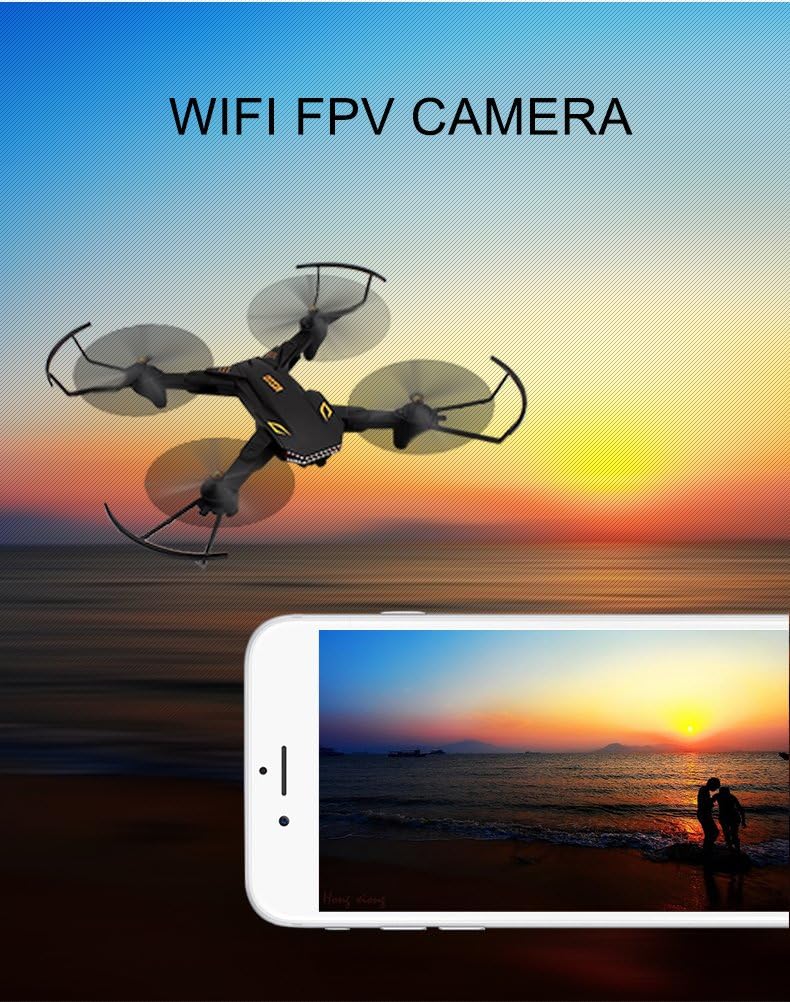
Image: The Visuo XS809S drone flying with a smartphone displaying the live FPV camera feed, showing a scenic view.
Maintenance
- Cleaning: Use a soft, dry cloth to clean the drone body and camera lens. Avoid using liquids.
- Propeller Inspection: Regularly check propellers for damage (cracks, bends). Replace any damaged propellers immediately using the provided spare blades and screwdriver.
- Battery Care:
- Do not overcharge or over-discharge the battery.
- Store batteries in a cool, dry place away from direct sunlight.
- If not used for extended periods, charge the battery to about 50% before storage.
- Motor Maintenance: Keep motors free from dust and debris. Do not attempt to lubricate motors.
Troubleshooting
| Problem | Possible Cause | Solution |
|---|---|---|
| Drone does not respond to remote. | Not paired; low battery (drone/remote); out of range. | Re-pair drone and remote; charge drone battery, replace remote batteries; ensure within 100m range. |
| Drone drifts during flight. | Gyro not calibrated; trim settings incorrect. | Perform gyro calibration; use trim buttons to adjust stability. |
| Motors spin but drone won't take off. | Damaged propellers; low battery. | Check and replace damaged propellers; charge drone battery. |
| FPV feed is laggy or disconnected. | Weak Wi-Fi signal; too far from drone; interference. | Ensure phone is close to drone; reduce environmental Wi-Fi interference. |
Specifications
| Feature | Detail |
|---|---|
| Model | XS809S |
| Brand | Visuo (Manufacturer: Tianqu) |
| Drone Battery | 3.7V 1800mAh Lipo |
| Charging Time | Approximately 1 hour |
| Flight Time | Approximately 20 minutes |
| Control Distance | Approximately 100 meters |
| Unfolded Dimensions | 17cm x 15.5cm x 4cm |
| Folded Dimensions | 12cm x 15.5cm x 4cm |
| Special Features | FPV, Foldable, Altitude Hold, Headless Mode, One Key Return, 360° Flips |
| Connectivity | USB, Wi-Fi (for FPV) |
| Skill Level | Beginner |
Safety Guidelines
Always adhere to the following safety guidelines to prevent accidents and ensure a safe flying experience:
- Fly in open areas, away from people, animals, buildings, and obstacles.
- Do not fly in strong winds or adverse weather conditions.
- Maintain a safe distance from the drone during operation.
- Never fly near airports or restricted airspace.
- Ensure the drone battery is fully charged and remote control batteries are fresh before each flight.
- Do not touch the propellers when they are spinning.
- Supervise children when they are operating the drone.
- Be aware of local regulations regarding drone operation.
Warranty and Support
For warranty information and technical support, please refer to the documentation provided with your purchase or contact the retailer. Specific warranty terms may vary by region and seller.


