
Omni-Trade 472366-F
Tyco 472366-F Focus 200 Ademco Alarm System Sim F-Serial Interface Module Instruction Manual
Model: 472366-F
1. Introduction
This manual provides comprehensive instructions for the installation, operation, and maintenance of the Tyco 472366-F Focus 200 Ademco Alarm System Sim F-Serial Interface Module. This module serves as a crucial component for integrating and managing alarm system communications, specifically designed as an interface module SIM replacement.
The F-Serial interface module is engineered to ensure reliable data exchange within your security system, facilitating seamless communication between various alarm components. Proper installation and understanding of its functions are essential for optimal performance of your security setup.
2. Setup and Installation
Before beginning installation, ensure all power to the alarm system is disconnected to prevent electrical shock or damage to components. It is recommended that installation be performed by a qualified technician.
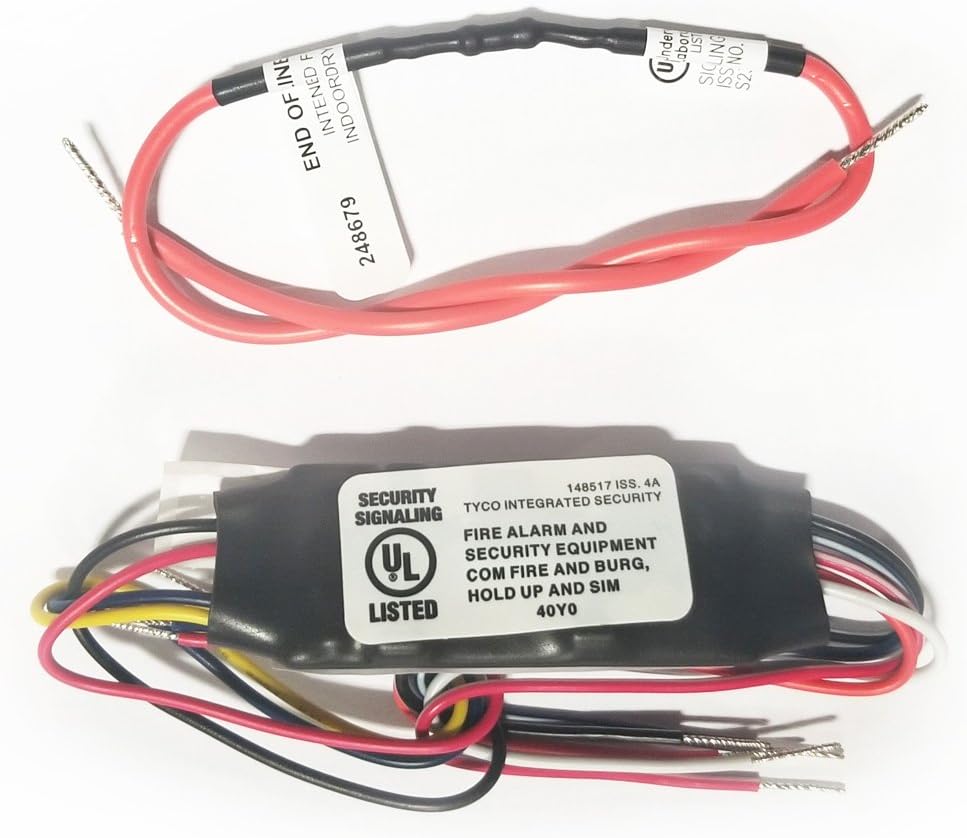
This image displays the Tyco 472366-F F-Serial Interface Module, a compact black unit with multiple colored wires, alongside a red twisted pair wire with exposed ends, labeled 'END OF LINE' and 'INDOOR'. This illustrates the module and a typical connection component.
Installation Steps:
- Safety First: Disconnect all power from the alarm control panel and any associated devices before proceeding.
- Locate Interface Port: Identify the designated F-Serial interface port on your Ademco alarm system control panel. Refer to your alarm system's main manual for precise location.
- Connect Module: Carefully align the connector of the 472366-F module with the F-Serial port and firmly insert it. Ensure a secure connection.
- Wire Connections: Connect the module's wires to the appropriate terminals on the alarm control panel as per your system's wiring diagram. Pay close attention to color coding and terminal labels (e.g., data in, data out, power, ground).
- Secure Module: Mount the module securely within the alarm panel enclosure using appropriate fasteners to prevent accidental dislodgement.
- Power On: Once all connections are verified and secure, restore power to the alarm system.
- System Test: Perform a full system test to confirm that the module is communicating correctly and that all alarm functions are operating as expected.
3. Operating the Module
The Tyco 472366-F module operates primarily as an interface, facilitating communication within the Ademco alarm system. It does not have user-operable controls or indicators. Its function is to translate and transmit signals between the alarm control panel and other connected devices or communication pathways.
- Automatic Operation: Once correctly installed and powered, the module operates automatically as part of the alarm system's communication infrastructure.
- Signal Transmission: It ensures the proper transmission of alarm signals, status updates, and control commands within the F-Serial protocol.
- System Integration: The module is integral to the overall functionality of the alarm system, enabling various components to interact seamlessly.
Any operational issues or system errors related to communication should first prompt a check of the module's physical connections and the overall alarm system's status indicators.
4. Maintenance
The Tyco 472366-F F-Serial Interface Module is designed for long-term, reliable operation with minimal maintenance. However, periodic checks can help ensure its continued performance.
- Visual Inspection: Annually, or if system issues arise, visually inspect the module and its wiring for any signs of damage, corrosion, or loose connections.
- Cleanliness: Ensure the module and its surrounding area within the alarm panel are free from dust and debris. Use a soft, dry cloth for cleaning. Do not use liquid cleaners.
- Environmental Conditions: Ensure the module is operating within its specified environmental conditions (temperature, humidity) as outlined in the system's main manual. Avoid exposure to extreme temperatures or moisture.
- Professional Check: For critical security systems, consider having a professional security technician perform routine maintenance checks on all components, including this module.
5. Troubleshooting
If you experience issues with your alarm system that you suspect are related to the F-Serial Interface Module, consider the following troubleshooting steps:
| Problem | Possible Cause | Solution |
|---|---|---|
| System communication errors or "Module Not Found" messages. | Loose or incorrect wiring connections. Module not properly seated. Power issue to the alarm panel. Faulty module. |
|
| Intermittent communication failures. | Environmental interference. Loose connection. Software/firmware issue with the main panel. |
|
| Alarm system not responding to commands. | Module communication failure. Main panel issue. |
|
If troubleshooting steps do not resolve the issue, it is recommended to contact a certified alarm system technician or the manufacturer for further assistance.
6. Specifications
| Attribute | Detail |
|---|---|
| Product Name | Tyco 472366-F Focus 200 Ademco Alarm System Sim F-Serial Interface Module |
| Model Number | 472366-F |
| Brand | Omni-Trade |
| Product Dimensions | 1 x 3 x 2 inches |
| Item Weight | 1 pounds |
| ASIN | B07CNFBL73 |
| Date First Available | April 25, 2018 |
| Manufacturer | Omni-Trade |
7. Warranty Information
This product is covered by the standard manufacturer's warranty provided by Omni-Trade. For specific details regarding warranty duration, coverage, and claims procedures, please refer to the documentation included with your purchase or visit the official Omni-Trade website. Keep your proof of purchase for warranty validation.
The warranty typically covers defects in materials and workmanship under normal use. It does not cover damage resulting from improper installation, misuse, accidents, unauthorized repairs, or acts of nature.
8. Customer Support
For technical assistance, troubleshooting beyond the scope of this manual, or warranty inquiries, please contact Omni-Trade customer support.
- Manufacturer: Omni-Trade
- Website: Please refer to your product packaging or search online for the official Omni-Trade support website.
- Contact: Look for contact numbers or email addresses on the manufacturer's official support page.
When contacting support, please have your product model number (472366-F) and purchase information readily available to expedite assistance.
Ask a question about this manual
Ask about setup, troubleshooting, compatibility, parts, safety, or missing instructions. Manuals+ will review the question and use this page’s manual context to help answer it.