
1. Introduction
This manual provides comprehensive instructions for the installation, operation, and maintenance of the Ubiquiti UniFi UAP-AC-LR-US Long Range Wireless Access Point. The UAP-AC-LR-US is designed for extended range wireless coverage, utilizing 802.11ac Wi-Fi technology to deliver high-performance connectivity.
2. Product Overview
The Ubiquiti UniFi UAP-AC-LR-US is a dual-band 802.11ac access point. It features a distinctive circular design with an LED ring that indicates its operational status. The device is powered via Power over Ethernet (PoE).
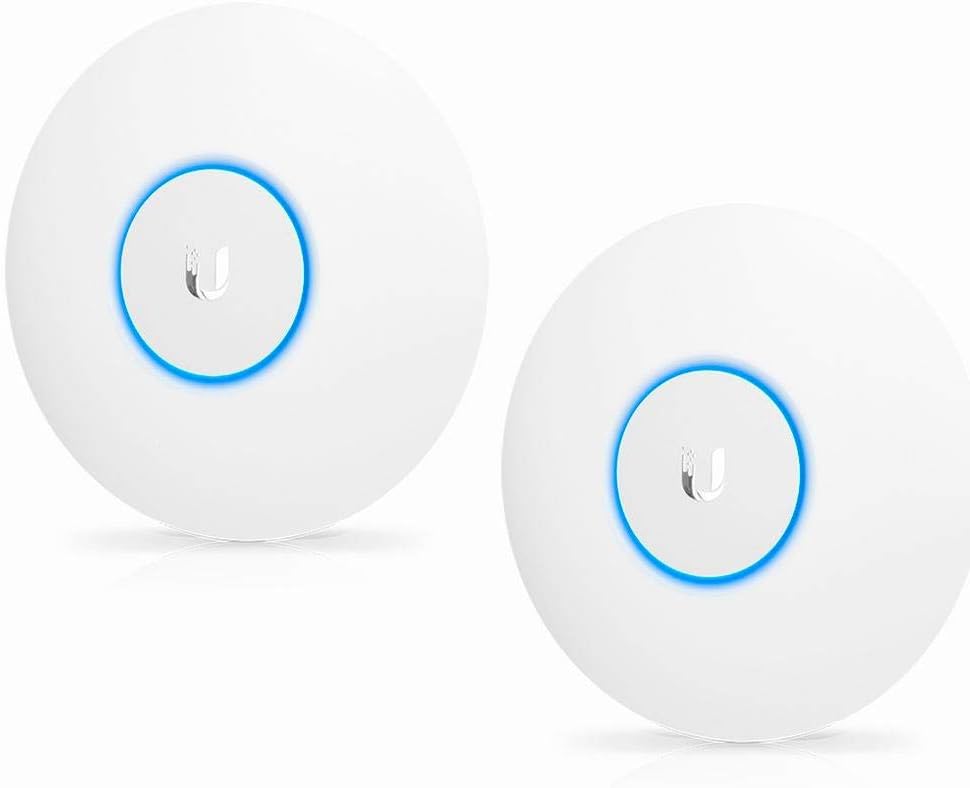
Figure 1: Two Ubiquiti UniFi UAP-AC-LR-US Long Range Wireless Access Points. Each unit is white, circular, and features a central Ubiquiti logo surrounded by a glowing blue LED ring, indicating operational status.
2.1 Package Contents
- UniFi AC LR Access Point (2 units for this bundle)
- Mounting Bracket
- Ceiling Backing Plate
- Screw Anchors
- Screws
- Gigabit PoE Adapter (24V, 0.5A) with Mounting Bracket
- Power Cord
2.2 System Requirements
- Linux, Mac OS X, or Microsoft Windows 7/8/10
- Java Runtime Environment 1.6 (or newer)
- Web Browser: Mozilla Firefox, Google Chrome, Microsoft Edge, or Apple Safari
- UniFi Controller software v5.4 or higher (available for download from Ubiquiti website)
3. Setup and Installation
3.1 Network Topology Requirements
The UniFi AC LR Access Point requires a DHCP server on your network for IP address assignment. A UniFi Controller installation (either software or hardware appliance) is necessary for configuration and management.
3.2 Mounting the Access Point
The UniFi AC LR can be mounted on a wall or ceiling. Choose a central location for optimal wireless coverage.
- Secure the mounting bracket to the desired surface using the provided screws and anchors.
- Connect an Ethernet cable from your network (which should be connected to a PoE injector or PoE switch) to the Ethernet port on the UniFi AC LR.
- Align the UniFi AC LR with the mounting bracket and twist clockwise until it locks into place.
3.3 Powering the Device
The UAP-AC-LR-US is powered using the included Gigabit PoE Adapter or a compatible 802.3af/A PoE switch.
- Using the PoE Adapter: Connect an Ethernet cable from your LAN to the LAN port of the PoE adapter. Connect another Ethernet cable from the PoE port of the adapter to the Ethernet port on the UniFi AC LR. Plug the power cord into the PoE adapter and then into a power outlet.
- Using a PoE Switch: Connect an Ethernet cable from a PoE-enabled port on your switch directly to the Ethernet port on the UniFi AC LR.
3.4 UniFi Controller Software Installation and Adoption
To manage the UniFi AC LR, you must install and run the UniFi Controller software on a computer within the same network or use a UniFi Cloud Key.
- Download the latest UniFi Controller software from the Ubiquiti website.
- Install the software on your chosen computer and launch it.
- Follow the on-screen instructions to complete the initial setup wizard for the UniFi Controller.
- Once the Controller is running, it will discover the UniFi AC LR Access Point(s).
- Click "Adopt" next to the discovered device(s) to integrate them into your UniFi network.
- After adoption, you can configure wireless networks (SSIDs), security settings, and other advanced features through the UniFi Controller interface.
4. Operating Instructions
4.1 LED Indicators
The LED ring on the UniFi AC LR provides visual status indications:
- White: Device is awaiting adoption.
- Blue: Device has been adopted and is operating correctly.
- Flashing White/Blue: Device is busy (e.g., firmware upgrade, locating).
- Off: Device is powered off or LED is disabled in Controller settings.
4.2 Network Management
All management of the UniFi AC LR is performed through the UniFi Controller interface. This includes:
- Creating and managing Wireless Networks (SSIDs)
- Configuring security protocols (WEP, WPA-PSK, WPA-Enterprise)
- Monitoring client connections and network performance
- Adjusting radio settings (channel, transmit power)
- Performing firmware updates
- Managing guest access and captive portals
5. Maintenance
5.1 Firmware Updates
Regularly update the firmware of your UniFi AC LR Access Point through the UniFi Controller to ensure optimal performance, security, and access to new features. The Controller will typically notify you when updates are available.
5.2 Cleaning
Clean the exterior of the access point with a soft, dry cloth. Do not use liquid cleaners or aerosols.
5.3 Factory Reset
To restore the UniFi AC LR to its factory default settings, locate the reset button on the device. With the device powered on, press and hold the reset button for approximately 10 seconds. The LED will flash rapidly, indicating a successful reset. The device will then revert to its default state, awaiting adoption by a UniFi Controller.
6. Troubleshooting
This section addresses common issues you might encounter with your UniFi AC LR Access Point.
6.1 Device Not Powering On
- Verify that the PoE adapter is correctly connected to a power outlet and the access point.
- If using a PoE switch, ensure the port is PoE-enabled and functioning correctly.
- Check all Ethernet cable connections.
6.2 Device Not Appearing in UniFi Controller
- Ensure the UniFi AC LR is powered on and its LED is white (awaiting adoption).
- Confirm that the computer running the UniFi Controller is on the same network segment as the access point.
- Temporarily disable any firewalls on the computer running the Controller that might block communication.
- Try performing a factory reset on the access point.
6.3 Poor Wireless Performance or Connectivity
- Check the placement of the access point; ensure it is centrally located and free from obstructions.
- Use the UniFi Controller to analyze RF environment and adjust channel and transmit power settings to minimize interference.
- Ensure client devices are within optimal range.
- Verify that the latest firmware is installed on the access point.
7. Specifications
| Model | UAP-AC-LR-US |
| Dimensions | 12.05 x 9.25 x 6.73 inches (Package) |
| Weight | 4.05 pounds (Item) |
| Wireless Standards | 802.11ac |
| Frequency Band Class | Dual-Band |
| Antenna Type | Fixed |
| Connectivity Technology | Wi-Fi |
| Security Protocols | WEP, WPA-PSK, WPA-Enterprise |
| Operating System | UniFi OS |
| Special Feature | WPS |
| Color | White |
8. Warranty and Support
For warranty information and technical support, please refer to the official Ubiquiti Networks website or contact their customer service. Keep your purchase receipt for warranty claims.
Official Ubiquiti Support: https://www.ui.com/support