1. Introduction
This manual provides detailed instructions for the setup, operation, and maintenance of your Philips 328B6QJEB 32-inch Quad HD 2K IPS Monitor. Please read this manual thoroughly before using your monitor to ensure proper and safe operation.
The Philips 328B6QJEB monitor features a 32-inch IPS panel with 2560x1440 resolution, built-in speakers, a USB hub, and MultiView capabilities, designed for enhanced productivity and visual experience.
2. Safety Information
Always follow these basic safety precautions when using your monitor:
- Do not expose the monitor to rain or moisture.
- Do not open the monitor casing. There are no user-serviceable parts inside.
- Ensure proper ventilation. Do not block ventilation openings.
- Use only the power adapter supplied with the monitor.
- Disconnect the power cable from the wall outlet if the monitor will not be used for a long period.
- Position the monitor on a stable, flat surface.
3. Package Contents
Verify that all items are present in your package. If any items are missing or damaged, contact your retailer.
- Philips 328B6QJEB Monitor
- Power Cable
- VGA Cable (may vary by region)
- DVI Cable (may vary by region)
- HDMI Cable (may vary by region)
- DisplayPort Cable (may vary by region)
- USB Upstream Cable
- Quick Start Guide (QSG)
- User Manual CD/Link (if applicable)
4. Setup
4.1. Assembling the Stand
Follow these steps to attach the stand to the monitor:
- Place the monitor face down on a soft, clean surface to prevent scratches.
- Align the stand base with the monitor neck and secure it with the provided screw.
- Attach the assembled stand to the back of the monitor until it clicks into place.
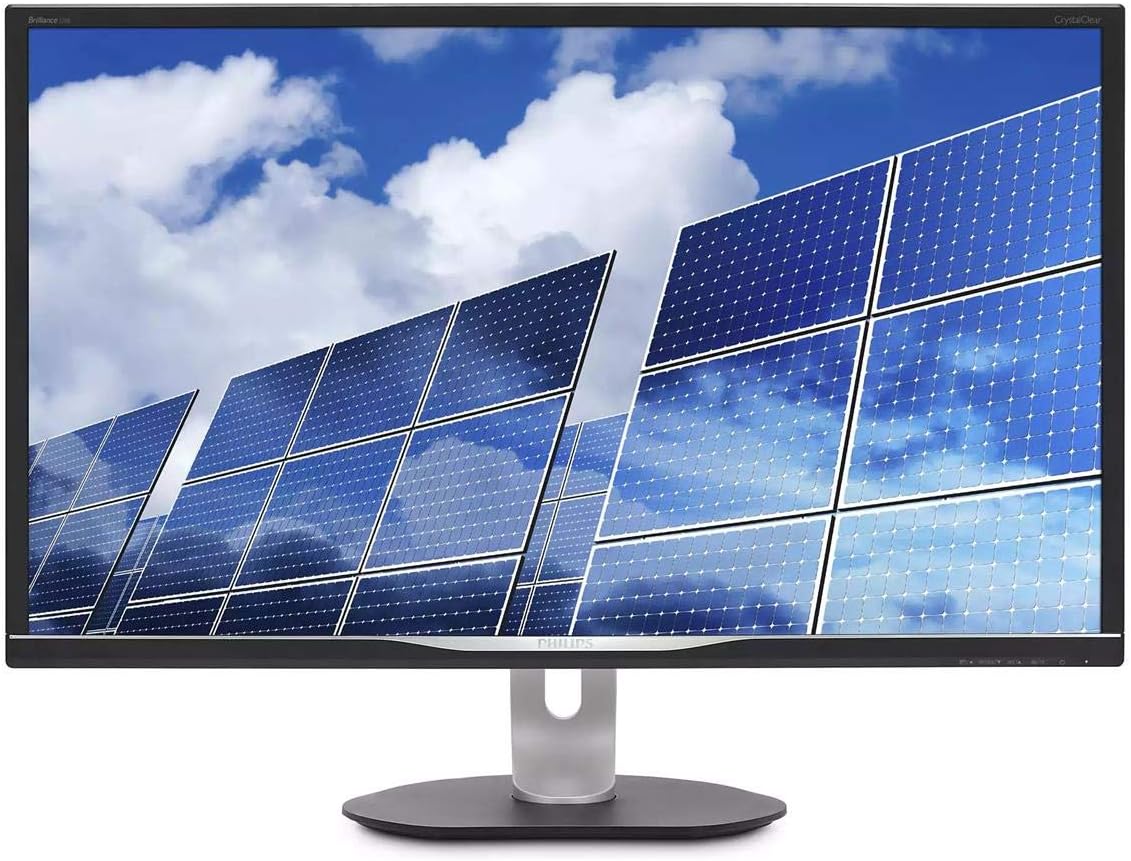
Figure 4.1: Front view of the Philips 328B6QJEB monitor with its stand. This image shows the monitor's display and the ergonomic stand.
4.2. Connecting the Monitor
The Philips 328B6QJEB monitor offers multiple connectivity options:
- Power Connection: Connect the power cable to the monitor's power input and then to a wall outlet.
- Video Input: Connect one of the following video cables from your computer to the monitor:
- VGA
- DVI-D
- HDMI
- DisplayPort
- USB Hub: Connect the USB upstream cable from your computer to the monitor's USB upstream port to enable the monitor's built-in USB 3.0 hub.
- Audio: If using VGA/DVI, connect an audio cable from your computer's audio output to the monitor's audio input. HDMI and DisplayPort carry audio digitally.

Figure 4.2: Side view of the Philips 328B6QJEB monitor, highlighting the various input and output ports including VGA, DVI, HDMI, DisplayPort, and USB ports.
5. Operating Instructions
5.1. Powering On/Off
Press the power button located on the front/bottom bezel of the monitor to turn it on or off.
5.2. On-Screen Display (OSD) Menu
The OSD menu allows you to adjust various monitor settings. Use the control buttons on the monitor's bezel to navigate the menu.
- Brightness/Contrast: Adjust the display's luminance.
- Input Selection: Manually select the active video input (VGA, DVI, HDMI, DisplayPort).
- Audio: Control volume and mute settings for the built-in speakers.
- Picture Mode: Select from predefined picture modes (e.g., Standard, Internet, Game, Movie).
- MultiView: Configure Picture-by-Picture (PbP) or Picture-in-Picture (PiP) modes.
5.3. Ergonomic Adjustments
The monitor stand allows for various adjustments to optimize your viewing comfort:
- Height Adjustment: Gently push or pull the monitor up or down to adjust its height.
- Tilt: Tilt the screen forward or backward to find the optimal viewing angle.
- Swivel: Rotate the monitor left or right on its base.
- Pivot (Rotation): Rotate the screen 90 degrees for portrait viewing.

Figure 5.1: The Philips 328B6QJEB monitor demonstrating its pivot function, allowing the screen to rotate 90 degrees for portrait orientation.
6. Maintenance
6.1. Cleaning the Monitor
To clean the monitor screen:
- Turn off the monitor and unplug the power cord.
- Use a soft, lint-free cloth lightly dampened with water or a non-abrasive screen cleaner.
- Wipe the screen gently. Avoid applying excessive pressure.
- Do not use alcohol, ammonia, or abrasive cleaners.
To clean the monitor casing:
- Use a soft, dry cloth.
- Avoid spraying cleaners directly onto the casing.
7. Troubleshooting
If you encounter issues with your monitor, refer to the following common problems and solutions:
| Problem | Possible Cause | Solution |
|---|---|---|
| No image on screen | Power cable disconnected; Video cable disconnected; Incorrect input selected | Check power and video cable connections; Select correct input via OSD menu |
| Image too dark/bright | Brightness/Contrast settings | Adjust Brightness and Contrast in OSD menu |
| No audio | Audio cable disconnected; Volume too low; Incorrect audio source | Check audio cable; Increase volume; Ensure HDMI/DP audio is selected if applicable |
| USB ports not working | USB upstream cable not connected | Connect the USB upstream cable from the monitor to your computer |
8. Specifications
| Feature | Specification |
|---|---|
| Model | 328B6QJEB |
| Screen Size | 32 inches (31.5" viewable) |
| Panel Type | IPS |
| Resolution | 2560 x 1440 (Quad HD) |
| Aspect Ratio | 16:9 |
| Response Time | 5ms |
| Brightness | 250 cd/m² |
| Dynamic Contrast Ratio | 50,000,000:1 |
| Color Support | 1.074 billion colors, 128% sRGB |
| Connectivity | VGA, DVI-D, HDMI, DisplayPort |
| USB Hub | 3x USB 3.0 ports |
| Speakers | Built-in 3W x 2 |
| VESA Mount | Yes |
| Dimensions (with stand) | 29.2 x 10.6 x 25.9 inches |
| Weight (with stand) | 20.9 pounds |
9. Warranty and Support
This Philips monitor comes with a 4-Year Advance Replacement Warranty. For warranty claims or technical support, please contact Philips customer service.
For the most up-to-date support information, drivers, and FAQs, please visit the official Philips support website.