
1. Introduction and Overview
The TP-Link EAP110-Outdoor V3 is an Omada N300 Wireless Outdoor Access Point designed to provide reliable Wi-Fi coverage in outdoor environments. Equipped with Qualcomm technology, it delivers speeds of up to 300Mbps at 2.4GHz, supporting 802.11b/g/n standards. Its robust design features a P65-rated dustproof and weatherproof enclosure, making it suitable for various outdoor applications.
Key features include:
- Fast Speeds with 2x2 MIMO: Delivers Wi-Fi speeds of up to 300 Mbps.
- Indoor/Outdoor Use: Durable, weatherproof enclosure for stable wireless coverage up to 200m+ range at 2.4GHz.
- Integrated into Omada SDN: Part of the Omada Software Defined Networking platform for centralized management.
- Cloud Access: Remote cloud management and Omada app for control from anywhere, anytime.
- Passive PoE for Easy Installation: Supports Passive PoE power supply, simplifying deployment.

Figure 1.1: TP-Link EAP110-Outdoor V3 N300 Wireless Outdoor Access Point.
2. What's in the Box
Upon opening the package, verify that all components are present:
- TP-Link EAP110-Outdoor Access Point Unit
- Passive PoE Adapter
- Power Cord
- Mounting Kit (includes straps, screws, and wall mount bracket)
- Waterproof Rubber Insert
- Waterproof Antennas (2x)
- Installation Guide

Figure 2.1: The EAP110-Outdoor unit with its two external antennas.

Figure 2.2: Detail of the 10/100Mbps Ethernet Port with 24V Passive PoE support.
3. Setup
The EAP110-Outdoor is designed for straightforward installation, particularly with its Passive PoE support. For detailed, step-by-step instructions, please refer to the official Installation Manual (PDF) provided with your product or available on the TP-Link support website.
3.1 Physical Installation
The device can be mounted on a pole or wall using the included mounting kit. Ensure the chosen location provides optimal Wi-Fi coverage and is within reach of your Ethernet cable connection.

Figure 3.1: The EAP110-Outdoor supports both pole and wall mounting for flexible deployment.
3.2 Power and Network Connection
- Connect one end of an Ethernet cable to the PoE port on the EAP110-Outdoor unit.
- Connect the other end of this Ethernet cable to the "PoE" port on the Passive PoE Adapter.
- Connect another Ethernet cable from the "LAN" port on the Passive PoE Adapter to your router or network switch.
- Plug the power cord into the Passive PoE Adapter and then into a power outlet. The device will power on automatically.
3.3 Software Configuration
The EAP110-Outdoor can be managed via the Omada Software Defined Networking (SDN) platform, offering centralized control through a hardware controller, software controller, or the Omada App. Standalone mode is also supported for individual device management.
For initial setup and advanced configurations, including setting up SSIDs, security protocols, and captive portals, access the device's web-based management interface or use the Omada App. Ensure your devices/controllers are equipped with compatible SDN firmware.

Figure 3.2: Omada SDN platform provides unified management for network devices.
4. Operating the Access Point
Once set up, the EAP110-Outdoor provides a stable 2.4GHz Wi-Fi network. Its 5dBi external omni-directional waterproof antennas ensure broad coverage, extending up to 200 meters in outdoor settings.

Figure 4.1: The EAP110-Outdoor provides long-range coverage up to 200 meters.
The Omada SDN integration allows for advanced network management features such as:
- Centralized Management: Manage multiple EAPs from a single interface.
- Captive Portal: Secure guest Wi-Fi access with customizable authentication.
- Multi-SSID: Create multiple wireless networks for different user groups.
- Load Balance: Distribute client connections across multiple access points for optimal performance.
The device is suitable for various outdoor applications, including yards, swimming pools, outdoor cafes, playgrounds, and parks, as depicted below.
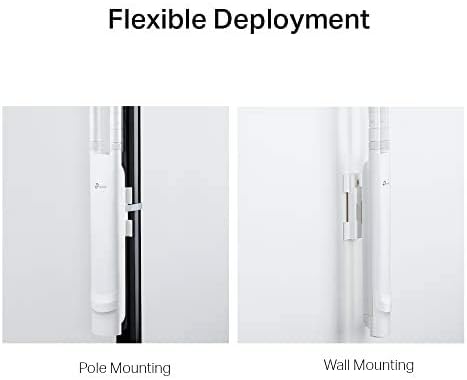
Figure 4.2: Examples of environments where the EAP110-Outdoor can be effectively deployed.
5. Maintenance
To ensure the longevity and optimal performance of your EAP110-Outdoor, regular maintenance is recommended:
- Physical Inspection: Periodically check the device and its cables for any signs of wear, damage, or loose connections.
- Firmware Updates: Keep the device firmware updated to the latest version. This ensures access to new features, performance improvements, and security patches. Firmware updates are typically managed through the Omada controller or web interface.
- Environmental Protection: While the device is P65-rated dustproof and weatherproof, ensure it is installed in a location that minimizes direct exposure to extreme weather conditions where possible.
- Lightning and ESD Protection: Proper grounding and cable shielding are crucial for protection against lightning and electro-static discharge. Consult an IT professional for correct setup.
6. Troubleshooting
If you encounter issues with your EAP110-Outdoor, consider the following common troubleshooting steps:
- No Power/LED Off:
- Verify the PoE adapter is correctly connected and plugged into a working power outlet.
- Ensure the Ethernet cable from the PoE adapter to the EAP is securely connected and not damaged.
- No Internet Access/Poor Signal:
- Check the connection between the PoE adapter's LAN port and your main router/network.
- Confirm that your main internet connection is active.
- Relocate the access point to a more central position or higher elevation to improve signal strength and coverage, minimizing physical obstructions.
- Environmental factors, including building materials, physical objects, and local interference, can affect wireless transmission rate and coverage.
- Cannot Access Management Interface:
- Ensure your computer is connected to the same network as the EAP.
- Verify the IP address of the EAP and your computer.
- Temporarily disable any firewall software on your computer that might be blocking access.
- SDN Compatibility Issues:
- Ensure your Omada controller (hardware or software) and the EAP have compatible SDN firmware versions. Non-SDN controllers only work with non-SDN APs.
For more comprehensive troubleshooting, refer to the detailed User Manual (PDF) or contact TP-Link customer support.
7. Specifications
| Feature | Detail |
|---|---|
| Model Name | EAP110-Outdoor |
| Product Dimensions | 3.7 x 8.2 x 1.7 inches |
| Item Weight | 4.2 ounces |
| Connectivity Technology | Wireless |
| Wireless Communication Standard | 802.11bgn |
| Frequency Band Class | Single-Band (2.4 GHz) |
| Special Feature | Weatherproof, Access Point Mode, WPS |
| Manufacturer | TP-Link |
| Country of Origin | China |
8. Warranty and Support
TP-Link products typically come with a limited warranty. For specific warranty terms and conditions applicable to your EAP110-Outdoor V3, please refer to the warranty card included in your product packaging or visit the official TP-Link website.
For technical support, product registration, and additional resources, please visit the TP-Link support page:
You can also find additional user guides and installation manuals on the Amazon product page under the "Documents" section.
9. Important Safety Information
Please read and follow all safety instructions to prevent damage to the device or injury to yourself:
- Maximum wireless transmission rates are physical rates derived from IEEE Standard 802.11 specifications. Actual wireless transmission rate and coverage may vary due to environmental factors (building materials, physical objects, obstacles), network conditions (interference, traffic density, product location, network complexity, overhead), and client limitations (rated performance, location, connection quality, client condition).
- Actual network speed may be limited by the rate of the product's Ethernet WAN or LAN port, the rate supported by the network cable, Internet service provider factors, and other environmental conditions.
- Protection against lightning and electro-static discharge may be achieved through proper product setup, grounding, and cable shielding. Refer to the instruction manual and consult an IT professional to assist with setting up this product.
- Do not attempt to disassemble, repair, or modify the device. Contact TP-Link support if service is required.
- Keep the device away from water, fire, humidity, or hot environments.


