
Dell G5587-7866BLK-PUS
Dell G5 15 5587 Gaming Laptop User Manual
Model: G5587-7866BLK-PUS
1. Introduction
This manual provides essential information for setting up, operating, maintaining, and troubleshooting your Dell G5 15 5587 Gaming Laptop. Please read this manual thoroughly to ensure proper use and to maximize the performance and longevity of your device.
2. Package Contents
Verify that all items are present in the package:
- Dell G5 15 5587 Gaming Laptop
- Power Adapter
- Quick Start Guide
- Warranty, Safety, and Regulatory Information
- Additional accessories (if indicated on product page)
3. Physical Overview
3.1 Front View
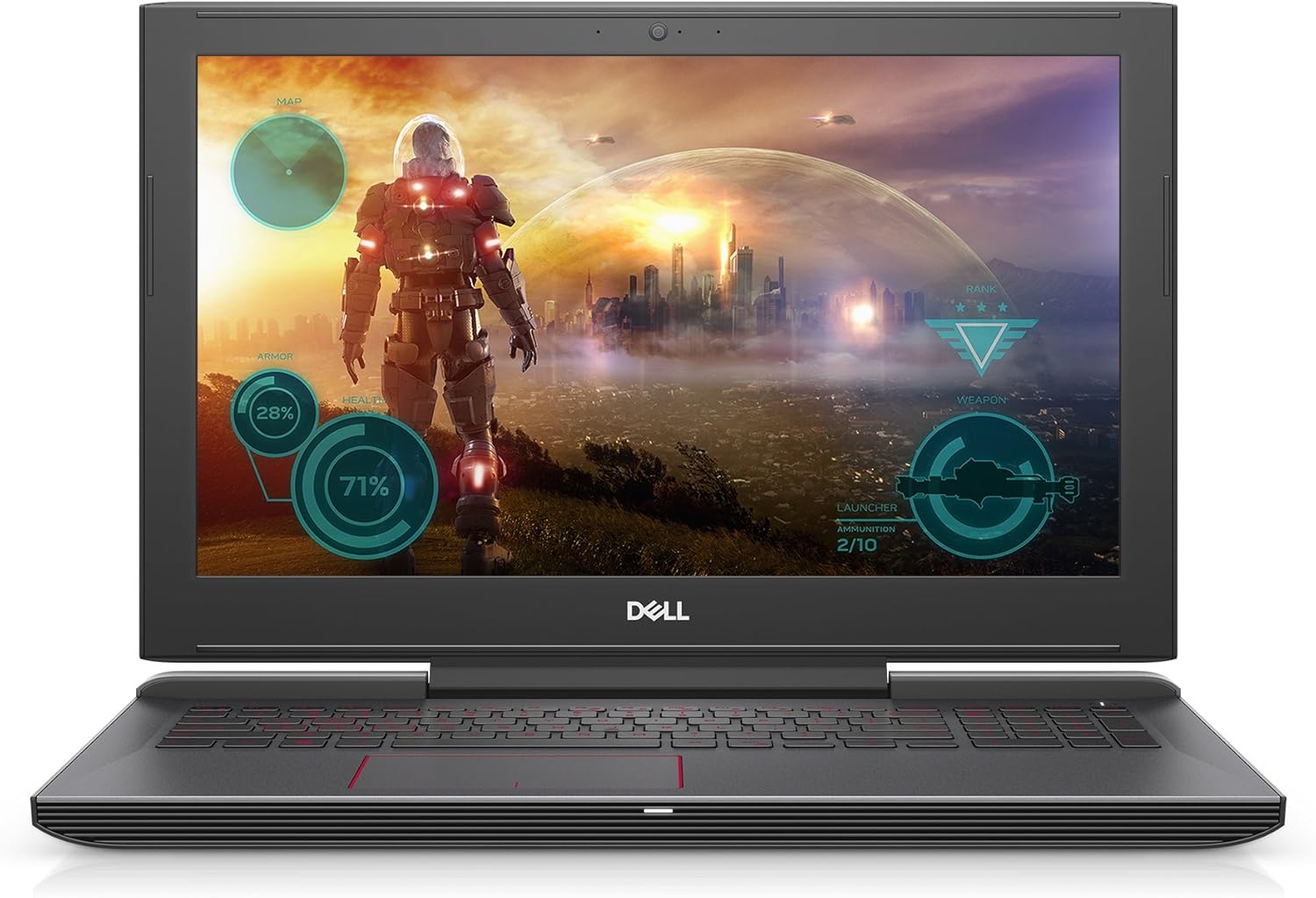
Figure 3.1: Front view of the Dell G5 15 5587 Gaming Laptop, open with the display active.
3.2 Rear View

Figure 3.2: Rear view of the closed laptop, highlighting the Dell logo and cooling vents.
3.3 Left Side Ports

Figure 3.3: Left side of the laptop, featuring the power connector, USB ports, and audio jack.
3.4 Right Side Ports

Figure 3.4: Right side of the laptop, featuring additional USB ports, HDMI, and SD card reader.
3.5 Keyboard and Touchpad

Figure 3.5: Top-down view of the backlit keyboard and precision touchpad.
4. Setup
4.1 Initial Power-Up
- Connect the Power Adapter: Plug the power adapter into the laptop's power port and then into a wall outlet.
- Open the Laptop: Carefully lift the display lid.
- Power On: Press the power button, typically located on the top-right of the keyboard deck.
- Follow On-Screen Instructions: The laptop will guide you through the initial Windows 10 setup process, including language selection, network connection, and user account creation.
4.2 Connecting Peripherals
- USB Devices: Connect USB mice, keyboards, or external drives to the available USB 3.0 ports.
- External Display: Use the HDMI port to connect an external monitor or TV.
- Network Connection: Connect to a wireless network via the built-in 802.11a Wi-Fi or use an Ethernet adapter (not included) for a wired connection.
5. Operating Instructions
5.1 Power Management
- Power On: Press the power button.
- Shut Down: Click the Start button, then Power > Shut down.
- Restart: Click the Start button, then Power > Restart.
- Sleep: Click the Start button, then Power > Sleep, or close the laptop lid.
5.2 Using the Keyboard and Touchpad
- Backlit Keyboard: The keyboard features backlighting for use in low-light conditions. Function keys (Fn) combined with specific keys can control brightness.
- Touchpad Gestures: The precision touchpad supports multi-touch gestures for navigation, scrolling, and zooming. Refer to Windows settings for customization.
5.3 Audio and Video
- Volume Control: Adjust volume using the dedicated function keys or through the Windows taskbar.
- Headphone Jack: Connect headphones or external speakers to the audio jack.
6. Maintenance
- Cleaning: Use a soft, lint-free cloth to clean the screen and chassis. Avoid harsh chemicals.
- Software Updates: Regularly update Windows and Dell drivers to ensure optimal performance and security.
- Battery Care: To prolong battery life, avoid extreme temperatures and allow the battery to discharge partially before recharging.
- Ventilation: Ensure the laptop's cooling vents are unobstructed to prevent overheating, especially during intensive tasks like gaming.
7. Troubleshooting
| Issue | Possible Solution |
|---|---|
| Laptop does not power on | Ensure the power adapter is securely connected and the outlet is functional. Try a different outlet. |
| Screen is blank | Check display brightness settings. Connect an external monitor to verify if the issue is with the laptop's display. |
| Slow performance | Close unnecessary applications. Check for background updates. Ensure adequate ventilation to prevent thermal throttling. |
| Wi-Fi connection issues | Restart the laptop and router. Check Wi-Fi settings and ensure drivers are updated. |
| Overheating | Ensure cooling vents are clear. Use the laptop on a hard, flat surface. Consider a cooling pad for extended heavy use. |
8. Specifications
| Feature | Detail |
|---|---|
| Processor | 8th Generation Intel Core i7-8750H (6-Core, up to 3.9GHz) |
| Memory (RAM) | 16GB 2666MHz DDR4 (expandable up to 32GB) |
| Storage | 128GB SSD (Boot) + 1TB 5400 RPM HDD |
| Graphics | NVIDIA GeForce GTX 1050 Ti with 4GB GDDR5 |
| Display | 15.6-inch LED, 1920 x 1080 pixels |
| Operating System | Windows 10 Home |
| Wireless Connectivity | 802.11a Wi-Fi |
| Ports | 3x USB 3.0, HDMI, 2-in-1 SD/Micro Media Card Reader, Audio Jack |
| Battery | 56 Watt Hours Lithium Ion |
| Dimensions (LxWxH) | 10.82 x 15.32 x 0.98 inches |
| Weight | 6.28 pounds |
| Special Features | Backlit Keyboard |
9. Warranty and Support
Your Dell G5 15 5587 Gaming Laptop comes with a standard manufacturer's warranty. Please refer to the 'Warranty, Safety, and Regulatory Information' document included in your package for specific terms and conditions.
For technical support, driver downloads, or further assistance, please visit the official Dell support website or contact Dell customer service. Keep your product's service tag or serial number readily available when seeking support.
Dell Support Website: www.dell.com/support
Ask a question about this manual
Ask about setup, troubleshooting, compatibility, parts, safety, or missing instructions. Manuals+ will review the question and use this page’s manual context to help answer it.