1. Setup
1.1 Unpacking
Carefully remove the TV and all accessories from the packaging. Ensure all components are present:
- VIOS tv3216c 32-inch High Definition TV
- Remote Control with Voice Function
- Power Cable
- Table Stand Components
- User Manual (this document)
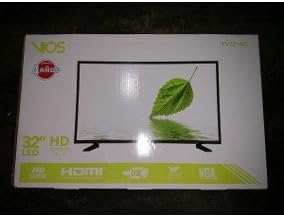
Figure 1.1: The VIOS tv3216c TV packaging box. Ensure all contents are present upon unboxing.
1.2 Stand Installation
To install the table stand:
- Place the TV screen-down on a soft, flat surface to prevent scratches.
- Align the stand components with the mounting holes on the bottom of the TV.
- Secure the stand using the provided screws. Do not overtighten.

Figure 1.2: Front view of the VIOS tv3216c 32-inch TV with its table stand installed.
1.3 Connecting Power
Connect the power cable to the TV's power input, then plug the other end into a 110 VAC, 60 Hz electrical outlet.
Warning: Ensure the power outlet matches the TV's voltage requirements (110 VAC, 60 Hz) to prevent damage.
1.4 Connecting External Devices
The VIOS tv3216c offers various connectivity options:
- HDMI: Connect devices like game consoles, Blu-ray players, or set-top boxes to the HDMI port. This TV has 1 HDMI port.
- USB: Connect USB storage devices to the USB 3.0 port for media playback. This TV has 1 USB 3.0 port.
- Bluetooth: Pair Bluetooth-enabled devices such as speakers, headphones, or mobile phones (Bluetooth version 5.0).
- Wi-Fi: Connect to your home network for internet access and screen mirroring.
- Component Output: Connect to older video equipment using the component output (1 port).
1.5 Initial Setup
Upon first power-on, the TV will guide you through the initial setup process:
- Language Selection: Choose your preferred language (e.g., English).
- Network Connection: Connect to your Wi-Fi network by selecting your network name and entering the password.
- Channel Scan: If connecting an antenna or cable, follow the on-screen prompts to scan for available channels.
- Time and Date: Set the correct time and date.
2. Operation
2.1 Remote Control Overview
The included remote control features voice control technology (Bluetooth). Familiarize yourself with its buttons for easy navigation.
(Image of remote control would be placed here if available)
Figure 2.1: Illustration of the VIOS tv3216c remote control. (Image not available)
2.2 Power On/Off
Press the Power button on the remote control or on the TV to turn the TV on or off.
2.3 Input Selection
To switch between connected devices (HDMI, USB, TV tuner, etc.), press the Input or Source button on the remote control and select the desired input from the on-screen menu.
2.4 Navigation and Settings
Use the directional buttons and OK button on the remote to navigate through menus and adjust settings. Access the main menu to configure:
- Picture Settings: Adjust brightness, contrast, color, sharpness, and picture modes.
- Sound Settings: Adjust volume, bass, treble, and sound modes.
- Network Settings: Manage Wi-Fi and Bluetooth connections.
- System Settings: Update software, reset to factory defaults, and manage other system options.
2.5 Smart Features
The VIOS tv3216c includes integrated smart features:
- Web Browser: Access the internet directly from your TV.
- Screen Mirroring: Share content from compatible devices (e.g., smartphones, tablets) to your TV via Wi-Fi.
- Voice Control: Use the voice function on your remote control to search for content, change settings, or control other compatible devices.
3. Maintenance
3.1 Cleaning the Screen
To clean the TV screen:
- Turn off the TV and unplug it from the power outlet.
- Gently wipe the screen with a soft, dry, lint-free cloth.
- For stubborn marks, lightly dampen the cloth with water or a specialized screen cleaner (do not spray directly onto the screen).
- Never use harsh chemicals, abrasive cleaners, or alcohol-based solutions.
3.2 Cleaning the TV Body
Wipe the TV's frame and back panel with a soft, dry cloth. Avoid using liquids directly on the TV body.
6. Warranty and Support
6.1 Limited Warranty
The VIOS tv3216c television comes with a Limited Warranty. Please refer to the warranty card included in your product packaging for specific terms, conditions, and duration of coverage. This warranty typically covers manufacturing defects under normal use.
Important: Keep your proof of purchase for warranty claims.
6.2 Customer Support
If you encounter issues that cannot be resolved using the troubleshooting guide, or for further assistance, please contact VIOS customer support. Contact information can usually be found on the product packaging, the official VIOS website, or the warranty card.
