
HP DeskJet 3755
HP DeskJet 3755 Compact All-in-One Wireless Printer User Manual
Model: DeskJet 3755 (J9V91A)
Introduction
The HP DeskJet 3755 is a compact all-in-one wireless printer designed for home use, offering printing, copying, and scanning functionalities. Its small footprint allows it to fit into various spaces, making it a versatile addition to any home office setup. This manual provides detailed instructions for setting up, operating, maintaining, and troubleshooting your printer.

Image: The HP DeskJet 3755 printer, a compact all-in-one device.
Key Features
- All-in-One Functionality: Capable of copying, scanning, and wireless printing.
- Wireless Printing: Print from virtually anywhere using your smartphone or tablet with the free HP ePrint app. Supports AirPrint for Apple devices and Wireless Direct printing without a network.
- Compact Design: Engineered to fit into small spaces, making it ideal for home environments.
- Instant Ink Ready: Compatible with HP Instant Ink service to ensure you never run out of ink.
- Energy Efficient: Low power consumption in off, standby, and sleep modes.

Image: An overview of the HP DeskJet 3755's main and highlighted features, including print, copy, scan, wireless, and mobile printing capabilities.
What's in the Box
Upon unpacking your HP DeskJet 3755 printer, ensure all the following components are present:
- HP DeskJet 3755 All-in-One Printer
- Power Cord
- Setup Ink Cartridges (Black and Tri-color)
- Setup Poster/Guide
Setup Guide
1. Unpacking and Initial Setup
- Remove the printer from its packaging and remove all tape and packing materials.
- Place the printer on a stable, flat surface.
2. Connecting to Power
- Connect the power cord to the back of the printer and then to a wall outlet.
- Press the Power button to turn on the printer.

Image: The rear view of the HP DeskJet 3755, showing the USB 2.0 port for PC connection and the power input.
3. Loading Paper
- Raise the input tray.
- Slide the paper width guide to its outermost position.
- Load a stack of plain white paper into the input tray with the print side facing up.
- Slide the paper width guide inward until it rests against the edge of the paper.

Image: The HP DeskJet 3755 printer with paper loaded into the top input tray, ready for printing.
4. Installing Ink Cartridges
- Open the ink cartridge access door.
- Remove the new ink cartridges from their packaging.
- Insert the tri-color cartridge into the left slot and the black cartridge into the right slot. Push firmly until they click into place.
- Close the ink cartridge access door.

Image: The HP DeskJet 3755 printer with its ink cartridge compartment open, showing the slots for black and tri-color ink cartridges.
5. Wireless Setup
The HP DeskJet 3755 supports wireless connectivity for convenient printing from various devices.
- Using HP Smart App: Download the HP Smart app on your smartphone or tablet. Follow the in-app instructions to connect your printer to your Wi-Fi network. This app also allows for easy mobile printing and managing printing tasks.
- Wi-Fi Direct: For printing without a network, enable Wi-Fi Direct on your printer (refer to the printer's control panel for instructions). Connect your mobile device directly to the printer's Wi-Fi Direct network.
- AirPrint (iOS Devices): Ensure your iOS device and printer are on the same Wi-Fi network. Select the print option from your app and choose your HP DeskJet 3755.
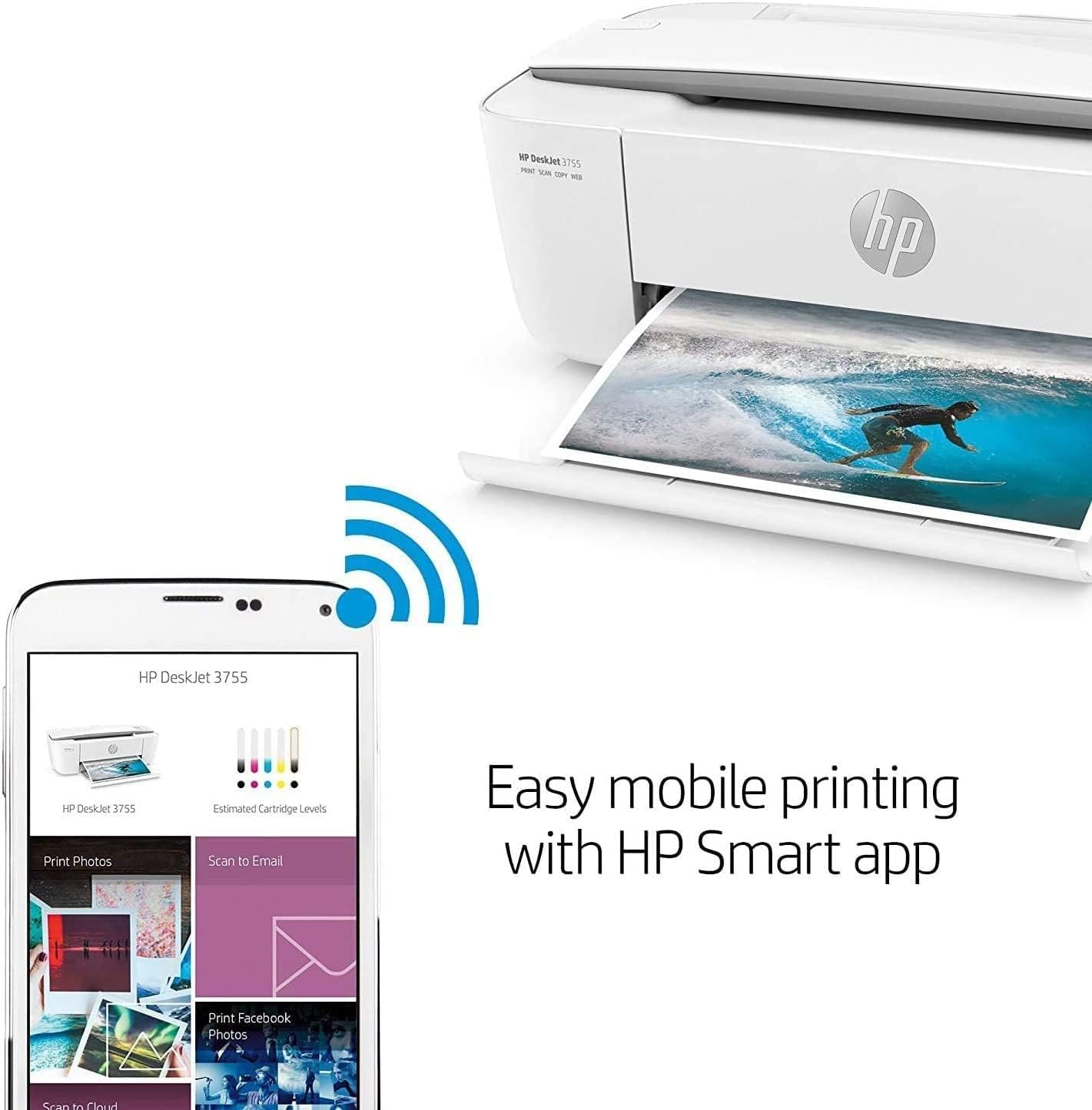
Image: A smartphone screen displaying the HP Smart app interface, demonstrating easy mobile printing capabilities with the HP DeskJet 3755.

Image: The HP DeskJet 3755 printer shown with two mobile devices, illustrating the ability to print wirelessly using Wi-Fi Direct without needing a traditional network connection.
Operating Your Printer
Printing Documents
- Ensure the printer is powered on and connected to your device (via Wi-Fi or USB).
- Open the document or image you wish to print on your computer or mobile device.
- Select the print option from your application (usually File > Print).
- Choose the HP DeskJet 3755 from the list of available printers.
- Adjust print settings (e.g., number of copies, paper size, quality) as needed.
- Click Print.
Copying Documents
The HP DeskJet 3755 features a document feeder for copying.
- Load the document you wish to copy into the input tray, face up.
- On the printer's control panel, press the Color Copy button for a color copy or the Black Copy button for a black and white copy.
- To make multiple copies, press the respective copy button multiple times for the desired number of copies.

Image: A top-down view of the HP DeskJet 3755, highlighting the control panel with its icon LCD display and various function buttons.
Scanning Documents
The HP DeskJet 3755 supports document scanning via its document feeder. It does not have a flatbed scanner.
- Load the document(s) you wish to scan into the input tray, face up.
- Open the HP Smart app on your computer or mobile device.
- Select the Scan option within the app.
- Adjust scan settings such as resolution, color mode, and destination (e.g., save to computer, email).
- Click Scan to begin the process.
Maintenance
Ink Cartridge Replacement
When an ink cartridge is low or empty, the printer's control panel will indicate it. Replace cartridges promptly to ensure optimal print quality.
- Ensure the printer is on.
- Open the ink cartridge access door. The carriage will move to the center.
- Gently press down on the old cartridge to release it, then pull it out of its slot.
- Remove the new cartridge from its packaging and remove the protective tape.
- Slide the new cartridge into its corresponding slot until it clicks into place.
- Close the ink cartridge access door.
Cleaning the Printer
Regular cleaning helps maintain print quality and extends the life of your printer.
- Use a soft, lint-free cloth slightly dampened with water to wipe the exterior of the printer.
- Do not use abrasive cleaners or spray liquids directly onto the printer.
- For print quality issues, use the HP Smart app or printer software to perform printhead cleaning or alignment.
Troubleshooting Common Issues
This section addresses common problems you might encounter with your HP DeskJet 3755 printer.
- Printer Not Responding:
- Check power connections and ensure the printer is turned on.
- Verify Wi-Fi connection or USB cable connection.
- Restart the printer and your computer/mobile device.
- Poor Print Quality:
- Check ink levels and replace any low or empty cartridges.
- Run a printhead cleaning and alignment from the HP Smart app or printer software.
- Ensure you are using appropriate paper for your print job.
- Paper Jams:
- Carefully remove any jammed paper from the input tray, output tray, or inside the printer.
- Ensure paper is loaded correctly and not overfilled.
- Wireless Connectivity Issues:
- Ensure the printer is within range of your Wi-Fi router.
- Restart your router and printer.
- Use the HP Smart app for guided wireless setup and diagnostics.
For more detailed troubleshooting, refer to the HP support website or the HP Smart app.
Product Specifications
| Feature | Specification |
|---|---|
| Product Dimensions | 10"D x 17"W x 7"H |
| Item Weight | 5.9 pounds |
| Connectivity Technology | USB, Wi-Fi |
| Printing Technology | Inkjet |
| Printer Output | Color |
| Max Print Speed (Color) | 40 ppm |
| Max Print Speed (Monochrome) | 40 ppm |
| Maximum Color Print Resolution | 4800 x 1200 dpi |
| Maximum Black and White Print Resolution | 4800 x 1200 dpi |
| Scanner Type | Document |
| Max Input Sheet Capacity | 60 |
| Power Consumption | 2.2 Watts (active) |
| Memory Storage Capacity | 64 MB |
| UPC | 603784289151 |
Warranty and Support
This HP DeskJet 3755 printer comes with a 90 days limited warranty. Please retain your proof of purchase for warranty claims.
For technical support, driver downloads, or further assistance, please visit the official HP support website or contact HP customer service. The HP Smart app also provides access to support resources and troubleshooting tools.
Ask a question about this manual
Ask about setup, troubleshooting, compatibility, parts, safety, or missing instructions. Manuals+ will review the question and use this page’s manual context to help answer it.