
Introduction
This manual provides comprehensive instructions for the setup, operation, maintenance, and troubleshooting of your HP OfficeJet 5740 All-in-One Printer. The HP OfficeJet 5740 is an inkjet multifunction printer designed for desktop use, offering color printing, scanning, copying, and fax capabilities. It supports wireless connectivity and mobile printing, making it suitable for various home and office environments.
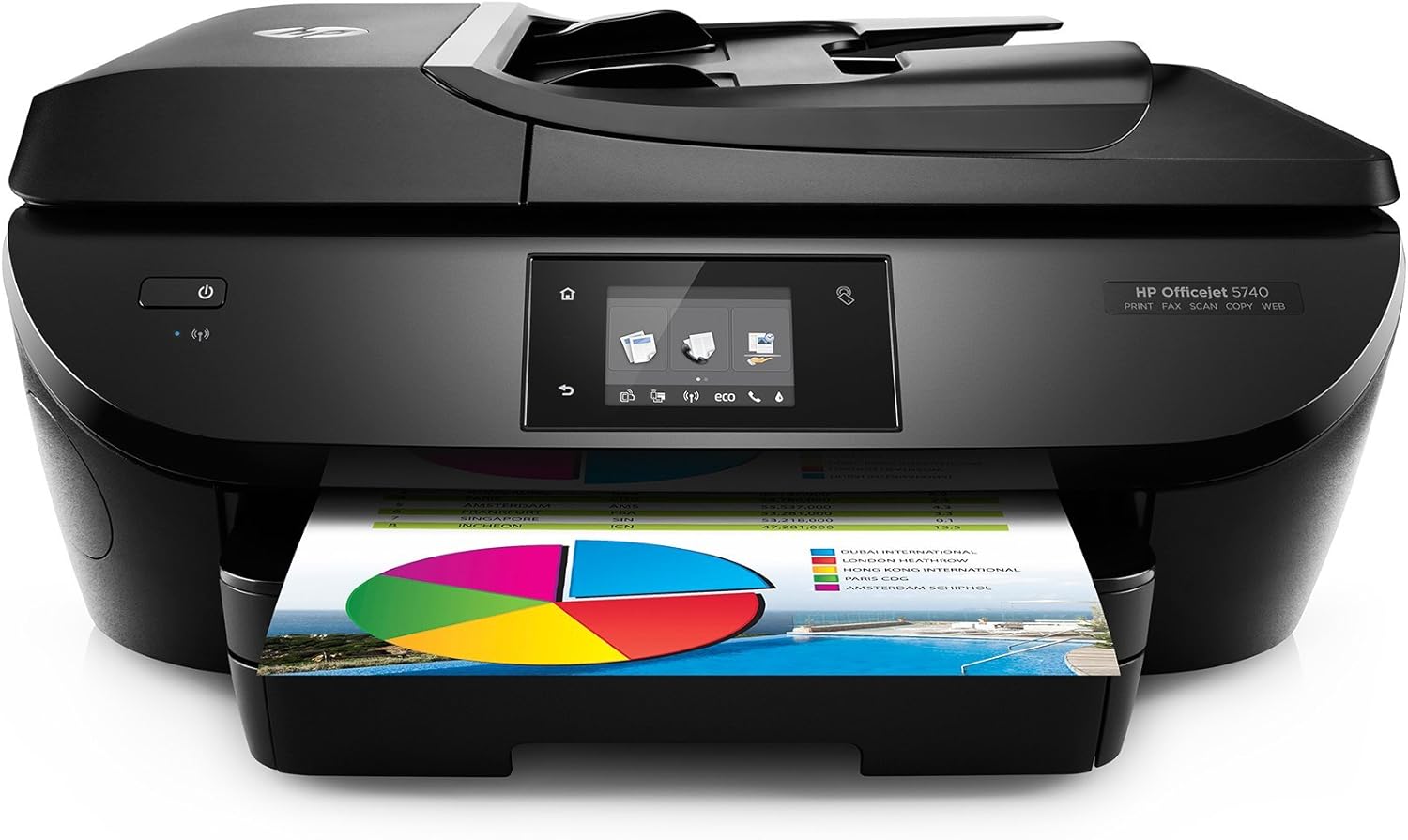
Image Description: A front-facing view of the HP OfficeJet 5740 All-in-One Printer. The printer is black with a sleek design, and a colorful pie chart document is partially ejected from the output tray, indicating active printing. The control panel with a touchscreen is visible on the front.
Setup Guide
Follow these steps to set up your HP OfficeJet 5740 printer for first-time use.
1. Unpacking and Initial Placement
- Carefully remove the printer from its packaging.
- Remove all packing materials, tapes, and protective films from the printer.
- Place the printer on a stable, flat surface with adequate space for paper trays and cable connections.
- Ensure proper ventilation around the device.
2. Connecting Power
- Connect the provided power cord to the printer's power port.
- Plug the other end of the power cord into a grounded electrical outlet.
- Press the power button to turn on the printer.
3. Installing Ink Cartridges
- Open the ink cartridge access door.
- Wait for the print carriage to move to the center.
- Unpack the new HP ink cartridges.
- Insert each cartridge into its corresponding slot, ensuring it clicks into place.
- Close the ink cartridge access door.
4. Loading Paper
- Pull out the main input tray.
- Load a stack of plain white paper into the tray, print-side down.
- Adjust the paper guides to fit the paper size snugly.
- Push the input tray back into the printer.
5. Network Connection (Wireless)
- On the printer's control panel, navigate to the Wireless Setup Wizard.
- Select your wireless network (SSID) from the list.
- Enter the network password (WEP, WPA, or WPA2 key) if prompted.
- Confirm the connection. The wireless light on the printer should turn solid blue.
6. Software Installation
- Visit the official HP support website for your printer model to download the latest drivers and software.
- Run the installer and follow the on-screen prompts to complete the installation on your computer or mobile device.

Image Description: An annotated diagram highlighting the key features of the HP OfficeJet 5740 All-in-One printer. Labels point to the 2.65-inch color touchscreen, 8.5 x 11-inch flatbed scanner, up to 25-sheet Automatic Document Feeder (ADF), NFC touch-to-print area, easy-access SD memory card slot and USB port, borderless and auto two-sided printing capability, up to 15-sheet 4x6-inch photo tray, up to 125-sheet main input tray, and up to 25-sheet output tray. Icons at the top represent Print, Scan, Copy, Fax, Web connected, and HP mobile printing.
Operating Instructions
The HP OfficeJet 5740 offers multiple functionalities. Here's how to use its primary features.
Printing Documents
- From a Computer: Open the document you wish to print, select "Print" from the application's menu, choose the HP OfficeJet 5740, adjust settings (e.g., color, duplex, paper size), and click "Print".
- Mobile Printing (HP ePrint/AirPrint): Ensure your mobile device is connected to the same network as the printer. Use the HP ePrint app or AirPrint (for iOS devices) to select your printer and print directly from your device.
- Wireless Direct Printing: If no network is available, enable Wireless Direct on the printer, connect your mobile device directly to the printer's Wi-Fi signal, and print.
- NFC Touch-to-Print: For compatible devices, touch your device to the NFC icon on the printer to initiate a print job.
Scanning Documents
- Using the Flatbed Scanner: Lift the scanner lid, place the document face-down on the glass, align it with the guide, close the lid. On the printer's touchscreen or your computer, select "Scan", choose destination (computer, email, memory card), and start scanning.
- Using the Automatic Document Feeder (ADF): Load multiple pages face-up into the ADF tray. On the printer's touchscreen or your computer, select "Scan", choose destination, and start scanning. The ADF supports up to 25 sheets.
- Scan to Email: Configure email settings on the printer's control panel. You can then scan documents and send them directly as email attachments.
Copying Documents
- Place the original document on the scanner glass or in the ADF.
- On the printer's touchscreen, select "Copy".
- Choose the number of copies, color or black & white, and other settings (e.g., resize, quality).
- Press "Start Copy".
Faxing Documents
- Connect the phone cord to the printer's "1-LINE" port and to a telephone wall jack.
- Place the document on the scanner glass or in the ADF.
- On the printer's touchscreen, select "Fax".
- Enter the recipient's fax number.
- Press "Start Fax".

Image Description: An angled view of the HP OfficeJet 5740 printer, showcasing its compact design. A stack of white paper is visible in the main input tray, and a colorful document is partially exiting the output tray, illustrating the printing process. The control panel is visible on the left side.
Maintenance
Regular maintenance ensures optimal performance and longevity of your HP OfficeJet 5740.
Replacing Ink Cartridges
- Ensure the printer is powered on.
- Open the ink cartridge access door. The print carriage will move to the center.
- Wait until the carriage is idle and silent.
- Press down on the front of the cartridge to release it, then pull it out of its slot.
- Remove the new cartridge from its packaging and carefully remove the protective tape. Do not touch the electrical contacts or ink nozzles.
- Insert the new cartridge into its color-coded slot until it clicks into place.
- Close the ink cartridge access door.
- The printer may prompt you to align the cartridges; follow the on-screen instructions.
Cleaning the Printer
- Exterior: Wipe the exterior surfaces with a soft, lint-free cloth dampened with water. Avoid abrasive cleaners.
- Scanner Glass: Use a soft, lint-free cloth lightly dampened with glass cleaner (non-abrasive) to clean the scanner glass. Ensure no residue is left.
- Automatic Document Feeder (ADF) Rollers: Refer to the printer's on-screen menu for options to clean the ADF rollers, or use a lint-free cloth to gently wipe them if accessible.
- Printhead Cleaning: If print quality issues arise (streaks, faded colors), use the printer's control panel to access the "Tools" or "Maintenance" menu and select "Clean Printhead".
Troubleshooting
This section addresses common issues you might encounter with your HP OfficeJet 5740.
| Problem | Possible Cause | Solution |
|---|---|---|
| Printer not responding | Power issue, loose cable, network disconnection. |
|
| Poor print quality (streaks, faded text) | Low ink, clogged printhead, incorrect paper type. |
|
| Paper jams | Improper paper loading, damaged paper, foreign objects. |
|
| Cannot connect to Wi-Fi | Incorrect password, router issues, printer too far from router. |
|
Specifications
Detailed technical specifications for the HP OfficeJet 5740 All-in-One Printer.
- Model Name: HP OfficeJet 5740
- Functions: Print, Scan, Copy, Fax, Web
- Printing Technology: Inkjet
- Connectivity Technology: Wireless, USB
- Printer Output: Color
- Max Print Speed (Black & White): 16 ppm
- Max Print Speed (Color): 16 ppm
- Maximum Color Print Resolution: 4800 x 1200 dpi
- Maximum Black and White Print Resolution: 1200 dpi
- Duplex Printing: Automatic (Two-sided)
- Scanner Type: Flatbed, ADF (Photo)
- Max Input Sheet Capacity: 250 sheets (main tray), 15 sheets (photo tray), 25 sheets (ADF)
- Control Method: Touchscreen, Voice (via compatible devices)
- Ink Color: Black, Cyan, Magenta, Yellow
- Product Dimensions: 16.14 x 17.87 x 7.6 inches
- Item Weight: 3.15 pounds
- Included Components: Power cord, Phone cord, Printer

Image Description: A top-down view of the HP OfficeJet 5740 All-in-One printer. This perspective highlights the scanner lid, the Automatic Document Feeder (ADF) input tray, and the compact footprint of the device. The control panel is visible at the front.
Warranty and Support
Warranty Information
This HP OfficeJet 5740 printer comes with a 90-day limited warranty. This warranty covers defects in materials and workmanship under normal use. For specific terms and conditions, please refer to the warranty documentation included with your product or visit the official HP support website.
Customer Support
For technical assistance, troubleshooting, or warranty claims, please contact HP Customer Support.
- Online Support: Visit the official HP Support website for drivers, manuals, and troubleshooting guides.
- Phone Support: Refer to the contact information provided in your product documentation or on the HP Support website for regional phone numbers.