
SiForce T35u
Tableau Forensic SATA/IDE Bridge TK35U+ User Manual
Model: TK35U+
1. Introduction
This manual provides comprehensive instructions for the setup, operation, and maintenance of the Tableau Forensic SATA/IDE Bridge TK35U+. Designed for digital forensic investigations and data recovery, this device ensures secure and reliable data acquisition from SATA and IDE drives.
2. What's in the Box
Verify that all components listed below are present in your package:
- T35u Tableau Forensic SATA/IDE Bridge
- TP7 Power Supply + Line Cord
- TC2-8-R2 Tableau Molex to 3M Drive Power Cable
- TC3-8 Tableau SATA Signal Cable
- TC5-8-R2 Tableau SATA to 3M Drive Power Cable
- TC6-8 Tableau IDE Cable
- TC-USB3 Tableau USB 3.0 A to B Cable
- T35u Quick Reference Guide
- SiForce Rugged Case

Image: The complete Tableau Forensic SATA/IDE Bridge TK35U+ bundle, including the bridge, power supply, various cables, and the rugged SiForce transport case.
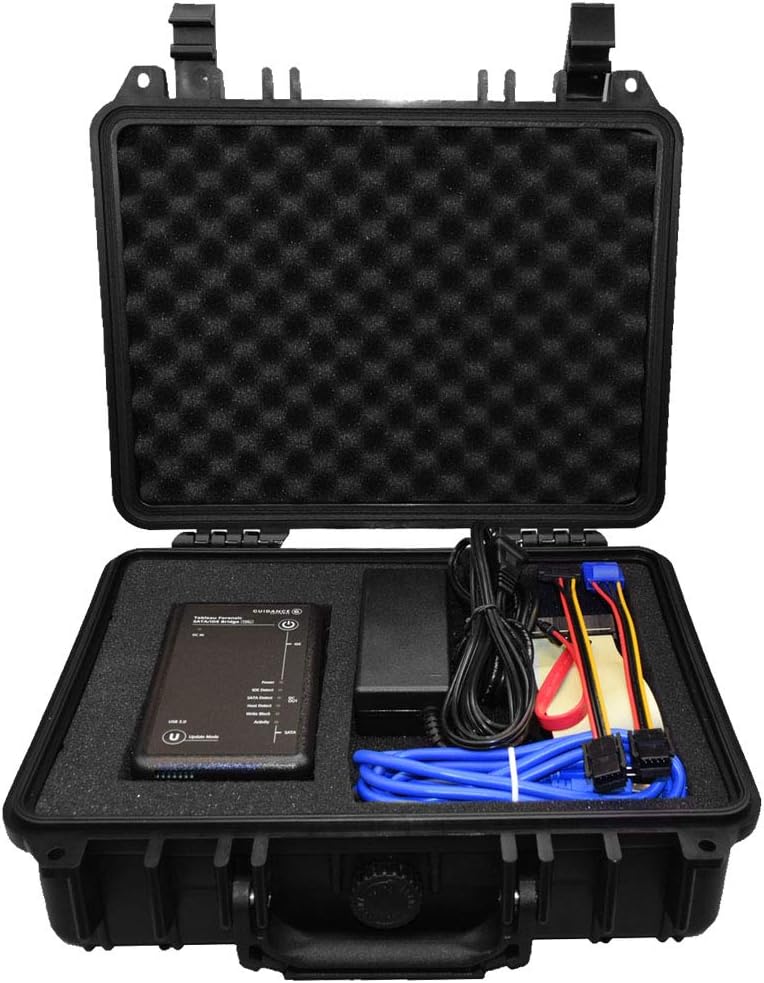
Image: A detailed layout of all components included in the TK35U+ kit, clearly labeling the SiForce Transport Case, Tableau Power Supply, Tableau USB 3.0 A to B Cable, Tableau Forensic SATA/IDE Bridge, Tableau SATA Signal Cable, Tableau SATA to 3M Drive Power Cable, Tableau Molex to 3M Drive Power Cable, and Tableau IDE Cable.
3. Setup Guide
Follow these steps to set up your Tableau Forensic SATA/IDE Bridge:
- Power Connection: Connect the TP7 Power Supply to the DC IN port on the Tableau Forensic SATA/IDE Bridge. Plug the power supply into a wall outlet.
- Host Connection: Use the TC-USB3 Tableau USB 3.0 A to B Cable to connect the USB 3.0 port on the bridge to a USB 3.0 port on your host computer.
- Drive Connection (SATA): For SATA drives, connect the TC3-8 Tableau SATA Signal Cable to the SATA port on the bridge and the SATA data port on the drive. Use the TC5-8-R2 Tableau SATA to 3M Drive Power Cable for power.
- Drive Connection (IDE): For IDE drives, connect the TC6-8 Tableau IDE Cable to the IDE port on the bridge and the IDE port on the drive. Use the TC2-8-R2 Tableau Molex to 3M Drive Power Cable for power.
- Power On: Press the power button on the bridge. The Power LED should illuminate.

Image: A side view of the Tableau Forensic SATA/IDE Bridge, highlighting the IDE and SATA data and power connection ports.

Image: Another side view of the Tableau Forensic SATA/IDE Bridge, showing the USB 3.0 host connection port and the DC IN power input.
4. Operating Instructions
4.1. Write-Blocking Functionality
The Tableau Forensic SATA/IDE Bridge operates primarily as a write-blocker, ensuring that data on the connected source drive remains unaltered during forensic acquisition. The Write Block LED indicates the status of this feature.
4.2. Read/Write Mode
For specific operations requiring write access, the device can be switched to read/write mode via an internal DIP switch. Refer to the T35u Quick Reference Guide for detailed instructions on accessing and configuring this switch. Caution: Only enable read/write mode when absolutely necessary and with full understanding of the implications for data integrity.
4.3. Status Indicators (LEDs)
The device features seven LEDs to provide real-time status information:
- Power: Indicates the device is receiving power.
- IDE Detect: Illuminates when an IDE drive is detected.
- SATA Detect: Illuminates when a SATA drive is detected.
- Host Connection: Indicates a successful connection to the host computer.
- Write Block: Indicates the write-blocking feature is active (default mode).
- Activity: Flashes to indicate data transfer activity.
- Update Mode: Indicates the device is in firmware update mode.

Image: The front panel of the Tableau Forensic SATA/IDE Bridge, displaying the integrated backlit LCD and the seven status indicator LEDs for Power, IDE Detect, SATA Detect, Host Detect, Write Block, and Activity.
4.4. LCD Display
The integrated, backlit LCD provides useful information regarding the bridge's status and connected SATA/IDE devices, such as drive capacity, model, and serial number.
5. Maintenance
- Cleaning: Use a soft, dry cloth to clean the exterior of the device. Do not use liquid cleaners or solvents.
- Storage: Store the device and its accessories in the provided SiForce Rugged Case when not in use to protect them from dust, moisture, and physical damage.
- Firmware Updates: Periodically check the SiForce or Tableau website for firmware updates. Follow the instructions provided with the update package carefully. The "Update Mode" LED will indicate when the device is ready for a firmware update.

Image: The SiForce Rugged Case opened, showing the custom foam inserts designed to securely hold the Tableau Forensic SATA/IDE Bridge, power supply, and various cables, ensuring protection during transport and storage.
6. Troubleshooting
| Problem | Possible Cause | Solution |
|---|---|---|
| Device not powering on. | Power supply not connected or faulty; power outlet issue. | Ensure power supply is securely connected to the bridge and a working power outlet. Check power supply unit. |
| Drive not detected. | Incorrect cable connection; faulty drive; drive not powered. | Verify all data and power cables are correctly and securely connected to both the bridge and the drive. Test with a known good drive. Ensure drive is receiving power. |
| Host computer not recognizing device. | USB cable issue; driver not installed; faulty USB port on host. | Ensure the USB 3.0 cable is connected to a working USB 3.0 port on the host. Try a different USB port or cable. Install necessary drivers if prompted by the operating system. |
| Data transfer is slow. | Using USB 2.0 port; drive performance issues. | Ensure the bridge is connected to a USB 3.0 port on the host computer for optimal speed. Check the health and speed of the source drive. |
7. Technical Specifications
| Feature | Detail |
|---|---|
| Model Name | T35u |
| Brand | SiForce |
| Connector Type | USB Type A |
| Cable Type | USB |
| Compatible Devices | Laptop, Personal Computer |
| Special Feature | High Speed |
| Recommended Uses | Digital forensic investigations, data recovery |
| Data Transfer Rate | 5 Gigabits Per Second |
| Item Weight | 4.98 pounds |
| Product Dimensions | 13 x 11 x 4.7 inches |
| First Available | March 29, 2018 |
8. Warranty and Support
For warranty information and technical support, please refer to the official SiForce website or contact their customer service directly. Details regarding product registration and support resources can typically be found on the manufacturer's product page or within the included documentation.
Manufacturer: Silicon Forensics
Brand Store: SiForce Store on Amazon
Ask a question about this manual
Ask about setup, troubleshooting, compatibility, parts, safety, or missing instructions. Manuals+ will review the question and use this page’s manual context to help answer it.