
podofo PD-M1520A6
Podofo 7-inch 1 DIN MP5 Car Stereo with GPS and Camera User Manual
Model: PD-M1520A6
Introduction
This manual provides detailed instructions for the installation, operation, and maintenance of your Podofo 7-inch 1 DIN MP5 Car Stereo. This unit features a high-definition touchscreen, integrated GPS navigation, Bluetooth hands-free calling and audio streaming, FM radio, USB/TF card playback, and support for a rear view camera. Please read this manual thoroughly before using the product to ensure proper functionality and safety.
Product Overview
The Podofo PD-M1520A6 is a versatile car multimedia player designed to enhance your driving experience with advanced features.
Key Features:
- 7-inch High-Definition Touchscreen: Digital, thin-film transistor (TFT) LCD display with dynamic menu interface.
- GPS Navigation: Supports both online and offline maps with an external antenna for precise positioning.
- Bluetooth Hands-Free: For safe calling and audio streaming, compatible with iPhone and Android devices.
- High-Quality Audio: Stereo sound system for an immersive listening experience.
- Rear View Camera Support: Includes a camera for safe reversing with guidelines.
- Multimedia Playback: MP3, MP5, WMA, USB, and TF card compatibility.
- FM Radio: Electronic digital control, automatic tuning, 18 memory stations.
- Mirror Link: Connect your Android or iOS smartphone to mirror its screen.
- USB Charging: Large USB output for mobile phone charging (compatibility may vary).
Package Contents:
Upon unpacking, please verify that all items are present:
- Podofo 7-inch Car Stereo Unit
- Power Cable
- Remote Control
- Mounting Brackets (Metal sheets)
- GPS Module/Antenna
- Rear View Camera (8 IR CCD)
- Video Cable for Camera
- Camera Power Cord
- Instruction Manual
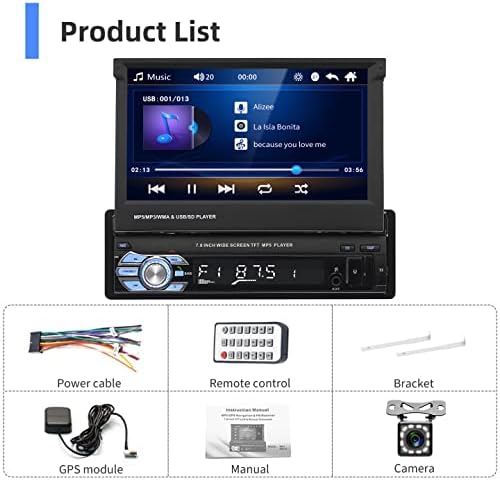
Image: Contents of the Podofo Car Stereo package, including the main unit, power cable, remote, brackets, GPS module, camera, and cables.
Setup and Installation
Proper installation is crucial for optimal performance. If you are unsure about any steps, consult a professional installer.
Wiring Diagram:
Refer to the rear panel diagram for correct connections. Ensure all connections are secure before powering on the unit.

Image: Rear panel of the Podofo car stereo showing various ports and their labels, including antenna, audio/video outputs, power interface, and fuse. Dimensions are also indicated.
- Antenna interface
- Audio output
- Video output
- Video input
- Audio output
- Video output
- Video input
- Power interface
- Fuse
GPS Antenna Installation:
Connect the GPS module to the designated port on the rear of the unit. Mount the GPS antenna in a location with a clear view of the sky, typically on the dashboard or near the windshield, to ensure strong satellite signal reception.
Rear View Camera Installation:
Connect the rear view camera's video cable to the "Video Input" port (e.g., port 4 or 7) on the stereo's rear panel. Connect the camera's power cord to your vehicle's reverse light circuit so it activates automatically when shifting into reverse. Ensure the camera is securely mounted at the rear of your vehicle.
Operating Instructions
Front Panel Controls and External Inputs:

Image: Detailed view of the car stereo's front panel, highlighting buttons and ports such as AMS (Automatic Searching Station), PWR/MUTE, MOD (Mode), Band, Volume/Return, Function Switch/Hang Up, EQ, DISP (Display), USB, AUX, and TF card slot.
- AMS: Automatic searching station.
- PWR/MUTE: Power on/off or mute audio.
- MOD: Cycle through input modes (Radio, USB, TF, AUX, Bluetooth).
- Band: Switch between FM bands.
- Volume Knob: Rotate to adjust volume. Press to return to previous menu or confirm selection.
- Function Switch/Hang Up: Used for various functions and to end calls.
- EQ: Access equalizer settings.
- DISP: Adjust display settings or show time.
- USB Port: Connect USB drives for media playback or charging.
- AUX In: Connect external audio devices via a 3.5mm jack.
- TF Card Slot: Insert a TF (microSD) card for media playback.
GPS Navigation:
The unit comes with pre-installed EU maps. Ensure the GPS antenna is properly connected and positioned for optimal signal reception.
- From the main menu, tap the "Navigation" icon.
- The system will acquire GPS satellites. This may take a few minutes on first use.
- Enter your destination using the on-screen keyboard.
- Select your preferred route and start navigation.
- The system supports both online and offline maps. Ensure maps are updated periodically for accuracy.

Image: The car stereo display showing GPS navigation with a map, current location, destination, and estimated travel time. Icons for online and offline maps are also visible.
Bluetooth Connectivity:
Pair your mobile phone for hands-free calls and audio streaming.
- Go to the main menu and select the "Bluetooth" icon.
- Enable Bluetooth on your mobile phone and search for available devices.
- Select "PODOFO" (or similar name) from the list on your phone.
- Confirm the pairing code if prompted.
- Once paired, you can make/receive calls, access your phonebook, and stream music.

Image: The car stereo display showing both Bluetooth and FM radio interfaces. Bluetooth features include music, phonebook, and call functions. Radio shows frequency and station presets.
FM Radio:
Access and tune into your favorite radio stations.
- Select the "Radio" icon from the main menu.
- Use the "Band" button to switch between FM1, FM2, FM3.
- Press the "AMS" button for automatic station search and storage.
- Manually tune using the on-screen arrows or seek function.
Mirror Link Function:
Mirror your smartphone screen onto the car stereo display.
- Connect your smartphone to the stereo's USB port using a high-quality USB cable.
- For Android devices, enable USB debugging in developer options. For iOS, follow the on-screen prompts for trust.
- Select the "Mirror Link" icon from the main menu.
- Follow the instructions on the stereo screen and your phone to establish the connection.
- Android devices typically support two-way control, while iOS devices usually support one-way control (view only).
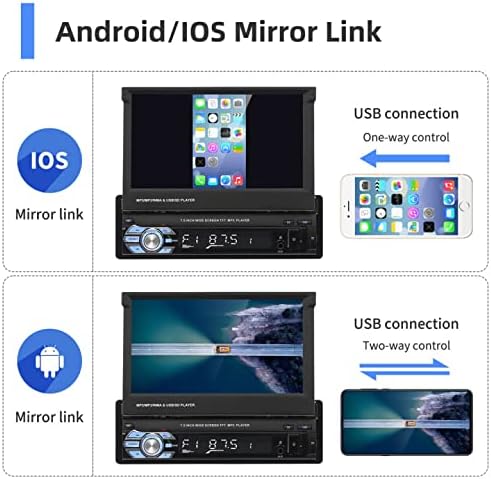
Image: Demonstrates the Mirror Link function for both iOS and Android phones. iOS shows one-way control via USB, while Android shows two-way control via USB.
Rear View Camera:
The included camera provides a clear view of the area behind your vehicle when reversing.
- When the vehicle is shifted into reverse gear, the stereo automatically switches to the camera display.
- Parking guidelines will appear on the screen to assist with maneuvering.
- The camera features HD resolution, 12 LED lights for night vision, and is waterproof.

Image: The car stereo display showing the rear view camera feed with parking guidelines. Icons indicate HD camera, 12 LED lights, waterproof design, and night vision capabilities.
Steering Wheel Control (SWC):
The unit supports original steering wheel controls. Connect the SWC wires from your vehicle to the corresponding inputs on the stereo's wiring harness. Configuration may be required in the system settings menu.

Image: The car stereo display showing the settings menu for steering wheel control, with options to configure buttons. A steering wheel graphic illustrates the feature.
Audio Equalizer (EQ):
Customize your audio experience using the built-in equalizer.
- Press the "EQ" button on the front panel or select the "EQ" icon from the main menu.
- Adjust bass, mid-range, and treble frequencies to your preference.
- Pre-set equalizer modes (e.g., Pop, Rock, Classic, Jazz) are available.

Image: The car stereo display showing the audio equalizer settings, with sliders for adjusting various frequency bands (e.g., 100Hz, 1KHz, 10KHz) and preset options like Custom, Classical, Jazz, Pop, and Rock.
Maintenance
- Cleaning: Use a soft, dry cloth to clean the screen and unit. Avoid abrasive cleaners or solvents.
- Temperature: Avoid exposing the unit to extreme temperatures.
- Software Updates: Check the manufacturer's website periodically for any available software or map updates.
- Fuse Replacement: If the unit does not power on, check the fuse located on the rear panel (refer to wiring diagram). Replace with a fuse of the same rating.
Troubleshooting
| Problem | Possible Cause | Solution |
|---|---|---|
| Unit does not power on. | No power connection; blown fuse. | Check power wiring. Replace fuse if necessary (same rating). |
| No sound. | Volume too low; incorrect audio source; speaker wires disconnected. | Increase volume. Select correct audio source. Check speaker connections. |
| GPS signal lost or inaccurate. | GPS antenna obstructed or disconnected; outdated maps. | Ensure GPS antenna has clear sky view and is connected. Update maps if available. |
| Bluetooth not connecting. | Bluetooth not enabled on phone/stereo; incorrect pairing. | Ensure Bluetooth is on for both devices. Delete previous pairings and re-pair. |
| Rear view camera not displaying. | Camera not connected; power issue; incorrect wiring to reverse light. | Check camera video and power connections. Ensure reverse light trigger is correctly wired. |
| Settings not saving after power off. | Constant power wire (yellow) not connected or incorrectly wired. | Verify the yellow wire is connected to a constant 12V power source in your vehicle. |
Specifications
| Feature | Detail |
|---|---|
| Model Number | PD-M1520A6 |
| Screen Size | 7 Inches |
| Screen Type | LCD, Touchscreen |
| Resolution | 720p |
| Connectivity Technology | Bluetooth, USB |
| Memory Storage Capacity | 8 GB (for maps/system) |
| Compatible Flash Memory | microSD (TF Card) |
| Audio Output Mode | Stereo |
| Control Method | Touch |
| Product Dimensions | 26 x 21 x 5.8 cm |
| Product Weight | 1.7 kg |
Warranty and Support
For warranty information, please refer to the documentation included with your purchase or contact Podofo customer support. Keep your proof of purchase for any warranty claims.
For further assistance or technical support, please visit the official Podofo store on Amazon or their website. You can also refer to the provided PDF manual for additional details.
- Official Podofo Store: Visit Store
- User Manual (PDF): Download PDF
Ask a question about this manual
Ask about setup, troubleshooting, compatibility, parts, safety, or missing instructions. Manuals+ will review the question and use this page’s manual context to help answer it.