
1. Product Overview
The CATEYE OF-200 Dual Computer & Headlight Combo Bracket is designed to position your CatEye cycling computer and compatible headlight in an optimal out-front position on your handlebars. This aluminum bracket helps to declutter your handlebars and provides a clear viewing angle for your computer and an effective beam position for your headlight. It also includes an adapter for mounting GP action cameras.
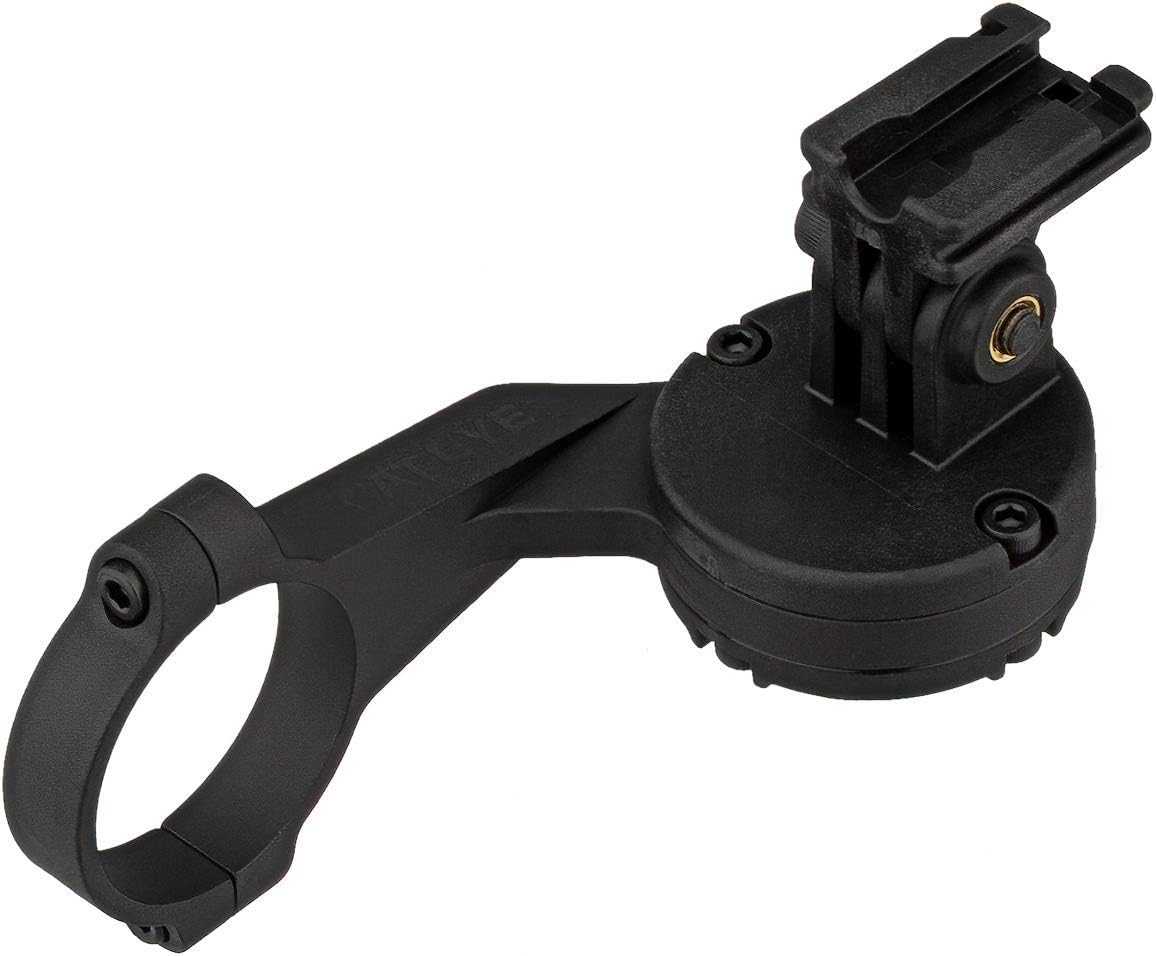
Image 1.1: Front view of the CATEYE OF-200 bracket, showcasing its design and computer mount.
Key Features:
- Durable Construction: Made from robust aluminum for long-lasting performance.
- Dual Mounting Capability: Supports most CatEye wireless cycling computers and compatible headlights simultaneously.
- Handlebar Compatibility: Fits 31.8 mm diameter handlebars directly, and 25-26 mm handlebars with the supplied spacer.
- GP Action Camera Ready: Includes a GP adapter bracket for mounting action cameras below the main unit.
2. Package Contents
Please verify that all items are present in the package before proceeding with installation.
- CATEYE OF-200 Out Front Bracket (Main Unit)
- GP Adapter Bracket (for action cameras)
- Handlebar Spacer (for 25-26mm handlebars)
- Mounting Hardware (screws, bolts)

Image 2.1: Angled view of the CATEYE OF-200 bracket, showing the main components.
3. Safety Information
- Ensure all screws are tightened securely to prevent components from detaching during use. Regularly check tightness, especially after initial installation and bumpy rides.
- Do not overtighten screws, as this may damage the bracket or handlebars.
- Verify that the mounted computer and headlight do not obstruct your view or interfere with steering.
- Always follow the installation instructions carefully. Improper installation can lead to accidents.
- Keep small parts away from children.
4. Setup and Installation
Follow these steps to properly install your CATEYE OF-200 bracket and attach your devices.
4.1. Mounting the Bracket to Handlebars
- Identify the appropriate handlebar diameter. The bracket fits 31.8 mm handlebars directly. For 25-26 mm handlebars, use the provided spacer.
- Loosen the clamp screws on the bracket.
- Position the bracket on your handlebar, ensuring it is centered and does not interfere with other controls.
- If using the spacer, place it inside the clamp before tightening.
- Tighten the clamp screws evenly until the bracket is secure and does not rotate. Do not overtighten.

Image 4.1: Rear view of the bracket, illustrating the handlebar clamp mechanism.
4.2. Attaching a CatEye Cycling Computer
- Align your CatEye wireless cycling computer with the top mount on the bracket.
- Slide the computer onto the mount until it clicks securely into place.
- Ensure the computer is firmly attached and does not wobble.
4.3. Attaching a Compatible Headlight
- Locate the headlight mount point on the underside of the bracket.
- Attach your compatible CatEye headlight to this mount. Ensure it is securely fastened according to your headlight's instructions.
- The lighting angle can be adjusted vertically. Horizontal adjustment is not supported by this bracket.
4.4. Attaching a GP Action Camera
- The GP adapter bracket allows for inverted mounting of action cameras.
- Attach the GP adapter to the designated slot on the underside of the main bracket.
- Secure your GP action camera to the adapter using its standard mounting hardware.
- Adjust the angular position of the camera as needed.

Image 4.2: Bottom view of the bracket, highlighting the integrated GP adapter for action cameras.
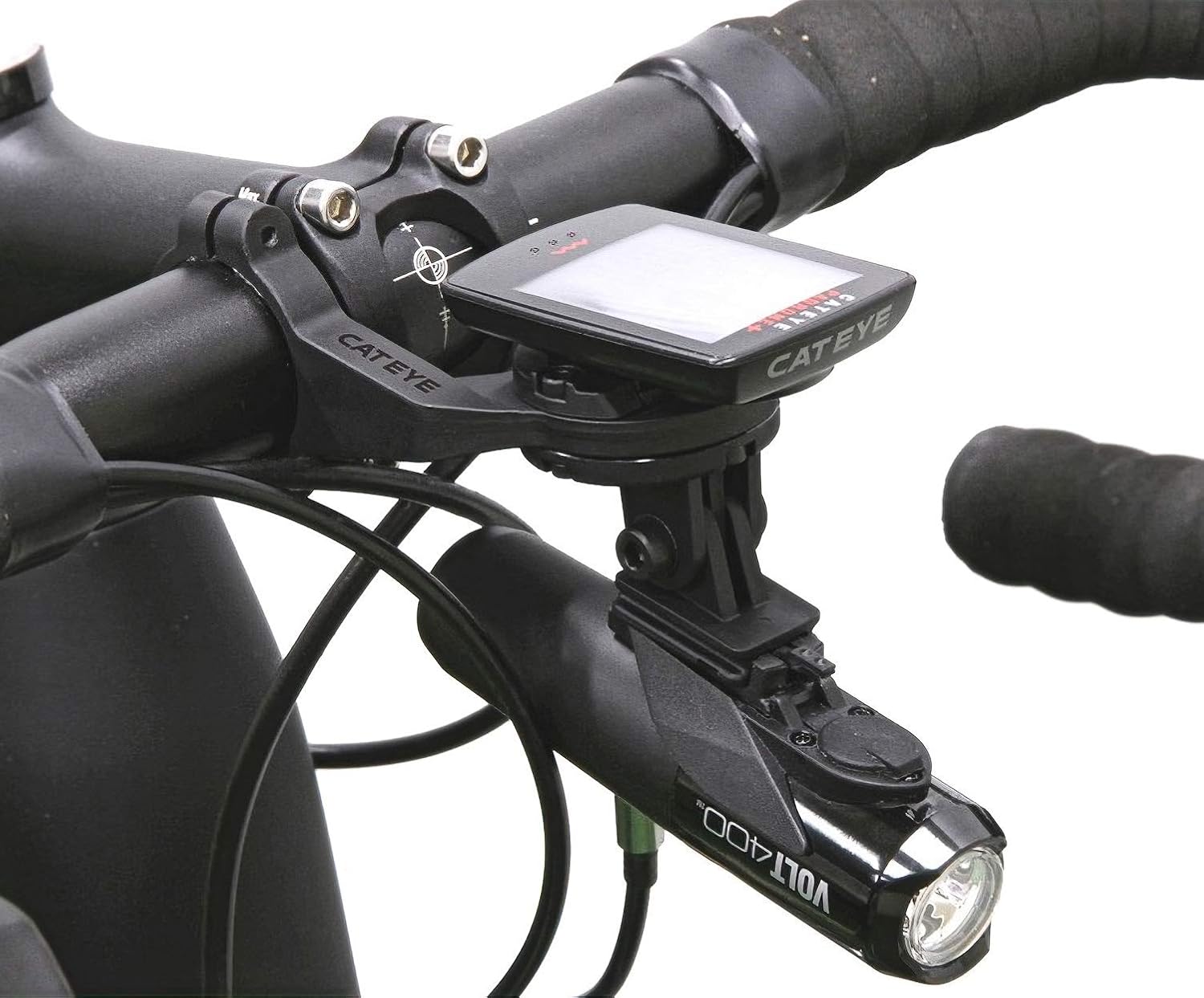
Image 4.3: Example of the CATEYE OF-200 bracket installed on a bicycle, holding both a cycling computer and a headlight.
5. Operating Instructions
Once the CATEYE OF-200 bracket is securely installed and your devices are attached, operate your cycling computer, headlight, and action camera according to their respective instruction manuals. The bracket provides a stable platform for these devices.
Note on Wireless Interference: In some cases, using a headlight (especially in strobe/flashing mode) simultaneously with a wireless analog cycling computer mounted on the same bracket may cause frequency interference, leading to erratic or frozen computer readings. If you experience this, consider separating the devices onto different mounts or using a different type of cycling computer.
6. Maintenance
- Cleaning: Wipe the bracket with a soft, damp cloth to remove dirt and grime. Avoid using harsh chemicals or abrasive cleaners.
- Inspection: Periodically inspect the bracket for any signs of wear, damage, or loose components. Check the tightness of all screws, especially those securing the bracket to the handlebars and the GP adapter.
- Storage: If removing the bracket for storage, keep it in a clean, dry place away from direct sunlight and extreme temperatures.
7. Troubleshooting
| Problem | Possible Cause | Solution |
|---|---|---|
| Bracket feels loose or rotates on handlebars. | Clamp screws are not tight enough, or incorrect spacer used. | Ensure correct spacer is used for your handlebar diameter (25-26mm vs 31.8mm). Tighten clamp screws evenly until secure. Do not overtighten. |
| Cycling computer readings are erratic or freeze when headlight is on. | Wireless interference between headlight and analog wireless computer. | Try operating the headlight in a non-strobe mode. If interference persists, consider mounting the computer and headlight on separate brackets or using a different type of cycling computer (e.g., GPS-based). |
| Headlight beam is not centered horizontally. | The bracket does not support horizontal adjustment for headlights. | The bracket allows for vertical adjustment only. If horizontal alignment is critical, an alternative headlight mount may be required. |
| Screws for computer mount or GP adapter become loose. | Vibrations from riding. | Regularly check and tighten all screws. Consider applying a small amount of thread-locking compound (e.g., Loctite) to prevent loosening, ensuring it is safe for the materials. |
8. Specifications
| Feature | Detail |
|---|---|
| Brand | CATEYE |
| Model Name | OF-200 (Out Front Bracket 2) |
| Model Number | 1604110 |
| UPC / GTIN | 725012031971 |
| Material | Aluminum |
| Color | Black |
| Mounting Type | Handlebar |
| Compatible Handlebar Diameter | 31.8 mm (direct mount), 25-26 mm (with supplied spacer) |
| Compatible Devices | CatEye Wireless Cycling Computers, CatEye Headlights, GP Action Cameras |
| Item Dimensions (L x W x H) | 4.7 x 1.5 x 2 inches |
| Item Weight | 0.18 Pounds |
9. Warranty Information
This CATEYE product is covered by a 2-year manufacturer's warranty from the date of purchase. This warranty covers defects in materials and workmanship under normal use. It does not cover damage resulting from misuse, accidents, unauthorized modifications, or normal wear and tear.
For warranty claims or service, please retain your proof of purchase and contact CATEYE customer support through their official website or authorized dealer.
10. Customer Support
If you have any questions, require assistance with installation, or encounter issues not covered in this manual, please visit the official CATEYE website for support resources, FAQs, and contact information. You can also reach out to your authorized CATEYE dealer for assistance.
CATEYE Official Website: www.cateye.com


