
1. Product Overview
The Panasonic DVD Player DVD-S700 is designed to enhance your home entertainment experience by up-converting standard DVDs to 1080p Full-HD resolution. It supports a variety of media formats and offers versatile connectivity options, including USB playback. Enjoy clear visuals and rich audio with Dolby Digital sound.
Key Features:
- 1080p Up-Conversion: Elevates DVD video quality to Full-HD 1080p, providing smooth, detailed images.
- Dolby Digital Sound: Delivers superior audio performance from DVDs and CDs.
- USB Playback: Allows viewing content directly from USB memory devices.
- Multi-Format Playback: Supports various disc formats for broad compatibility.
- Dust Proof Design: Helps maintain optimal performance and longevity.
- Power Resume: Resumes playback from where it left off after a power interruption.

Figure 1: Front view of the Panasonic DVD-S700 DVD player, showcasing its sleek black design.
2. Product Components
Your Panasonic DVD-S700 package includes the following items:
- Panasonic DVD Player DVD-S700 Unit
- Remote Control
- Power Cord
- RCA Audio/Video Cables (Red, White, Yellow)
- Instruction Manual

Figure 2: Front-left view of the Panasonic DVD-S700 DVD player, showing the disc tray and control buttons.

Figure 3: Front-right view of the Panasonic DVD-S700 DVD player, highlighting the USB port and control buttons.
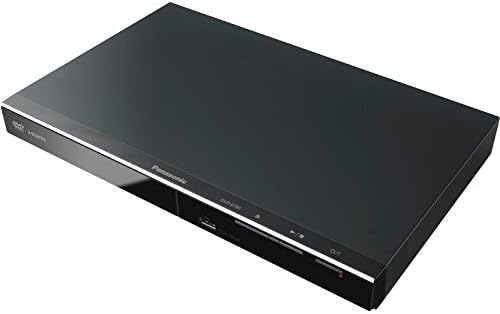
Figure 4: Top-down angled view of the Panasonic DVD-S700 DVD player, showing its slim profile.
3. Setup Instructions
3.1 Connecting to Your Television
The DVD-S700 offers both HDMI and RCA connectivity for video and audio output.
- HDMI Connection (Recommended for 1080p Upscaling):
- Ensure your television has an available HDMI input.
- Connect one end of an HDMI cable (not included) to the HDMI OUT port on the DVD player.
- Connect the other end of the HDMI cable to an HDMI input on your television.
- Select the corresponding HDMI input on your TV using its remote control.
- RCA Connection (Standard Definition):
- Connect the yellow video cable to the VIDEO OUT port on the DVD player and the yellow video input on your television.
- Connect the red audio cable to the AUDIO R (right) port on the DVD player and the red audio input on your television.
- Connect the white audio cable to the AUDIO L (left) port on the DVD player and the white audio input on your television.
- Select the corresponding AV input on your TV using its remote control.
3.2 Power Connection
Plug the power cord into the AC IN socket on the rear of the DVD player, then plug the other end into a standard electrical outlet (120V AC, 60Hz).
4. Operating Instructions
4.1 Basic Disc Playback
- Press the POWER button on the front panel or remote control to turn on the player.
- Press the OPEN/CLOSE button (▲) to open the disc tray.
- Place a DVD or CD disc gently onto the disc tray with the label side facing up.
- Press the OPEN/CLOSE button (▲) again to close the disc tray. The player will begin loading the disc.
- Playback should start automatically. If a menu appears, use the arrow buttons on the remote to navigate and the OK button to select.
- Use the PLAY/PAUSE (►/⏸⏸), STOP (■), SKIP (◀◀/►►), and EJECT (▲) buttons for control.
4.2 USB Media Playback
The DVD-S700 features a front USB port for playing media files from a USB memory device.
- Insert your USB memory device into the USB port on the front of the DVD player.
- The player should automatically detect the USB device and display a menu. If not, press the USB button on the remote control.
- Use the navigation buttons on the remote to browse through your files (e.g., MP3, MP4, JPEG).
- Select the desired file and press OK to begin playback.
5. Maintenance
5.1 Cleaning the Unit
- Always unplug the DVD player from the power outlet before cleaning.
- Use a soft, dry cloth to wipe the exterior of the unit.
- Do not use liquid cleaners, aerosol sprays, or strong chemical solvents, as these may damage the finish.
5.2 Cleaning Discs
- Wipe discs from the center outwards with a soft, lint-free cloth.
- Avoid using abrasive cleaners or solvents that could scratch the disc surface.
- Store discs in their cases to prevent dust and scratches.
6. Troubleshooting
If you encounter issues with your DVD player, refer to the following common solutions:
| Problem | Possible Cause | Solution |
|---|---|---|
| No power | Power cord not connected; outlet not active | Ensure power cord is securely plugged into the unit and a working electrical outlet. |
| No picture or sound | Incorrect input selected on TV; cables loose or damaged | Select the correct input source on your TV. Check all video and audio cable connections. |
| Disc does not play | Disc is dirty, scratched, or incompatible format | Clean the disc. Try a different disc. Ensure the disc format is supported by the player. |
| Remote control not working | Batteries are dead or inserted incorrectly; obstruction between remote and player | Replace batteries. Ensure correct polarity. Remove any obstructions and point remote directly at the player. |
7. Specifications
| Feature | Detail |
|---|---|
| Brand | Panasonic |
| Model Number | DVD-S700 |
| Item Weight | 2.43 pounds |
| Product Dimensions | 8 x 12.25 x 1.5 inches |
| Color | Black |
| Media Type | DVD |
| Resolution | 1920x1080 (1080p Up-Conversion) |
| Connector Type | HDMI, RCA |
| Connectivity Technology | HDMI, RCA, USB |
| Audio Output Mode | Stereo |
| Batteries Required | 2 AAA batteries (for remote) |
8. Warranty and Support
This Certified Refurbished product is tested and certified to look and work like new. It comes with a minimum 90-day warranty. For detailed warranty information, technical support, or service inquiries, please refer to the warranty card included in your product packaging or visit the official Panasonic support website.
No relevant official product videos from the seller were found for this specific model.


