1. Introduction
This manual provides detailed instructions for the installation, operation, and maintenance of your BOSS Audio Systems 550B Single DIN 200 Watt CD MP3 Bluetooth Multimedia Player. Please read this manual thoroughly before using the product to ensure proper operation and to prevent damage.
The BOSS Audio Systems 550B is a versatile car stereo receiver designed to provide high-quality audio and convenient connectivity options for your vehicle. It features CD/MP3 playback, Bluetooth for wireless audio streaming and hands-free calling, USB input, and an AM/FM tuner.
2. Safety Information
Always observe the following safety precautions when installing and operating the unit:
- Do not operate this product in any way that distracts you from safely driving your vehicle.
- Ensure all wiring is correctly connected to prevent short circuits or damage to the unit.
- Do not disassemble or modify the unit. This may cause electric shock, fire, or other malfunctions.
- Keep the volume at a level that allows you to hear outside sounds, such as emergency vehicles.
- Consult a professional for installation if you are unsure about the wiring or mounting procedures.
3. Package Contents
Verify that all items are present in the package before installation:

Image: Contents included in the BOSS Audio Systems 550B package, showing the main unit, remote control, wiring harness, mounting bracket, screws, and removal keys.
- BOSS Audio Systems 550B Multimedia Player
- Wireless Remote Control
- Wiring Harness
- Mounting Hardware (Screws, Mounting Bracket)
- Removal Keys
- User Manual (This document)
4. Setup and Installation
4.1 Mounting the Unit
The 550B is designed for standard Single DIN installation. Ensure there is sufficient space in your vehicle's dashboard for proper fitment and ventilation.

Image: Dimensional view of the BOSS Audio Systems 550B unit, indicating a height of 2.0 inches (51mm), depth of 7.0 inches (178mm), and width of 7.0 inches (178mm).
- Remove the existing car stereo from the dashboard.
- Install the mounting sleeve into the dashboard opening. Bend the tabs outward to secure it.
- Connect the wiring harness to the vehicle's wiring according to the wiring diagram (refer to section 4.2).
- Slide the 550B unit into the mounting sleeve until it locks into place.
- Attach the trim ring around the front of the unit.
4.2 Wiring Diagram
Refer to the following general wiring guide. Always cross-reference with your vehicle's specific wiring diagram if available. Incorrect wiring can damage the unit or your vehicle's electrical system.
| Wire Color | Function |
|---|---|
| Yellow | Constant 12V (Battery) |
| Red | Switched 12V (Accessory/Ignition) |
| Black | Ground |
| Blue | Power Antenna / Remote Turn-On |
| White | Front Left Speaker (+) |
| White/Black | Front Left Speaker (-) |
| Gray | Front Right Speaker (+) |
| Gray/Black | Front Right Speaker (-) |
| Green | Rear Left Speaker (+) |
| Green/Black | Rear Left Speaker (-) |
| Purple | Rear Right Speaker (+) |
| Purple/Black | Rear Right Speaker (-) |
Note: This is a general guide. Always refer to the specific wiring diagram provided with your vehicle or consult a professional installer.
5. Operating Instructions
5.1 Front Panel Controls

Image: Detailed view of the BOSS Audio Systems 550B front panel, highlighting the main controls including the volume knob, mode/band button, track navigation, play/pause, USB port, and AUX input.
- Power/Mode Button: Press to turn on/off. Short press to cycle through modes (Radio, CD, USB, Bluetooth, AUX).
- Volume Knob: Rotate to adjust volume. Press to access audio settings (Bass, Treble, Balance, Fader, EQ).
- Band/AMS Button: In Radio mode, press to select radio band (FM1, FM2, FM3, AM1, AM2). Long press for Automatic Memory Store.
- Clock/Mute Button: Short press to mute/unmute audio. Long press to set clock.
- Track/Seek Buttons (<< / >>): Short press to change tracks/stations. Long press to fast forward/rewind or auto-seek.
- Play/Pause Button: Play or pause playback.
- RPT (Repeat) Button: Repeat current track.
- RDM (Random) Button: Play tracks in random order.
- +10 / -10 Buttons: Skip 10 tracks forward/backward in MP3/USB mode.
- USB Port: Connect USB flash drives for MP3/WMA playback and charging.
- AUX Input: Connect external audio devices via a 3.5mm audio cable.
5.2 Radio Operation
- Press the MODE button to select "RADIO" mode.
- Press the BAND button to select desired band (FM1, FM2, FM3, AM1, AM2).
- Short press the << or >> buttons to manually tune to a station. Long press to auto-seek.
- To store a station, tune to the desired station, then long press one of the preset buttons (1-6) until you hear a beep.
5.3 CD/MP3 Playback
- Insert a CD into the disc slot. The unit will automatically switch to CD mode and begin playback.
- Use the << or >> buttons to skip tracks. Long press to fast forward/rewind.
- Press the PLAY/PAUSE button to pause or resume playback.
- Press RPT for repeat playback (track/folder/all).
- Press RDM for random playback.
5.4 USB Playback
- Insert a USB flash drive into the USB port. The unit will automatically switch to USB mode and begin playback of compatible audio files (MP3, WMA).
- Use the << or >> buttons to skip tracks. Long press to fast forward/rewind.
- Press the PLAY/PAUSE button to pause or resume playback.
- Use the +10 / -10 buttons to navigate through tracks in increments of 10.
5.5 Bluetooth Operation
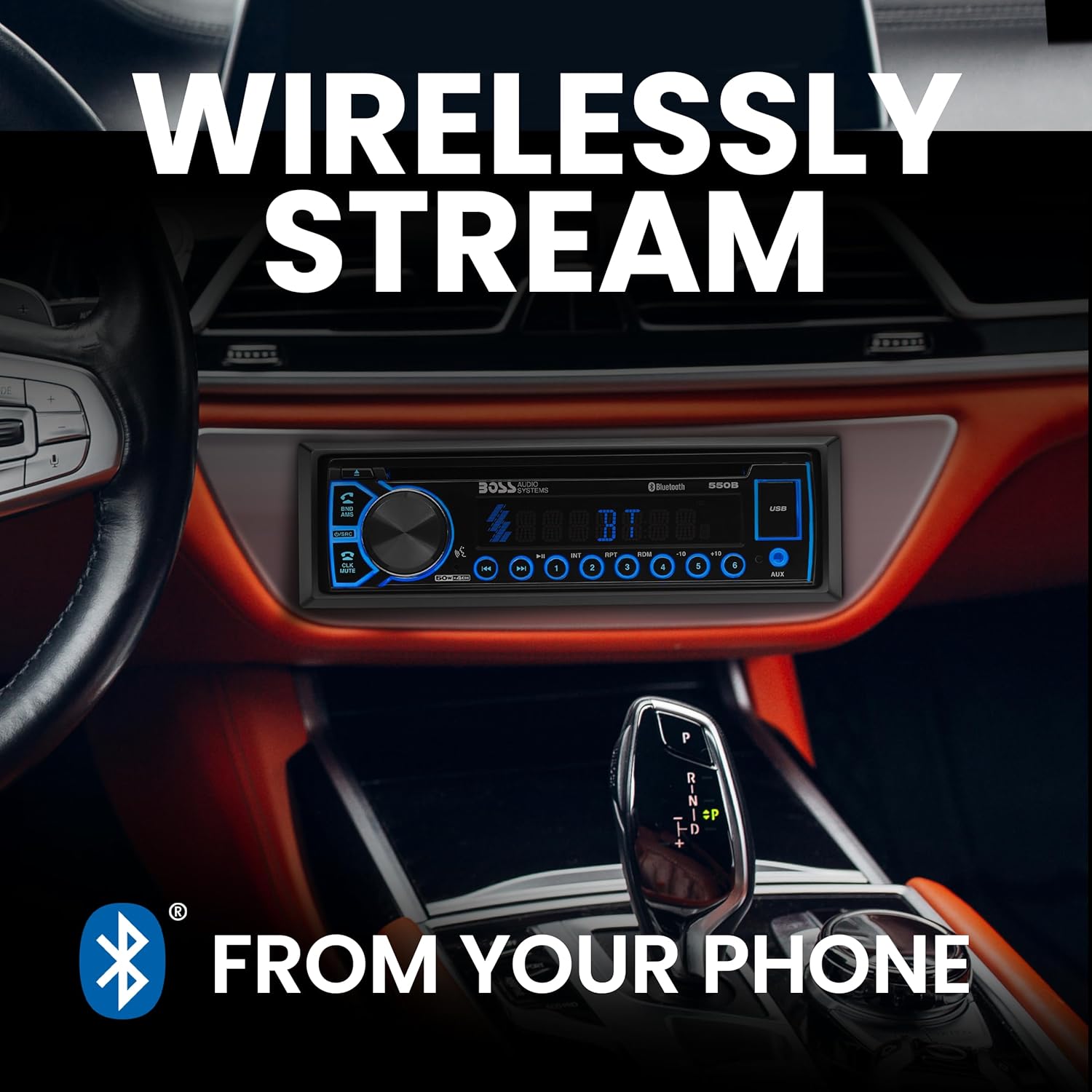
Image: The BOSS Audio Systems 550B unit integrated into a car dashboard, illustrating its capability for wireless audio streaming from a smartphone via Bluetooth.
Pairing a Bluetooth Device:
- Ensure Bluetooth is enabled on your mobile device.
- On the 550B, press the MODE button until "BT" (Bluetooth) mode is selected. The unit will automatically enter pairing mode.
- On your mobile device, search for Bluetooth devices and select "BOSS 550B" from the list.
- Once paired, the Bluetooth icon on the unit's display will illuminate steadily.
Bluetooth Audio Streaming (A2DP):
- After successful pairing, you can stream audio from your mobile device to the 550B.
- Use the << and >> buttons on the unit or remote to control track playback.
- Use the PLAY/PAUSE button to pause or resume audio.
Bluetooth Hands-Free Calling (HFP):
- When a call comes in, the unit's display will show "CALL".
- Press the CALL button (usually the green phone icon on the remote or a dedicated button on the unit) to answer.
- Press the END CALL button (usually the red phone icon) to end a call.
- Use the volume knob to adjust call volume.
- The unit supports "Push To Talk" to connect to your smartphone's assistant (e.g., Siri, Google Assistant). Refer to your phone's manual for activation.
5.6 AUX Input Operation
Connect any external audio device (e.g., MP3 player, smartphone) to the 3.5mm AUX input jack on the front panel using a standard audio cable.
- Press the MODE button to select "AUX" mode.
- Control playback and volume directly from the connected external device.
6. Maintenance
- Cleaning the Unit: Use a soft, dry cloth to wipe the front panel. Do not use abrasive cleaners or solvents.
- Disc Care: Handle CDs by their edges. Keep them clean and free of scratches. Use a soft, lint-free cloth to wipe discs from the center outwards.
- USB Port: Keep the USB port free of dust and debris.
- Fuse Replacement: If the unit does not power on, check the fuse located at the rear of the unit. Replace it with a fuse of the same rating (e.g., 10A).
7. Troubleshooting
| Problem | Possible Cause | Solution |
|---|---|---|
| No power | Blown fuse; Incorrect wiring; Loose power connection. | Check and replace fuse; Verify wiring connections (Yellow, Red, Black); Ensure connections are secure. |
| No sound | Volume too low; Mute function active; Incorrect speaker wiring; Amplifier not powered. | Increase volume; Press MUTE button; Check speaker connections; Ensure external amplifier (if used) is powered on. |
| CD/USB not playing | Disc/USB corrupted or incompatible format; Disc/USB inserted incorrectly. | Try a different disc/USB; Ensure files are MP3/WMA; Reinsert disc/USB correctly. |
| Bluetooth not connecting | Bluetooth not enabled on device; Unit not in pairing mode; Device already paired to another unit. | Ensure Bluetooth is on and discoverable on your phone; Select BT mode on 550B; Forget previous pairings on your phone and retry. |
| Poor radio reception | Antenna not connected; Weak signal area. | Check antenna connection; Try auto-seeking for stronger stations. |
8. Specifications
| Feature | Specification |
|---|---|
| Model | BOSS Audio Systems 550B |
| Power Output | 200 Watts (Max), 50 Watts x 4 Channels |
| Tuner | AM/FM |
| Media Playback | CD, MP3, WMA, USB |
| Bluetooth | Audio Streaming (A2DP), Hands-Free Calling (HFP), Push-to-Talk |
| Inputs | USB, AUX (3.5mm) |
| Outputs | Front & Rear Pre-Amp Outputs |
| Remote Control | Wireless Included |
| Dimensions (W x H x D) | 7.0" x 2.0" x 7.0" (178mm x 51mm x 178mm) |
| Weight | 3.1 Pounds |
9. Warranty and Support

Image: Information regarding the 3-Year Platinum Online Dealer Warranty and a summary of key features of the BOSS Audio Systems 550B, including various media playback options and connectivity.
BOSS Audio Systems provides a 3 Year Platinum Online Dealer Warranty for this product, provided the purchase is made through Amazon.com. Professional installation is strongly encouraged to ensure proper functionality and to validate warranty terms.
To register your product for warranty, please visit the official BOSS Audio Systems website after purchase.
For technical support or further assistance, please contact BOSS Audio Systems customer service. Contact information can typically be found on the manufacturer's website or on the product packaging.