
Storite EasyCap
Storite USB 2.0 Video Audio Capture Card Adapter User Manual
Model:EasyCap
Brand:Storite
1. Introduction
The Storite USB 2.0 Video Audio Capture Card Adapter is designed to convert analog video and audio signals from sources like VHS, VCRs, and TV into digital formats for your PC. This device allows you to preserve old video tapes by converting them to DVD/VCD/MP3/MP4 formats, play video games from consoles (PS2/3, Xbox 360, Wii) on your PC/Laptop screen, and watch video on your desktop or laptop monitor.
It comes bundled with the Ulead Video Studio 10.0 SE DVD software for professional and easy-to-use video editing. The adapter supports multiple video inputs including S-Video and Composite RCA Video, turning your computer into a full-featured video recording and editing workstation.
Key features include:
- Converts video tapes to DVD format.
- Enables playing video games on PC/Laptop screens.
- Ensures video and audio are always in sync.
- Supports S-Video and Composite RCA Video inputs.
- Allows still image capture for photo albums.
- Provides smooth video source switching between PC, Composite Video, or S-Video inputs.
- USB 2.0 powered, requiring no external power adapter.
2. Setup
2.1. Driver and Software Installation
Before connecting the Storite USB 2.0 Video Audio Capture Card Adapter, it is crucial to install the necessary drivers and software. The drivers are available for download from the official Storite website.
- Visit the driver download page:www.storiteglobal.com/download-Drivers/
- From the driver list, select "easycap".
- If prompted for a key during download or installation, use:TVR25-NMBGG-HGGGH-362DC-6BMG6
- Install the Ulead Video Studio 10.0 SE DVD software provided with the product or as directed by the driver download page.
Note: Ensure your operating system (Windows 2000, XP, Vista, 7, 8, 10) is compatible with the drivers.
2.2. Hardware Connection
Once drivers and software are installed, connect the adapter to your computer and video source.
- Connect the USB end of the Storite Capture Card Adapter to an available USB 2.0 port on your PC or laptop. The device is USB powered, so no external power adapter is needed. A green LED indicator will light up when powered.
- Connect your video source (e.g., VCR, camcorder, game console) to the adapter using either the S-Video input or the Composite RCA Video inputs (yellow for video, white for left audio, red for right audio).
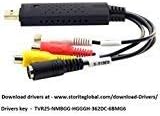
Image: The Storite USB 2.0 Video Audio Capture Card Adapter. It features a USB connector on one end for connecting to a computer, and three RCA connectors (yellow for video, white for left audio, red for red audio) along with an S-Video connector on the other end for connecting to video sources like VCRs or camcorders. The device is black with a textured top surface.
3. Operating Instructions
3.1. Capturing Video
- Ensure your video source (VCR, camcorder, etc.) is connected and powered on.
- Launch the Ulead Video Studio 10.0 SE DVD software on your computer.
- Within the software, select the Storite USB 2.0 Video Audio Capture Card Adapter as your video and audio input device.
- Adjust video settings such as brightness, contrast, hue, and saturation as needed within the software.
- Start playback on your video source and initiate recording within the Ulead Video Studio software.
- Save the recorded video in your desired format (DVD, VCD, MP3, MP4, AVI, WMV, etc.) to your hard drive.
3.2. Playing Video Games on PC/Laptop
To use the adapter for playing video games from consoles on your computer screen:
- Connect your game console (e.g., PS2/3, Xbox 360, Wii) to the adapter using the appropriate S-Video or Composite RCA cables.
- Connect the adapter's USB end to your PC/Laptop.
- Open the Ulead Video Studio software or a compatible video viewing application.
- Select the adapter as the video input source to display the game console's output on your computer screen.
3.3. Still Image Capture
The software allows for capturing still images from your video source:
- While viewing video through the software, use the designated "still image capture" or "snapshot" function to save individual frames as images.
- These images can be used for photo albums or other purposes.
4. Maintenance
To ensure the longevity and optimal performance of your Storite USB 2.0 Video Audio Capture Card Adapter, follow these simple maintenance guidelines:
- Keep Clean:Regularly wipe the device with a soft, dry cloth to remove dust and debris. Avoid using liquid cleaners or abrasive materials.
- Protect Connectors:Keep the USB, S-Video, and RCA connectors free from dust and moisture. When not in use, consider using protective caps if available.
- Store Properly:Store the adapter in a cool, dry place away from direct sunlight and extreme temperatures.
- Handle with Care:Avoid dropping the device or subjecting it to strong impacts, which can damage internal components.
- Software Updates:Periodically check the Storite website (www.storiteglobal.com/download-Drivers/) for updated drivers or software that may improve performance or compatibility.
5. Troubleshooting
If you encounter issues with your Storite USB 2.0 Video Audio Capture Card Adapter, refer to the following common problems and solutions:
| Problem | Possible Cause / Solution |
|---|---|
| No Video or Black Screen |
|
| No Audio or Out-of-Sync Audio |
|
| Software Not Recognizing Device |
|
| Poor Video Quality / Choppy Playback |
|
6. Specifications
The following are the technical specifications for the Storite USB 2.0 Video Audio Capture Card Adapter:
- Hardware Interface:USB 2.0
- Video Input:1 S-Video input, RCA type composite video input
- Video System Supported:NTSC, PAL, SECAM
- Full-Screen Video Resolution Input (USB 2.0):
- NTSC:Up to 720x480 at 30 fps
- PAL:Up to 720x576 at 25 fps
- Supported Recording Formats:DV, MPEG-1, MPEG-2, MPEG-4 with DivX codec, SVCD/VCD, DVD, AVI, WMV
- High MPEG Bit Rate Adjustment:Up to 10000K bps
- Power Source:USB powered operation (No power adapter needed)
- Power Consumption:5VDC, 250mA (max) through USB port
- Dimensions:89mm x 28mm x 14mm
- Operating System Compatibility:Windows 2000, Windows XP, Windows Vista, Windows 7, Windows 8, Windows 10
- Included Components:Capture Card, Ulead Video Studio 10.0 SE DVD software
- Item Weight:0.11 Kilograms
7. Warranty and Support
Warranty:All Storite products are backed by a 1-year limited warranty. Please retain your proof of purchase for warranty claims.
Support:For technical support, driver downloads, or further assistance, please visit the official Storite website:
www.storiteglobal.com/download-Drivers/
Ensure you select "easycap" from the driver list and use the keyTVR25-NMBGG-HGGGH-362DC-6BMG6if required.