
1. Introduction
This manual provides essential information for the safe and effective operation of your Pioneer DDJ-SB3 DJ Controller. Please read this manual thoroughly before use and retain it for future reference.
The DDJ-SB3 is a 2-channel performance DJ controller designed for use with Serato DJ Lite software. It features an intuitive layout, durable construction, and responsive controls for an engaging DJ experience.
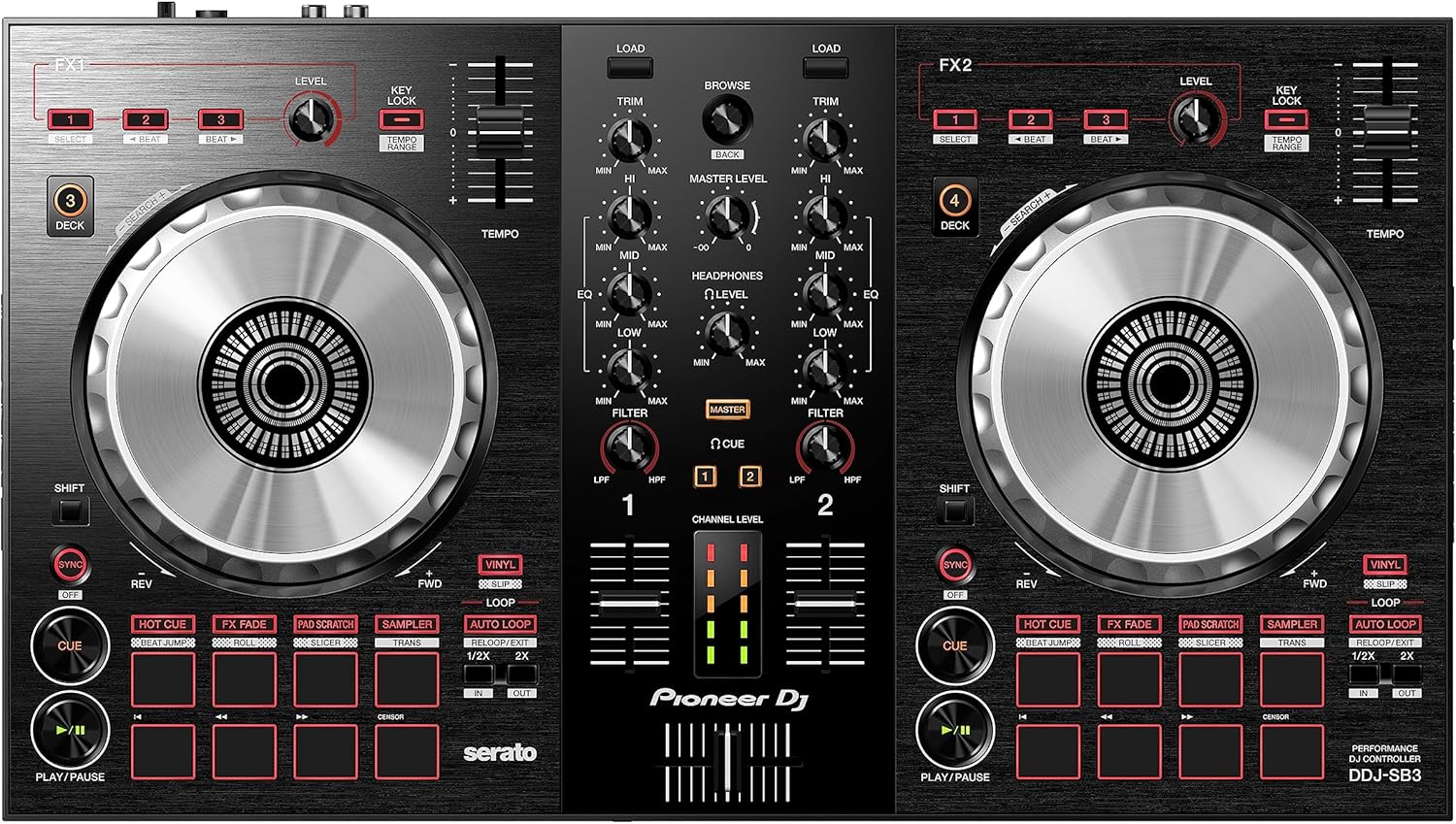
Figure 1: Front view of the Pioneer DDJ-SB3 DJ Controller, showcasing its intuitive layout with two large jog wheels, mixer section, and performance pads.
2. Setup
2.1. Unboxing and Initial Inspection
Carefully remove all components from the packaging. Ensure the following items are present:
- Pioneer DDJ-SB3 DJ Controller
- USB Cable
- Operating Instructions (this manual)
- Serato DJ Lite Voucher (if applicable)
2.2. Connections
Connect the DDJ-SB3 to your computer and audio system as follows:
- USB Connection: Connect the supplied USB cable from the DDJ-SB3's USB port to an available USB port on your computer. This provides power and data communication.
- Audio Output (Master): Connect RCA cables from the DDJ-SB3's MASTER OUT (RCA) terminals to the input terminals of your amplifier, powered speakers, or PA system.
- Microphone Input: If using a microphone, connect it to the MIC input (1/4-inch jack) on the rear panel. Adjust the MIC LEVEL knob as needed.
- Headphone Output: Connect your headphones to the HEADPHONES output (1/8-inch stereo mini jack) on the front panel for monitoring.

Figure 2: Rear view of the DDJ-SB3, showing USB, Master RCA outputs, and Microphone input.
2.3. Software Installation
The DDJ-SB3 is designed to work seamlessly with Serato DJ Lite. Download and install the latest version from the official Serato website. Follow the on-screen instructions for installation.
3. Operating Instructions
3.1. Basic Controls Overview
The DDJ-SB3 features two deck sections, each with a large jog wheel, tempo slider, and performance pads, flanking a central mixer section.
3.2. Jog Wheels
The large, low-latency jog wheels are central to controlling your tracks. They can be used for:
- Scratching: In Vinyl mode, touching the top surface allows for scratching.
- Nudging: Touching the side of the jog wheel allows for fine adjustments to the track's speed.
- Searching: Hold the SHIFT button and rotate the jog wheel to quickly scroll through a track.
3.3. Tempo Control
Use the TEMPO slider to adjust the playback speed (BPM) of the track. The KEY LOCK button can be engaged to maintain the track's original key even when the tempo is changed.
3.4. Mixer Section
The central mixer section allows you to blend and manipulate audio from both decks:
- TRIM: Adjusts the input gain for each channel.
- EQ Knobs (HI, MID, LOW): Adjust the high, mid, and low frequencies for each channel. These are total kill EQs, meaning turning them fully counter-clockwise will completely cut the frequency band.
- FILTER Knob: Applies a high-pass or low-pass filter to the channel.
- Channel Faders: Control the volume of each individual channel.
- Crossfader: Blends the audio output between Channel 1 and Channel 2.
3.5. Performance Pads
The 8 performance pads on each deck offer various functions:
- HOT CUE: Set and trigger cue points instantly.
- FX FADE: Apply various effects for smooth transitions.
- PAD SCRATCH: Emulate professional scratch techniques with the push of a pad.
- SAMPLER: Trigger pre-loaded samples.
3.5.1. Hot Cue Techniques
Hot Cues allow you to jump to specific points in a track instantly. You can set up to 8 Hot Cues per track. To set a Hot Cue, navigate to the desired point in the track using the jog wheel or transport buttons, ensure HOT CUE mode is selected, and press an unlit pad. The pad will light up, indicating a Hot Cue is set. To delete, hold SHIFT and press the lit Hot Cue pad.
Video 1: Tutorial on using Hot Cue techniques with the DDJ-SB3.
3.5.2. Pad Scratch Function
The Pad Scratch feature, developed with DJ Jazzy Jeff, allows beginners to perform various scratch patterns by simply pressing the performance pads. This automates jog wheel and crossfader movements for popular scratch techniques. Ensure your tracks are beat-matched for optimal results.
Video 2: Tutorial demonstrating how to use the Pad Scratch feature on the DDJ-SB3.
3.5.3. FX Fade and Long Mixes
FX Fade provides various effects to facilitate smooth transitions between tracks, especially useful for long mixes where two beat-matched tracks are blended over an extended period. This allows for greater control over levels and the blend.
Video 3: Tutorial on performing a Hip Hop Long Mix using the DDJ-SB3's FX Fade feature.
3.6. Headphone Cueing
The headphone section allows you to monitor tracks independently of the master output:
- CUE Buttons (1, 2, MASTER): Press to select which channel (Deck 1, Deck 2, or Master output) you want to hear in your headphones.
- HEADPHONES LEVEL: Adjusts the overall volume of your headphones.
4. Maintenance
To ensure the longevity and optimal performance of your DDJ-SB3, follow these maintenance guidelines:
- Cleaning: Use a soft, dry cloth to wipe down the controller. Avoid abrasive cleaners or solvents.
- Storage: Store the controller in a cool, dry place away from direct sunlight, extreme temperatures, and excessive dust.
- Cable Care: Handle all cables with care. Avoid bending or twisting them sharply, which can damage internal wires.
5. Troubleshooting
If you encounter issues with your DDJ-SB3, refer to the following common solutions:
- No Power/Connection: Ensure the USB cable is securely connected to both the controller and your computer. Try a different USB port or cable.
- No Audio Output: Check all audio cable connections (MASTER OUT to speakers/amplifier). Verify that TRIM, channel faders, and the MASTER LEVEL knob are not set to minimum. Ensure your computer's audio output is correctly configured for the DDJ-SB3.
- Software Not Recognizing Controller: Ensure Serato DJ Lite is the latest version. Restart both the software and your computer. Reinstall the software if necessary.
- Latency Issues: Adjust the buffer size in your Serato DJ Lite audio settings. A lower buffer size reduces latency but requires more CPU power.
6. Specifications
| Feature | Specification |
|---|---|
| Brand | PIONEER |
| Model | DDJ-SB3 |
| Number of Channels | 2 |
| Item Weight | 4.63 Pounds |
| Connectivity Technology | USB or 1/4 inch Jack |
| Power Source | Corded Electric |
| Output Connector Type | RCA |
| Audio Input | RCA or USB |
| Noise Level | 103 Decibels |
| UPC | 841300101260 |
| Included Components | Compact SERATO DJ CONTROLLER - 2 Channel |
7. Warranty and Support
7.1. Warranty Information
This product comes with a 1-year warranty. Please retain your proof of purchase for warranty claims.
7.2. Customer Support
For further assistance, technical support, or to download the latest drivers and software, please visit the official Pioneer DJ website: www.pioneerdj.com