
1. Introduction
This manual provides instructions for the FOPETT Wireless Keyboard and Mouse Combo, Model 43223-85175. This 2.4 GHz wireless peripheral set offers a full-sized keyboard with round keycaps and an optical mouse, designed for compatibility with various operating systems including Windows, Mac OS, PC, Laptop, and Smart TV.
The keyboard features a retro-inspired design with comfortable round keys, while the mouse offers an ergonomic shape with adjustable DPI settings. Both devices utilize a single USB receiver for a reliable wireless connection.

Image 1.1: FOPETT Wireless Keyboard and Mouse Combo (Black Red variant) with USB receiver.
2. Package Contents
Please ensure all items are present in your package:
- 1 x FOPETT Wireless Keyboard
- 1 x FOPETT Wireless Mouse
- 1 x USB Receiver (typically stored in the mouse battery compartment)
- 1 x AA Battery (for mouse, included)
- 1 x AA Battery (for keyboard, not included)
3. Setup Instructions
- Install Batteries:
- For the mouse: Open the battery compartment on the underside of the mouse and insert the included AA battery, ensuring correct polarity.
- For the keyboard: Open the battery compartment on the underside of the keyboard and insert one AA battery (not included), ensuring correct polarity.

Image 3.1: Location of battery compartments for the keyboard and mouse, and the USB receiver.
- Locate USB Receiver: The USB receiver is typically stored within the mouse's battery compartment for safekeeping. Remove it before use.
- Connect Receiver: Plug the USB receiver into an available USB 2.0 port on your computer, laptop, or smart TV.
- Power On: Ensure both the keyboard and mouse are switched ON (if they have an on/off switch). The devices should automatically connect to the receiver. No special software or drivers are required for most operating systems.
4. Operating Instructions
4.1 Keyboard Functions
- Full-Size Layout: The keyboard features a standard 104-key full-size layout with comfortable round keycaps for an enhanced typing experience.
- Multimedia Hotkeys: Access various functions quickly using the Fn key in combination with the F1-F12 keys. For example, Fn+Esc can play/pause music.
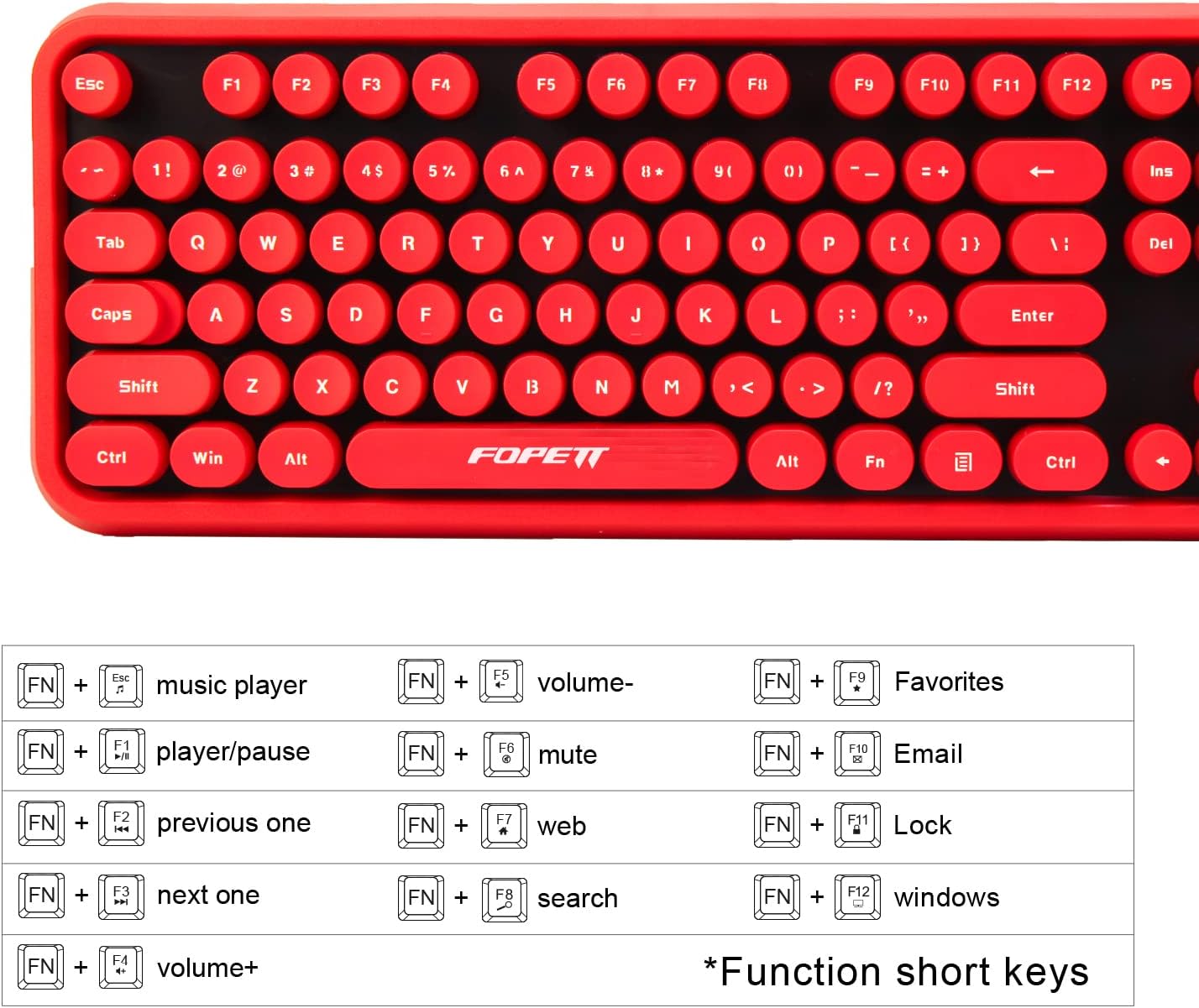
Image 4.1: Diagram illustrating the keyboard's function keys and their corresponding actions.
- Power-Saving Mode: The keyboard automatically enters a power-saving sleep mode after a period of inactivity. To wake it up, simply press any key.
- Low Battery Indication: A low battery indicator light in the top right corner will alert you when the keyboard battery needs replacement.
4.2 Mouse Functions
- Adjustable DPI: The mouse offers three adjustable DPI levels (800-1200-1600) to customize sensitivity. Press the DPI button (usually located near the scroll wheel) to cycle through the settings.
- Ergonomic Design: The mini optical mouse is designed for comfortable use.
- Power-Saving Mode: The mouse also enters a power-saving mode after inactivity. Click any button to wake it up.
- Battery Life: Mouse battery life may vary based on usage and computing conditions.
5. Maintenance
- Cleaning: Use a soft, dry cloth to clean the keyboard and mouse. For stubborn dirt, a slightly damp cloth can be used, ensuring no moisture enters the device.
- Battery Replacement: Replace AA batteries in both devices when the low battery indicator appears or performance degrades. Ensure correct polarity.
- Storage: If not using the combo for an extended period, remove the batteries to prevent leakage and store the USB receiver safely.
6. Troubleshooting
- No Connection/Lag:
- Ensure batteries are correctly installed and charged.
- Verify the USB receiver is securely plugged into a working USB port.
- Try plugging the receiver into a different USB port.
- Ensure the devices are within the 28-foot operating range of the receiver.
- Remove any potential sources of interference (e.g., other wireless devices, large metal objects).
- Hotkeys Not Working on Mac OS: Note that some hotkey functions may not be fully compatible with Mac OS systems. This is a known limitation.
- Mouse Cursor Jumps or is Unresponsive:
- Check mouse battery.
- Ensure the mouse sensor is clean and free of obstructions.
- Use the mouse on a suitable, non-reflective surface.
- Adjust the DPI setting to a different level.
7. Specifications
| Feature | Detail |
|---|---|
| Brand | FOPETT |
| Model Number | 43223-85175 |
| Connectivity Technology | 2.4 GHz Wireless (USB Receiver) |
| Keyboard Layout | 104 Keys, Full-Sized, Round Keycap |
| Mouse DPI Settings | 800-1200-1600 DPI (Adjustable) |
| Compatible Devices | Windows 2000, XP, Vista, 7, 8, 10, Mac OS, Smart TV, PC, Laptop |
| Power Source | 1 x AA battery for mouse (included), 1 x AA battery for keyboard (not included) |
| Product Dimensions (Keyboard) | 17.7 x 5.5 x 1.5 inches |
| Product Dimensions (Mouse) | Approx. 4 x 2.44 inches (based on image, not explicitly stated in text) |
| Item Weight | 16 ounces (total for combo) |
| Color | Black Red |

Image 7.1: Visual representation of the keyboard and mouse dimensions.

Image 7.2: Diagram showing compatibility with various devices including Desktop, Notebook, HTPC, Tablet, Smart TV, and Projector.
8. Warranty and Support
For warranty information, technical support, or further assistance, please refer to the product packaging or contact FOPETT customer service directly. Details can typically be found on the manufacturer's official website.