
LIDCAM+ LC-WF
LC-WF Hands Free Digital Camouflage Action Camera User Manual
Model: LC-WF | Brand: LIDCAM+
1. Introduction
The LIDCAM+ with Wi-Fi is a hands-free digital camouflage action camera designed to capture your experiences in 1080P HD with full audio. Its compact and lightweight design allows for easy attachment to the bill of any baseball cap, making it ideal for various outdoor activities such as hunting, fishing, and hiking. The camera features an improved image sensor for enhanced clarity, a wide-angle lens, Wi-Fi connectivity for smartphone control, and dual LED lights for low-light conditions.
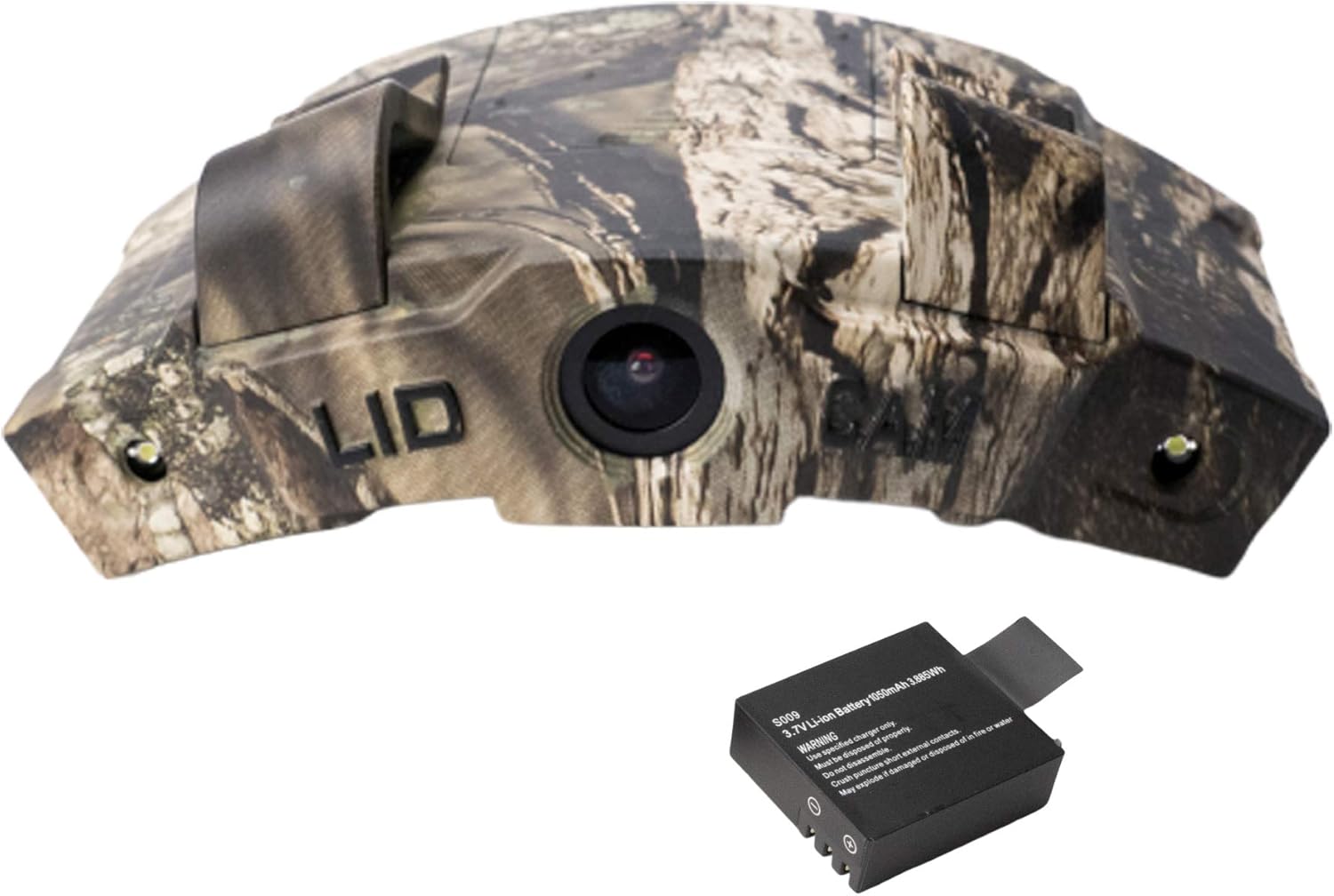
Figure 1.1: The LC-WF Hands Free Digital Camouflage Action Camera with its included battery.
2. What's in the Box
Upon opening your LC-WF package, please verify that all the following components are included:
- LIDCAM+ with Wi-Fi Camera
- Wall Charger
- Car Charger
- USB Cable
- Removable Lithium Ion Battery
- Instruction Manual (this document)

Figure 2.1: All components included in the LC-WF package.
3. Key Features
- Improved Image Sensor: Provides better clarity for captured shots. Note: Only compatible with iOS devices for app functionality.
- Wide Angle Lens: Captures a broad field of view without manual lens adjustment.
- Wi-Fi Connectivity: Allows control of the camera via an easy-to-use smartphone app (iPhone or Android) for previewing shots, taking photos, and recording video.
- Lightweight Design: Weighs less than 4 ounces for comfortable wear.
- Versatile Attachment: Clips securely to the bill of any baseball cap.
- Dual LED Lights: Provides illumination for recording in low-light conditions.
- Full Audio Recording: Captures sound with wind noise reduction technology.

Figure 3.1: The dual LED lights on the LC-WF camera provide illumination.
4. Setup Guide
4.1. Battery Installation
- Locate the battery compartment on the top of the camera.
- Gently open the battery cover.
- Insert the provided lithium-ion battery, ensuring correct polarity.
- Close the battery cover securely.

Figure 4.1: Top view of the camera, illustrating the battery compartment.

Figure 4.2: The battery compartment opened, showing where the battery is inserted.
4.2. Micro SD Card Installation
The camera supports Micro SD cards up to 32GB (not included). A Micro SD card is required for recording video and photos.
- Locate the Micro SD card slot on the back of the camera.
- Insert the Micro SD card into the slot until it clicks into place.
- To remove, gently push the card until it springs out.

Figure 4.3: The bottom of the camera, indicating the Micro SD card slot and USB port.
4.3. Mounting the Camera
The LC-WF camera is designed to clip onto the bill of a baseball cap, providing a hands-free, point-of-view recording experience.
- Align the camera's clips with the edge of your cap's bill.
- Press firmly to secure the camera onto the bill. Ensure it is centered and stable.
- Adjust the camera's angle slightly to achieve your desired field of view.

Figure 4.4: The camera securely clipped onto a baseball cap.

Figure 4.5: A user demonstrating the camera mounted on a hat, ready for use.
5. Operating Instructions
5.1. Powering On/Off
Locate the POWER on/off switch on the bottom of the camera.
- To power on: Slide the switch to the ON position.
- To power off: Slide the switch to the OFF position.
Figure 5.1: The bottom of the camera with clearly labeled power and control buttons.
5.2. Recording Video and Taking Photos
The camera features dedicated buttons for video recording and still photography.
- To record video: Press the REC button (often indicated by a camera icon). Press again to stop recording.
- To take a photo: Press the PHOTO button (often indicated by a camera icon with a dot).
Video 5.1: Official product video demonstrating the LiDCAM+ Action Camera in use, highlighting its features for capturing outdoor activities. This video shows the camera's ease of use and the quality of its recordings.
Video 5.2: Official product video showcasing the LiDCAM+ and its ability to "Get the Shot, Every Time." It illustrates various scenarios where the camera can be used to capture moments from a first-person perspective.
5.3. Using LED Lights
The LC-WF is equipped with dual LED lights for improved visibility in low-light environments.
- To turn on/off the LED lights: Locate the LED button on the bottom of the camera and press it.
5.4. Zoom Function
The camera offers 1x and 4x zoom capabilities.
- To adjust zoom: Use the 1x zoom and 4x zoom buttons on the bottom of the camera.
5.5. Wi-Fi Connectivity and Smartphone App
The LC-WF can connect to your smartphone via Wi-Fi for remote control and live preview. Please download the official LIDCAM+ app from your device's app store (compatible with iOS and Android).
- Ensure the camera is powered on.
- Activate Wi-Fi on your smartphone and search for the camera's Wi-Fi network.
- Connect to the camera's Wi-Fi network.
- Open the LIDCAM+ app on your smartphone. You should now be able to preview, record, and manage settings remotely.
5.6. Charging the Battery
The camera can be charged using the provided wall charger, car charger, or USB cable.
- Connect the USB cable to the camera's USB port (located on the bottom).
- Connect the other end of the USB cable to either the wall charger, car charger, or a computer's USB port.
- The charging indicator light will show the charging status.
6. Maintenance
- Cleaning: Use a soft, dry cloth to clean the camera body. For the lens, use a specialized lens cleaning cloth and solution. Avoid abrasive materials or harsh chemicals.
- Battery Care: To prolong battery life, avoid extreme temperatures. If storing for extended periods, charge the battery to about 50% and store in a cool, dry place.
- Storage: Store the camera in a dry, dust-free environment when not in use.
- Micro SD Card: Regularly back up your recordings and format the Micro SD card periodically to maintain optimal performance.
7. Troubleshooting
| Problem | Possible Cause | Solution |
|---|---|---|
| Camera does not power on. | Battery is drained or incorrectly installed. | Charge the battery fully. Ensure the battery is inserted with correct polarity. |
| Poor battery life. | Frequent use of LED lights or Wi-Fi. Old/degraded battery. | Minimize use of LED lights and Wi-Fi when not necessary. Consider replacing the battery if it's old. |
| Cannot connect to smartphone app. | Wi-Fi not enabled on camera/phone. Incorrect Wi-Fi network selected. App issues. | Ensure camera Wi-Fi is active. Select the correct camera network. Restart camera and phone. Reinstall app if necessary. Note: Some users have reported app availability issues; an SD card reader may be needed for direct file access. |
| Video/photo quality is poor in low light. | Insufficient ambient light. | Activate the dual LED lights for better illumination in dark conditions. |
| Camera not recording. | No Micro SD card, or card is full/corrupted. | Ensure a Micro SD card is inserted. Check available space. Format the card if necessary (this will erase all data). |
8. Product Specifications
| Feature | Detail |
|---|---|
| Product Dimensions | 6 x 4 x 9 inches |
| Item Weight | 8 ounces |
| Item Model Number | LC-WF |
| Batteries | 1 AA batteries required (included) |
| Photo Sensor Technology | CMOS |
| Video Capture Resolution | 1080p |
| Maximum Focal Length | 3.8 Millimeters |
| Flash Memory Type | Micro SD (Max 32GB) |
| Video Capture Format | MP4 |
| Screen Size | 2 Inches |
| Connectivity Technology | Wi-Fi, USB |
| Color | Camouflage |
| Special Feature | Lightweight, Anti-Shake |
| Manufacturer | LIDCAM+ |
| Date First Available | February 23, 2018 |
9. Warranty and Support
For warranty information and technical support, please refer to the official LIDCAM+ website or contact their customer service directly. Keep your purchase receipt as proof of purchase for any warranty claims.