
Introduction
This manual provides detailed instructions for the installation, operation, and maintenance of your TABcare ALLDOCUBE iwork10 Ultimate Locking Security Metal Case (Model WMVS010-00). This product is designed to secure your ALLDOCUBE iwork10 Ultimate tablet, transforming it into a compact kiosk or point-of-sale system with full touchscreen functionality. Please read these instructions carefully before installation and use.
Safety Information
- Ensure all mounting hardware is securely fastened to prevent the tablet and enclosure from falling.
- Do not overtighten screws, as this may damage the enclosure or the mounting surface.
- Keep small parts and tools out of reach of children.
- Use appropriate tools for installation. If unsure, consult a professional.
Package Contents
Verify that all items listed below are included in your package:
- One metal enclosure
- One right-angle micro-USB cable
- One Dynamag reader adapter
- Mounting hardware (screws, anchors, washers)
- Keys for the locking mechanism
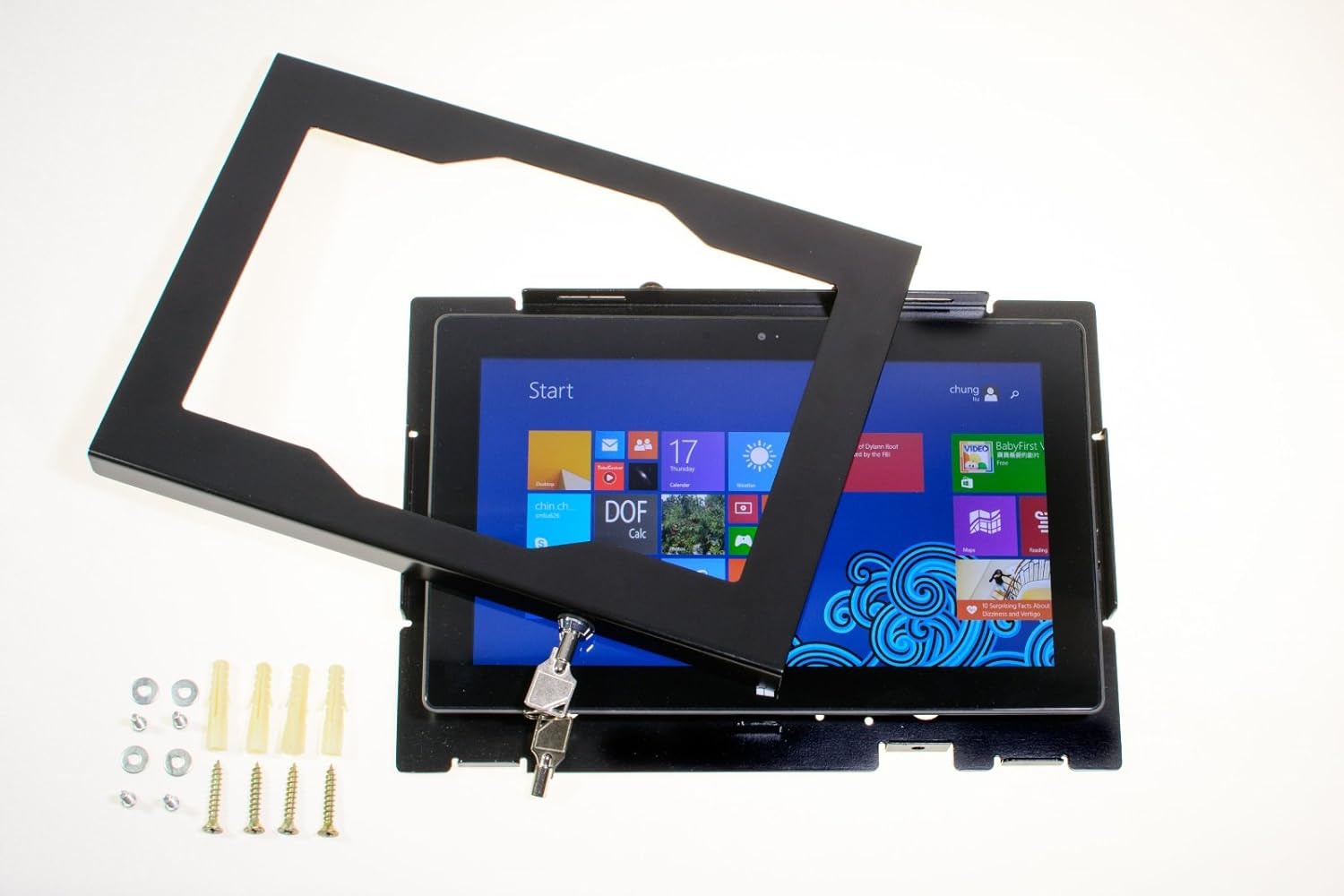
Image: Contents of the TABcare security case package, showing the metal frame, mounting hardware, and keys.
Specifications
| Feature | Detail |
|---|---|
| Compatible Tablet | ALLDOCUBE iwork10 Ultimate 2-in-1 |
| Dimensions (H x D x W) | 200mm (Height) x 30mm (Depth) x 290mm (Width) |
| Weight | 1.5 lb (0.68 kg) |
| Material | Aluminum |
| VESA Compatibility | 100x100 mm and 75x75 mm Standard |
| Display Orientation | Supports Landscape and Portrait |
| Wall Clearance | 10mm (Low profile design) |
| Integrated Adapter | Magtek Dynamag USB reader adapter |

Image: Technical drawing showing the dimensions of the security case: 336mm (13.2") width, 246mm (9.7") height, and 28mm (1.1") depth.
Setup and Installation
Follow these steps to properly install your TABcare security metal case and secure your tablet.
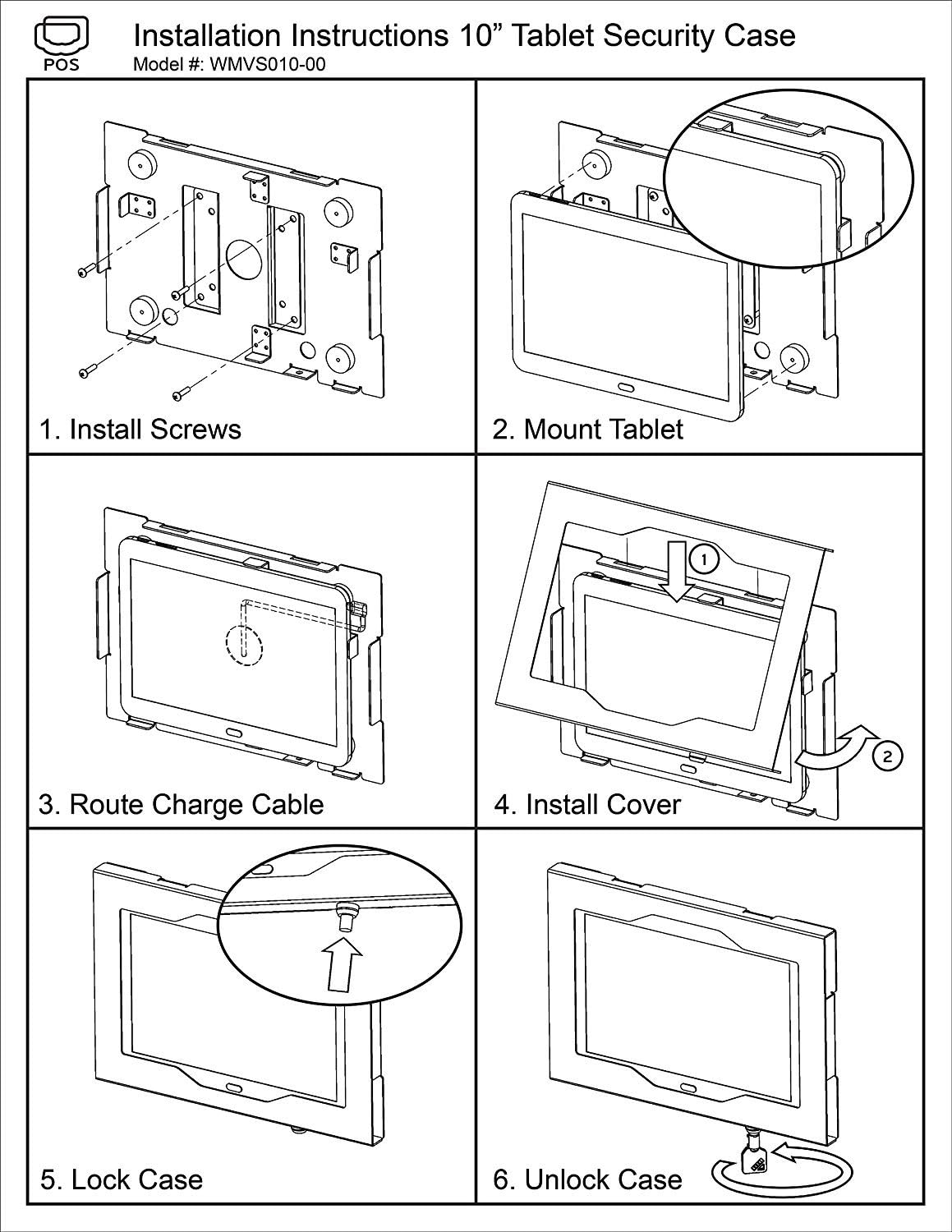
Image: Step-by-step installation diagram for the TABcare 10" Tablet Security Case (Model WMVS010-00).
- Step 1: Install Screws
Determine the desired mounting location. Using the enclosure as a template, mark the positions for the mounting screws. Drill pilot holes if necessary and install the screws into the wall or VESA mount, leaving a small gap for the enclosure to slide onto. Ensure the screws are aligned with the VESA 75x75mm or 100x100mm patterns on the back of the enclosure.
- Step 2: Mount Tablet
Carefully slide your ALLDOCUBE iwork10 Ultimate tablet into the main body of the enclosure. Ensure it sits flush and securely within the frame. The tablet should fit snugly to prevent movement.

Image: A tablet being carefully placed into the open TABcare security enclosure.
- Step 3: Route Charge Cable
Connect the provided right-angle micro-USB cable to your tablet's charging port. Route the cable through the designated opening in the enclosure to ensure it is not pinched and allows for proper closure.

Image: Close-up view of the integrated Magtek Dynamag USB reader adapter on the side of the security case.
- Step 4: Install Cover
Position the front cover over the tablet and align it with the main enclosure. Gently close the cover, ensuring all edges are properly seated.
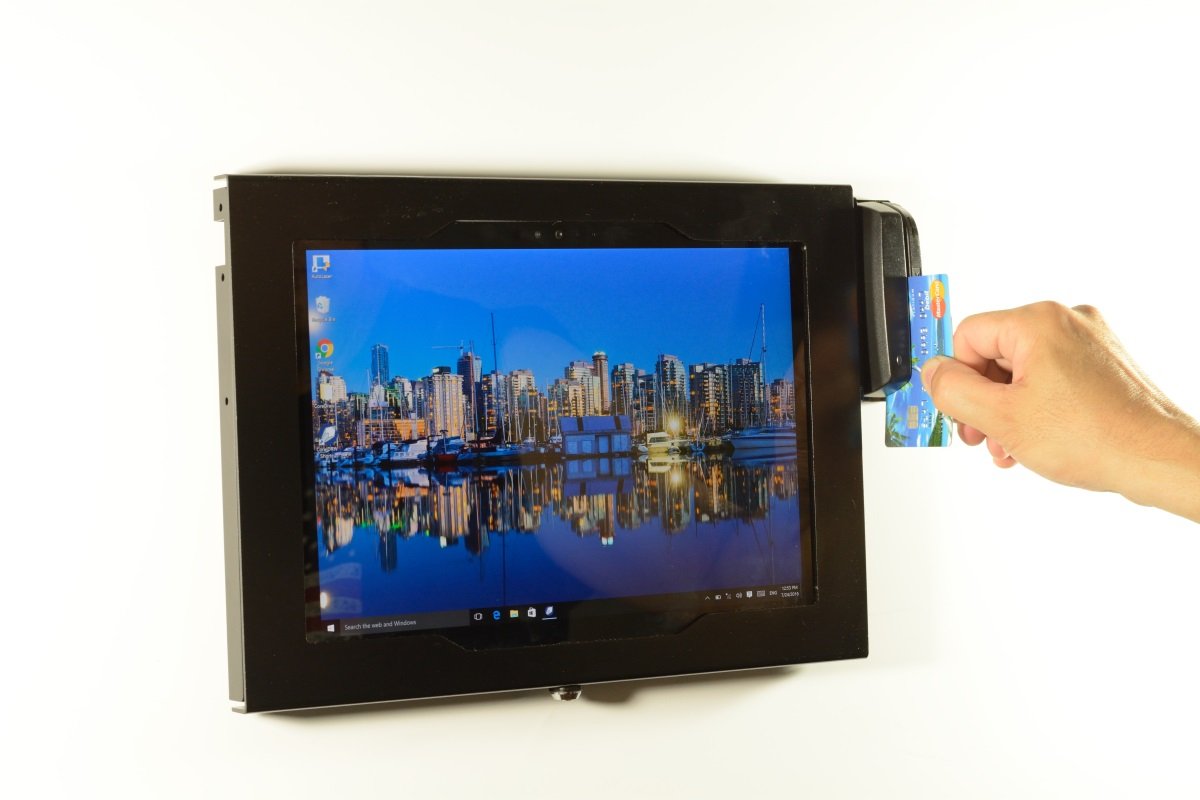
Image: A hand closing the front cover of the TABcare security case, securing the tablet inside.
- Step 5: Lock Case
Insert the key into the lock mechanism located on the side or bottom of the enclosure. Turn the key to the locked position to secure the front cover. Remove the key and store it in a safe place.
- Step 6: Unlock Case
To unlock, insert the key into the lock mechanism and turn it to the unlocked position. The front cover can then be opened to access the tablet.
Operating Instructions
Using the Dynamag Reader Adapter
The integrated Magtek Dynamag USB reader adapter allows for magnetic stripe card reading. Ensure your tablet's software is configured to recognize and utilize this device. Connect the adapter to the tablet via the internal USB connection during installation (Step 3).
Display Orientation
The enclosure supports both landscape and portrait display orientations. The orientation is determined by how the enclosure is mounted to the wall or VESA arm. Ensure the tablet's auto-rotate feature is enabled or manually set the desired orientation in the tablet's display settings.
Maintenance
- Cleaning: Use a soft, damp cloth to clean the metal enclosure. Avoid abrasive cleaners or solvents that may damage the finish.
- Lock Mechanism: Periodically check the lock for smooth operation. If it becomes stiff, a small amount of graphite lubricant can be applied to the keyhole.
- Cable Management: Ensure the charging cable remains properly routed and is not under tension or pinched, which could lead to damage.
Troubleshooting
| Problem | Possible Cause | Solution |
|---|---|---|
| Tablet does not fit in enclosure. | Incorrect tablet model or improper alignment. | Ensure you are using an ALLDOCUBE iwork10 Ultimate tablet. Re-align the tablet carefully within the enclosure. |
| Cover does not close or lock. | Tablet or cable is obstructing the cover. | Check for any obstructions. Ensure the tablet is fully seated and the charging cable is properly routed. |
| Dynamag reader not functioning. | Cable not connected or software issue. | Verify the USB cable connection to the tablet. Check tablet settings and ensure necessary drivers or applications are installed for the Dynamag reader. |
Warranty and Support
TABcare products are manufactured with quality and durability in mind. For warranty information or technical support, please refer to the contact information provided on the TABcare official website or your purchase documentation. Please have your product model (WMVS010-00) and purchase date available when contacting support.
For further assistance, you may visit the TABcare Store on Amazon.