
1. Introduction
This manual provides essential instructions for setting up, operating, maintaining, and troubleshooting your Xerox VersaLink C605 Multifunction Printer. The VersaLink C605 is a high-performance LED printer designed for efficient color printing, copying, scanning, and faxing in office environments.
Key features include:
- High-speed printing: Up to 55 pages per minute (ppm) in both monochrome and color.
- Superior print quality: 1200 x 2400 dpi resolution for sharp text and vibrant images.
- Automatic duplex printing: For efficient two-sided document production.
- Intuitive 7-inch color touchscreen: For easy navigation and job management.
- Versatile connectivity: Ethernet and USB interfaces.

Image 1.1: Front view of the Xerox VersaLink C605 Multifunction Printer, showcasing the control panel and paper trays.
2. Setup
Follow these steps to set up your Xerox VersaLink C605 printer.
2.1 Unpacking and Placement
- Carefully remove the printer from its packaging. Retain all packaging materials for future transport.
- Place the printer on a sturdy, level surface with adequate ventilation. Ensure sufficient space around the printer for operation and maintenance.
- Remove all protective tapes and packing materials from the printer's exterior and interior.
2.2 Connecting Power
- Connect the power cord to the printer's power inlet.
- Plug the other end of the power cord into a grounded electrical outlet.
- Press the power button to turn on the printer.
2.3 Network and USB Connection
- Ethernet Connection: Connect an Ethernet cable from your network router or switch to the printer's Ethernet port.
- USB Connection: Connect a USB cable from your computer to the printer's USB port.
2.4 Loading Paper
- Open the paper tray. The printer supports up to 700 sheets input capacity.
- Adjust the paper guides to fit the paper size.
- Load the paper stack into the tray, ensuring it is flat and below the maximum fill line.
- Close the paper tray.

Image 2.1: Angled view of the Xerox VersaLink C605, showing the paper tray and control panel.
3. Operating Instructions
This section covers the basic operations of your VersaLink C605 printer.
3.1 Using the 7-inch Touchscreen
The printer features a 7-inch color touchscreen for accessing various functions and settings. Navigate through menus by tapping icons and swiping.
3.2 Printing Documents
- From your computer, open the document you wish to print.
- Select Print from the application's menu.
- Choose the Xerox VersaLink C605 from the list of available printers.
- Adjust print settings (e.g., color/monochrome, duplex, paper size) as needed.
- Click Print.
3.3 Copying Documents
- Place the document face-down on the scanner glass or face-up in the automatic document feeder (ADF).
- On the printer's touchscreen, tap the Copy app.
- Select desired copy settings, such as number of copies, color/monochrome, and two-sided copying.
- Tap Start to begin copying.
3.4 Scanning Documents
- Place the document on the scanner glass or in the ADF.
- On the printer's touchscreen, tap the Scan app (e.g., Scan to Email, Scan to Network, Scan to USB).
- Configure scan settings, including destination, file format, and resolution.
- Tap Start to initiate the scan.
3.5 Faxing Documents
- Place the document on the scanner glass or in the ADF.
- On the printer's touchscreen, tap the Fax app.
- Enter the recipient's fax number.
- Adjust any necessary fax settings.
- Tap Send to transmit the fax.
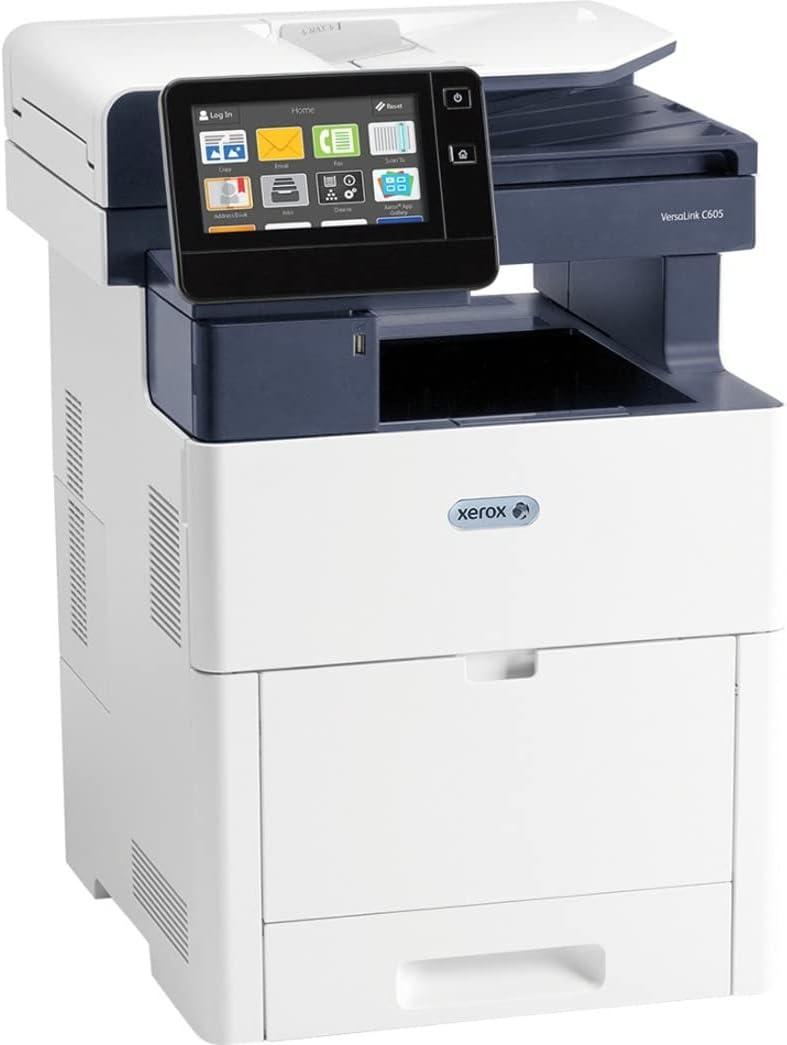
Image 3.1: Angled view of the Xerox VersaLink C605, showing the top cover slightly open, revealing the scanner bed.
4. Maintenance
Regular maintenance ensures optimal performance and longevity of your printer.
4.1 Replacing Toner Cartridges
- When a toner cartridge is low or empty, a message will appear on the touchscreen.
- Open the front cover of the printer.
- Carefully remove the empty toner cartridge by pulling it straight out.
- Unpack the new toner cartridge and gently shake it to distribute the toner.
- Insert the new cartridge into its corresponding slot until it clicks into place.
- Close the front cover.
4.2 Cleaning the Printer
- Exterior: Wipe the exterior surfaces with a soft, damp, lint-free cloth. Do not use abrasive cleaners.
- Scanner Glass: Use a soft, lint-free cloth lightly dampened with glass cleaner to clean the scanner glass. Ensure no residue remains.
4.3 Clearing Paper Jams
If a paper jam occurs, the touchscreen will display instructions on how to clear it. Follow the on-screen prompts carefully, opening designated access points and gently removing jammed paper.
5. Troubleshooting
This section addresses common issues you might encounter with your VersaLink C605 printer.
5.1 Common Issues and Solutions
- Printer Not Responding:
- Check power connections.
- Verify network or USB cable connections.
- Restart the printer and your computer.
- Poor Print Quality:
- Check toner levels and replace cartridges if necessary.
- Ensure correct paper type is selected in print settings.
- Clean the print heads (refer to advanced maintenance options on the touchscreen).
- Paper Jams:
- Follow on-screen instructions to locate and clear the jam.
- Ensure paper is loaded correctly and not overfilled.
5.2 Error Codes
If an error code appears on the touchscreen, note the code and refer to the official Xerox support website or contact customer support for detailed solutions.
6. Specifications
Detailed technical specifications for the Xerox VersaLink C605 Multifunction Printer.
| Feature | Specification |
|---|---|
| Product Dimensions | 15"D x 12"W x 10"H |
| Item Weight | 121 pounds |
| Printing Technology | LED |
| Printer Output | Color |
| Max Print Speed (Monochrome) | 55 ppm |
| Max Print Speed (Color) | 55 ppm |
| Maximum Print Resolution | 1200 x 2400 dpi |
| Automatic Duplex Printing | Yes |
| Scanner Type | Flatbed |
| Max Input Sheet Capacity | 700 sheets |
| Connectivity Technology | Networkable, USB (Ethernet, USB) |
| Control Method | Touch (7-inch screen) |
| Compatible Devices | PC |
| UPC | 095205866780 |
7. Warranty Information
The Xerox VersaLink C605 Multifunction Printer comes with a limited warranty. For specific terms, conditions, and duration of your warranty, please refer to the warranty documentation included with your product or visit the official Xerox website. Keep your proof of purchase for warranty claims.
8. Support
For further assistance, technical support, or to access additional resources, please visit the official Xerox support website or contact Xerox customer service. You can find contact information and detailed FAQs on the Xerox Store on Amazon or the main Xerox corporate website.
No official product videos from the seller were available for embedding based on the provided data.


