
Logitech 945-000058
Logitech G X56 H.O.T.A.S. Flight Simulator Controller User Manual
Model: 945-000058
1. Introduction
The Logitech G X56 H.O.T.A.S. (Hands On Throttle And Stick) is a high-precision flight simulation controller designed for immersive gaming experiences. It features a joystick and a twin throttle, offering extensive control options for various flight and space simulation titles. This manual provides essential information for setting up, operating, maintaining, and troubleshooting your X56 H.O.T.A.S. system.

Figure 1: Logitech G X56 H.O.T.A.S. Throttle and Joystick Flight Simulator Game Controller.
2. What's in the Box
Verify that all components are present in the packaging:
- X56 Stick Base
- X56 Stick Handle
- Palm Rest Spacer
- X56 Throttle
- User Guide (this document)
3. Setup and Installation
Proper installation of the Logitech G X56 H.O.T.A.S. is crucial for optimal performance. Follow these steps carefully:
3.1 System Requirements
- Operating System: Windows 11, 10, 8.1, 7
- USB Ports: 2x USB 2.0 Port or higher
3.2 Driver Installation (Critical Step)
The X56 H.O.T.A.S. requires specific drivers for full functionality, including RGB lighting and advanced programming. It is not a simple plug-and-play device and is not recognized by Logitech G HUB software. Follow these instructions precisely:
- Do NOT plug in the X56 H.O.T.A.S. devices yet. Keep them disconnected from your computer.
- Navigate to the official Logitech support website.
- Locate the downloads section for the X56 H.O.T.A.S. controller.
- From the list of available drivers, download the latest driver version (typically found at the bottom of the list, e.g., circa 2018). Ensure you select the correct version for your operating system (32-bit or 64-bit).
- Before plugging in the devices, run the downloaded driver installer.
- During the installation process, you will see a screen indicating that the devices should not be plugged in yet (often represented by a USB icon with a red 'X'). Click "Next" to proceed with the initial driver installation.
- Once the first half of the installation is complete, the screen will change, and the USB icon will no longer have a red 'X'. This is your cue to plug in both the joystick and the throttle. Ensure they are connected to USB 2.0 or higher ports.
- After both devices are connected, click "Next" on the installer window to complete the installation.
- Upon completion, the installer will prompt you to restart your computer. Click "Restart" to finalize the driver installation.
- After your computer restarts and loads the desktop, a new icon for the X56 H.O.T.A.S. program should appear. This software allows for advanced button binding and RGB lighting customization. For in-game controls, it is generally recommended to perform button assignments within the game itself.
Note: This detailed driver installation process is critical for the proper functioning of your X56 H.O.T.A.S. and to avoid common issues.
3.3 Physical Connection
Connect the USB cables from both the joystick and the throttle units to available USB 2.0 or higher ports on your computer. It is recommended to use direct ports on your motherboard or a powered USB hub to ensure stable power delivery and prevent ghost inputs, especially for the throttle unit.

Figure 2: The X56 H.O.T.A.S. units, ready for connection.
3.4 Adjusting Stick Force (Spring System)
The X56 joystick features an advanced 4-spring system allowing you to adjust the stick force to your preference. To change the spring, you will need to access the base of the joystick. It is highly recommended to search for video tutorials online (e.g., "how to change X56 Hotas Springs" on YouTube) to guide you through this process, as it requires careful handling to avoid damage.

Figure 3: Side view of the X56 H.O.T.A.S. units, highlighting the joystick base where springs are adjusted.
4. Operating Your X56 H.O.T.A.S.
The X56 H.O.T.A.S. offers a wide array of controls for precise flight and space simulation.
4.1 Joystick Controls
The joystick provides military-grade precision with 16-bit aileron and elevator axes, utilizing hall-effect sensors for accuracy. It includes multiple HAT controls and a mini analog stick for 6 degrees of freedom (6DoF) control, allowing for independent control of pitch, roll, yaw, and translational movements (backwards, forwards, up, down, left, right). This mini analog stick can also be used for gimballed weapons or camera control.
4.2 Twin Throttle Controls
The X56 features a twin throttle design, allowing for independent control of two engines or linked operation via a locking mechanism. The throttle includes a friction adjuster knob to set the resistance of the throttle movement. Adjusting this knob allows you to achieve your desired feel, from very stiff to looser movement. Note that a certain level of stiffness is inherent to mimic real-world throttle controls and prevent accidental movement.
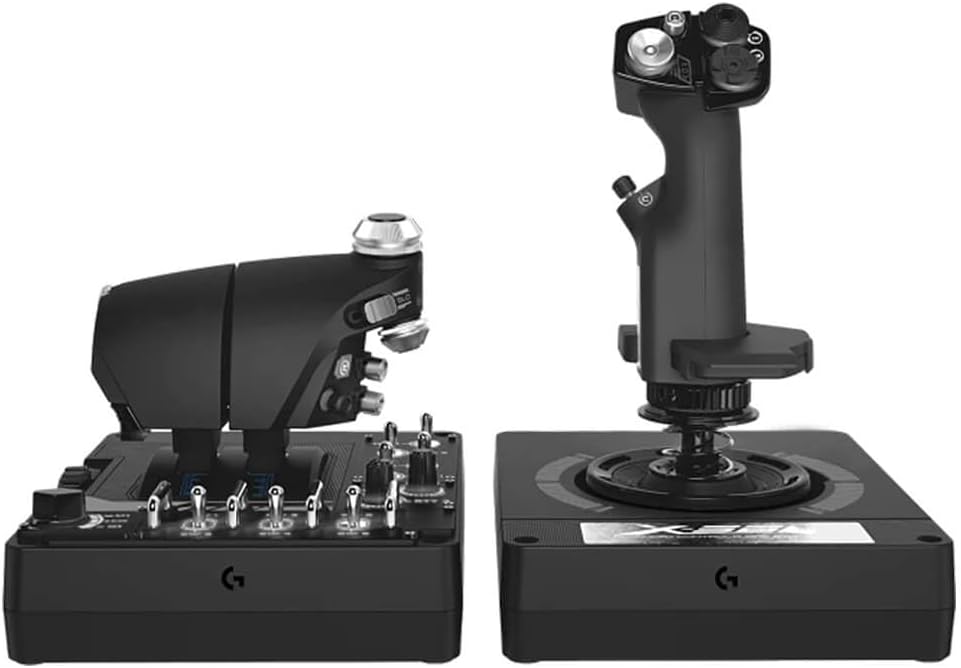
Figure 4: The X56 throttle unit, featuring numerous programmable buttons and switches.
4.3 Programmable Controls and RGB Lighting
The X56 H.O.T.A.S. offers over 189 programmable controls, including buttons, switches, and axes. These can be configured through the dedicated X56 software or directly within your flight simulation games. The RGB backlighting can also be customized via the software to match your gaming setup.
For optimal performance and ease of use, it is generally recommended to map your primary controls and keybinds within the game's settings. The X56 software can be used for more complex macros or profile management.
5. Maintenance
To ensure the longevity and optimal performance of your Logitech G X56 H.O.T.A.S., follow these maintenance guidelines:
- Cleaning: Use a soft, dry cloth to wipe down the surfaces of the joystick and throttle. Avoid using abrasive cleaners or solvents, as they may damage the finish or internal components.
- Dust Prevention: Keep the devices covered when not in use to prevent dust accumulation, especially around the moving parts and button crevices.
- Cable Management: Ensure USB cables are not kinked or under excessive tension to prevent damage.
- Storage: Store the H.O.T.A.S. in a cool, dry place away from direct sunlight and extreme temperatures.
6. Troubleshooting
This section addresses common issues you might encounter with your X56 H.O.T.A.S. controller.
6.1 Device Not Recognized / Functionality Issues
- Driver Installation: The most common cause of issues is incorrect driver installation. Refer to Section 3.2 "Driver Installation (Critical Step)" and ensure you have followed all steps precisely, especially the timing of plugging in the devices during the installation process and restarting your computer.
- USB Ports: Ensure both the joystick and throttle are connected to stable USB 2.0 or higher ports. Avoid unpowered USB hubs. If experiencing "ghost inputs" or erratic behavior, try connecting the throttle directly to a motherboard USB port or a powered USB hub.
- Re-installation: If problems persist, uninstall the X56 drivers and software completely, then perform a clean re-installation following the steps in Section 3.2.
6.2 Throttle Stiffness / Movement Issues
- Friction Adjuster: Use the friction adjuster knob on the throttle unit to set your desired resistance. Turn it counter-clockwise to loosen and clockwise to stiffen. Note that even at the lowest setting, the throttle may feel stiff, which is by design to mimic real aircraft throttles.
- Clicking Sound: If you hear a clicking sound when moving the throttle, try loosening the friction all the way. If the issue persists, ensure the throttle units are properly aligned.
- Independent Movement: If one side of the split throttle moves on its own, ensure the friction is adequately tightened or that the locking mechanism (if used) is engaged.
6.3 Joystick Deadzone / Input Issues
- Calibration: Ensure the joystick is properly calibrated through your operating system's game controller settings.
- Software Settings: Check the X56 software for any deadzone settings that might be applied. Adjust response curves if necessary to fine-tune sensitivity.
- Spring Tension: Experiment with different spring tensions (refer to Section 3.4) to find a feel that minimizes perceived deadzone for your control style.
7. Specifications
| Feature | Detail |
|---|---|
| Brand | Logitech |
| Model Name | X56 |
| Item Model Number | 945-000058 |
| Hardware Platform | PC |
| Operating System | Windows 11, 10, 8.1, 7 |
| Connectivity Technology | USB |
| Controller Type | Joystick |
| Item Weight | 6.92 pounds |
| Product Dimensions (LxWxH) | 7.28 x 8.86 x 10.43 inches |
| Color | Black |
| Batteries | 1 Lithium Ion batteries required (included) |
| Cable Length | 2 meters |
| Aileron/Elevator Axis | 16-bit with Hall-Effect Sensors |
| Programmable Controls | +189 |
8. Warranty and Support
Logitech provides support and warranty services for the X56 H.O.T.A.S. controller.
8.1 Product Warranty
For detailed information regarding the product warranty, please refer to the official Logitech warranty policy available on their website. Keep your proof of purchase for warranty claims.
8.2 Protection Plans
Extended protection plans may be available for your product. These plans offer additional coverage beyond the standard manufacturer's warranty. Examples include:
- 2-Year Protection Plan
- 3-Year Protection Plan
- Complete Protect (monthly subscription)
Please check with your retailer or Logitech's official channels for availability and terms of these protection plans.
8.3 Customer Support
If you encounter issues not covered in this manual or require further assistance, please contact Logitech customer support through their official website. You can also find additional resources, FAQs, and updated drivers on the Logitech support page.
For safety information, you may refer to the official Safety Information PDF provided by the manufacturer: Safety Information (PDF)
Ask a question about this manual
Ask about setup, troubleshooting, compatibility, parts, safety, or missing instructions. Manuals+ will review the question and use this page’s manual context to help answer it.