
Maclean MCE200
Maclean MCE200 OBD2 Bluetooth 4.0 Scanner User Manual
Model: MCE200
Introduction
This manual provides comprehensive instructions for the setup, operation, and maintenance of your Maclean MCE200 OBD2 Bluetooth 4.0 Scanner. The MCE200 is a compact diagnostic tool designed to read and clear vehicle fault codes, providing essential information for vehicle maintenance and troubleshooting. It connects wirelessly via Bluetooth 4.0 to compatible devices running iOS, Android, or Windows operating systems.
The Maclean MCE200 supports standard OBDII/JOBD/EOBD CANBUS protocols, making it compatible with a wide range of vehicles manufactured after 1996 (for European private, off-road, and delivery vehicles) and after 2004 (for European passenger cars, off-road vehicles, and diesel vehicles). It is also compatible with American and Japanese/Asian vehicles manufactured since 1996 that feature an OBD2 diagnostic system.
Product Overview

Figure 1: Front view of the Maclean MCE200 OBD2 Bluetooth 4.0 Scanner, highlighting its 16-pin connector designed to plug into a vehicle's OBD2 port.

Figure 2: The Maclean MCE200 scanner shown alongside its retail packaging, with a hand demonstrating its compact size. The packaging indicates iOS and Android compatibility and Bluetooth 4.0 connectivity.
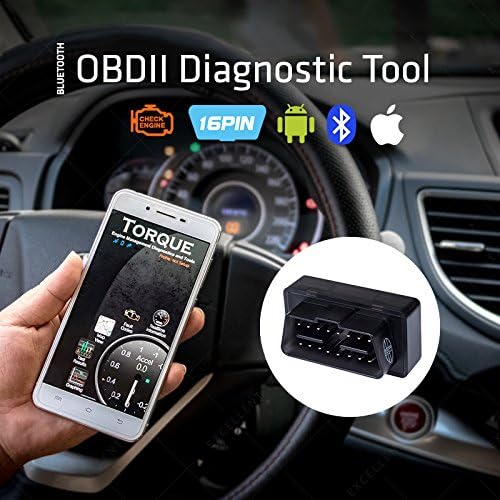
Figure 3: The Maclean MCE200 device plugged into a vehicle's OBD2 port, with a smartphone running a diagnostic application (Torque app) displaying real-time vehicle data. This illustrates the typical usage scenario.
Setup Guide
1. Locate the OBD2 Port
The OBD2 port is typically located under the dashboard on the driver's side of the vehicle. It is usually near the steering column, but its exact location can vary by vehicle model and manufacturer. Consult your vehicle's owner's manual if you have difficulty locating it.
2. Connect the MCE200 Scanner
- Ensure your vehicle's ignition is in the OFF position.
- Carefully plug the Maclean MCE200 scanner into the vehicle's 16-pin OBD2 diagnostic port. Ensure it is firmly seated.
- Once connected, turn the vehicle's ignition to the ON position (do not start the engine unless required by your diagnostic app). The scanner will draw power directly from the OBD2 port, indicated by its internal LEDs (if present).
3. Install Diagnostic Application
The Maclean MCE200 requires a compatible diagnostic application to function. Popular applications include Dashcommand, Opendiag, ScanMaster, and Torque Lite. Download your preferred application from your device's app store (Google Play Store for Android, Apple App Store for iOS, or relevant software repositories for Windows/Mac).
4. Pair with Your Device (Bluetooth)
- For Android/Windows/Mac:
- Go to your device's Bluetooth settings.
- Scan for new devices. The MCE200 should appear as "OBDII" or similar.
- Select the device to pair. If prompted for a PIN, try "1234" or "0000".
- Once paired, open your diagnostic application and select the MCE200 as the connection device within the app's settings.
- For iOS (version 11.3 and above):
No manual Bluetooth pairing is required through iOS settings. Simply open your compatible diagnostic application (e.g., DashCommand, OBD Fusion) and the app will automatically detect and connect to the MCE200 scanner.
Operating Instructions
Once the MCE200 is connected to your vehicle and paired with your device, you can begin using your diagnostic application to access vehicle data.
Reading Diagnostic Trouble Codes (DTCs)
- Ensure the MCE200 is connected and the vehicle ignition is ON.
- Open your chosen diagnostic application.
- Navigate to the "Read Codes" or "DTCs" section within the app.
- The app will scan the vehicle's onboard computer and display any active or pending trouble codes. Each code typically includes a brief description.
Clearing Diagnostic Trouble Codes (DTCs)
Clearing DTCs will turn off the Check Engine Light (CEL) and erase stored diagnostic information. Only clear codes after addressing the underlying issue.
- Ensure the MCE200 is connected and the vehicle ignition is ON (engine OFF).
- Open your diagnostic application.
- Navigate to the "Clear Codes" or "Erase DTCs" section.
- Confirm the action when prompted by the application.
- The Check Engine Light should turn off, and the codes will be cleared.
Viewing Live Data
Most diagnostic applications allow you to view real-time sensor data from your vehicle. This can include engine RPM, vehicle speed, coolant temperature, fuel system status, and more.
- Connect the MCE200 and open your app.
- Select the "Live Data" or "Dashboard" section.
- Choose the parameters you wish to monitor. Data is typically displayed in numerical, gauge, or graph formats.
Maintenance
The Maclean MCE200 scanner is designed for durability and requires minimal maintenance.
- Cleaning: Wipe the device with a soft, dry cloth. Do not use harsh chemicals or abrasive cleaners.
- Storage: Store the scanner in a cool, dry place away from direct sunlight and extreme temperatures when not in use.
- Connector Care: Ensure the 16-pin connector is free of dirt or debris before plugging it into the vehicle. Avoid forcing the connector into the port.
Troubleshooting
| Problem | Possible Cause | Solution |
|---|---|---|
| Device does not power on. | Not properly connected to OBD2 port; Vehicle ignition OFF; Faulty OBD2 port. | Ensure scanner is fully seated. Turn vehicle ignition to ON. Test with another vehicle if possible. |
| Cannot pair via Bluetooth (Android/Windows). | Incorrect PIN; Bluetooth not enabled; Device already paired with another device. | Try PIN "1234" or "0000". Ensure Bluetooth is ON. Disconnect from other devices. |
| App cannot connect to scanner. | Incorrect app settings; Bluetooth connection lost; App compatibility issue. | Verify scanner selection in app settings. Re-establish Bluetooth connection. Try a different compatible app. |
| No data or error reading codes. | Vehicle not OBD2 compliant; Ignition OFF; App not configured for vehicle protocol. | Confirm vehicle is OBD2 compliant (most vehicles after 1996). Ensure ignition is ON. Check app settings for protocol selection. |
Specifications
| Model: | MCE200 |
| Brand: | Maclean |
| Connectivity: | Bluetooth 4.0 |
| Compatible Operating Systems: | iOS, Android, Windows, Mac, Symbian |
| Power Source: | Vehicle OBD2 Port (draws power from vehicle) |
| Dimensions (L x W x H): | 100 x 64 x 26 mm (approx. 2.6 x 6.4 x 10 cm) |
| Weight: | 30 g |
| Supported Protocols: | OBDII / JOBD / EOBD CANBUS |
Compatibility
The Maclean MCE200 is designed to work with vehicles equipped with an OBD2 diagnostic system. This generally includes:
- European Passenger Cars, Off-road Vehicles, and Diesel Vehicles: Manufactured after 2004.
- European Private, Off-road, and Delivery Vehicles: Manufactured since 1996.
- American Private, Off-road, and Delivery Vehicles: Manufactured since 1996.
- Japanese and Asian Passenger, Off-road, and Commercial Vehicles: Manufactured since 1996.
Note: Compatibility may vary based on specific vehicle models and regional regulations. Always consult your vehicle's manual to confirm OBD2 compliance.
Warranty and Support
For warranty information and technical support, please refer to the official Maclean website or contact your point of purchase. Keep your proof of purchase for any warranty claims.
Manufacturer: Maclean
Date First Available: 14 February 2018
Ask a question about this manual
Ask about setup, troubleshooting, compatibility, parts, safety, or missing instructions. Manuals+ will review the question and use this page’s manual context to help answer it.