
1. Introduction
The TP-Link M7200 4G LTE Mobile Wi-Fi device provides portable internet access, allowing you to share a high-speed 4G connection with multiple devices simultaneously. Its compact design and long-lasting battery make it ideal for on-the-go connectivity. This manual provides essential information for setting up, operating, maintaining, and troubleshooting your M7200 device.

Figure 1: TP-Link M7200 4G LTE Mobile Wi-Fi device.
2. Setup
Follow these steps to get your TP-Link M7200 device ready for use:
- Insert SIM Card: Remove the back cover and battery. Insert a standard SIM card into the designated slot. Ensure the SIM card is correctly oriented.
- Install Battery: Place the 2000 mAh battery into its compartment and replace the back cover.
- Power On: Press and hold the power button until the indicators light up. The device will automatically connect to the 4G network.
- Connect Devices: On your Wi-Fi enabled device (phone, tablet, laptop), search for the Wi-Fi network name (SSID) printed on the inside of the M7200's battery cover. Enter the Wi-Fi password (PIN) also found on the label.

Figure 2: Visual guide for SIM card and battery installation.
For a visual guide on setting up your device, please refer to the official product video below:
Video 1: A Closer Look at the TP-Link M7200, demonstrating its portable design and ease of setup.
3. Operating the Device
The M7200 is designed for simple operation:
- Internet Sharing: The device can share internet access with up to 10 devices simultaneously, including smartphones, tablets, and laptops.
- Battery Life: The 2000 mAh battery provides approximately 8 hours of usage on a full charge.
- LED Indicators: The device features LED indicators for Wi-Fi status, network signal strength, and battery level. Refer to the device's quick start guide for detailed indicator meanings.
- Mobile App Management: Download the tpMiFi App from your device's app store for easy management. The app allows you to establish data limits, send messages, control connected devices, and check battery usage.

Figure 3: The TP-Link M7200 supports high-speed 4G connection for up to 10 devices.
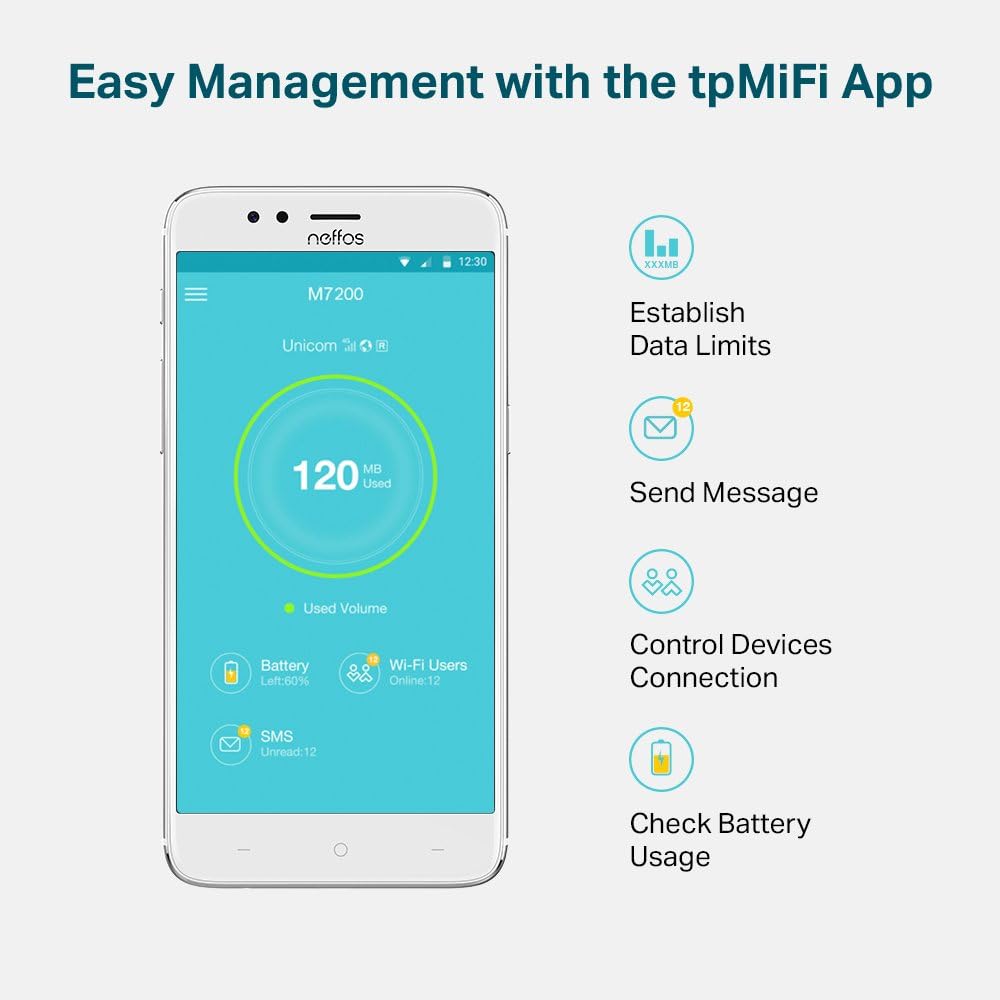
Figure 4: Manage your M7200 easily with the tpMiFi App.
4. Maintenance
To ensure the longevity and optimal performance of your TP-Link M7200, consider the following maintenance tips:
- Cleaning: Use a soft, dry cloth to clean the device. Avoid liquid cleaners or abrasive materials.
- Storage: Store the device in a cool, dry place away from direct sunlight and extreme temperatures.
- Battery Care: To prolong battery life, avoid fully discharging the battery frequently. If storing for an extended period, charge the battery to about 50% and remove it from the device.
- Software Updates: Periodically check for firmware updates via the tpMiFi App or TP-Link's official website to ensure the device has the latest features and security enhancements.
5. Troubleshooting
If you encounter issues with your M7200, try the following troubleshooting steps:
- No Internet Connection:
- Ensure your SIM card is active and has a data plan.
- Check the signal strength indicator on the device. If the signal is weak, try moving to an area with better network coverage.
- Restart the M7200 device.
- Verify that the APN settings are correct via the tpMiFi App or web management interface.
- Battery Drains Quickly:
- The 2000 mAh battery is designed for approximately 8 hours of usage. Heavy usage (e.g., streaming, multiple connected devices) can reduce battery life.
- Ensure the device is fully charged before use.
- If the device is overheating, this can also affect battery performance. Ensure it is in a well-ventilated area.
- Device Overheating:
- Avoid placing the device in direct sunlight or enclosed spaces.
- If the device feels excessively hot, power it off and allow it to cool down before resuming use.
- Difficulty Connecting to Wi-Fi:
- Ensure your connecting device is within the Wi-Fi range of the M7200.
- Double-check the Wi-Fi password.
- Try restarting both the M7200 and the device you are trying to connect.
6. Specifications
Key technical specifications for the TP-Link M7200:
| Brand | TP-Link |
| Model Number | M7200 |
| Product Dimensions | 9.4 x 5.67 x 1.98 cm |
| Item Weight | 49.9 g |
| Battery Capacity | 2000 mAh |
| Usage Time | Up to 8 hours |
| Connectivity Type | 4G, Wi-Fi |
| Wireless Type | 802.11a/b/g/n/ac |
| Supported Devices | Up to 10 devices simultaneously |
| SIM Card Slot | 1 standard SIM card slot |
| Interface | 1 Micro USB port |

Figure 5: Physical dimensions of the TP-Link M7200.

Figure 6: Comprehensive technical specifications for the M7200.
7. Warranty and Support
For information regarding warranty coverage, technical support, and additional resources, please refer to the official TP-Link website or contact their customer service. Keep your purchase receipt for warranty claims.
You can find more information and support at the official TP-Link store: TP-Link Store on Amazon.


