
Product Overview
The Sharkoon V1000 is a versatile Micro ATX PC case designed for various computing needs, from demanding office setups to compact multimedia stations or gaming PCs. Despite its compact dimensions of 17.7 x 7.6 x 15.8 inches, it offers ample space for components typically found in larger ATX cases. Key features include a dedicated power supply tunnel for discreet installation and improved airflow, a wireless front panel design, and removable dust filters for easy maintenance.
Key Features:
- Power supply tunnel for clean cable management and improved thermal performance.
- Wireless front panel design for easy access and maintenance.
- Removable dust filter for convenient cleaning and system longevity.
- Decoupled power supply pad to reduce vibrations and noise.
- Variable fan configuration options for optimized cooling.
- Support for a radiator in the front panel for advanced cooling solutions.

Figure 1: Angled front view of the Sharkoon V1000 PC Case, showcasing its sleek black design and mesh front panel.
Setup and Installation
This section provides general guidelines for setting up your Sharkoon V1000 PC case and installing essential components. Always refer to your component manuals for specific installation instructions.
1. Preparing the Case
- Unpacking: Carefully remove the case from its packaging. Inspect for any shipping damage.
- Accessing the Interior: Remove the side panels. Typically, this involves unscrewing thumbscrews at the rear of the case and sliding the panels backward.

Figure 2: Interior view of the Sharkoon V1000, showing the motherboard tray, drive bays, and power supply tunnel.
2. Power Supply Installation
The V1000 features a dedicated power supply tunnel at the bottom for a clean build.
- Position the power supply unit (PSU) into the tunnel from the rear of the case.
- Secure the PSU with screws from the rear of the case.
- Route necessary cables through the cutouts in the tunnel for connection to components.
3. Motherboard Installation
The V1000 supports mATX motherboards.
- Install the I/O shield into the rear opening of the case.
- Align the motherboard with the pre-installed standoffs. Ensure all screw holes align.
- Secure the motherboard with the provided screws.

Figure 3: Rear view of the Sharkoon V1000, showing the I/O shield cutout, expansion slots, and power supply mounting area.
4. Drive Installation
Install your storage drives (HDDs/SSDs) into the designated bays. Refer to the case's internal structure for specific bay locations and mounting mechanisms.
5. Front Panel Connections
Connect the front panel cables (USB, audio, power/reset switches, LEDs) to the appropriate headers on your motherboard. Consult your motherboard manual for header locations.

Figure 4: Top-front angled view of the Sharkoon V1000, highlighting the front I/O panel with USB ports and audio jacks.
Operating Your PC Case
Once all components are installed and connected, you can begin using your PC. The Sharkoon V1000 is designed for optimal airflow and user convenience.
Powering On
Press the power button located on the top front panel of the case to turn on your system. The power LED will illuminate.

Figure 5: Front view of the Sharkoon V1000, showing the mesh front panel and the top-mounted power button and I/O ports.
Fan Configuration
The V1000 offers variable fan configuration. Ensure fans are installed to create positive or negative pressure as desired for optimal cooling. The case supports 120mm fans.
Maintenance
Regular maintenance helps ensure the longevity and optimal performance of your PC components.
Dust Filter Cleaning
The Sharkoon V1000 features removable dust filters. It is recommended to clean these filters every 1-3 months, depending on your environment, to maintain good airflow and prevent dust buildup inside the case.
- Locate and carefully remove the dust filters (e.g., front, top, bottom).
- Clean the filters using compressed air, a soft brush, or by rinsing with water (ensure they are completely dry before reinstallation).
- Reinstall the clean dust filters.
General Cleaning
Wipe the exterior of the case with a soft, damp cloth. Avoid abrasive cleaners or solvents.
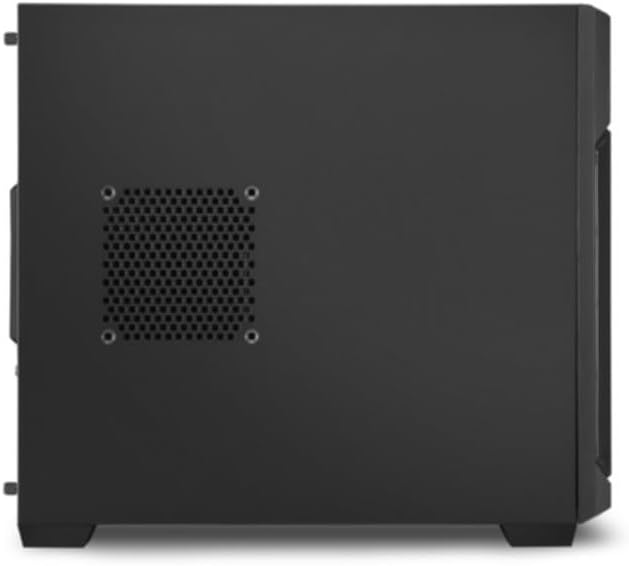
Figure 6: Side view of the Sharkoon V1000, showing the ventilation cutouts which may have associated dust filters.
Troubleshooting
This section addresses common issues you might encounter with your PC case.
No Power / System Not Starting
- Ensure the power supply unit (PSU) is properly connected to the wall outlet and the power switch on the PSU is in the 'ON' position.
- Verify that the front panel power button cable is correctly connected to the motherboard's power header.
- Check all internal power connections (24-pin ATX, CPU power, GPU power) are securely seated.
Excessive Noise
- Inspect all fans (CPU, GPU, case fans) for obstructions or loose mounting.
- Ensure cables are not interfering with fan blades.
- Check if the power supply is securely mounted and its pad is properly decoupled.
Overheating
- Clean all dust filters and internal components to improve airflow.
- Verify that case fans are installed in the correct orientation (intake/exhaust) to create proper airflow.
- Ensure CPU cooler and GPU cooler are properly seated and functioning.
Specifications
Detailed specifications for the Sharkoon V1000 PC Case.
| Feature | Detail |
|---|---|
| Brand | Sharkoon |
| Manufacturer | Sharkoon Technologies GmbH |
| Series | V1000 |
| Colour | Black |
| Form Factor | mATX |
| Item Height | 40.2 centimetres |
| Item Width | 19.5 centimetres |
| Product Dimensions | 45 x 19.5 x 40.2 cm; 4 kg |
| Number of USB 2.0 Ports | 2 |
| Number of USB 3.0 Ports | 1 |
| Motherboard Compatibility | mATX |
| Case Type | Midi Tower |
| Power Supply Mounting Type | Rear Mount |
| Cooling Method | Air |
| Fan Size Supported | 120 Millimetres |
Warranty and Support
For warranty information and technical support regarding your Sharkoon V1000 PC Case, please refer to the official Sharkoon website or contact Sharkoon Technologies GmbH directly.
Manufacturer: Sharkoon Technologies GmbH
Please retain your proof of purchase for warranty claims.


