
1. Introduction
This manual provides instructions for the installation, operation, and maintenance of the Fortinet FortiSwitch FS-108E-FPOE. The FS-108E-FPOE is a manageable Ethernet switch designed for network environments requiring reliable connectivity and Power over Ethernet (PoE) capabilities. It features 8 Gigabit Ethernet network ports and 2 Gigabit Ethernet expansion slots, supporting both twisted pair and optical fiber connections. This device is compliant with IEEE 802.3af/802.3at PoE standards, providing power to connected devices.
2. Safety Information
Please read all safety instructions carefully before installing or operating the FortiSwitch FS-108E-FPOE.
- Power Source: Use only the power adapter supplied with the device or a Fortinet-approved replacement. Ensure the power source meets the device's voltage and current requirements.
- Ventilation: Ensure proper ventilation around the switch. Do not block ventilation openings. Maintain adequate clearance for airflow.
- Environment: Install the switch in a dry, well-ventilated area, away from direct sunlight, heat sources, and excessive moisture. The device has an IP00 rating, meaning it is not protected against ingress of solids or liquids.
- Mounting: If rack-mounting, ensure the rack is stable and can support the device's weight. Follow standard rack-mounting procedures.
- Servicing: Do not attempt to service the device yourself. Refer all servicing to qualified personnel.
3. Package Contents
Verify that your package contains the following items:
- FortiSwitch FS-108E-FPOE unit
- Power Adapter/Cable (region specific)
- Rack-mount kit (if applicable)
- Quick Start Guide
If any items are missing or damaged, please contact your vendor or Fortinet support.
4. Physical Description
The FortiSwitch FS-108E-FPOE features a robust metal casing designed for durability and efficient heat dissipation. Below is an image of the device, highlighting its key components.
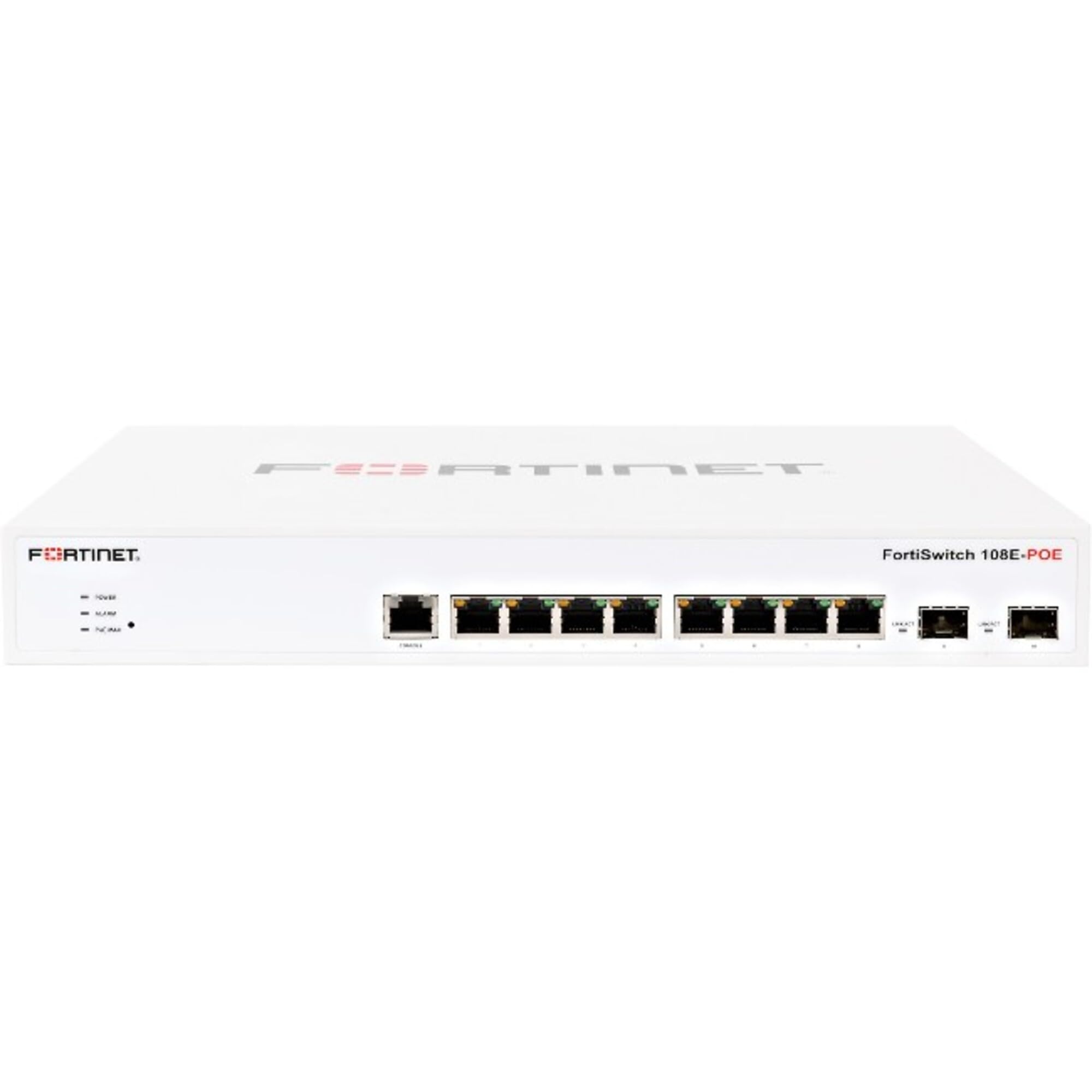
Figure 4.1: Front view of the Fortinet FortiSwitch FS-108E-FPOE. This image shows the network ports, including 8 Gigabit Ethernet ports and 2 Gigabit Ethernet expansion slots, along with status indicator LEDs. The device is housed in a metal chassis.
4.1 Front Panel
- Ethernet Ports (1-8): 8 x Gigabit Ethernet ports, supporting PoE (IEEE 802.3af/at). These ports are used for connecting network devices such as computers, IP phones, and wireless access points.
- SFP/Expansion Slots (9-10): 2 x Gigabit Ethernet expansion slots, typically used for SFP modules to provide optical fiber uplinks or additional copper connections.
- LED Indicators: Various LEDs indicate power status, system activity, and port link/activity/PoE status. Refer to the Quick Start Guide for detailed LED behavior.
4.2 Rear Panel
- Power Input: Connector for the external power adapter.
- Console Port (RJ45): Used for local management and initial configuration via a serial connection.
- Grounding Screw: For connecting an earth ground cable (recommended for safety).
5. Setup
5.1 Rack Mounting (Optional)
If your FortiSwitch came with a rack-mount kit, follow these steps to install it in a standard 19-inch equipment rack:
- Attach the rack-mount brackets to the sides of the FortiSwitch using the provided screws.
- Secure the FortiSwitch into the rack using appropriate rack screws.
- Ensure there is adequate space for ventilation around the unit.
5.2 Connecting Power
- Connect the power adapter to the power input on the rear panel of the FortiSwitch.
- Plug the other end of the power adapter into a suitable electrical outlet.
- The FortiSwitch will power on automatically. Observe the power LED indicator.
5.3 Network Connections
- Connect your network devices (e.g., computers, servers, access points) to the Gigabit Ethernet ports (1-8) using standard RJ45 Ethernet cables.
- For uplink connections to your core network or other switches, use the SFP/Expansion Slots (9-10) with appropriate SFP modules and fiber optic or copper cables.
- If connecting PoE-compatible devices, ensure they are within the switch's PoE budget (130 watts total).
5.4 Initial Configuration
The FortiSwitch FS-108E-FPOE is a manageable switch. Initial configuration can typically be performed via:
- Console Port: Connect a serial cable from your computer to the switch's console port. Use a terminal emulator (e.g., PuTTY) with settings: 9600 baud, 8 data bits, no parity, 1 stop bit, no flow control.
- Web-based Management: Once the switch obtains an IP address (via DHCP or static configuration), you can access its web-based management interface from a web browser. Refer to the Quick Start Guide for default IP addresses or discovery methods.
- FortiGate Integration: For seamless management, the FortiSwitch can be integrated and managed directly from a FortiGate firewall.
6. Operating
Once powered on and configured, the FortiSwitch FS-108E-FPOE operates automatically to forward network traffic. Management tasks involve monitoring status, configuring VLANs, QoS, security policies, and PoE settings.
- Monitoring: Use the web interface or CLI to monitor port status, traffic statistics, and PoE consumption.
- Configuration: Access the management interface to customize network settings, create VLANs for network segmentation, configure Quality of Service (QoS) for traffic prioritization, and manage PoE power allocation per port.
- PoE Functionality: The switch automatically detects and powers IEEE 802.3af/at compliant devices connected to its PoE ports. You can configure PoE settings, such as power priority and maximum power per port, through the management interface.
7. Maintenance
7.1 Firmware Updates
Regularly check the Fortinet support website for the latest firmware updates. Updating the firmware ensures optimal performance, security, and access to new features. Follow the instructions provided with the firmware release notes for the update process, typically performed via the web management interface or CLI.
7.2 Cleaning
To clean the exterior of the switch, use a soft, dry cloth. Do not use liquid or aerosol cleaners, as they may damage the device. Ensure ventilation openings are free from dust and obstructions.
7.3 Backup Configuration
It is recommended to regularly back up your switch's configuration. This allows for quick restoration of settings in case of a device reset or replacement. Configuration backups can typically be performed through the web management interface or CLI.
8. Troubleshooting
This section provides solutions to common issues you might encounter with your FortiSwitch FS-108E-FPOE.
| Problem | Possible Cause | Solution |
|---|---|---|
| No Power | Power cable disconnected; faulty power adapter; power outlet issue. | Check power cable connections. Ensure power adapter is functional. Test the power outlet. |
| No Link on Port | Incorrect cable type; faulty cable; device not powered on; port disabled. | Verify cable type (RJ45 for Ethernet, SFP for expansion slots). Test with a known good cable. Ensure connected device is powered on. Check port status in management interface. |
| PoE Device Not Powering On | Device not PoE compliant; cable issue; switch PoE budget exceeded; port PoE disabled. | Ensure device is IEEE 802.3af/at compliant. Check cable. Verify total PoE consumption. Enable PoE on the specific port via management interface. |
| Cannot Access Management Interface | Incorrect IP address; network connectivity issue; firewall blocking access. | Verify the switch's IP address. Ensure your computer is on the same network segment. Check local firewall settings. Try console access. |
For further assistance, refer to the Fortinet support website or contact technical support.
9. Specifications
| Feature | Description |
|---|---|
| Model | FS-108E-FPOE |
| Brand | FORTINET |
| Ports | 8 x Gigabit Ethernet Network, 2 x Gigabit Ethernet Expansion Slot (SFP) |
| Connectivity Protocol | Ethernet |
| PoE Compliance | IEEE 802.3af/802.3at |
| Total PoE Wattage | 130 watts |
| Management | Manageable (Web-based GUI, CLI, FortiGate integration) |
| Mounting Type | Rack Mount |
| Material | Metal |
| International Protection Rating | IP00 |
10. Warranty and Support
Fortinet products typically come with a limited hardware warranty and technical support. For detailed warranty information, including terms and conditions, please refer to the official Fortinet website or the warranty card included with your product.
Technical Support: For technical assistance, product documentation, firmware downloads, and knowledge base articles, visit the official Fortinet support portal: https://support.fortinet.com
When contacting support, please have your product model (FS-108E-FPOE) and serial number ready.


